Freedom251 › Game Graphics Optimization Software

FrameCoach
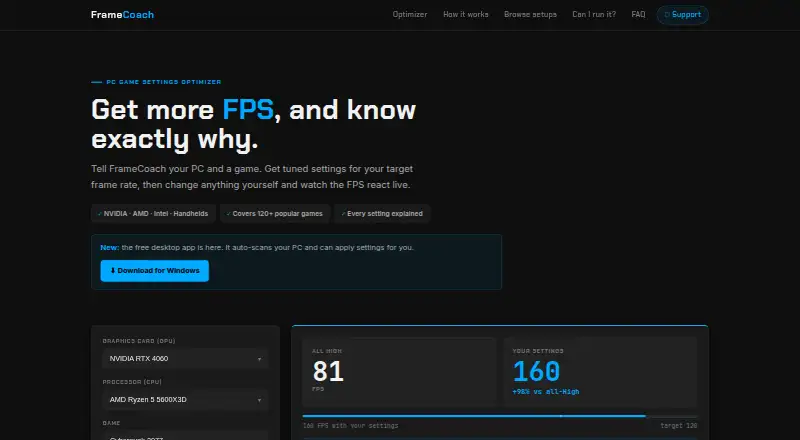
What FrameCoach is
FrameCoach is a free game-settings optimizer for web and Windows. Enter a GPU, CPU, game and target frame rate to get graphics recommendations and estimates of each setting’s effect on FPS. You can edit those recommendations and see the estimated FPS change live. The web optimizer covers 160+ GPUs, 250+ CPUs and 180+ games, including Steam Deck, and says it supports NVIDIA, AMD, Intel and handhelds. Its FPS estimates come from a generalized model, not live benchmarks, so results can vary with the scene, drivers and game version. The free Windows app scans hardware and offers recommendations for 180+ games while running offline on the PC. Its beta can apply settings to supported Unreal Engine games while they are closed, backs up the configuration first and offers one-click undo. The app requires 64-bit Windows 10/11, is about 80 MB and requires no account. The maker says hardware information stays on the PC and the app uploads nothing; the web optimizer also needs no account, though its privacy policy describes analytics, optional submissions and advertising cookies.
Who it suits
It suits players who want recommendations tailored to their hardware, game and target frame rate. Windows users can also use the offline app to scan hardware and, for supported Unreal Engine games, apply settings with a backup and undo option.
What it does well
- Free plan includes the optimizer, guides and Windows app.
- Recommendations cover 180+ games in the desktop app.
- Users can edit settings and see FPS estimates update live.
- Beta app backs up supported game configs before applying settings.
What to know first
- FPS estimates are generalized, not live benchmarks.
- Desktop app requires 64-bit Windows 10/11.
- Web privacy policy describes analytics and advertising cookies.
Plans
| Plan | Billed and limits | Price |
|---|---|---|
| Free | Optimizer, settings guides and Windows desktop app | Free |
As theframecoach.com lists them, read 3 Oct 2026. The maker's own page has the final word.
Getting started
- Open the FrameCoach website to use the web optimizer.
- Choose the Windows desktop app if you want offline recommendations.
- For the desktop app, use a 64-bit Windows 10/11 PC.
- Use the optimizer to select your hardware, game, and target frame rate.
- Adjust recommendations to see the estimated FPS update.
Overview
FrameCoach recommends game graphics settings for a chosen GPU, CPU, game and target frame rate, with an estimated FPS impact for each setting. It suits players who want a free starting point for tuning across a broad range of hardware and games. Its editable recommendations are useful, but their FPS figures are estimates rather than benchmark results.
Key features
The web optimizer covers 160+ GPUs, 250+ CPUs and 180+ games, including Steam Deck, and says it supports NVIDIA, AMD, Intel and handhelds. Users can change the recommended settings and see the estimated FPS update live. That makes it practical for comparing trade-offs against a target frame rate, though a generalized model cannot account precisely for every scene, driver or game version.
The free Windows app scans the PC's hardware and recommends settings for 180+ games. It runs offline, needs no account, and the download page gives Windows 10/11, 64-bit and an approximately 80 MB download as requirements. FrameCoach says hardware information stays on the PC and the app uploads nothing.
A beta feature can apply settings to supported Unreal Engine games while they are closed. It backs up the configuration first and offers one-click undo, a useful safeguard for supported games; the feature is not a general-purpose settings changer for every title.
The web optimizer requires no account. Its privacy policy describes analytics, optional user submissions and advertising cookies, and names Vercel, Supabase, Google Analytics and Google AdSense among its integrations. Support is available by email, through the FAQ, or for bugs and game requests via the optimizer or GitHub.
Pricing
FrameCoach is free: the Free plan costs nothing and includes the optimizer, settings guides and Windows desktop app. There is no free trial because there is no paid plan to trial. The app's offline operation and the optimizer's no-account access make it an accessible option for players who want recommendations without a subscription.
The trade-off is that cloud profile sync is not included. Players who need settings synchronized across devices will need another approach; those who want locally scanned hardware recommendations and editable, model-based estimates get the core offering at no cost.
Platforms
FrameCoach supports web and Windows. Use the web optimizer for browser-based recommendations; choose the Windows app for offline hardware scanning and recommendations. The Windows download is 64-bit for Windows 10/11.
Who it's for
FrameCoach is a good fit for players who want a free settings baseline across different PC components, including Intel, AMD and NVIDIA hardware, or handhelds such as Steam Deck. It is less suitable for anyone who needs measured, scene-specific FPS predictions, cloud sync, or broad automatic application of settings beyond the supported Unreal Engine beta.
Pros and cons
- Pro: Recommendations span 160+ GPUs, 250+ CPUs and 180+ games, giving players with varied hardware a wide starting point.
- Pro: Editable settings update estimated FPS live, so users can compare configurations against a target frame rate.
- Pro: The Windows app works offline, requires no account and says it uploads no hardware information.
- Con: FPS figures come from a generalized model, so actual results can differ with scenes, drivers and game versions.
- Con: Cloud profile sync is absent, and applying settings is limited to supported Unreal Engine games in beta.
Alternatives
Compare game graphics optimization software if you want to weigh FrameCoach against other tools. Choose GameShift for a free Windows alternative. Gaming Optimizer is another free Windows option, with a public repository under an MIT license if open-source software matters to you.
Intel VTune Profiler is a free option for Windows or Linux, available standalone or through Intel oneAPI Toolkit, with commercial and non-commercial use permitted. NVIDIA ShadowPlay is a free Windows option for users with a supported GPU and GeForce 551.52 driver or later.
PC Game Booster has a free plan and trial, with basic game optimizations and automatic boosting on launch. PULSE offers a free Windows plan with real-time CPU, GPU and RAM monitoring and FPS and frametime via RTSS. Smart Game Booster has a free Windows plan with core features and basic manual system boosting.
Verdict
Choose FrameCoach if you want free, broad game-settings recommendations, live recalculation as you edit, and an offline Windows app that does not upload hardware information. Its main limitation is that FPS estimates are model-based, not live benchmarks; look elsewhere if you need measured performance predictions, cloud sync or settings application across a wider range of games.
Verdict
FrameCoach offers free recommendations on web and Windows, with broad stated hardware and game coverage. Treat its FPS figures as estimates, since they are model-based and may vary by scene, drivers or game version.
Questions
How much does FrameCoach cost?
The Free plan costs nothing and includes the optimizer, settings guides, and Windows desktop app.
Is there a free plan or trial?
Yes, FrameCoach has a free plan. There is no free trial.
Which platforms does it support?
FrameCoach lists Windows and web as supported platforms. The web optimizer also says it supports handhelds, including Steam Deck.
Does FrameCoach need an account?
The download page says the Windows app does not require an account, and the web optimizer also requires no account.
Are its FPS figures live benchmark results?
No. The estimates come from a generalized model and may vary with the scene, drivers, or game version.
Who makes FrameCoach?
The support page describes FrameCoach as a free project built by one person.
Facts from FrameCoach's own pages
- Applying settings
- The beta app can apply settings to supported Unreal Engine games while the game is closed, backs up the config first and provides one-click undo. · theframecoach.com, 3 Oct 2026
- Cross-vendor support
- FrameCoach says it supports NVIDIA, AMD, Intel and handhelds. · theframecoach.com, 3 Oct 2026
- Desktop app
- The free Windows app scans hardware and offers settings recommendations for 180+ games; it runs offline on the PC. · theframecoach.com, 3 Oct 2026
- Desktop requirements
- The download page lists Windows 10/11, 64-bit, an approximately 80 MB download and no account requirement. · theframecoach.com, 3 Oct 2026
- FPS estimate limits
- FPS figures come from a generalized model rather than live benchmarks and may vary with the scene, drivers and game version. · theframecoach.com, 3 Oct 2026
- Hardware and game coverage
- The site says its optimizer covers 160+ GPUs, 250+ CPUs and 180+ games, including the Steam Deck. · theframecoach.com, 3 Oct 2026
- Maker
- The support page describes FrameCoach as a free project built by one person. · theframecoach.com, 3 Oct 2026
- Security and privacy
- The download page says desktop hardware information stays on the PC and the app uploads nothing. · theframecoach.com, 3 Oct 2026
- Settings controls
- Users can edit recommendations and see the estimated FPS update live. · theframecoach.com, 3 Oct 2026
- Support
- Users can contact the maker by email, send questions through the FAQ page, or report bugs and request games through the optimizer or GitHub. · theframecoach.com, 3 Oct 2026
- Web integrations
- The privacy policy names Vercel for hosting and cookieless analytics, Supabase for form submissions, Google Analytics for usage analytics and Google AdSense for ads. · theframecoach.com, 3 Oct 2026
- Web privacy
- The privacy policy says the optimizer requires no account and describes analytics, optional user submissions and advertising cookies. · theframecoach.com, 3 Oct 2026
- What it does
- FrameCoach recommends game graphics settings based on a user's GPU, CPU, game and target frame rate, and explains each setting's estimated FPS impact. · theframecoach.com, 3 Oct 2026
Where FrameCoach stands on Freedom251
- Game Graphics Optimization Software#3 of 34
- Graphics optimisers#7 of 35