Some links on this page are affiliate links: if you buy through them we may earn a commission, at no extra cost to you.
YouTube TV has added three new Hallmark channels, and that usually means the channels will appear in your live guide and be available for streaming and DVR recording. The exact rollout timing can vary by location and device, so the first thing to do is confirm they’re in your guide.
This guide shows you how to locate the new Hallmark channels, what to expect during lineup updates, and what to troubleshoot if they don’t show up right away.
As an Amazon Associate I earn from qualifying purchases.
What YouTube TV is adding
When YouTube TV adds new channels, they’re typically added to your account’s lineup and then become searchable across the YouTube TV interface. You should expect three new Hallmark-branded channels to appear in the live TV guide under the Hallmark grouping (or near similar channel names).
What you’ll be able to do once they’re live in your lineup: watch the channels in real time, use the channel guide to browse schedules, and record shows with YouTube TV DVR (subject to standard DVR rules).
Popular on Amazon

- HD streaming made simple: With America’s number 1 TV streaming platform,* exploring popular apps—plus tons of free movies, shows, and live TV—is as easy as it is fun. *Based on hours streamed—Hypothesis Group
- Compact without compromises: The sleek design of Roku Streaming Stick won’t block neighboring HDMI ports, and it even powers from your TV alone, plugging into the back and staying out of sight. No wall outlet, no extra cords, no clutter.
- No more juggling remotes: Power up your TV, adjust the volume, and control your Roku device with one remote. Use your voice to quickly search, play entertainment, and more.
- Shows on the go: Take your TV to-go when traveling—without needing to log into someone else’s device.
- TV, simplified: With setup that only takes minutes, a simple-to-navigate Home Screen, and an uncluttered remote control that does all you need—Roku makes it easier to watch the TV you love.
How to find the new Hallmark channels in YouTube TV
Use the method that matches your primary viewing device. YouTube TV’s UI is similar across platforms, but the exact button labels can differ.
On the YouTube TV app (TVs/streaming boxes)
Open the YouTube TV app on your TV, then check the live guide or search by channel name.
What’s actually slowing this PC down?
Pick the symptom - the matching free tool is one click away.
- Launch the YouTube TV app.
- Select Live (or Live TV).
- Scroll through the channel guide and look for the Hallmark channels.
- If you don’t see them quickly, choose Search and type the channel name (e.g., Hallmark).
On iPhone and iPad (iOS)
On iOS, channel search is often the fastest way to confirm the update.
- Open the YouTube TV app.
- Tap Search.
- Type Hallmark (or the full channel name if you know it).
- Select the channel entry to open the live stream or view the schedule.
On Android
Android uses the same search-first workflow when the guide doesn’t show the new lineup instantly.
Also popular on Amazon

- Ultra-speedy streaming: Roku Ultra is 30% faster than any other Roku player, delivering a lightning-fast interface and apps that launch in a snap.
- Cinematic streaming: This TV streaming device brings the movie theater to your living room with spectacular 4K, HDR10+, and Dolby Vision picture alongside immersive Dolby Atmos audio.
- The ultimate Roku remote: The rechargeable Roku Voice Remote Pro offers backlit buttons, hands-free voice controls, and a lost remote finder.
- No more fumbling in the dark: See what you’re pressing with backlit buttons.
- Say goodbye to batteries: Keep your remote powered for months on a single charge.
- Open the YouTube TV app.
- Tap Search.
- Enter Hallmark.
- Select the channel to confirm it appears in your lineup.
On a Mac or PC (web player)
If you mainly watch on a computer, the web interface can confirm whether your account has the channels.
- Go to tv.youtube.com.
- Sign in to the same Google account you use for YouTube TV.
- Use the search bar and type Hallmark.
- Open the channel result to verify it’s available.
Channel lineup timing: why it may not show immediately
Channel updates can roll out in phases. Even after an announcement, your guide might update later due to regional packaging, account processing, or device caching.
If you don’t see the channels within a short window, it doesn’t necessarily mean something is wrong—refreshing your session or updating the app usually resolves it.
Prerequisites and checks before you troubleshoot
Before you start troubleshooting, confirm the basics. Many “missing channel” issues are actually account or app-state problems.
Also popular on Amazon
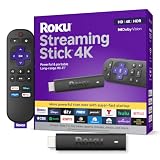
- Stunning 4K and Dolby Vision streaming made simple: With America’s number 1 TV streaming platform,* exploring popular apps—plus tons of free movies, shows, and live TV—is as easy as it is fun. *Based on hours streamed—Hypothesis Group
- Breathtaking picture quality: Stunningly sharp 4K picture brings out rich detail in your entertainment with four times the resolution of HD. Watch as colors pop off your screen and enjoy lifelike clarity with Dolby Vision and HDR10+.
- Seamless streaming for any room: With Roku Streaming Stick 4K, watch your favorite entertainment on any TV in the house, even in rooms farther from your router thanks to the long-range Wi-Fi receiver.
- Shows on the go: Take your TV to-go when traveling—without needing to log into someone else’s device.
- Compact without compromises: Our sleek design won’t block neighboring HDMI ports, so you can switch from streaming to gaming with ease. Plus, it’s designed to stay hidden behind your TV, keeping wires neatly out of sight
- Correct account: Make sure you’re signed into the same Google account that has the YouTube TV subscription.
- Current app version: Update the YouTube TV app on iOS, Android, or your TV platform if updates are available.
- Location/region: Your channel lineup can depend on your service area. If you recently moved, lineup changes may take time.
- Stable connection: A weak connection can prevent guide data from loading.
What to do if the Hallmark channels don’t appear
If the new Hallmark channels aren’t in your guide or search results, follow a quick, reliable checklist. Work top-to-bottom and retest after each major change.
Step-by-step troubleshooting checklist
- Force a fresh guide load: Close the app completely, then reopen it and return to Live.
- Restart your device: Reboot your TV/streaming device, phone, or computer.
- Sign out and back in: On mobile or web, sign out, then sign back in to refresh account entitlement.
- Update the YouTube TV app: Check the App Store/Google Play and install the latest version.
- Update your streaming platform: If you’re on a smart TV, update the TV OS and the YouTube TV app together when possible.
- Check on a second device: For example, verify on web (tv.youtube.com). If it shows on web but not on TV, the issue is likely device/app caching.
- Try a different network: Switch from Wi‑Fi to mobile data (or vice versa) to rule out routing issues.
- Clear cache (Android only): If the app is available to clear cache in Settings, do so and reopen the app.
- Recheck after a delay: If lineup updates are rolling, wait several hours and check again.
If you still can’t find the channels, contact YouTube TV support with your device type, approximate time you first checked, and whether the channels appear on web.
Free tools Windows power users keep installed
One-click scans. No signup required.
How to record and manage these channels
Once the channels appear, you can record Hallmark programming using YouTube TV DVR. Recording availability and rules follow your plan’s DVR settings.
Set up recordings
- Open the YouTube TV app and go to Live.
- Find the Hallmark channel in the guide.
- Select a show and choose Record (or the on-screen equivalent).
- Confirm the recording schedule if prompted.
Manage storage and recording conflicts
- Conflicts: If a recording overlaps with another show you already scheduled, you may need to resolve it.
- Storage: If your DVR space is full, older recordings may need to be deleted to make room.
- Series recordings: For recurring programs, make sure you set the correct series or episode scope.
Comparisons: YouTube TV vs. other Hallmark viewing options
Different services offer different combinations of live TV, DVR, on-demand libraries, and apps. YouTube TV specifically is a live TV + DVR experience, so it’s strong when you want schedules and recordings from multiple networks in one place.
Also popular on Amazon

- Advanced 4K streaming - Elevate your entertainment with the next generation of our best-selling 4K stick, with improved streaming performance optimized for 4K TVs.
- The newest Fire TV experience (2026) – Our biggest update to Fire TV has a new, modern design that gets you to your entertainment fast. Browse dedicated content categories, pin more of your favorite apps, and get personalized recommendations from Alexa+. Spend less time scrolling, and more time watching.
- Cloud gaming, no console required – Stream Call of Duty: Black Ops 7, Hogwarts Legacy, Outer Worlds 2, Ninja Gaiden 4, and hundreds of games on your Fire TV Stick 4K Select with Xbox Game Pass and Luna via cloud gaming. Xbox Game Pass subscription and compatible controller required. Each sold separately.
- Smarter picks with Alexa+ – Getting to what you love has never been easier. Press the voice remote button and talk naturally to find what to watch across your apps, manage your smart home, or dive into virtually any topic.
- Wi-Fi 6 support - Enjoy smooth 4K streaming, even when other devices are connected to your router.
If you’re trying to decide whether YouTube TV is the best fit, consider how you watch:
- Live schedule watchers: YouTube TV’s guide and live playback can be faster than searching individual apps.
- On-demand viewers: Dedicated Hallmark apps or streaming services may offer different catalog behavior.
- Multi-device households: YouTube TV’s sign-in model usually simplifies viewing across iPhone, iPad, and the web.
Common mistakes to avoid
- Only checking one device: Always verify on web (tv.youtube.com) or another device to isolate whether the issue is account vs. app state.
- Relying on stale guides: Guide data can cache. Reopen the app and refresh after updates.
- Assuming it’s permanent: If you just signed up or changed location, lineup changes can take a little time to settle.
- Recording the wrong scope: For series, make sure you’re recording the series you intend, not a one-time show.
FAQs
Will the new Hallmark channels cost extra on YouTube TV?
Channel additions normally apply to your existing YouTube TV lineup at no extra cost, but pricing and packaging can vary by region and plan. If you’re unsure, verify in your guide and check your YouTube TV plan details in settings.
Why can I see the channels on web but not on my TV?
That’s usually a device/app caching issue. Update the YouTube TV app on the TV platform, restart the device, and sign out/in. If it still doesn’t appear, clear the app cache (where supported) or try reinstalling the app.
How long do lineup updates take?
Rollouts can be phased. Many users see changes the same day, while others may wait several hours. If it’s not visible after an app update and a couple of check cycles, wait longer and recheck your guide.
Also popular on Amazon

- Essential 4K streaming – Get everything you need to stream in brilliant 4K Ultra HD with High Dynamic Range 10+ (HDR10+).
- The newest Fire TV experience (2026) – Our biggest update to Fire TV has a new, modern design that gets you to your entertainment fast. Browse dedicated content categories, pin more of your favorite apps, and get personalized recommendations from Alexa+. Spend less time scrolling, and more time watching.
- Make your TV even smarter – Fire TV gives you instant access to a world of content, tailor-made recommendations, and Alexa, all backed by fast performance.
- All your favorite apps in one place – Experience endless entertainment with access to Prime Video, Netflix, YouTube, Disney+, Apple TV+, HBO Max, Hulu, Peacock, Paramount+, and thousands more. Easily discover what to watch from hundreds of thousands of movies and TV episodes (subscription fees may apply), including free, ad-supported content.
- Getting set up is easy – Plug in and connect to Wi-Fi for smooth streaming.
Can I record shows from the new Hallmark channels immediately?
Only after the channels are present in your lineup. Once they appear, select a show and use the Record option to schedule DVR recordings.
What if the channels show up but the stream says unavailable?
Try restarting the app, switching networks, and testing on another device. If the problem persists, it can be temporary service coverage or a device authorization issue—support can confirm entitlement and status.
Recommended Free Tools
Bottom Line
YouTube TV adding three new Hallmark channels is a straightforward upgrade, but it may take a little time before every device and account reflects the change. Use search first, confirm on web if needed, and update the app to avoid stale guide data.
If the channels still don’t show, work through the troubleshooting checklist—sign out/in, restart, update, and test on a second device—to pinpoint whether it’s account state or device caching.

