Quick wins for a faster PC:
Clear out junk files and repair common Windows errorsFree Scan →Fix the driver behind crashes, sound loss and screen glitchesFind Drivers →Some links on this page are affiliate links: if you buy through them we may earn a commission, at no extra cost to you.
If Windows 11 shows Billboard Device after you connect a USB-C dock, monitor, or display adapter, it usually means that the USB-C hardware could not complete an Alternate Mode connection. It is a status interface, not a separate Windows program and not the name of your monitor.
Alternate Modes include DisplayPort, DockPort, and USB4-related functions. Windows normally supplies the required Billboard driver automatically, so downloading a random “USB Billboard driver” is usually the wrong fix.
As an Amazon Associate I earn from qualifying purchases.
What’s actually slowing this PC down?
Pick the symptom - the matching free tool is one click away.
What is a Billboard Device?
A Billboard Device is a USB device class used by USB Type-C hardware to report that Alternate Mode negotiation failed, is unavailable, or is limited. An adapter, dock, monitor, cable assembly, or similar USB-C device can expose this interface when it cannot establish the mode it requested.
For example, a USB-C-to-DisplayPort adapter may attempt to establish DisplayPort Alternate Mode. If the computer’s USB-C port, cable, adapter, or firmware does not support the required connection, the adapter can identify itself to Windows as a Billboard Device and report the problem.
Popular on Amazon

- 5-in-1 Connectivity: Equipped with a 4K HDMI port, a 5 Gbps USB-C data port, two 5 Gbps USB-A ports, and a USB C 100W PD-IN port. Note: The USB C 100W PD-IN port supports only charging and does not support data transfer devices such as headphones or speakers.
- Powerful Pass-Through Charging: Supports up to 85W pass-through charging so you can power up your laptop while you use the hub. Note: Pass-through charging requires a charger (not included). Note: To achieve full power for iPad, we recommend using a 45W wall charger.
- Transfer Files in Seconds: Move files to and from your laptop at speeds of up to 5 Gbps via the USB-C and USB-A data ports. Note: The USB C 5Gbps Data port does not support video output.
- HD Display: Connect to the HDMI port to stream or mirror content to an external monitor in resolutions of up to 4K@30Hz. Note: The USB-C ports do not support video output.
- What You Get: Anker 332 USB-C Hub (5-in-1), welcome guide, our worry-free 18-month warranty, and friendly customer service.
Windows includes an in-box Billboard-device driver. The entry therefore does not normally mean that a special manufacturer driver is missing. Microsoft describes the Billboard interface in its USB Type-C documentation.
What the Billboard entry does—and does not—mean
| It means | It does not mean |
|---|---|
| USB-C hardware reported a problem or limitation with Alternate Mode negotiation. | That Windows has identified the monitor or dock completely. |
| The connected hardware may still provide some USB functions. | That the USB-C port supports external displays, USB4, Thunderbolt, or charging. |
| Windows has loaded a generic class driver for the status interface. | That a separate “Billboard driver” must be downloaded. |
| The adapter or dock may be unable to provide its requested display or USB4 function. | That updating this driver can add missing DisplayPort wiring to the computer. |
A dock can expose several interfaces at once. Its USB hub, Ethernet adapter, audio device, display component, and Billboard interface may appear separately in Device Manager. Seeing Billboard Device does not prove that every part of the dock has been recognized.
Why does Billboard Device appear in Windows 11?
Microsoft identifies three common causes:
- The computer does not support the requested Alternate Mode. A USB-C connector is only a connector shape. Some USB-C ports support data only, while others also support DisplayPort, USB Power Delivery, USB4, or Thunderbolt.
- The cable does not support the required mode. Many USB-C cables carry USB data but do not carry DisplayPort video or provide the bandwidth needed by a particular dock or monitor.
- The adapter or dock failed to negotiate the mode. Firmware, compatibility, power, bandwidth, or a fault in the adapter can prevent a successful connection.
For instance, a computer specification may say “USB Type-C 5 Gbit/s signal rate (ONLY supports data transfer, no charging, no external monitors).” A dock can still appear as a USB device on that port, but it cannot produce video through DisplayPort Alternate Mode. No Windows driver can change that hardware limitation.
How to check the Billboard Device in Device Manager
- Connect the USB-C adapter, dock, or monitor.
- Press Windows key + X and select Device Manager. You can also search for Device Manager from the Start menu.
- Look under categories such as Universal Serial Bus controllers, Other devices, or Universal Serial Bus devices.
- Find Billboard Device, then double-click it to view its status.
- Open the Details tab and inspect properties such as Hardware Ids or Device instance path if you need to identify the connected hardware.
You can right-click the entry and choose Update driver. That is a valid Windows troubleshooting operation, but it normally will not resolve an unsupported USB-C port or a failed display-mode negotiation. Windows generally uses its own in-box Billboard driver.
How to fix a Billboard Device problem
1. Confirm what the computer’s USB-C port supports
Check the laptop or desktop manufacturer’s technical specifications for the exact port. Look for terms such as DisplayPort over USB-C, DisplayPort Alternate Mode, USB4, Thunderbolt, and USB Power Delivery. Do not assume that a USB-C port with a charging or USB logo supports video.
Also popular on Amazon

- The Anker Advantage: Join the 50 million+ powered by our leading technology.
- Massive Expansion: Equipped with a USB C PD-IN charging port, 2 USB-A data ports, 2 HDMI ports, an Ethernet port, and a microSD/SD card reader, giving you an incredible range of functions—all from a single USB-C port.
- Dual HDMI Display: Stream or mirror content to a single device in stunning 4K@60Hz, or hook up two displays to both HDMI ports in 4K@30Hz. Note: For macOS, the display on both external monitors will be identical.
- Power Delivery Compatible: Compatible with USB-C Power Delivery to provide high-speed pass-through charging up to 85W. Please note: 100W PD wall charger and USB-C to C cable required.
- Compatibility: Supports USB-C, USB4, and Thunderbolt connections. Compatible with Windows 10 and 11, ChromeOS, and laptops equipped with DP Alt Mode and Power Delivery. Note: This device is not compatible with Linux.
If the specification says that the port supports data only, use a port that explicitly supports video or connect the monitor through a different output, such as HDMI or the computer’s built-in DisplayPort.
2. Replace the cable with a known-compatible one
Test with the cable supplied with the monitor or dock, or use a cable whose specifications explicitly include the required video or USB4 capability. Remove USB-C extension cables, passive adapters, and unnecessary hubs while testing.
3. Test the connection directly
Connect the monitor or display adapter directly to the computer rather than through another dock or hub. A dock may work on one laptop but appear only as a Billboard Device on another because the two computers expose different USB-C capabilities.
This test also separates a platform limitation from a dock-chain problem. If direct connection works but the dock does not, check the dock’s compatibility list, power supply, firmware, and required host port.
4. Power-cycle the equipment
- Shut down or disconnect the monitor and dock.
- Unplug the dock’s power adapter for approximately 30 seconds.
- Disconnect the USB-C cable from the computer.
- Reconnect power to the dock, turn on the monitor, and reconnect the USB-C cable.
This can clear a failed USB-C negotiation, although it cannot create support for a mode that the hardware lacks.
Also popular on Amazon

- 【13 in 1 Laptop Docking Station】Plug and play. With this usb c hub multiple adapter, you get 2*4K HDMI, DisplayPort, 2*USB C ports(Both support 100W Power Delivery+10Gbps Data Transfer), USB 3.1(10Gbps), 3*USB 3.0, 2*USB 2.0, 3.5mm Audio, Gigabit Ethernet port.
- 【Triple Display Docking Station】This usb c docking station only Windows System support MST and SST(Mirror & Extend Mode), HDMI port support up to 4K@60Hz (DP1.4 Source); DP port support up to 4K@60Hz. ❣️Note: For Extend mode, MAC OS can Only Extend One Monitor (4K@60Hz).
- 【Fast Data Transfer & PD Charging Port】USB-C 3.1 No longer distinguish between data transmission and fast charging port, fulfill the 10Gb/s high speed rates data transfer at the same time. And this computer docking station with power delivery support 100W PD Charging (This docking station will occupy 13W power to work, so only 87W power for laptop charging.).
- 【Gigabit Ethernet & Audio/Mic】 Docking station ethernet port download movies quickly and reduce game lag. This laptop docking station with 3.5mm Audio/Mic 2-in-1 jack.
- 【18 Month Warranty】LIONWEI support 18 month product warranty, If you encounter any problems in use, please feel free to message us.
5. Install the correct manufacturer updates
Use the computer manufacturer’s support page to check for BIOS or UEFI updates, chipset and USB-C controller updates, and Thunderbolt or USB4 software where applicable. For a dock, check the dock manufacturer’s firmware and compatibility tools.
These updates are different from installing a generic Billboard driver. They may correct firmware or platform-compatibility problems, but only use packages intended for the exact computer or dock model.
6. Check Windows and reconnect the device
Install pending Windows updates, restart the computer, and reconnect the hardware. If the adapter changes the information it reports to Windows, Microsoft states that it must be disconnected and reconnected for the new descriptor to be recognized.
Common symptoms and what they suggest
| Symptom | Likely area to investigate |
|---|---|
| USB-C-to-HDMI or DisplayPort adapter appears as Billboard Device and the monitor remains blank. | DisplayPort Alternate Mode support, cable compatibility, adapter failure, or adapter firmware. |
| USB data works, but video or charging does not. | The port may support data only, or the cable and dock may not support the missing function. |
| A dock works directly but fails through another USB-C hub. | Unsupported dock chaining, insufficient bandwidth, power, or compatibility between the two docks. |
| Windows repeatedly plays connect and disconnect sounds while the image remains visible. | An unstable USB-C connection, cable, dock firmware, or repeatedly appearing Billboard interface. |
| The driver shows a June 21, 2006 date. | This can be normal for a Windows in-box class driver. The date alone does not prove that the driver is obsolete. |
USB4-specific Billboard behavior
A USB4 device can expose a USB Billboard interface when it cannot connect as a USB4 device. Windows may notify you that device functionality is limited. The failure can involve the USB4 host, device, cable, firmware, or available bandwidth.
Windows Errors? Fix Them Before They Spread
Repair common Windows errors and clear accumulated junk for a smoother, more stable PC - no reinstall needed.Free scan · no reinstallCrashes, No Sound, or Screen Glitches?
Random freezes, missing sound and display glitches usually trace back to one bad driver. Find and replace yours safely.Free scan · under a minuteOn Windows 11, dynamic DisplayPort tunnel bandwidth allocation starts with build 22621.1344, delivered through KB5022913, on hardware that supports the relevant USB4 DisplayPort bandwidth-allocation mode. If a DisplayPort tunnel cannot obtain enough bandwidth, Windows may reduce the maximum usable resolution, hide some DisplayPort capabilities, or fail the tunnel altogether.
Also popular on Amazon

- Detachable 2-in-1 Design for Desk & Travel — Features a 13-in-1 desktop docking station with a detachable 6-in-1 portable hub that snaps off for on-the-go use. One docking station replaces two, covering both your home office setup and mobile work needs without buying separate devices.
- Triple Display with Flexible Monitor Setup — Connect up to 3 monitors via 2× HDMI ports and 1x DisplayPort for a full desktop workstation. Supports up to 4K@60Hz (single display) or dual 2K@60Hz (dual displays) or triple 1080P@60hz (triple display). Perfect for data analysts, traders, and content creators who need screen real estate. (Note: macOS supports mirrored mode only on multiple external displays).
- All the Ports You Need in One Dock — 1× USB C upstream, 2× USB C Data at 5Gbps and 10Gbps, 3× USB-A, 2× HDMI, 1× DisplayPort, 1× Gigabit Ethernet, 1× 3.5mm audio, SD/TF card slots, and DC power input. Connect your monitors, keyboard, mouse, webcam, headphones, and wired network — all through a single USB C cable to your laptop.
- 100W Laptop Charging + 10Gbps Data Transfer — Delivers up to 100W Power Delivery to charge your laptop while running all connected peripherals. Includes a 140W power adapter to ensure stable performance under full load. One USB C Data port transfers files at 10Gbps — move a 1GB video in under 2 minutes.
- Wide Compatibility & Complete Package — Works with Dell XPS, Lenovo ThinkPad, HP Spectre, and most Windows laptops with USB C. Includes: Nano Docking Station (13-in-1), 3ft USB C cable (10Gbps), 140W power adapter with 5ft power cord, welcome guide, and 18-month warranty. Set up in under 2 minutes — plug and play, no drivers needed.
Should you uninstall Billboard Device?
Usually, no. Removing the entry does not add video support or repair a failed Alternate Mode negotiation. Windows may simply enumerate it again the next time you connect the adapter or dock.
If Device Manager reports a specific error, you can use Right-click → Uninstall device, restart Windows, and reconnect the hardware. Treat this as a reset attempt, not a permanent solution. The more useful checks are the port specification, cable, direct connection, dock firmware, and computer firmware.
Independent reader supportYour contribution helps us test, update, and keep practical guides available for everyone.What the Billboard driver date means
Some users see a Microsoft driver dated June 21, 2006 and conclude that Windows 11 has installed an obsolete driver. That conclusion is not reliable. Windows uses old-looking dates for some generic in-box class drivers. A Microsoft Q&A report showed a Windows 11 driver version of 10.0.26100.1150 alongside the older displayed date.
Judge the device by its status and by whether the connected hardware works—not by the date alone.
FAQ
Is Billboard Device a virus or unwanted Windows program?
No. It is a USB device class or interface used by USB-C hardware to report Alternate Mode status. It is normally associated with a dock, monitor, adapter, cable assembly, or USB4 device.
Also popular on Amazon
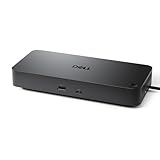
- Powerful compatibility: Power essential productivity across the AI PC workplace. The Dell Pro Dock offers enhanced compatibility and drives up to 100W of power to new mainstream Dell AI PCs and non-Dell PCs.
- Modern manageability: The Dell Pro Dock is part of the world’s most manageable commercial docking family, with flexible management capabilities, designed to uplevel IT efficiency and keep users working without disruption.
- Thoughtful design: Configure your workspace with an ambidextrous USB-C cable that can be routed left or right. Features a new robust USB-C connector, designed for enhanced durability.
- A leader in sustainable innovation: Experience up to 72% reduction in power consumption on standby mode. Built with at least 65% postconsumer recycled materials and packaged with 100% recycled or renewable packaging.
- Upgraded for modern work: Expand your views with native support for up to four high-res displays. Keep your PC accessories connected and charged with the latest ports, while staying productive with faster USB and network speeds.
Do I need to download a Billboard Device driver?
Normally, no. Windows 10 and Windows 11 include an in-box Billboard driver. Install manufacturer drivers or firmware only when they are intended for the computer, dock, or adapter and address a broader compatibility problem.
Can a Billboard Device add HDMI or DisplayPort support?
No. Display output depends on the computer’s USB-C hardware, firmware, cable, adapter, and connected display. A driver cannot add physical DisplayPort Alternate Mode support to a data-only USB-C port.
The Tool Desk
Outbyte Driver Updater FREEScan for outdated or missing drivers - takes under a minuteDriver Scan →Outbyte PC Repair FREEClear out junk files and repair common Windows errorsFree Scan →Why does my dock work on another laptop but not this Windows 11 PC?
The laptops may have different USB-C capabilities. The affected computer may lack DisplayPort Alternate Mode, USB4, Thunderbolt, or sufficient power and bandwidth, or it may need a firmware update. The dock itself may also have a compatibility issue.
Will uninstalling Billboard Device fix the problem?
Usually not. Windows can enumerate the device again when you reconnect the dock or adapter. Use uninstalling only as a temporary reset after checking the port, cable, direct connection, firmware, and Windows updates.
Is a USB-C port guaranteed to support an external monitor?
No. USB-C describes the connector, not every capability behind it. Check the computer’s specifications for DisplayPort over USB-C, DisplayPort Alternate Mode, USB4, or Thunderbolt support.
The Bottom Line
Billboard Device is a status signal, not a missing Windows 11 application. It usually appears when a USB-C dock, monitor, adapter, or USB4 device cannot establish the Alternate Mode it needs. Check the exact capabilities of the computer’s port, test a compatible cable and direct connection, update the computer or dock firmware where appropriate, and do not expect a generic driver update to create unsupported display or USB4 functionality.
Do these 3 things before closing this tab:
1Fix the driver behind crashes, sound loss and screen glitches2Repair Windows errors before they cause bigger problems3Scan for outdated or missing drivers - takes under a minute
