Some links on this page are affiliate links: if you buy through them we may earn a commission, at no extra cost to you.
Google Pay on Huawei can work, but support depends on more than the phone itself. The biggest gatekeepers are Google Play Services, Google’s payment integrity checks, and your bank’s willingness to enable mobile provisioning on your device.
If your Huawei device lacks Google Mobile Services (GMS), the Google Pay app usually won’t install, won’t verify, or won’t be able to provision cards. This guide shows the exact prerequisites to check, the steps for the supported path, and the fastest alternatives when Google Pay can’t be used.
As an Amazon Associate I earn from qualifying purchases.
Can you use Google Pay on Huawei?
Sometimes. The realistic answer is: Google Pay works on Huawei phones only when the device can run the required Google components and passes Google’s integrity requirements. Many Huawei models (especially newer ones without GMS) cannot meet those requirements, so Google Pay won’t function.
If you’re seeing errors like the app failing to install, Google Pay refusing to add a card, or contactless payments not going live, you’re almost always dealing with missing/unsupported Google components or a provisioning block from your bank.
Popular on Amazon

- 6.2" OLED 428PPI, 1080x2400px, 120Hz, HDR10+, Bluetooth 5.3, 4575mAh Battery, Android 14
- 128GB 8GB RAM, Octa-core, Google Tensor G3 (4nm), Nona-core (1x3.0 GHz Cortex-X3 & 4x2.45 GHz Cortex-A715 & 4x2.15 GHz Cortex-A510), Mali-G710 MP7
- Rear Camera: 50MP, f/1.7 (wide) + 12MP, f/2.2 (ultrawide), Front Camera: 10.5MP, f/2.2
- 2G: GSM 850/900/1800/1900, CDMA 800/1700/1900, 3G: HSDPA 800/850/900/1700(AWS)/1900/2100, CDMA2000 1xEV-DO, 4G LTE: 1/2/3/4/5/7/8/12/13/14/17/18/19/20/25/26/28/29/30/38/40/41/46/48/66/71, 5G: 1/2/3/5/7/8/12/20/25/26/28/29/30/38/40/41/48/66/70/71/77/78/258/260/261 SA/NSA/Sub6 - Nano-SIM and eSIM
- Compatible with Most GSM + CDMA Carriers like T-Mobile, AT&T, MetroPCS, etc. Will Also work with CDMA Carriers Such as Verizon, Sprint.
What determines compatibility
Think of compatibility as a chain. Break one link—Google Play Services, integrity checks, or bank-side device approval—and Google Pay won’t work even if the interface looks installed.
Google Play Services and Play Integrity
Google Pay relies on Google Play Services for core payments plumbing. Even if you manage to install the app, Google Pay typically won’t accept card enrollment unless the integrity checks pass (commonly described by Google as Play Integrity / SafetyNet-style verification).
Recommended Free Tools
Huawei phones that don’t include working Google Play Services are the most common reason for failure.
Region and bank support
Even with the right Google components, your bank must support Google Pay on your country and card type (debit, credit, certain prepaid types). Bank support can vary by region and may exclude specific issuer profiles.
That’s why two users with similar Huawei models can have totally different outcomes.
Also popular on Amazon

- The power behind AI on Google Pixel - Google Tensor G4 is Pixel’s most powerful chip yet.
- Advanced camera. Next-level amazing - The award-winning Pixel Camera includes a 50 MP main sensor for incredible image and video quality. And a new 48 MP ultrawide camera for stunning Macro Focus.
- The amazing Actua display - The 6.3-inch Actua display is sharp, vibrant, and super bright. It runs fast, up to 120Hz, for smooth gaming, scrolling, and switching between apps
- Powerful performance - Pixel 9 runs fast and smooth with 12 GB of RAM. And it’s designed to handle Google’s advanced AI.
- Give photos a whole new vision - Reimagine photos in Magic Editor, like adding fall leaves or green grass. Just tap what part you want to change in the photo, and type what you want to see.
Before you try: prerequisites checklist
Before you spend time troubleshooting, verify these basics on your Huawei phone:
Do these 3 things before closing this tab:
1Clear out junk files and repair common Windows errors2Scan for outdated or missing drivers - takes under a minute3Repair Windows errors before they cause bigger problems- Google Play Services installed and functional (not just present).
- Google Play Store present and able to download updates (a strong sign Play Services is working).
- Google Pay app obtainable via the official Play Store where supported.
- Compatible screen lock configured (PIN/pattern/password). Many payment setups require a lock screen.
- Your bank’s cards supported for Google Pay in your country.
If you can’t confirm those items, skip straight to the alternatives section so you don’t waste time on an impossible path.
Method 1: Use the official Google Pay app (supported setups)
If your Huawei device genuinely has GMS working, the most reliable route is to install Google Pay from the official store and add your card normally.
Step-by-step on your Huawei phone
- Open the Google Play Store.
- Search for Google Pay.
- Install the official app.
- Open Google Pay and sign in with the Google account you want to use.
- Follow the on-screen prompts to add your payment card.
- Choose verification steps when prompted (often SMS, email, or card issuer app flow).
- When setup completes, go to settings (inside Google Pay) and confirm your default payment method.
Verify it’s actually working
Don’t rely on “setup succeeded” alone. Test in a safe, low-risk way:
- Check that the card shows as active in Google Pay.
- Use contactless at a supported terminal (the terminal should show contactless/NFC support).
- If it fails at the terminal, try again with the screen unlocked if your payment setup allows it. Some configurations require screen lock and NFC tap behavior.
Method 2: If the app won’t install or won’t verify
When Google Pay can’t be installed, can’t pass verification, or won’t add cards, the cause is usually missing GMS components, an outdated/mismatched Play Services environment, or an integrity failure.
Crashes, No Sound, or Screen Glitches?
Random freezes, missing sound and display glitches usually trace back to one bad driver. Find and replace yours safely.Free scan · under a minutePC Slower Than It Used to Be?
A free scan shows the junk files, broken settings and background clutter dragging Windows down - then fixes them in one click.Free scan · Windows 10 & 11Also popular on Amazon
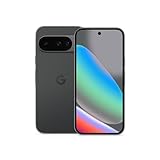
- Google Pixel 10 smartphone featuring a 6.3-inch OLED display with a smooth 120Hz refresh rate, Google Tensor G5 processor, and 12GB RAM for fast, responsive performance. Capture stunning photos with a 48MP triple rear camera system featuring 5x optical zoom and up to 20x Super Res Zoom, plus a 10.5MP front camera with autofocus. Enjoy Gemini AI features, 5G connectivity, 128GB or 256GB storage options, and a 4,970mAh battery offering 24+ hours of battery life. Built with IP68 water and dust
Troubleshooting checklist
Work through these in order. Each step eliminates a common failure mode.
- Confirm Play Services is present and current: In the Play Store, search for “Google Play services” and ensure updates are installed.
- Update Google Play Store: If Play Store is outdated, it can block dependency resolution for Google Pay.
- Check device security settings: Make sure you have a screen lock enabled (PIN/pattern/password) and any required permissions are granted.
- Clear app data and retry: If Google Pay or Play Services installed partially, clearing app data can reset the state. (Settings > Apps > Google Pay > Storage > Clear data.)
- Restart the phone after updates: Payments components can fail to initialize until after a reboot.
- Try a fresh install: Uninstall Google Pay (if installed) and reinstall from the Play Store.
- Check bank-side support: Some banks disable provisioning on certain device profiles, even if the app launches.
About APK installs and why they can fail
You might see guides online about installing Google Pay via APK. Even if installation completes, Google Pay may still fail card enrollment because it depends on Google’s backend checks and a correctly working GMS/Play Services stack.
If you go the APK route, expect problems like provisioning loops, generic errors, or contactless not triggering. It’s also riskier from a security standpoint (you could end up with tampered packages). For most readers, the practical answer is: only use the official installation path that your phone supports.
Contactless payments alternatives on Huawei
If your Huawei phone can’t meet the Google Pay requirements, you still have options. The best alternative depends on what’s supported in your country and by your bank.
Use Huawei Wallet (where available)
Huawei’s own wallet solution is designed for Huawei devices and often doesn’t require Google’s payments stack. Availability varies by region and by your card issuer.
Also popular on Amazon

- Gemini AI Integration: Built-in Gemini AI assistant supercharges your productivity and creativity, helping you accomplish tasks faster, generate content, and unlock new possibilities right from your smartphone without needing additional apps or subscriptions
- Open Huawei Wallet (or the payment wallet app shipped on your region).
- Select Add card.
- Follow bank verification prompts.
- Enable NFC in the phone’s settings if it’s not already on.
If Huawei Wallet isn’t available in your area, your next best choice is your bank’s app.
Use your bank’s mobile wallet app
Many banks offer their own mobile payment flows, including in-app card enrollment and tap-to-pay support (via bank-managed NFC or HCE services).
- Install the official app from your bank (not third-party mirrors).
- Look for a feature labeled Mobile payments, Wallet, or Tap to pay.
- Add your card and complete verification.
- Set the app/card as the default payment method if the system prompts you.
Use a transit card or QR payments (if supported)
Some regions support contactless transit through app-managed cards, and many merchants support QR-based payments. These aren’t always direct “tap to pay” equivalents, but they get you practical payment functionality when Google Pay isn’t feasible.
Check what’s offered by your local transit operator or your primary banking app.
Independent reader supportYour contribution helps us test, update, and keep practical guides available for everyone.Which Huawei devices are most likely to work?
Rather than guessing model names, use a compatibility reality check: your Huawei phone must have working Google Play Services and pass the integrity checks needed for card provisioning.
Also popular on Amazon

- The power behind AI on Google Pixel - Google Tensor G4 is Pixel’s most powerful chip yet.
- Advanced camera. Next-level amazing - The award-winning Pixel Camera includes a 50 MP main sensor for incredible image and video quality. And a new 48 MP ultrawide camera for stunning Macro Focus.
- The amazing Actua display - The 6.3-inch Actua display is sharp, vibrant, and super bright. It runs fast, up to 120Hz, for smooth gaming, scrolling, and switching between apps
- Powerful performance - Pixel 9 runs fast and smooth with 12 GB of RAM. And it’s designed to handle Google’s advanced AI.
- Give photos a whole new vision - Reimagine photos in Magic Editor, like adding fall leaves or green grass. Just tap what part you want to change in the photo, and type what you want to see.
Practical guidance without guessing model numbers
- If you can update Google Play services from the Play Store, that’s a strong sign your environment is capable.
- If Google Pay installs from the Play Store but fails during card enrollment, the issue is often integrity checks or bank-side provisioning.
- If you can’t find Google Play services or the Play Store isn’t available, assume Google Pay won’t be usable and move to Huawei Wallet or your bank’s wallet.
Common mistakes that block Google Pay
- Assuming installed equals functional: an app can install but still fail provisioning.
- Skipping screen lock: many setups require a PIN/pattern/password for payment verification.
- Trying too many cards: if your bank blocks the device profile, additional retries won’t help—switch methods.
- Not updating dependencies: outdated Play Store/Play Services versions are frequent causes of errors.
- Using unofficial APKs: even if they open, they may fail integrity checks and create security risk.
FAQ
Why can I install Google Pay on my Huawei, but adding a card fails?
Card enrollment requires more than installation. Common causes include Play Integrity failing, Google Play Services not matching expectations, or bank-side device restrictions. Try updating Google Play services and confirm your bank supports Google Pay on your device profile.
Does enabling NFC fix Google Pay on Huawei?
NFC is necessary for contactless taps, but it doesn’t solve the real blockers (GMS and integrity/provisioning). If card enrollment never completes, NFC won’t help.
What’s actually slowing this PC down?
Pick the symptom - the matching free tool is one click away.
Can I use Google Pay on Huawei with no Google Play Store?
Typically no. Without a working Play Store and Play Services environment, Google Pay usually can’t be installed through the supported flow, and even workaround installs often fail provisioning.
Will my bank still work with Huawei contactless payments?
Many banks do, but the payment method depends on what’s supported in your region: Huawei Wallet, a bank’s own wallet app, or sometimes QR/transit options. Check your bank’s help pages for supported mobile wallets on Huawei devices.
Is it safe to try Google Pay APK downloads?
It’s risky. Payment apps are sensitive, and APK sources aren’t guaranteed trustworthy. Even safe-looking APKs can fail integrity checks. The safest path is the official installation method your Huawei environment supports.
Bottom Line
Using Google Pay on Huawei is only realistic when your phone has working Google Play Services and your bank supports Google Pay on that device profile. If card enrollment fails or you can’t get the app from the official store, switch quickly to Huawei Wallet or your bank’s mobile wallet app.
Quick wins for a faster PC:
Repair Windows errors before they cause bigger problemsFix Now →Fix the driver behind crashes, sound loss and screen glitchesFind Drivers →Clear out junk files and repair common Windows errorsFree Scan →That approach saves time and avoids the most common trap: spending hours on setup that can’t pass provisioning requirements.

