Recommended Free Tools
Some links on this page are affiliate links: if you buy through them we may earn a commission, at no extra cost to you.
If your front camera looks like it’s flipping your face left-to-right, you’re seeing a mirror preview. That flip is usually intentional: it helps you “aim” like you would in a handheld mirror and can make real-time chatting feel more natural.
The tricky part is that mirror behavior depends on the camera hardware, the operating system preview pipeline, and—most importantly—the specific app you’re using. The fix (or lack of one) varies by platform and by whether you care about what you see on-screen versus what actually gets recorded.
As an Amazon Associate I earn from qualifying purchases.
Free tools Windows power users keep installed
One-click scans. No signup required.
What the Mirror Effect Actually Is
The mirror effect is a horizontal flip (left-right) applied to the live front-camera preview. Most apps implement it either as a visual-only transform on the preview stream, or as a transform that also affects the recorded video.
So you might experience one of these:
- Preview is mirrored, recording is normal (common in many video and calling apps).
- Preview and recording are both mirrored (common when the app applies a transform before encoding).
- Neither is mirrored (some apps default to a true-to-life, non-flipped view).
Why Your Front Camera Shows a Mirror Image
There are three main reasons this happens.
1) Human-comfort framing for front-facing cameras
Front cameras are used for selfies, video calls, and makeup/hair checks—contexts where people expect a mirror-like view. If you raise your right hand, you’ll feel like your gesture matches what you’d see in a mirror.
Popular on Amazon

- Innovative Dual-Lens & Perfect Selfies: This compact digital camera features front and rear dual lenses and the latest CMOS sensor system, supporting 64MP high-resolution photos and 4K Ultra HD video recording. Equipped with a front-facing camera that perfectly solves the selfie problem, allowing you to capture and share more happy moments clearly, is ideal for selfie enthusiasts and vlogging creation.
- 2000mAh Large Battery & Metal Shell: Vitaler digital camera is designed with a built-in battery that extends the shooting time dramatically, no need to replace the spare battery. Equipped with Type-C port, supports charging by power bank and you don't have to worry about missing out on beautiful moments when you're traveling. The camara digital shell features a high-quality zinc alloy (not cheap plastic), delivering exceptional strength and durability to withstand drops.
- Shoot Storytelling Images With Ease: This camera's portrait effect is professionally turned and focuses on portrait and close-up photography, perfect for shooting vintage atmosphere, “French oil painting” style photos in bright scenes, and easy to create popular socal media photos and videos without any retouching.20 filter styles, fill light, more fun and creativity waiting for you to explore!
- Webcam Function & USB Data Transmission: Use the USB cable to connect to your computer to transfer photos or use as a computer webcam, you can enjoy smooth video calls or live-stream your experiences with friends and family. PS: Data transfer and Webcam operation guidelines can be found on the QA page.
- Compact & Perfect Gift: This protable small digital camera is perfect for everyday use, easily fitting into your bag or pocket. It comes with a bracelet lanyard and a Type-C charging cable( Not Included SD Card). It is suitable for teens, kids, adults and beginners, which makes every outing full of fun and creativity. Whether as a gift for friends and family or your kids, this camera is the ideal choice.
This is a UX decision, not a hardware defect.
2) Front camera preview is often transformed in software
The image sensor captures the scene, but apps can apply transforms to the preview stream. A horizontal flip is a simple, fast operation and can be done during rendering without changing the camera’s physical feed.
That’s why two apps on the same iPhone can behave differently.
The Tool Desk
Outbyte PC Repair FREEClear out junk files and repair common Windows errorsFree Scan →Outbyte Driver Updater FREEScan for outdated or missing drivers - takes under a minuteDriver Scan →3) Platform APIs may deliver different orientation metadata
Camera frameworks provide orientation and “mirroring” hints. Some apps interpret them one way for a mirror preview, while others keep the image unflipped for a true camera view.
This is also why custom camera apps and webcam software sometimes expose a “mirror” toggle.
Front vs Rear Camera: What Changes and Why
The rear camera is typically treated like a normal camera view: what you see is what others see (after orientation correction). The front camera is more likely to be flipped because it’s optimized for interactive self-view.
- Front camera: often mirrored for comfort and alignment during calls.
- Rear camera: usually not mirrored to preserve spatial accuracy.
However, there are exceptions. Some social apps intentionally mirror both cameras or provide per-mode settings.
When the Mirror Effect Matters (and When It Doesn’t)
Whether you need to change mirror behavior depends on your goal.
| Goal | Mirror setting usually best for | Why |
|---|---|---|
| Video call (Zoom, FaceTime, WhatsApp-style apps) | Preview mirrored or not (depends on app) | Most apps correct output for recipients; you just want comfortable self-view. |
| Selfie recording for later editing | Match your edit workflow | If recording is mirrored, reversing later can be annoying. |
| Text reading / sign language / gesture accuracy | Often prefer non-mirrored | Mirror flips can make your movements look wrong to others. |
| Content for an audience | Non-mirrored (usually) | Viewers expect camera output, not a handheld mirror simulation. |
How to Stop or Change Mirror Preview on iPhone and iPad
Apple doesn’t provide one universal “disable mirror for front camera” switch across all apps. Instead, each app decides whether to apply mirroring to the preview and/or the recorded output.
Also popular on Amazon
![Spigen [Upgraded 5-Holes] Front Camera Protector for Tesla Model Y Juniper | Only Standard, Premium & Performance (2026) [Quick Dry Ventilated Camera Lens Guard] with Alignment Hook - Patent Pending](https://m.media-amazon.com/images/I/414sjlU5q2L._SL160_.jpg)
- Ventilated Moisture Control: A built-in 5 air vents (patent pending) actively manages moisture around the camera lens. Condensation naturally occurs during routine car washes or sudden temperature drops, but this breathable design clears the trapped fog quickly. Precision cutouts block debris and water from entering the system.
- Impact Protection: The Tesla front camera sits low on the bumper, leaving it highly exposed to rock chips and road debris. A hard thermoplastic shell absorbs direct hits at highway speeds to save owners the expensive cost of a full replacement.
- Alignment Hook: The integrated hook aligns the protector exactly over the camera housing by anchoring directly into the spray nozzle. This ensures a perfectly centered fit on the front bumper.
- Easy to Install & Remove: Designed for a frustration-free experience, our protector snaps into place instantly using the alignment hook; no measuring or guessing required. It holds securely during daily driving but is simple to remove whenever you choose, leaving your bumper clean and residue-free.
- Optical Clarity: The high-transparency shield is designed to match the original lens glass. It minimizes glare and optical distortion on the center display to maintain the camera's native resolution.
That said, there are still practical ways to control it.
Check the camera app (or the specific app’s camera settings)
Look inside the app for a toggle such as Mirror, Flip, Front camera mirror, or Selfie mirror. These settings are often located near the camera preview controls.
Quick wins for a faster PC:
Clear out junk files and repair common Windows errorsFree Scan →Fix the driver behind crashes, sound loss and screen glitchesFind Drivers →If you’re using the default iOS Camera app for video, most people don’t get a “mirror” toggle for live front-camera video. The easiest workaround is to use an editing step afterward if the recording is flipped.
Test preview vs recording (quick sanity check)
Before recording something important, do a 10–15 second test:
- Open the app and switch to the front camera.
- Record a short clip while moving left and right visibly (e.g., wave both hands).
- Play back the clip inside the app or Photos.
If playback is not mirrored, you can keep the comfort preview. If playback is mirrored, you’ll need an app setting or an editor flip.
Use a video editor to flip the recorded clip
If your front-camera video is captured mirrored and you can’t change it in-app, flip it during editing.
- Open Photos (or the app you’re using) and edit the clip.
- Look for Flip or Rotate style controls.
- If your editor supports it, choose a horizontal flip.
- Export the corrected clip and confirm by watching a few seconds back.
How to Stop or Change Mirror Preview on Android
Android devices vary by manufacturer, but the principle is the same: mirroring is usually controlled by the app, not by a system-level front-camera switch.
Find the app’s mirror/flip toggle
Common labels in camera and messaging apps include:
Also popular on Amazon

- The name of this product is VR front camera lens glass, HD transparent, thin and unbreakable. Sapphire glass, not cheap glass. A 100% perfect fit for quest 3's replacement original front camera lens glass.
- If your vr front camera lens glass is broken, you can replace the front camera lens glass directly.
- Features: glass material, scratch-proof, with adhesive firm and easy to install.
- Precautions: Remove the shell first, heat it along the edge of the glass first, heat it at a moderate temperature until it can be easily removed, the glass is equipped with fixing glue, which can be directly raised, you can check the installation video on YouTube to help you better disassemble.
- We will have more information about the Quest 2/3 controller accessories online, including the case, so stay tuned.
- Mirror
- Flip
- Selfie mode (sometimes implies mirroring behavior)
- Front camera options (gear icon near the preview)
Use your phone’s built-in Gallery editor if the recording is flipped
If there’s no in-app toggle and the recorded file is mirrored, a post-processing flip is often the fastest fix.
- Open Gallery and select the clip.
- Tap Edit.
- Look for a Flip option (often with icons for horizontal/vertical).
- Choose Horizontal flip and save/export.
Confirm what others will see
If you’re sharing for a live call, test one participant’s end. Many calling apps send non-mirrored output even when your screen looks mirrored.
Do these 3 things before closing this tab:
1Repair Windows errors before they cause bigger problems2Scan for outdated or missing drivers - takes under a minute3Clear out junk files and repair common Windows errorsHow to Stop or Change Mirror Preview on Windows (Apps and Webcam Tools)
On Windows, mirroring is usually applied by the webcam software, not the webcam driver itself. That means you’ll find the toggle inside Zoom, OBS Studio, Microsoft Teams, eBay live tools, or whatever capture tool you’re using.
OBS Studio (widely used for webcam capture)
OBS can flip sources at the scene level.
- Open OBS Studio.
- Under Sources, click your Video Capture Device source.
- Select Transform (or right-click the source) and choose Flip Horizontal off or on.
- Preview the change and confirm both preview and output behave correctly.
Windows camera apps and conferencing tools
Look for camera settings in the app UI:
- Open the app (for example, Zoom/Teams).
- Go to Settings or Video.
- Find a toggle labeled Mirror my video or Flip.
- Turn it off and re-check the live preview.
How to Stop or Change Mirror Preview on macOS
Like Windows, macOS mirror behavior is typically controlled by the app using the camera feed. FaceTime, Zoom, and browser-based tools can all render differently.
Browser video (Chrome/Firefox/Safari-based apps)
Mirroring is usually controlled by the web app. Check for settings in the conferencing interface:
- Open the call page (or webcam tool).
- Open Settings, Camera, or Video.
- Look for Mirror / Flip / Self view.
- Refresh the preview after changing settings.
QuickTime Player preview vs export
When recording with an app, mirror behavior might show in the preview but not in exported output (or vice versa). For accurate results, record a short test and inspect the file you export.
Video Editing Differences: Preview vs Recorded Output
This is the biggest source of confusion: you can see a mirror, but your recorded file may be unmirrored (or the opposite).
How to tell which one you have
- Record a short clip of yourself raising your right hand.
- Play the clip on another device if possible.
- If your movement matches the mirrored view you saw while recording, the file is mirrored.
Why apps behave differently
Many apps prioritize one of two goals:
- Comfort during interaction (mirror your self-view so gestures feel natural).
- Consistency for playback (send non-mirrored video to others or store a consistent camera orientation).
Sometimes they do both: mirrored preview for you, non-mirrored output for recipients.
Also popular on Amazon

- ✔ COMPATIBLE WITH ALL SMARTPHONES, TABLETS, and LAPTOPS including ALL iPhone models, Samsung Galaxy and Note, Google Pixel, Huawei and more. CONTENTS INCLUDE: TruView 0.45x Wide Angle Lens, Clarus 15x Macro Lens, TruGrip Lens Clip, GlowClip Mini Rechargeable LED Light + Charging Cable, Quick-Release Lanyard, DuraCase, EasyClip, and Cleaning Cloth.
- ✔ TRUVIEW 0.45x WIDE ANGLE LENS - CAPTURE 45% MORE PICTURE WITH EVERY SNAP: Shoot stunning photos of people, pets, travel scenery, landscapes, architecture, selfies and more. NO DARK CORNERS (vignetting) like cheaper lenses. Crafted from aircraft-grade aluminum and premium optical glass for durability and clarity. Multi-element, coated glass lenses minimize ghosting, reflections, lens flare, and other artifacts. Xenvo cell phone lens attachment is ideal for hobbyists and photography pros alike.
- ✔ CLARUS 15x MACRO LENS - MARVEL YOUR SENSES. MAGNIFY NEARBY SUBJECTS FOR BREATHTAKING, SUPER CLOSE-UP PHOTOS: Capture all the intricacies and details with precision-focus for razor crisp macro photos every time. (For best results, position macro lens approximately 1/2 inch from subject. Not designed for zooming in on distant subjects.) THE TRUGRIP LENS CLIP offers SUPERIOR GRIPPING POWER to fasten your lenses to your cell phone when you're in action mode, framing your next perfect shot.
- ✔ GLOWCLIP RECHARGEABLE LED FILL LIGHT - The GlowClip LED light clips ANYWHERE on your phone to instantly illuminate your subject and surroundings with warm continuous light. The warm and natural LED light is superior to your smartphone's built in flash—which can be blinding and unnatural—especially in darker settings and venues. FEATURES 3 BRIGHTNESS SETTINGS: Low, Medium and High. Say goodbye to frustrating photo "retakes" and hello to brilliant photos the first time.
- ✔ QUICK-RELEASE LANYARD AND TRAVEL CASE - TRANSPORT AND PROTECT YOUR LENS KIT: Perfect for taking your Xenvo lenses with you on the fly. The travel case stores and protects all lens kit components snugly and safely while the quick-release lanyard is the perfect way to carry your lenses on your next outing. Just drape the lanyard and lens around your neck. The quick-release lanyard head makes it a cinch to access your Xenvo lenses in a flash so you never miss another photo moment.
Troubleshooting When Mirror Settings Don’t Stick
If you’ve turned off mirroring but it keeps coming back, try these in order.
1) Restart the app (camera pipeline often caches the transform)
Some apps apply the mirror transform when the camera stream initializes. Close the app fully, reopen it, and switch cameras again.
2) Check permissions after updates
After iOS updates, Android OS updates, or a major app update, camera permissions can reset or the app can change its default render behavior. Verify that the app still has permission to access the camera.
3) Test with a second app
If mirror behavior differs between two apps on the same device, the hardware isn’t the issue—your answer lives inside each app’s settings.
4) If you’re on Windows/macOS with a webcam tool, remove “filters”
In OBS or similar tools, mirroring can come from a filter stack (scene transform, source transform, or a plugin). Disable filters temporarily to identify the culprit.
5) Browser: clear site permissions or reload the stream
For browser-based calls, try:
- Reload the page.
- Re-select the camera device in the call UI.
- If still broken, clear site permissions for the camera and reload.
Common Mistakes to Avoid
- Assuming the front camera is always mirrored in the recording. Preview and output may differ.
- Changing settings in one place and expecting it to affect another app. Mirror behavior isn’t standardized across all apps.
- Flipping twice. If both your app and your editor apply a horizontal flip, you’ll accidentally return to the mirrored state.
- Ignoring rotation and orientation. Some apps “mirror” plus rotate to correct orientation. Verify with a test clip.
Practical Use Cases and Recommended Settings
Here are a few real-world scenarios and what most people choose.
What’s actually slowing this PC down?
Pick the symptom - the matching free tool is one click away.
Content creator selfies (TikTok-style, vertical video)
Many creators prefer non-mirrored output for consistency with how viewers expect the image to look. If your app records mirrored, flip horizontally in editing before exporting.
Live teaching / reading gestures
Choose non-mirrored output when you need accuracy in left/right gestures. If you can’t disable mirror, keep the camera framing and practice with the mirrored view so you still perform correctly.
Also popular on Amazon
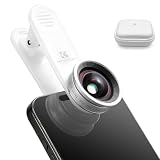
- Upgrade your selfie perspective: convert original 23mm equivalent focal length to ultra-wide 18mm, expanding field of view by 43%. Capture spacious indoor & outdoor scenery with stunning wide shots, no cramped frames or cropped selfies
- Compatible strictly with iPhone 12/13/14/15/16 full series (Plus/Pro/Pro Max): NOTE: Not suitable for iPhone 17 series & Android dual front camera phones; severe vignetting dark corners will appear after installation
- Made of 4-piece 3-group optical glass with AR anti-reflective coating: Features anti-yellowing & anti-glare properties. Better than cheap resin lenses, delivers crystal clear image and true-to-life color for selfie & live streaming
- Ultra-light 25g design with durable aluminum alloy shell: Lighter than an egg, easy to carry. Sturdy metal housing resists daily scratches and impacts, comfortable for long-time handheld shooting
- Universal for front & rear camera: Bypass restriction of social & live apps that block native ultra-wide lens. Comes with complete accessories, easy to install, clean and store
Video calls with friends and family
Comfort usually wins. A mirrored self-view can make you feel more natural, even if recipients see you unmirrored.
FAQs
Is a mirrored front camera image how other people see me?
Not always. Many apps mirror only your preview for comfort while sending non-mirrored video to other participants. To be sure, record and check the playback, or ask one person to confirm what they see.
Crashes, No Sound, or Screen Glitches?
Random freezes, missing sound and display glitches usually trace back to one bad driver. Find and replace yours safely.Free scan · under a minuteWindows Errors? Fix Them Before They Spread
Repair common Windows errors and clear accumulated junk for a smoother, more stable PC - no reinstall needed.Free scan · no reinstallCan I disable mirroring system-wide on my phone?
Usually no. iPhone and Android don’t offer a universal system setting that forces all apps to show the front camera unmirrored. Each app controls its own video rendering and encoding path.
Why does my front camera look mirrored in one app but not another?
Because apps interpret camera preview transforms differently. One app may apply a horizontal flip to the preview; another may not. The behavior can also change by mode (photo vs video vs call).
My video is mirrored after recording—how do I fix it?
Use an editor to apply a horizontal flip to the recorded clip. If the mirror toggle exists in the camera app, fix it before recording to avoid extra quality loss from re-encoding.
Does mirror effect affect image quality?
It shouldn’t in a major way. Mirroring is a geometric transform. The bigger quality risk comes from re-encoding during editing if you flip after recording.
Bottom Line
The mirror effect on the front camera is typically an intentional, app-controlled UX feature: a flipped preview that feels like a handheld mirror. Whether it affects what’s recorded (or only what you see) depends on the app’s preview pipeline.
To get the result you want, do a quick preview-vs-record test, then adjust the setting inside the specific app. If you can’t, a horizontal flip in your editor is the most reliable workaround.
Quick Recap
Product prices and availability are accurate as of the date/time indicated and are subject to change. Any price and availability information displayed on Amazon at the time of purchase will apply.

