Some links on this page are affiliate links: if you buy through them we may earn a commission, at no extra cost to you.
Moving photos off Google Photos and into Microsoft OneDrive is doable, but the “right” method depends on your library size, file types, and how much you want to babysit the process.
This guide covers four reliable ways to transfer Google Photos to OneDrive, from an export-first workflow (most dependable) to sync-first and cloud-to-cloud options (less manual, sometimes with trade-offs).
As an Amazon Associate I earn from qualifying purchases.
Free tools Windows power users keep installed
One-click scans. No signup required.
You’ll also get prerequisites, gotchas (like EXIF dates and duplicates), and troubleshooting steps you can apply when the main approach stalls.
Why move Google Photos to OneDrive?
People typically switch for control (file portability), cross-device consistency (Windows/macOS/iPhone/iPad), or backup strategy. OneDrive also integrates tightly with Microsoft 365 and Windows Search, which can matter once you have thousands of images.
Popular on Amazon

- Get NVMe solid state performance with up to 1050MB/s read and 1000MB/s write speeds in a portable, high-capacity drive(1) (Based on internal testing; performance may be lower depending on host device & other factors. 1MB=1,000,000 bytes.)
- Up to 3-meter drop protection and IP65 water and dust resistance mean this tough drive can take a beating(3) (Previously rated for 2-meter drop protection and IP55 rating. Now qualified for the higher, stated specs.)
- Use the handy carabiner loop to secure it to your belt loop or backpack for extra peace of mind.
- Help keep private content private with the included password protection featuring 256‐bit AES hardware encryption.(3)
- Easily manage files and automatically free up space with the SanDisk Memory Zone app.(5). Non-Operating Temperature -20°C to 85°C
Google Photos is convenient, but if you need your media as standard files you can manage, OneDrive works better when you transfer the original media exports (photos/videos) rather than relying only on a gallery view.
Before you start: prerequisites and expectations
Know what you’re transferring (photos vs. albums vs. metadata)
Google Photos stores media and can show “album” organization, but OneDrive will ultimately receive files. Plan for one of two outcomes: either you transfer the original files and let folder structure be created during upload, or you preserve folder-like grouping from your export.
Recommended Free Tools
Also expect some metadata behavior differences—especially with HEIC, RAW, and “date” fields. Many transfers preserve file timestamps, but app-level sorting can still differ.
Check your library size and storage limits
Google Takeout exports are often compressed into multiple ZIP archives. For large libraries, this is normal. Estimate roughly: 1 GB to 3+ GB per 1,000 photos depending on resolution, RAW, and video presence.
Confirm you have enough OneDrive storage for the total size of the exported media.
Gather what you’ll need
- A Google account with access to the photos you want to move
- A Microsoft account with OneDrive enabled
- Enough local disk space for temporary downloads (Takeout ZIPs can be sizable)
- OneDrive apps installed if you’ll use sync: OneDrive for Windows or OneDrive for macOS
Decide your target structure
Pick a consistent folder naming scheme in OneDrive now, because it affects how findable your library will be later. Common choices:
What’s actually slowing this PC down?
Pick the symptom - the matching free tool is one click away.
Also popular on Amazon

- Solid state performance with up to 800MB/s read speeds in a portable drive. (Based on internal testing; performance may be lower depending on host device, interface, usage conditions and other factors. 1MB=1,000,000 bytes.)
- Back up your content and memories on a storage solution that fits seamlessly into your mobile lifestyle.
- Take it with you on your adventures—up to two-meter drop protection means this durable drive can take a beating. (Based on internal testing.)
- Secure it to your belt loop or backpack for extra peace of mind thanks to the tough rubber hook.
- From Sandisk, a brand professional photographers trust to take on assignments.
- By year (example:
Google Photos/2021) - By source type (example:
Google Photos/Photos,Google Photos/Videos) - Flat import (fast, but harder to browse)
Method 1: Use Google Takeout to export your Google Photos
This is the most dependable way to “transfer” because it converts your Google Photos library into standard downloadable media files you can upload anywhere.
Use it when you want predictable results, fewer surprises with duplicates, and the ability to reattempt if something fails.
Step-by-step: Export from Google Photos via Google Takeout
- Go to Google Takeout: https://takeout.google.com/
- Sign in to the same Google account that hosts your Google Photos.
- In the Choose what to include section, find and select Google Photos.
- Click All Google Photos (or “Selected albums,” depending on your preference).
- For best control, choose either:
- All photo albums if you want everything, or
- Selected albums if you want a staged migration.
- Scroll to the bottom and confirm your Delivery method and Export settings.
- Choose an Export size option (Google typically offers multiple parts when you select larger libraries).
- Click Create export.
When the export finishes
Google will provide download links for ZIP archives. Download them to a folder like D:\GoogleTakeout on Windows or /Users/you/Downloads/GoogleTakeout on macOS.
Extract the ZIP files. Inside, you’ll generally see a media folder structure that includes your photos and videos (often in subfolders by date or collection, depending on the export settings).
Important: don’t re-download blindly
If you need to rerun exports, keep a record of what you already downloaded—otherwise it’s easy to upload duplicates to OneDrive.
Method 2: Upload exported photos into OneDrive (web or folder upload)
If you prefer a hands-on approach (and your library isn’t enormous), you can upload the exported files directly to OneDrive using the browser.
Also popular on Amazon

- Capacity Display Variance: 500GB external ssd often appears as around 465GB on Windows. MacOS can show full 500 GB capacity. This is binary calculation difference and doesn’t affect SSD hard drive actual physical storage
- 1050 MB/s Speed: Instantly access to your files with blazing-fast 10Gbps external SSD read up to 1050MB/s and write up to 1000MB/s. LED Light indicates USB SSD instant activity
- Data Security: Solid state drives S.M.A.R.T. health diagnostics and adaptive TRIM optimizing data block management ensures consistent write speeds and extends the longevity of the portable SSD
- USB-C & USB-A Cable: Both cables featuring rapid USB 3.2 Gen2, this USB SSD effortlessly bridges devices, enabling seamless cross-platform file transfers and backup between computers, smartphones, tablets and iPhone
- Always Fast: No slowdowns for large file transfers. With SLC caching (25% of current available capacity allocated as high-speed cache), this external SSD delivers steady 10Gbps for transfers within the cache capacity
This method works well for smaller libraries, or when you’re staging by year/album.
Step-by-step: Upload to OneDrive in your browser
- Open OneDrive: https://onedrive.live.com/ and sign in.
- Create a destination folder (example: Google Photos – Import).
- Click Upload (top toolbar).
- Choose either:
- Files (select individual media files), or
- Folder (best for Takeout extracts).
- Select the extracted Google Photos media folder(s) from your disk.
- Wait for uploads to finish. Keep the tab open and your network stable.
Recommended browser behavior
- Use a modern browser (Chrome, Edge, or Firefox are reliable for large uploads).
- Upload in batches by folder to avoid timeouts.
- If OneDrive rejects or skips files, check for path-length issues and unsupported file types.
Batching strategy that reduces pain
For large Takeout exports, upload one year at a time. In OneDrive, you’ll end up with clearer grouping and a safer way to resume after interruptions.
The Tool Desk
Outbyte PC Repair FREEClear out junk files and repair common Windows errorsFree Scan →Outbyte Driver Updater FREEFix the driver behind crashes, sound loss and screen glitchesFind Drivers →Method 3: Use OneDrive for Windows/macOS sync to copy the export efficiently
For big libraries, syncing is usually faster and more reliable than repeated browser uploads. You’ll copy files into a local OneDrive folder, and it uploads in the background.
This is the “set it and forget it” variant of Method 2—best when you have strong storage and a stable connection.
Step-by-step: Sync on Windows
- Install OneDrive for Windows if you haven’t already (Windows 10/11 often includes it).
- Sign in to OneDrive when prompted.
- Open File Explorer and locate your OneDrive folder (commonly under
C:\Users\<name>\OneDrive). - Create a folder inside OneDrive, for example
Google Photos - Import. - Copy the extracted Google Photos media folders into that OneDrive destination folder.
- Wait for the upload status to complete (OneDrive client shows sync progress/icons).
Step-by-step: Sync on macOS
- Install OneDrive for macOS from Microsoft’s site (or update your existing app).
- Sign in and allow permissions.
- Open Finder and navigate to your OneDrive folder (often in your home directory or a synced location).
- Create a folder like
Google Photos - Import. - Copy the extracted media into that folder.
- Let OneDrive sync in the background until finished.
Sync-specific gotchas
- Path length: If you hit errors, move your export to a shorter local path (example:
C:\GoogleTakeout) before copying. - File type support: Common images (JPG/PNG/HEIC) and videos are fine; unusual camera RAW formats may need checking.
- Resuming: If sync pauses, confirm your connection and restart the OneDrive client if necessary.
Method 4: Use a cloud-to-cloud transfer tool (when you want less manual work)
If you have a very large library and want minimal copying, cloud-to-cloud services can connect Google Photos (or Google Drive exports) and push into OneDrive. The workflow is faster—but you must validate results and understand limitations.
This method is best when you accept trade-offs: folder naming may change, duplicate handling varies, and some tools work more reliably with Google Drive than with Google Photos directly.
Also popular on Amazon

- Easily store and access 2TB to content on the go with the Seagate Portable Drive, a USB external hard drive
- Designed to work with Windows or Mac computers, this external hard drive makes backup a snap just drag and drop
- To get set up, connect the portable hard drive to a computer for automatic recognition no software required
- This USB drive provides plug and play simplicity with the included 18 inch USB 3.0 cable
- The available storage capacity may vary.
How to choose a tool
Look for tools that support:
- Google Photos or Google Drive as the source
- Microsoft OneDrive as the destination
- Progress tracking and retry/resume features
- Configurable deduplication or mapping options
Because tools change frequently, confirm the exact integration details before you run a full transfer.
Practical workflow that reduces mistakes
- Run a small test transfer first (for example, 50–200 files from one album or one month).
- Verify in OneDrive that files arrived, filenames look correct, and timestamps/dates are reasonable.
- Check whether videos and photos are both transferred as expected.
- Only then start the full migration.
Security and permissions reality check
Cloud-to-cloud tools typically require OAuth access to your accounts. Use reputable providers, review permissions, and revoke access from your Google and Microsoft account after completion.
Independent reader supportYour contribution helps us test, update, and keep practical guides available for everyone.Common issues and troubleshooting
Problem: OneDrive shows duplicates
Duplicates usually happen when you run multiple exports/uploads without tracking. Before a retry, compare file names and sizes in OneDrive, or delete only the specific duplicates you can verify.
- Fix: Export and upload in batches (year/album) so reruns are limited.
- Fix: Keep a local manifest (a simple list of exported ZIPs/folders and upload batch names).
Problem: Upload fails mid-way
Browser uploads can time out; sync can pause due to connectivity or file conflicts.
- Try again using Method 3 (OneDrive sync) if you used the browser.
- Split uploads by smaller folders (example: 2020, 2021, 2022 separately).
- Retry after ensuring stable network and sufficient local disk space.
Problem: Photos open, but dates look wrong
Sorting differences can occur because Google Photos presentation uses album logic and metadata that may not map 1:1 to file timestamps.
- Check file properties to see whether Date taken or file modified date is preserved.
- If you need consistent dates, ensure your export includes originals and avoid converting formats.
Problem: Videos won’t play or are missing
Some exports include videos, but if you selected only certain album types or filters, the media set may be incomplete.
Also popular on Amazon
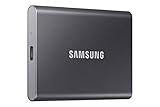
- MADE FOR THE MAKERS: Create; Explore; Store; The T7 Portable SSD delivers fast speeds and durable features to back up any endeavor; Build your video editing empire, file your photographs or back up your blogs all in an instant
- SHARE IDEAS IN A FLASH: Don’t waste a second waiting and spend more time doing; The T7 is embedded with PCIe NVMe technology that brings fast read and write speeds up to 1,050/1,000 MB/s¹, making it almost twice as fast as the T5
- ALWAYS MAKE THE SAVE: Compact design with massive capacity; With capacities up to 4TB, save exactly what you need to your drive – from large working files to game data and everything in between
- ADAPTS TO EVERY NEED: Whether using a PC or mobile phone, count on the T7 for extensive compatibility²; It’s a true team player when it comes to heavy-duty application usage or file-saving
- HI RESOLUTION VIDEO RECORDING: Record Ultra High Resolution (4K 60fs) videos directly onto the T7 Portable SSD with your favorite camera or mobile devices; Supports iPhone 15 Pro Res 4K at 60fps video and more³
- Verify you exported Google Photos and didn’t accidentally limit to photos-only.
- Confirm your OneDrive upload included both photos and video files.
- Search OneDrive by file type to confirm presence (use OneDrive search filters if available in your UI).
Problem: Upload rejected for unsupported or unusual files
OneDrive supports many common image/video types, but edge formats can fail.
- Identify the specific failed files from the upload or sync error logs.
- Convert only those edge formats (keep originals if possible) and retry the batch.
Problem: Very large exports are slow or appear stuck
Takeout exports can produce multiple ZIP parts. Large galleries also create large file counts, which increases sync time.
Crashes, No Sound, or Screen Glitches?
Random freezes, missing sound and display glitches usually trace back to one bad driver. Find and replace yours safely.Free scan · under a minuteWindows Errors? Fix Them Before They Spread
Repair common Windows errors and clear accumulated junk for a smoother, more stable PC - no reinstall needed.Free scan · no reinstall- Wait for completion status—sync is often slower but more stable than repeated manual uploads.
- Prefer wired connections for the upload window if possible.
- Keep your computer awake so sync doesn’t throttle or sleep.
FAQ
Will this keep my Google Photos albums in OneDrive?
Not automatically. OneDrive stores files, not Google Photos album objects. If you want album-like organization, export by selected albums in Google Takeout, then upload those exports into matching OneDrive folders.
Do I need to download “original quality” or “storage saver” versions?
To preserve quality, export the original media when possible. Google Takeout usually exports the stored originals and related metadata, but your specific quality settings can influence what you receive.
Can I transfer directly from Google Photos to OneDrive without downloading?
There’s no universal, first-party one-click pipeline from Google Photos to OneDrive that guarantees consistent results. The safest “direct” alternatives are cloud-to-cloud tools or sync-based workflows after export.
What’s the fastest method?
Method 3 (OneDrive sync after Google Takeout export) is often the fastest for large libraries because it uploads in the background and reduces browser timeouts. Method 2 is fine for smaller batches.
Quick wins for a faster PC:
Scan for outdated or missing drivers - takes under a minuteDriver Scan →Clear out junk files and repair common Windows errorsFree Scan →How do I verify my transfer is complete?
Use a two-step check: (1) compare approximate counts per batch (by year/album) between your local extracted folders and OneDrive, and (2) spot-check filenames and a few videos across different dates.
Bottom Line
If you want the most dependable transfer from Google Photos to Microsoft OneDrive, use Google Takeout to export originals, then upload via OneDrive sync (Method 3) for speed and stability.
For smaller libraries, browser upload works. For maximum automation, a cloud-to-cloud transfer tool can reduce manual effort, but always run a test batch and verify the results before committing to a full migration.
Quick Recap
Product prices and availability are accurate as of the date/time indicated and are subject to change. Any price and availability information displayed on Amazon at the time of purchase will apply.

