Recommended Free Tools
Some links on this page are affiliate links: if you buy through them we may earn a commission, at no extra cost to you.
The AutoPro X Android Auto Wireless adapter can let you run a wireless Android Auto experience in your car. Some Samsung phone owners specifically want that wireless connection to also support Samsung DeX-style screen projection, so they can get a more “desktop-like” workflow behind the wheel.
This guide is a practical, step-by-step reference for getting the most reliable result: DeX that actually starts, stable audio/video, and fewer disconnects. Where DeX won’t behave like you expect, you’ll get targeted troubleshooting and alternatives.
As an Amazon Associate I earn from qualifying purchases.
What the AutoPro X Android Auto Wireless adapter is (and what it is not)
The AutoPro X Android Auto Wireless adapter sits between your Samsung phone and your car head unit. Its job is to provide wireless Android Auto so your phone doesn’t need to stay plugged in.
It is not a universal “enable any Samsung DeX mode anywhere” device. DeX is a Samsung software feature with multiple output paths, and not every car/head-unit projection path supports the same behavior.
Popular on Amazon

- Universal App Access: Leverage the AutoProX to utilize every app on the Google Play Store via Samsung DeX, transforming your Samsung Galaxy S, Note, or Fold into a powerful computing platform. This wireless carplay solution offers seamless connectivity, elevating your in-vehicle experience.
- Entertainment On-The-Go: Stream OTT services like Netflix, YouTube and Disney+ effortlessly with the AutoPro X. This car streaming device integrates seamlessly, requiring no SIM card, smart AI box or carplay box. This car play wireless adapter enables you to watch any videos in your car just like netflix carplay adapter, youtube carplay adapter without wifi for car. It transforms your navigation into a tv for car. Also, you can watch streaming services or live sports like ESPN and Hulu for immersive entertainment.
- Social Media Integration: Stay connected with social media platforms such as TikTok, Instagram, Facebook, Snapchat, and WhatsApp using the AutoPro X. This Android Auto box ensures you can manage your social presence on-the-go without being recognized as a separate device, avoiding extra subscriptions. This car streaming box make you catch up all social media contents. Enjoy TikTok, Instagram Reels on your car with this wifi mirror box. With this android auto wireless adapter Youtube videos or shorts are also available.
- Enhanced Navigation with Samsung BixBy: Simultaneously use your phone and navigation apps with the AutoPro X, utilizing Samsung Bixby. This versatile wireless carplay adapter for android allows you to maintain connectivity and focus on the road, thanks to its intuitive split-screen feature. This android carplay makes your life easier. With this android car play box, experience the unlimited freedom.
- Bluetooth Keyboard and Joystick in Your Car: Transform your ride into a gaming hub with the AutoPro X, supporting joystick gameplay on your car's screen. This Android Auto AI Box provides a plug-and-play experience, merging entertainment and functionality into a single, powerful vehicle electronics solution.
Why Samsung DeX in a car is trickier than it looks
Samsung DeX can be routed through different display mechanisms (USB-based projection, DeX docks, HDMI paths, and Samsung’s own screen mirroring/projection modes). Android Auto is a standardized projection channel with its own app and display constraints.
So the real question is simple: does the specific combination of your phone model + your Android/One UI version + your head unit + AutoPro X firmware/software behavior allow DeX to be reachable through the Android Auto wireless route?
PC Slower Than It Used to Be?
A free scan shows the junk files, broken settings and background clutter dragging Windows down - then fixes them in one click.Free scan · Windows 10 & 11Crashes, No Sound, or Screen Glitches?
Random freezes, missing sound and display glitches usually trace back to one bad driver. Find and replace yours safely.Free scan · under a minuteCompatibility checklist before you start
Before you power anything on, validate the basics. Most “it doesn’t work” reports come from one of these mismatches.
- Your phone supports DeX (many Galaxy S/Note/Tab models do, but not all).
- Your car head unit supports Android Auto (not just phone casting). Confirm Android Auto works when you connect your phone by USB first.
- Your Samsung phone is updated (at minimum: Galaxy Store and Google apps updated; Android Auto app current).
- Android Auto wireless is not disabled on your head unit/phone settings.
- AutoPro X pairing mode is correct for your head unit (some adapters are sensitive to 2.4 GHz vs 5 GHz Wi‑Fi behavior).
- Wi‑Fi/Bluetooth are enabled during setup; some models use Bluetooth for negotiation even when display is over Wi‑Fi.
What you’ll need
- AutoPro X Android Auto Wireless adapter
- A vehicle USB port that powers the adapter reliably (avoid low-power hubs)
- Your Samsung Galaxy phone that supports Samsung DeX
- Android Auto app installed/updated on your phone
- Google Play services up to date
- Good Wi‑Fi signal conditions (if possible, test in a garage/driveway where interference is lower)
Step-by-step: Set up AutoPro X to run Samsung DeX in your car
Follow this in order. When setups fail, it’s usually because pairing happened in the wrong mode, or DeX was launched before the connection stabilized.
1) Prepare your phone and DeX settings
- Update Android Auto, Google, and Google Play services from the Google Play Store.
- On your Samsung phone, go to Settings → Advanced features → Samsung DeX. Turn it on and confirm you can start DeX at home.
- Open Settings → Connections → Mobile Hotspot and Tethering and leave it off during testing. (Hotspot can confuse projection negotiation on some setups.)
- Check Settings → Connections → Wi‑Fi and Bluetooth are enabled.
2) Install the adapter in the vehicle
- Plug the AutoPro X adapter into a powered USB port on the car head unit.
- If the adapter has a physical mode switch or LED indicator, put it in the Android Auto / Wireless mode recommended for your region.
- Turn the car ignition on (or start the vehicle) so the head unit fully boots.
3) Pair the adapter with your car head unit
Pairing steps vary by adapter revision and head unit brand, but the reliable approach is always: let Android Auto establish the link before attempting DeX.
- On the car screen, open Android Auto.
- On your phone, ensure Bluetooth is on.
- Search for the AutoPro X adapter in Bluetooth settings if your adapter uses Bluetooth negotiation for pairing (some do even when video/audio is wireless).
- On the phone, select the adapter when it appears, then wait for the Android Auto “connected” state.
4) Connect your phone to the adapter (wireless Android Auto)
- Confirm Android Auto shows a connected state on the car display.
- If Android Auto asks for permissions (microphone, notifications), accept them.
- Give the connection 30–60 seconds to stabilize before launching DeX.
5) Launch Samsung DeX and confirm it’s working
This is where outcomes diverge. Some head units will show a DeX-like experience; others will only support Android Auto’s app projection.
Quick wins for a faster PC:
Clear out junk files and repair common Windows errorsFree Scan →Scan for outdated or missing drivers - takes under a minuteDriver Scan →Also popular on Amazon

- Upgrade to Wireless CarPlay & Android Auto The 2 in 1 Wireless CarPlay and Android Auto Adapter converts your factory wired system into a wireless experience. It’s perfect for families using both iPhone and Android phones, allowing effortless switching without unplugging or swapping cables. This adapter is compatible with over 1,000 vehicle models—supporting 800+ with wired CarPlay and 500+ with wired Android Auto. Works with iPhone 6 or later and Android 11 or above devices.
- Fast Easy Setup & Auto Reconnection No app or complicated setup required. Just pair once via Bluetooth and enjoy automatic reconnection in under 3 seconds every time you drive. Powered by advanced 2.4GHz + 5GHz dual-band chips, this 2 in 1 CarPlay Adapter connects quickly—your maps, music, and calls are ready almost instantly.
- OEM-Level Wireless Performance & Vehicle Control Our car adapter maintains the full functionality and preserves the seamless experience of your original CarPlay or Android Auto system—including Apple Maps, Google Maps, Spotify, Siri, and Voice Assistant—while supporting factory controls such as touchscreen, steering wheel buttons, rotary knobs, and voice commands.
- Ultra-Compact & Flush-Fit – Clean Look, No Clutter Teeran Android Auto & CarPlay wireless adapter comes in a compact, space-saving design, about the size of a U.S. dollar coin, helping keep your car interior neat and clutter-free. The tapered design plugs in tightly and sits flush with the USB port. Once installed, the device is nearly invisible—no dangling wires, no bulky clutter, no loose connections. Includes both USB-A and USB-C extension cables to fit hidden or angled ports in different car layouts.
- Smarter & Safer – Built for Real-World Driving Designed to handle everyday use, this Android CarPlay adapter offers efficient heat dissipation vents and is certified to operate between -20°C to 70°C. Built-in protection helps prevent overheating, short circuits, and voltage surges—reducing concerns about performance or safety on long summer drives. Tested for vibration resistance to support stable performance on bumpy roads.
- From your phone, open the Samsung DeX launcher.
- Select the output that corresponds to your car/adapter connection (the label may appear as a DeX display route or “wireless display” target).
- Wait for the DeX desktop to appear.
- Confirm you can open at least one DeX-capable app (for example: a web browser page) without errors.
If the car only ever stays in the Android Auto interface and DeX never surfaces as a desktop/tablet view, that’s not a “bad cable” problem—it’s a projection-path limitation (see troubleshooting next).
Best practices for stable performance
- Use Android Auto version consistency: update Android Auto and keep it current. Outdated Android Auto builds can break wireless pairing behaviors.
- Prefer 5 GHz when available: if your car/head unit supports dual-band and your AutoPro X uses Wi‑Fi direct, 5 GHz can reduce latency and buffering.
- Disable power saving for Android Auto and the adapter companion services. On Samsung: Settings → Battery and device care → Battery → Background usage limits.
- Reboot order matters: adapter powered → car screen booted → phone connects → then launch DeX.
- Don’t start DeX during reconnect: wait until Android Auto shows a steady connected state.
Common issues and troubleshooting (with concrete fixes)
Use this section like a checklist. Start with the earliest issue matching your symptoms.
Adapter connects but DeX doesn’t appear
Most often, Android Auto wireless works while DeX output over that same route isn’t supported. Try this:
- First confirm Android Auto works wired with the same phone. If wired Android Auto fails, fix that before touching DeX.
- In Android Auto settings on the phone, open Android Auto → Settings and ensure permissions and “Start automatically” behaviors aren’t blocked.
- Restart flow: disconnect from the adapter, force close DeX and Android Auto, then reconnect with the adapter powered first.
- Clear cache: Settings → Apps → Android Auto → Storage → Clear cache. (Avoid “Clear data” unless you’re ready to re-grant permissions.)
DeX appears, but apps won’t load or screen is blank
This usually comes from a projection permission problem or a content-loading block.
- Grant Android Auto permissions again: microphone, notifications, and “display over other apps” if prompted.
- Switch DeX apps to lightweight options (browser vs heavy streaming apps) for the test cycle.
- Check Wi‑Fi strength: move the car to a less congested area and retry.
Audio stutters or video drops
- Turn off Wi‑Fi scanning features that create contention, if your Samsung version exposes them (some regions add background Wi‑Fi optimization).
- Set your phone Wi‑Fi to 5 GHz preference if you control the network. If not, try a different route/time of day to change RF conditions.
- Restart in this order: adapter off → phone Bluetooth/Wi‑Fi off → adapter on → phone connect → launch DeX.
Disconnections every few minutes
- Disable battery optimization for Android Auto: Settings → Apps → Android Auto → Battery → Unrestricted.
- Turn off “Auto suspend” behaviors if your phone has them under developer/battery settings.
- Remove other paired Bluetooth devices temporarily (or at least reduce multipoint connections) to prevent negotiation conflicts.
Android Auto shows an error loop
- On your phone: go to Settings → Apps → Android Auto → Storage → Clear cache.
- Reinstall Android Auto from Play Store if the app build is clearly outdated.
- Delete the adapter entry and re-pair: remove the adapter from Bluetooth, then redo wireless Android Auto pairing from scratch.
- Update the adapter companion app/firmware if AutoPro X provides a method (many vendors use a phone app or documented firmware path).
How this differs from using Samsung DeX via USB or HDMI
When you run DeX through USB/HDMI, you’re using Samsung’s intended display pipeline. With a wireless Android Auto adapter, you’re depending on whether the DeX output path can be mapped to the adapter’s projection channel.
That’s why some setups show “DeX desktop not available” while Android Auto itself is fully functional. Treat the wireless adapter as a phone-projection tool first, and DeX as a best-case result rather than a guaranteed outcome.
Also popular on Amazon

- Compatible with wired-only Android Auto systems
- Requires Android 11+
- Multifunctional button for easy phone pairing and switching
- Connects unlimited phones, perfect for road trips
- Plug & play setup, no tech skills needed
Alternative approaches if AutoPro X won’t give you DeX
If your priority is DeX desktop reliability (not just Android Auto), consider these options.
Use the car’s native Android Auto (wired) for phone projection, then run DeX-compatible workflows
Even if DeX doesn’t appear, you can still use practical DeX-adjacent workflows: larger navigation, driving-friendly messaging, and media control through Android Auto apps.
The Tool Desk
Outbyte PC Repair FREERepair Windows errors before they cause bigger problemsFix Now →Outbyte Driver Updater FREEScan for outdated or missing drivers - takes under a minuteDriver Scan →- Connect your phone via USB and confirm Android Auto runs without errors.
- Use Android Auto-supported apps (Maps, Music, messaging equivalents) and keep your phone in a stable position.
Use DeX via Samsung-supported wired/HDMI paths
If you truly need the DeX desktop, wired projection is the most consistent. It reduces RF issues and removes the “can DeX be mapped onto Android Auto projection?” problem.
- Use a Samsung-supported DeX dock/cable solution.
- Connect to a compatible car display/input (head unit HDMI input, an in-car monitor, or an aftermarket display designed for DeX/HDMI use).
Use a media-centric setup (Android Auto + phone notifications) instead of full DeX
For many drivers, the actual need is big-screen control and hands-free access—not the full DeX desktop.
- Configure Android Auto notification permissions and driving mode rules.
- Use your phone for DeX tasks when parked, and use Android Auto while driving.
FAQ: AutoPro X, Android Auto wireless, and Samsung DeX
Does AutoPro X guarantee Samsung DeX on every car head unit?
No. Android Auto wireless support is more consistent than DeX being available through that same projection path. Compatibility depends on phone model, software versions, and the head unit’s handling of projection outputs.
What Samsung phones are most likely to work?
Generally, DeX-capable Galaxy models (many Galaxy S, Note, and some Z/Tab devices) perform better. Still, DeX availability depends on how your DeX output is routed and whether the adapter path supports it.
Do these 3 things before closing this tab:
1Scan for outdated or missing drivers - takes under a minute2Clear out junk files and repair common Windows errors3Fix the driver behind crashes, sound loss and screen glitchesAlso popular on Amazon
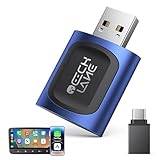
- 【2026 Upgraded 2-in-1 Wireless CarPlay & Android Auto】 As a professional 2-in-1 wireless carplay adapter, it integrates both for Apple Car Play and Android Auto core functions. Replaces a single bluetooth car adapter to realize wired-to-wireless conversion for iOS & Android. The upgraded chip optimizes stability, solving disconnection issues of old carplay wireless adapter models for a smoother car play experience.
- 【5G WiFi + Bluetooth 5.4 for Fast Auto Connect】 Equipped with 5G WiFi and BT 5.4, this wireless for apple carplay adapter & android auto wireless adapter supports ultra-low latency transmission. No lag for navigation, music, or video streaming (Android support). It auto-connects to your phone once powered on, acting as a smart car gadget for your car play screen.
- 【Universal Plug & Play (USB‑C/A Dual Interface)】With USB‑C and USB‑A plugs, this CarPlay adapter needs no extra converter. Direct plug into car USB port to use. No app download or system setting required. Compatible with all car accessories needing a CarPlay wireless adapter, including truck accessories. Fits Mazda CX5, Honda Accord, Mercedes Benz, Lexus, and a wide range of other vehicle models with factory wired ports.
- 【Compact Car-Grade Durable Design】Made of fireproof ABS material, this 2-in-1 Car Adapter has a mini size that won’t block other car ports. Car-grade temperature resistance ensures stable work in high/low temp environments, durable for long-term use as a reliable Car USB Adapter.
- 【Wide Compatibility & 24-Month Warranty】This 2-in-1 adapter is fully compatible with iOS 10+ for apple carplay (iPhone) and Android 11+ for Android Auto, fitting most 2016+ cars with factory wired carplay adapter port. We offer 24-month warranty and 7/24 professional customer service—any wireless carplay connection issue will be solved within 12 hours.
Why does Android Auto work but DeX doesn’t show up?
Android Auto and DeX are different projection ecosystems. Your setup may support Android Auto display only, while DeX requires a separate output path that the adapter doesn’t translate.
Will updating Android Auto fix DeX issues?
It can fix pairing and stability problems. If the limitation is architectural (DeX can’t be mapped onto the Android Auto projection channel), updates won’t change that. Still, you should update because many wireless projection bugs get patched.
Can I use DeX while the car is moving?
Many systems restrict viewing or interaction while driving for safety. If you encounter restrictions, test while parked and confirm in-car behavior with your local regulations and head unit settings.
Bottom Line
The AutoPro X Android Auto Wireless adapter is a strong way to get wireless Android Auto in your car. Samsung DeX support is highly dependent on how DeX output can be routed through that projection channel, so you should treat “DeX appears” as a compatibility-dependent outcome—not a guaranteed feature.
If you need predictable DeX desktop behavior, the most reliable route is still Samsung’s supported wired/HDMI DeX path. If your goal is a practical driver workflow, use Android Auto for daily driving and reserve full DeX for when you’re parked.

