Some links on this page are affiliate links: if you buy through them we may earn a commission, at no extra cost to you.
Rumors and vendor hints keep circling back to one idea: Snapdragon X Elite, Qualcomm’s flagship Windows-on-Arm class chip, could end up powering future Android PCs. The motivation is straightforward—PC battery life and always-connected performance—combined with the reality that modern Android is already built for ARM processors.
But “Android PC” can mean several different software setups. This guide treats it like a technical planning problem: what has to be true, which architectures are plausible, what app compatibility would look like, and what you should verify when devices (or developer images) arrive.
As an Amazon Associate I earn from qualifying purchases.
Free tools Windows power users keep installed
One-click scans. No signup required.
What Snapdragon X Elite Is (and why it matters for Android PCs)
Snapdragon X Elite is Qualcomm’s high-end ARM-based laptop SoC designed for Windows on Arm-class systems. The chip targets PC workloads with a focus on efficiency, integrating a CPU complex (with Oryon cores), an Adreno GPU, and a dedicated NPU rated for on-device AI acceleration.
On the spec sheet side, the commonly cited Snapdragon X Elite highlights include a 12-core CPU design and an NPU up to 45 TOPS (model-dependent, marketing tier dependent). Those numbers matter because Android PCs would need smooth UI rendering, fast app startup, and capable AI/NPU paths for features like live captions, translation, and camera enhancements.
Popular on Amazon

- UNOPENED RETAIL PACKAGING, sold as configured by Lenovo. Includes one year of Courier or Carry-in Lenovo Warranty. Add up to 4 years of Lenovo Premium Care Onsite Plus when you register your computer with Lenovo.
- Amazing Display: 14.5" 3K (2944 x 1840), OLED, Glare, Dolby Vision, Touch, HDR 600 True Black, 100I-P3, 1000 nits (Peak)/500 nits (Typical), 90Hz, Glass
- Experience exceptional performance with the Snapdragon X Elite X1E-78-100 processor, Delivering 45 trillion operations per second, ensuring tasks are more efficient and faster. With exceptional power efficiency expertly managed by the tuning of the Slim 7x, you can enjoy up to 23.5 hours of video playback on a single battery charge.
- Designed to get any job done with memory of 16 GB and even more storage capacity at 1 TB. And power through your day with plenty of connectivity, including: 3x USB-C (USB4 40Gbps), with USB PD 3.1 and DisplayPort 1.4.
- The Snapdragon X Elite X1E-78-100 processor is perfect for those with a creative mind and an eye for design. It delivers top-tier performance while cutting power consumption by 68%, letting your creative juices flow all day without any interruptions.
Why the idea of an Android PC on Snapdragon X Elite makes sense
There are three reasons the rumor fits engineering reality instead of just wishful thinking.
1) ARM compatibility is the foundation for Android on PC
Android runs natively on ARM (ARMv8-A for mainstream modern devices). If a PC-class OS can boot a real Android userspace on ARM, the app base can carry over without constant heavy translation.
Quick wins for a faster PC:
Repair Windows errors before they cause bigger problemsFix Now →Scan for outdated or missing drivers - takes under a minuteDriver Scan →2) Efficiency is the biggest differentiator in a laptop
Android users care about standby time and sustained performance. Snapdragon X Elite’s entire positioning is “PC performance without PC power budgets,” which aligns directly with typical Android product expectations.
3) OEMs already have incentive to reduce app friction
For an Android PC to succeed, app compatibility and peripherals (camera, audio, Wi‑Fi, Bluetooth, touch, keyboard/mouse) must work predictably. Using a mature ARM platform like Snapdragon X Elite reduces the risk compared with introducing a brand-new PC SoC for Android.
What would need to be true for a real Android PC experience
An Android PC isn’t just “Android installed on a laptop.” A workable device has to satisfy several technical requirements at once.
Drivers and graphics stack must be solid
Android on x86 has historically relied on different kernel/driver ecosystems than Android on ARM. On a Snapdragon X Elite Android PC, GPU, display, camera, audio, Wi‑Fi, and Bluetooth drivers need to be stable and performant.
Do these 3 things before closing this tab:
1Fix the driver behind crashes, sound loss and screen glitches2Clear out junk files and repair common Windows errors3Scan for outdated or missing drivers - takes under a minuteEven small GPU compositor issues can cause jank, tearing, broken animations, or broken video playback. That’s the difference between a “demo” device and a daily driver.
Input and windowing need to feel PC-native
A PC form factor adds a keyboard, trackpad, mouse, and often multi-window workflows. Android’s window manager can do this, but OEMs need to tune pointer behavior, focus rules, and scaling so the UI behaves like a desktop, not a phone held up to a monitor.
Peripheral support must cover the basics (and the annoyances)
- Audio: low-latency output and microphone behavior
- Display scaling: readable text at 13–14 inch-class resolutions
- Sleep/wake: fast resume without camera breaking
- Camera: correct sensor support, not just “front camera works”
- Docking: USB-C video and accessory enumeration stability
Security and attestation must match Android expectations
Modern Android relies on hardware-backed keystore and device integrity checks. If certification paths fail, streaming services and banking apps can refuse playback or force degraded security modes.
Possible Android PC architectures using Snapdragon X Elite
There isn’t one single blueprint for an Android PC. Below are the architectures that are most plausible given how Android and ARM platforms typically ship.
What’s actually slowing this PC down?
Pick the symptom - the matching free tool is one click away.
Option A: Native Android on ARM as the primary OS
This is the “true Android PC” approach: Android boots as the main OS, and all drivers are built for that kernel + userspace combination.
- Bootloader loads a Linux kernel configured for the Snapdragon X Elite platform.
- Userspace is Android (typically a vendor-tuned build), with SELinux policies and system services.
- GPU/display/camera/audio drivers plug in via the vendor BSP.
- Windowing and input are tuned for keyboard/mouse/trackpad and multi-window use.
- Play services and app distribution follow standard Android certification paths.
Option B: Android in a container or VM on a host OS
This is the “pragmatic transition” path: keep a host OS for drivers and system integration, and run Android as an environment.
- Host OS provides kernel drivers and device access for GPU, networking, and input.
- Android runs in a VM/container with shared networking and file access.
- App performance depends on GPU acceleration plumbing and device passthrough quality.
- Audio/video and sensors may require extra integration layers.
- UI integration can range from “app in a window” to a full desktop experience.
Option C: Dual-OS designs (Android as a mode, not the only OS)
Some OEMs prefer a fast switch between Windows-like workflows and an Android-focused mode. That’s often easier for staged device rollouts and compatibility testing.
- OEM ships two OS environments with separate driver stacks.
- A boot switch or mode toggle selects Android vs host OS behavior.
- Storage and user data synchronization must be designed to avoid data corruption.
- App stores can differ by mode depending on certification and integration.
- Update delivery has to coordinate both systems safely.
App compatibility: ARM Android, emulation, and mixed workloads
The biggest user-visible question is always apps. Snapdragon X Elite can run ARM Android apps natively, but edge cases remain.
Also popular on Amazon
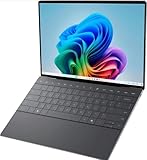
- 13.4 inch FHD+ (1920 x 1200) Anti-Glare 30-120Hz 500-nits InfinityEdge Eye Safe Non-Touch Display
- Snapdragon X Elite, X1E-80-100 (12 cores up to 3.4 GHz Dual-Core Boost up to 4.0 GHz, NPU Upto 45 TOPS)
- 16GB RAM | 512GB SSD
- Qualcomm Adreno GPU | Two USB4 40 Gbps USB Type-C ports with DisplayPort and Power Delivery
- Windows 11 PRO | Fingerprint Reader
Native ARM apps: the best-case scenario
If the Android PC environment is ARMv8-A and apps are distributed as modern ARM APKs, compatibility should be close to what you’d see on a phone or tablet. Performance is also typically better than emulation.
How emulation affects gaming, productivity, and DRM
Emulation is sometimes necessary for legacy x86 or unexpected binaries. Emulators can introduce:
- Higher battery drain
- Janky frame pacing in games
- Touch-to-pointer mapping bugs
- DRM playback failures when integrity checks break
If your must-have apps (streaming, banking, workplace tools) are sensitive, the device’s certification and attestation behavior matters as much as the CPU.
Web apps and “browser-first” still matter
Many PC workflows can move to browsers quickly. If a future Android PC ships with a strong Chrome baseline, your “day one” productivity can still be solid even if niche native apps lag.
Battery, performance, and thermals: what to expect
Qualcomm’s PC-class narrative is efficiency. On an Android PC, that typically translates to:
- Lower idle power (good for sleep/wake and standby behavior)
- More consistent CPU performance over long sessions than some x86 ultrabooks
- Thermal headroom that favors sustained web + messaging + light office use
Real performance will depend on OEM power profiles and cooling design. Two laptops with the same Snapdragon X Elite can behave differently under sustained load because firmware controls fan curves and sustained watt limits.
Hardware features that matter on a PC-class Android device
Android works on phones. The “PC” part is the hardware. When Snapdragon X Elite shows up in Android PCs, pay close attention to these features.
| Component | What to verify | Why it matters on Android |
|---|---|---|
| Display | Refresh rate (60Hz vs 90Hz/120Hz), scaling behavior | Text clarity and smoothness under Android’s compositor |
| Wi‑Fi/BT | Stability with headphones and Wi‑Fi roaming | Audio drops are harder to mask in a desktop workflow |
| Audio | Microphone selection, echo cancellation | Video calls should not degrade unpredictably |
| Camera | Auto-focus, exposure consistency, supported resolutions | Android camera apps are sensitive to sensor driver quirks |
| USB‑C / docking | External monitor support, USB peripherals in sleep | Desktop productivity depends on the dock behaving every day |
| Sensors | Ambient light, proximity, rotation (if applicable) | Some apps use sensor signals even on “laptop-like” layouts |
| Storage | NVMe performance, TRIM behavior | App install/update speed and “feels snappy” responsiveness |
Developer checklist (building and testing for this world)
If you publish Android apps—or you support internal tooling—treat an Android PC launch as a platform expansion, not a phone refresh.
The Tool Desk
Outbyte Driver Updater FREEFix the driver behind crashes, sound loss and screen glitchesFind Drivers →Outbyte PC Repair FREERepair Windows errors before they cause bigger problemsFix Now →1) Confirm you ship ARM-native binaries
Use Android App Bundles (AAB) with proper native library splits for ARM. Make sure your build outputs include the ABIs you need (commonly arm64-v8a). If you depend on native SDKs, validate they publish ARM64 variants.
2) Test pointer and keyboard flows, not just touch
On a PC-class form factor, your app’s UI state transitions matter. Test:
- Tab order and focus highlights
- Right-click behavior (context menus)
- Keyboard shortcuts and input method editor behavior
- Multi-window compatibility (where supported by the OS build)
3) Validate media codecs and playback paths
Don’t assume “works on my phone.” Test video playback in the same way a user will: screen recording, hardware acceleration on/off, and DRM-enabled streams where applicable.
4) Watch performance hot spots with big-memory scenarios
Android PCs often keep apps alive longer because users open many windows. Profile memory usage to avoid low-memory killer surprises.
5) Build a minimal device test plan
- One Android phone with a similar Android version and GPU stack for regression baselines.
- One “Android PC” device (or emulator image) that matches the target architecture.
- One high-resolution external monitor test case to confirm scaling and text crispness.
- One dock scenario if your user base uses peripherals.
Enterprise and IT considerations
Enterprises won’t care only about benchmarks—they care about deployability, identity, compliance, and supportability.
Device management and policy support
Confirm that the Android PC OS supports your MDM stack: Wi‑Fi configuration policies, certificate enrollment, screen pinning restrictions, kiosk mode behavior, and data retention rules.
Also popular on Amazon

- THE SMARTER CHOICE FOR MOBILITY – Get projects done on a device with the most capable AI platform available with the expansive 15" WUXGA 16:10 display that brings all-day battery life, and a durable metal chassis.
- ELEVATED VISUAL DISPLAY – The 15.3" 16:10 display brings elevated visuals and more screen space for work and play. Vivid colors, deep blacks, and sharp contrast make every detail shine, whether you’re streaming, gaming, or creating.
- YOUR PC, YOUR PRIVACY –The physical webcam shutter lets you stay in control of who’s watching and a fingerprint reader offers faster, safer logins. Plus, the Enhanced Security Suite adds extra protection to keep your data private and your PC secure.
- PREMIUM DURABILITY – The IdeaPad Slim 3x is built with a premium-grade metal chassis that offers supreme durability from military-grade MIL-STD 810H tests. It delivers strong, dependable performance with a premium design. Ready for whatever, wherever.
- BUILT FOR AI – Powered by a 45 TOPS NPU, this AI-driven Copilot+ PC crushes multitasking, smooths video calls, and lasts all day.
App distribution and offline needs
Many organizations rely on private app catalogs and offline access. Validate that the Play environment (or alternative store path) behaves correctly in managed mode.
Security checks for sensitive apps
If you run internal apps that rely on Android’s integrity or certificate pinning, test them specifically on the Android PC build. Some apps behave differently when they see unfamiliar hardware attestation results.
Buying guidance: what to look for if/when Android PC hardware ships
When devices appear, you’ll want to separate marketing from workable daily usability. Use this checklist.
Software maturity indicators
- Clear OS version and patch cadence (security updates matter more on laptops than most people expect)
- Documented support for keyboard, trackpad, multi-window, and external monitor scaling
- GPU acceleration notes for video playback and common conferencing apps
Hardware clarity
- Exact Wi‑Fi and Bluetooth module model (if published)
- Camera specs and autofocus quality claims backed by test footage
- Dock compatibility list (or at least multiple “known good” USB‑C docks tested)
Compatibility reality check
Before you buy, list your top 10 apps and validate them against the OS environment. Don’t assume “Android tablet app = works perfectly.” PC input and multi-window behavior can expose UI flaws quickly.
Troubleshooting common pain points
Android PCs—especially early builds—can hit predictable problems. Here’s how to approach them without guessing.
Problem: Apps stutter or animations feel uneven
First, restart the app and check whether the device is in a power-saver mode. Then verify hardware acceleration settings inside the app or browser. If it only happens on external displays, it may be a compositor scaling issue.
Recommended Free Tools
- Close all background apps and retest.
- Switch between battery saver and balanced performance modes.
- Test the same app in Chrome and in the app directly (to isolate GPU pipeline differences).
Problem: External monitor works, but touch or pointer behaves wrong
Many early Android PC builds need per-display pointer mapping and scaling calibration. Try changing display scaling to the nearest “recommended” value and replug the dock.
- Open Display settings and reset scaling to the default recommendation.
- Disconnect and reconnect the USB‑C dock.
- Update to the newest OS build if the vendor has patch notes for input/display.
Problem: Camera works in one app but fails in another
This usually points to permission handling, camera device exclusivity, or codec support differences between apps.
- Check app permissions for Camera and Microphone.
- Clear camera app cache/storage for the failing app.
- Restart the device if the camera subsystem appears “stuck.”
Problem: DRM streaming fails or plays in low quality
DRM is tightly tied to device integrity and sometimes to hardware video decoding paths. Confirm the device meets the required integrity baseline and try disabling experimental video settings in the streaming app.
- Update OS and streaming app to the latest versions.
- Test another DRM service (to determine whether it’s app-specific or device-wide).
- If available, toggle hardware video decoding inside the app settings.
Bottom Line
Snapdragon X Elite could absolutely power future Android PCs, mainly because it’s an ARM-native, efficiency-first platform with enough CPU/NPU/GPU capability for a real desktop-class Android experience. The “make it real” work will be in drivers, GPU compositing, input/windowing polish, and security certification behavior.
Outdated Drivers Are Slowing You Down
One free scan finds every outdated or missing driver and matches the right update for your exact hardware.Free scan · exact hardware matchPC Slower Than It Used to Be?
A free scan shows the junk files, broken settings and background clutter dragging Windows down - then fixes them in one click.Free scan · Windows 10 & 11If you’re a buyer, validate app compatibility and dock/monitor behavior early. If you’re a developer or IT admin, focus on ARM-native packaging, pointer/keyboard UI testing, and integrity-sensitive app verification so your rollout doesn’t get derailed by the first early-release quirks.
FAQs
Will Snapdragon X Elite Android PCs run all Android apps?
Most ARM Android apps should run well if the OS environment is ARM-native and uses standard Android compatibility layers. Legacy binaries, certain DRM flows, and apps with unusual native SDK dependencies may still require fixes or updates.
Is an Android PC more like a phone, or more like a laptop?
It depends on the OS architecture. A native Android PC aims for a desktop-like experience, but a container/VM approach can be more “app-window centric.” Either way, keyboard, multi-window, and external display support decide whether it feels like a laptop.
What should I test first if I’m evaluating an Android PC?
Test your top communication apps (video calls), your main browser workflow (including external monitor scaling), your docking setup, and one DRM-heavy streaming app. Those four areas quickly reveal whether you’re dealing with an early prototype or a usable platform.
Will developers need different code for Android PCs?
Usually you keep the same Android codebase, but you should test for keyboard/mouse input, multi-window behavior, and performance under longer sessions. If you ship native libraries, confirm arm64-v8a coverage and SDK compatibility.

