Free tools Windows power users keep installed
One-click scans. No signup required.
Some links on this page are affiliate links: if you buy through them we may earn a commission, at no extra cost to you.
Samsung smart glasses have reportedly been headed for a January debut after a software reveal. When a company shows the software first, it usually means the core experiences—setup, pairing, companion apps, and user flows—are being validated long before mass retail.
This matters because smart glasses are more than hardware. The day-one experience depends on permissions, connectivity stability, and the way software turns sensors and voice input into something useful (and safe).
As an Amazon Associate I earn from qualifying purchases.
What the January debut after a software reveal suggests
A software reveal ahead of launch typically points to three things: the product roadmap is stable enough to document workflows, the companion app is close to final, and Samsung wants feedback on how users interact with the interface.
In practice, that means you should expect the January release window to focus on “it works end-to-end” features—pairing, notifications, voice or gesture controls, and core media/navigation behaviors—while more advanced capabilities may follow via updates.
Popular on Amazon
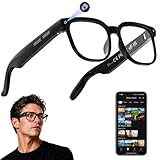
- 【AI Real-Time Translation & Voice Assistant】AI glasses support real-time translation in 139+ languages to make communication easier across different languages. The built-in AI voice assistant helps you access information and interact more efficiently—ideal for work, study, travel, and daily use.
- 【4K Ultra HD】 Smart glasses feature 4K resolution for clear, detailed visuals, making them suitable for travel, outdoor activities, everyday moments, and daily use.
- 【Bluetooth Music & Hands-Free Calls 】Smart glasses provide Bluetooth music and crystal-clear hands-free calls with an open-ear design. Stay aware of your surroundings while listening—comfortable for long wear and safer for commuting, cycling, and outdoor use.
- 【IP65 Waterproof & Long Battery Life】 AI glasses are designed for daily wear with IP65 waterproof protection against sweat, rain, and dust. The built-in 290mAh battery provides reliable performance for workdays and travel—no anxiety when you’re on the go.
- 【Smart App Control & Object Recognition】Smart glasses connect to the companion app for easy setup, file management, and feature control. They support AI object recognition to help identify items and improve your daily efficiency—perfect for travel exploration and a smart lifestyle.
What you should know from a software reveal
Software reveals aren’t just marketing screenshots. They’re often the clearest indication of which inputs Samsung is prioritizing and how the glasses will fit into your existing Samsung life.
App and account requirements
Most wearable launches require a companion app plus a Samsung account. Watch for whether the reveal mentions Galaxy Wearables integration, account sign-in, or any “must be on” phone models and regions.
If Samsung’s software preview includes onboarding steps, screenshot the permission prompts you see (camera, microphone, location, notifications). Those prompts are usually the real checklist you’ll repeat on day one.
Connectivity expectations
With smart glasses, connectivity is the backbone. A software reveal often clarifies whether the glasses rely on Bluetooth for audio/controls, Wi‑Fi for richer features, or both.
If you see references to a companion phone acting as the “hub,” plan to keep a compatible Samsung phone nearby for a stable experience, especially during setup and troubleshooting.
On-device vs cloud features
When software highlights language understanding, voice commands, or contextual assistance, it can indicate whether features run partly on-device or require cloud processing. That affects latency, offline behavior, and privacy expectations.
Quick wins for a faster PC:
Clear out junk files and repair common Windows errorsFree Scan →Scan for outdated or missing drivers - takes under a minuteDriver Scan →Even without technical specs, you can infer behavior: if the reveal emphasizes real-time responses, Samsung likely supports low-latency execution; if it emphasizes summaries or deeper understanding, cloud involvement is more likely.
Compatibility checklist (before you buy)
To avoid the classic “it pairs but nothing works” situation, verify compatibility before January. Smart glasses can work with many phones, but companion-app support is usually stricter than Bluetooth-level pairing.
Phone and OS
Confirm your Samsung phone model and Android version are supported by the companion app. If Samsung publishes a required minimum, treat it as a hard requirement—not a suggestion.
Also check whether the glasses require a specific companion app version and whether updates are delivered through Galaxy Store or another channel.
Outdated Drivers Are Slowing You Down
One free scan finds every outdated or missing driver and matches the right update for your exact hardware.Free scan · exact hardware matchWindows Errors? Fix Them Before They Spread
Repair common Windows errors and clear accumulated junk for a smoother, more stable PC - no reinstall needed.Free scan · no reinstallSamsung ecosystem dependencies
If the software reveal references Samsung services (like account sync, device controls, or notifications routing), you’ll want key settings enabled ahead of time—especially background permissions for the companion app.
On many Samsung devices, background restrictions can break audio routing or delay notifications. Disable aggressive battery optimization for the companion app if the onboarding guide suggests it.
Region and language support
Smart glasses often ship with region-gated language packs and regional safety requirements. If Samsung’s software reveal shows particular languages or locales, expect other regions to receive updates later.
Before purchase, check store listings or Samsung support pages for your country’s availability date and supported languages.
Do these 3 things before closing this tab:
1Fix the driver behind crashes, sound loss and screen glitches2Clear out junk files and repair common Windows errors3Scan for outdated or missing drivers - takes under a minuteHow to prepare for launch day
January debut means you’ll likely want a frictionless first session. A little prep prevents most early-adopter pain.
Update your Samsung phone first
Install the latest system updates before setup day. Wearables commonly require security patches and Bluetooth stack updates to run reliably.
Also update the companion app to the newest version available in your region store. If the app appears but won’t finish setup, it’s often version mismatch.
Set up Samsung account and permissions
Sign in to your Samsung account and confirm you can access Samsung services (sync, notifications, and account management). Then, during onboarding, grant only the permissions the features you want actually require.
What’s actually slowing this PC down?
Pick the symptom - the matching free tool is one click away.
If you plan to use voice features, ensure microphone access is granted to the companion app and any connected voice service components.
Decide how you’ll use notifications
Notifications are where smart glasses can feel magical—or distracting. The software reveal usually outlines whether you can filter by app, show previews, or route calls only.
Pick a conservative default first (calls and selected messaging apps) and then expand. You can always broaden access later after you learn the latency and notification behavior.
Use-case guide: what Samsung smart glasses are for
Assuming Samsung’s software reveal centers on everyday interactions, the glasses will likely shine in “quick look” and “hands-free control” scenarios. Here’s how to map that to real life.
Hands-free notifications
Use the glasses to read or respond to time-sensitive updates without pulling out your phone. Prioritize apps you truly need in the moment—calendar alerts, calls, and specific chat threads.
If the interface supports reply actions, test short responses first to avoid long dictation errors.
Navigation and quick lookups
Smart glasses can support turn-by-turn guidance or “glance” summaries. For the best results, ensure location permissions are enabled and that your phone’s location accuracy is set to high.
Try navigation in two environments: open streets (GPS stable) and urban areas (signal multipath). Software behavior can differ.
Calls and voice controls
For calls, audio routing quality matters more than specs. In early sessions, test call audio in a quiet room, then in a noisy environment to understand microphone directionality and noise cancellation.
Also popular on Amazon

- #1 SELLING AI GLASSES* – Tap into iconic style and advanced technology with Ray-Ban Meta, the #1 selling AI glasses*. Capture photos and videos, listen to music, make hands-free calls or ask Meta AI questions on the go. *Based on IDC historical sales data up to Q3’25, released December 2025.
- META AI – Get more done and stay connected without reaching for your phone with AI glasses powered by Meta AI. Capture video recordings, translate languages while traveling and manage nutrition, wellness and everyday tasks hands-free.
- OPEN-EAR AUDIO – Listen to music and more with discreet open-ear speakers that deliver rich, quality audio and Bluetooth connectivity without blocking out conversations or the ambient noises around you.
- BATTERY LIFE – On a full charge, AI glasses can last up to 8 hours with moderate use for everyday activities like listening to audio, video recording and using Meta AI. Plus, the charging case provides an additional 48 hours of charging on the go.
- LENS OPTIONS – Choose from a wide range of lenses for men and women designed to match your style with options ranging from fully tinted sunglasses, fully clear, blue light or Transitions lenses. Experience ultimate adaptability with Transitions lenses on Ray-Ban Meta. Enjoy continuous visual performance in changing light environments, with lenses that darken with sunlight and fade to clear indoors, you'll be ready for whatever your day brings.
For voice controls, reduce background noise for your first test. Voice commands tend to be more forgiving once you’ve calibrated your usage patterns.
Media control and wearable-first experiences
If Samsung’s software reveal mentions media playback or quick controls, expect a “phone controls media, glasses show status” model. That’s typical because heavy compute and libraries remain on the phone.
Set up your preferred music or video apps in the companion app so the glasses know what to control by default.
The Tool Desk
Outbyte Driver Updater FREEFix the driver behind crashes, sound loss and screen glitchesFind Drivers →Outbyte PC Repair FREERepair Windows errors before they cause bigger problemsFix Now →Privacy, sensors, and what to watch for
Smart glasses are inherently sensitive. Even if features look helpful, the permissions and indicators define whether the experience feels trustworthy.
Camera/mic indicators and permissions
Before you enable full functionality, confirm there are clear indicators for camera and microphone usage. If Samsung’s software reveal includes toggles, learn exactly what each toggle does.
In your phone settings, review app permissions after setup. If you don’t need mic access, don’t leave it granted “just in case.”
Location and health data
If the glasses use location for navigation or other context, check whether location permissions are “While in use” or “Always.” Prefer while-in-use unless the feature truly requires always-on behavior.
If health or activity tracking shows up in onboarding, verify what data is collected and whether it uploads automatically or only with explicit opt-in.
Data retention and account controls
Look for account-level controls: the ability to revoke permissions, delete paired devices, or clear wearable-specific settings. January launches usually include basic account management, with deeper controls following in updates.
If you’re privacy-focused, plan a regular routine: review permissions after major app updates and remove grants you don’t use.
Independent reader supportYour contribution helps us test, update, and keep practical guides available for everyone.Early adopter issues and troubleshooting
Most launch problems are predictable. Here are the most common ones and what to try in order.
Recommended Free Tools
Pairing fails or disconnects
Start with fundamentals: reboot your phone, then close and reopen the companion app. Confirm Bluetooth is on and not managed by a strict power-saving mode that limits scanning.
- Remove the glasses from Bluetooth settings (forget device), then restart pairing from the companion app onboarding.
- Disable nearby competing Bluetooth devices temporarily (headsets, cars) to reduce pairing collisions.
- If pairing still fails, update both the phone OS and the companion app to the latest version and try again.
Battery drain is faster than expected
Battery behavior usually comes from background services, constant audio routing, or overly frequent sensor use. Battery complaints are common in the first 48 hours until indexing and first-time calibration complete.
- Check battery usage for the companion app and disable background unrestricted access if you see unusual spikes.
- Turn off features you’re not using (always-on voice, constant notifications) and retest for 1 full day.
- If drain persists, try a full reboot and ensure the glasses firmware (if shown in-app) is updated.
Audio sounds muffled or choppy
Audio issues can come from fit, environmental noise, or Bluetooth interference. Before blaming software, validate hardware basics.
- Confirm the glasses are clean and properly seated for microphone placement and audio capture.
- Move away from dense Bluetooth environments (busy Wi‑Fi routers, crowded malls) and test again.
- In Bluetooth settings, ensure the glasses are connected in the expected audio profile. Re-pair if the profile looks wrong.
Voice features don’t trigger
If voice commands don’t activate, it’s often permissions, background restrictions, or incorrect language settings.
Free tools Windows power users keep installed
One-click scans. No signup required.
- Verify microphone permission is enabled for the companion app and any voice service components.
- Check that the voice trigger language and region match your actual phone settings.
- Temporarily disable battery optimization for the companion app, then retest in a quiet room.
App shows errors or won’t complete setup
Setup failures often indicate server-side gating, region rollout mismatches, or a stale app version.
- Update the companion app again, then clear cache (not necessarily data) if the app supports it.
- Try setup with a stable Wi‑Fi connection rather than mobile data, especially if onboarding downloads content.
- If the problem persists, remove the pairing in both the phone Bluetooth settings and inside the companion app, then restart onboarding.
Alternatives if you can’t wait
If January is too far out, you still have options—though the experience may differ from what Samsung’s glasses aim to deliver.
Android-first wearable options
Some wearable ecosystems emphasize notifications and voice shortcuts more than “glance” display. If your goal is hands-free communication, those can be effective stopgaps.
However, they usually won’t replicate the same interface model unless they’re built with a dedicated companion app and tight audio routing support.
What’s actually slowing this PC down?
Pick the symptom - the matching free tool is one click away.
Mixed reality headsets vs glasses
Mixed reality headsets can be more capable, but they’re heavier and less “wear-all-day.” If you want everyday use rather than focused sessions, glasses are typically the better form factor.
That’s why Samsung’s software reveal is relevant: it signals how they’re targeting everyday interactions instead of only demo scenarios.
FAQs about Samsung smart glasses
Will Samsung smart glasses work with non-Samsung phones?
They may pair via basic Bluetooth, but full features usually require the companion app and supported phone services. Check the companion app’s supported-device list for your model and region.
What features should I expect on day one?
After a software reveal, expect “end-to-end basics” first: pairing, core notifications, audio routing, and primary voice/assistant flows. More advanced capabilities often arrive via firmware and app updates.
The Tool Desk
Outbyte Driver Updater FREEScan for outdated or missing drivers - takes under a minuteDriver Scan →Outbyte PC Repair FREERepair Windows errors before they cause bigger problemsFix Now →How do I improve reliability once they’re set up?
Keep the companion app updated, avoid extreme battery restrictions, and review permissions after major updates. If audio or notifications become inconsistent, re-check Bluetooth connection profile and re-pair if needed.
Are there privacy controls I should turn on right away?
Yes—review microphone/camera permissions in your phone settings and confirm you understand any always-on modes. Prefer while-in-use location permissions unless a feature explicitly needs more.
Bottom Line
A January debut after a software reveal is a good sign that Samsung smart glasses will be closer to a complete everyday experience than a purely experimental prototype. The biggest wins will come from software-driven workflows: pairing, notifications, voice/audio reliability, and clear permission controls.
If you plan ahead—update your phone, verify compatibility, set conservative notification defaults, and understand privacy permissions—you’ll be set up to enjoy the glasses from day one rather than spending your first week troubleshooting.

