Free tools Windows power users keep installed
One-click scans. No signup required.
Some links on this page are affiliate links: if you buy through them we may earn a commission, at no extra cost to you.
Samsung has been rolling out new Wear OS releases to Galaxy Watch owners in waves. If you’re seeing Wear OS 5 mentioned for certain Galaxy Watch models, the key detail is that availability can be staggered by region, carrier, and even batch timing.
This guide helps you identify whether your watch model is likely in the Wear OS 5 rollout window, verify eligibility on-device, and install safely without getting stuck on partial downloads or update errors.
As an Amazon Associate I earn from qualifying purchases.
Quick reminder: Always confirm directly on your watch (and in the Galaxy Wearable companion app). Marketing headlines are useful, but your device’s update page is the source of truth.
What Wear OS 5 changes for Galaxy Watch owners
Wear OS 5 focuses on performance, system stability, and a tighter integration between watch and phone. On Galaxy Watch hardware, that typically shows up as smoother navigation, better app responsiveness, and improved background behavior for notifications and health features.
Popular on Amazon

- ADVANCED SLEEP COACHING: Manage your overall sleep quality with an advanced sleep tracker that detects and analyzes sleep stages while you rest; Plus, Advanced Sleep Coaching helps you develop better sleep habits by analyzing your sleep patterns
- BODY COMPOSITION ANALYSIS (BIA) : Galaxy Watch5 provides body composition data right on your wrist; On your own schedule, you can now get readings on body fat, skeletal muscle, body water, basal metabolic rate and Body Mass Index (BMI)
- IMPROVED SENSOR ACCURACY: Stay up to date on your wellness; Get an accurate heart rate thanks to an improved, curved Samsung BioActive Sensor that gets closer to your skin
- AUTO WORKOUT TRACKING: Make the most of every adventure with Auto Workout Tracking — from running to rowing to swimming — automatically in just minutes, and manually tracking more than 90 exercises, including complex activities like HIIT
- IMPROVED BATTERY & GALAXY CONNECTED EXPERIENCE: Meet the watch that goes as long as you do; Galaxy Watch5’s improved battery keeps up with your busiest day Do more with synced Galaxy devices that work in perfect harmony
Even when the feature list varies by model and One UI Watch version, most owners will notice practical differences first—faster app launches, improved tile behavior, and fewer “laggy” moments during watch wake/sleep cycles.
Which Galaxy Watch models are rolling to Wear OS 5
Samsung generally limits major Wear OS upgrades to the more recent Galaxy Watch generations that can run the required software stack reliably. That means the rollout usually centers on Galaxy Watch 6 and 5-series devices first, then expands based on region and carrier constraints.
Recommended Free Tools
Because updates roll out in batches, your exact timing may differ even if your model is eligible.
Likely eligible models (based on Samsung’s update coverage patterns)
If you own one of the following Galaxy Watch models, you’re in the group that most often appears in major Wear OS update coverage:
- Galaxy Watch 6
- Galaxy Watch 6 Classic
- Galaxy Watch 5
- Galaxy Watch 5 Pro
In many rollout cycles, Samsung then extends eligibility to older supported generations later, especially when stability requirements are met in each region.
Models that may miss out or arrive later
Some older Galaxy Watch models may either not get Wear OS 5 or receive it later (or only in select regions) depending on hardware limits and Samsung’s support policy for each generation.
What’s actually slowing this PC down?
Pick the symptom - the matching free tool is one click away.
- Galaxy Watch 4
- Galaxy Watch 4 Classic
If you have a Watch 4 model, treat any Wear OS 5 talk as provisional until your watch’s software update screen confirms it.
Why the rollout can differ by region and carrier
Samsung often staggers firmware updates by model number, CSC (carrier/region code), and batch. That means two people with the same “marketing” model name can see different results.
Also, carrier-branded models may require additional certification steps, so the same Wear OS upgrade can take longer to reach every network.
Also popular on Amazon

- Rugged Titanium Case: Durable titanium design built for outdoor activities and demanding environments.
Prerequisites before you attempt the update
Even when the update is available, skipping prerequisites is the fastest way to trigger a failed install or a boot loop situation you don’t want to troubleshoot.
PC Slower Than It Used to Be?
A free scan shows the junk files, broken settings and background clutter dragging Windows down - then fixes them in one click.Free scan · Windows 10 & 11Outdated Drivers Are Slowing You Down
One free scan finds every outdated or missing driver and matches the right update for your exact hardware.Free scan · exact hardware matchCheck your watch’s storage and battery level
- Charge the Galaxy Watch to at least 30–50% (many updates behave better above 50%).
- Keep the watch reasonably free of storage-heavy content (offline playlists, large watch face packs, and downloaded apps can matter).
If your watch has a “software update requires charging” prompt, obey it. Installing while low can interrupt the firmware write.
Confirm you’re on the latest companion app
Make sure the phone-side companion is current so your Galaxy Watch can report update status correctly. Use the latest available version of:
- Galaxy Wearable
- Samsung Members (for status and announcements)
On Android, check the Google Play Store. On iPhone, only features supported by your pairing method will apply—don’t expect full update parity if you’re not using a supported pairing path.
How to check for Wear OS 5 on your Galaxy Watch
The most reliable approach is to check from the watch itself first. Then use Samsung Members or the Galaxy Wearable app on your phone if you don’t see anything.
On the watch (fastest check)
- Wake your watch and open Settings.
- Scroll to Software update.
- Tap Download and install.
- Wait for the check to complete. If Wear OS 5 is available for your model/CSC, it will show here.
If your watch says you’re up to date, it doesn’t necessarily mean “never.” It can mean “not yet for your batch.”
On your phone (Galaxy Wearable / Samsung Members)
Depending on your device setup, Samsung may surface update availability in the companion apps.
- Open Galaxy Wearable on your paired phone.
- Find Watch settings (or similarly named menu).
- Select Software update.
- If no update appears, open Samsung Members.
- Check for Notices or Device updates related to your watch model.
Keep both apps installed and updated, because update status messages can be delayed if the companion app is out of date.
How to install the update once it’s available
When the update appears, don’t rush. A clean install matters more than speed, especially if you rely on health tracking throughout the day.
Also popular on Amazon
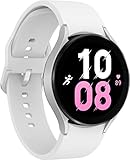
- ADVANCED SLEEP COACHING: Manage your overall sleep quality with an advanced sleep tracker that detects and analyzes sleep stages while you rest; Plus, Advanced Sleep Coaching helps you develop better sleep habits by analyzing your sleep patterns.Supported Application:Fitness Tracker,Blood Pressure Monitor,Multisport Tracker,Time Display,GPS. Connectivity technology:Bluetooth. Wireless comm standard:Bluetooth,802_11_AGNAC
- BODY COMPOSITION ANALYSIS (BIA): Galaxy Watch5 provides body composition data right on your wrist; On your own schedule, you can now get readings on body fat, skeletal muscle, body water, basal metabolic rate and Body Mass Index (BMI)
- IMPROVED SENSOR ACCURACY: Stay up to date on your wellness; Get an accurate heart rate thanks to an improved, curved Samsung BioActive Sensor that gets closer to your skin
- AUTO WORKOUT TRACKING: Make the most of every adventure with Auto Workout Tracking - from running to rowing to swimming - automatically in just minutes, and manually tracking more than 90 exercises, including complex activities like HIIT
- IMPROVED BATTERY & GALAXY CONNECTED EXPERIENCE: Meet the watch that goes as long as you do; Galaxy Watch5’s improved battery keeps up with your busiest day Do more with synced Galaxy devices that work in perfect harmony
Step-by-step: update via the watch
- Open Settings > Software update.
- Tap Download and install.
- Confirm download when prompted.
- Once downloaded, tap Install (or the watch will prompt automatically).
- Keep the watch on its charger until installation completes.
- After reboot, verify the version in Settings > About watch.
Expect the first boot after a major update to take longer than usual. Don’t power off the watch during the process.
What to do if the update download starts but fails
- Restart both the watch and the phone companion app.
- Switch networks (for example, move from a weak Wi‑Fi signal to a stable Wi‑Fi, or try mobile data if your setup supports it).
- Leave the watch on a charger and try again after 15–30 minutes.
If downloads keep failing consistently, treat it as a firmware batch issue and try later rather than repeating installs immediately.
Common rollout problems and troubleshooting
Wear OS upgrades aren’t always “one button and done.” Here are the problems Galaxy Watch owners most often hit—and what to try in the right order.
Your model isn’t showing the update
Try this checklist before assuming you won’t get Wear OS 5:
Quick wins for a faster PC:
Fix the driver behind crashes, sound loss and screen glitchesFind Drivers →Repair Windows errors before they cause bigger problemsFix Now →- Confirm exact model name (for example, Watch 6 vs Watch 6 Classic matters for firmware packages).
- Check Software update again after a few days.
- Open Settings > About watch to confirm current software build and security patch level.
- Check Samsung Members for your watch’s region/CSC announcements.
If there’s truly no rollout for your CSC, waiting is usually the only real fix.
Update is stuck at Downloading
A “stuck downloading” state often comes from network instability or insufficient permissions between the watch and phone.
- Restart the watch.
- Force close and reopen Galaxy Wearable.
- Re-check network quality on the phone.
- Turn Wi‑Fi off/on if you’re using Wi‑Fi, then retry.
If it still doesn’t progress, wait several hours. Batch servers can throttle or temporarily fail for certain regions.
Update fails with an error
Error messages vary, but the recovery pattern is usually consistent:
- Keep the watch on the charger and try again.
- Make sure the phone companion app is up to date.
- Remove and re-add the watch connection only if the failure repeats (it’s more work, but it can resolve pairing-state glitches).
If you can, write down the error code exactly as shown. Samsung support can match that code to known issues.
Also popular on Amazon

- Rugged Titanium Case: Durable titanium design built for outdoor activities and demanding environments.
Battery drops too low mid-install
This one is avoidable. If the update starts installing and your battery dips, it can interrupt firmware writing.
- Plug in the charger immediately.
- Leave it there until the watch fully boots.
- If the update fails, don’t repeat immediately—let the watch stabilize, then retry after a short wait.
Using an after-market charger can sometimes cause unstable charging. If you have one, try a reliable Samsung-certified charger/cable.
Independent reader supportYour contribution helps us test, update, and keep practical guides available for everyone.What to expect after updating
After Wear OS 5 installs, your watch will behave more like a “fresh system.” That’s normal. Plan for a short adjustment window.
The Tool Desk
Outbyte Driver Updater FREEFix the driver behind crashes, sound loss and screen glitchesFind Drivers →Outbyte PC Repair FREEClear out junk files and repair common Windows errorsFree Scan →Battery life and background processes
Major updates can cause one-time indexing and background optimization. In the first 24 hours, battery drain may be heavier than normal until the system settles.
If battery looks unusually poor after 48 hours, compare your usage patterns and check for newly enabled background permissions in the companion app.
Watch face, tiles, and app compatibility
Your watch face should usually remain, but tiles and app widgets can re-render differently after a system update.
- Some third-party watch faces may need a refresh or reinstallation.
- Widgets that were previously pinned might shift positions.
- Health and notification tiles generally survive, but app-specific tile behavior can change.
Check the Galaxy Store for watch-friendly app updates once Wear OS 5 is running.
Do these 3 things before closing this tab:
1Repair Windows errors before they cause bigger problems2Fix the driver behind crashes, sound loss and screen glitches3Clear out junk files and repair common Windows errorsWear OS settings that often move
System settings can be rearranged or renamed after major OS updates. If you can’t find a toggle you used daily, it’s often under a different heading in Settings.
- Notification and permission menus
- Do Not Disturb scheduling
- Connectivity options
Expect small UI changes even if your watch’s look and feel remain familiar.
Also popular on Amazon
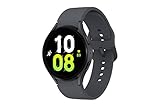
- ADVANCED SLEEP COACHING: Manage your overall sleep quality with an advanced sleep tracker that detects and analyzes sleep stages while you rest; Plus, Advanced Sleep Coaching helps you develop better sleep habits by analyzing your sleep patterns.Supported Application:Fitness Tracker,Blood Pressure Monitor,Multisport Tracker,Time Display,GPS. Connectivity technology:Bluetooth. Wireless comm standard:Bluetooth,802_11_AGNAC
- BODY COMPOSITION ANALYSIS (BIA): Galaxy Watch5 provides body composition data right on your wrist; On your own schedule, you can now get readings on body fat, skeletal muscle, body water, basal metabolic rate and Body Mass Index (BMI)
- IMPROVED SENSOR ACCURACY: Stay up to date on your wellness; Get an accurate heart rate thanks to an improved, curved Samsung BioActive Sensor that gets closer to your skin
- AUTO WORKOUT TRACKING: Make the most of every adventure with Auto Workout Tracking - from running to rowing to swimming - automatically in just minutes, and manually tracking more than 90 exercises, including complex activities like HIIT
- IMPROVED BATTERY & GALAXY CONNECTED EXPERIENCE: Meet the watch that goes as long as you do; Galaxy Watch5’s improved battery keeps up with your busiest day Do more with synced Galaxy devices that work in perfect harmony
Should you wait or update immediately?
There’s no single correct answer. Use your risk tolerance and your dependence on the watch day-to-day.
Update now if
- You want the newest system stability and performance improvements.
- Your watch already runs recent security patches.
- You’re comfortable restarting devices and re-checking a few settings afterward.
Consider waiting if
- You rely on your watch during critical workdays and can’t afford downtime.
- You’ve had past update failures on this exact model/region.
- You depend on niche third-party apps that haven’t been updated for Wear OS 5 yet.
In practice, waiting a week after availability often reduces the chance you land on an early firmware batch with avoidable issues.
FAQ: Wear OS 5 rollout for Galaxy Watch models
How can I confirm my Galaxy Watch model is getting Wear OS 5?
Open your watch’s Settings > Software update and run Download and install. If Wear OS 5 is available for your device and CSC, it will show there.
Why do I see Wear OS 5 on YouTube but not on my watch?
Video timelines are often tied to specific regions or carriers. Firmware releases roll out in batches, so your device may not receive the update until a later stage.
Does Wear OS 5 require a specific phone?
Update delivery depends on your Galaxy Watch software build and phone pairing state. On Android, keeping Galaxy Wearable updated helps update status sync. If you’re pairing via an iPhone-compatible path, confirm update behavior within the watch settings page.
Will I lose watch faces, apps, or health data after updating?
Most system updates preserve installed apps and watch faces. However, major changes can rearrange settings or require a widget refresh. Your health history is generally retained, but always keep backups if you use any optional cloud sync options through the Galaxy ecosystem.
What’s actually slowing this PC down?
Pick the symptom - the matching free tool is one click away.
What’s the safest way to handle the update if my battery isn’t great?
Charge first. If the update starts, keep the watch on the charger until it completes and fully reboots.
Bottom Line
Samsung’s Wear OS 5 rollout for Galaxy Watch models is real, but it’s also staged. The most reliable eligibility check is still your watch’s Settings > Software update screen—because region and batch timing can shift availability.
If your Galaxy Watch 6 / Watch 6 Classic or Watch 5 / Watch 5 Pro isn’t showing Wear OS 5 yet, don’t panic. Verify prerequisites, check Samsung Members and Galaxy Wearable, and try again after some time on a stable network with the watch charged.

