Some links on this page are affiliate links: if you buy through them we may earn a commission, at no extra cost to you.
Choose a desktop RTX GPU if your priority is sustained Cycles rendering, large Blender scenes, or running larger local AI models. A high-power RTX workstation laptop is the better fit when you must travel, work at client sites, or carry one complete computer. In the same GeForce RTX 5090 generation, Blender Open Data reports a 2026 median score of 15,078.7 for the desktop card versus 8,011.76 for the RTX 5090 Laptop GPU. The Windows Blender 5.1.1 view shows a similar gap: 16,188.89 versus 8,264.82.
The difference is not simply the GPU name. Laptop power limits, cooling, memory configuration, and chassis design determine how much performance can be sustained. Desktop cards also provide more upgrade room and, in the RTX 5090’s case, 32GB of GDDR7 memory for demanding scenes and local models.
As an Amazon Associate I earn from qualifying purchases.
The Tool Desk
Outbyte Driver Updater FREEScan for outdated or missing drivers - takes under a minuteDriver Scan →Outbyte PC Repair FREERepair Windows errors before they cause bigger problemsFix Now →Which is better for Blender and local AI: an RTX laptop or a desktop GPU?
A desktop RTX GPU is the stronger all-round platform for Blender Cycles and local AI because it can sustain higher power, dissipate heat with a larger cooler, and accommodate more memory and storage. A workstation laptop trades that headroom for portability and an integrated screen, keyboard, battery, and camera.
For a fixed workstation that renders for hours, trains or serves models continuously, or handles very large scenes, buy the desktop first and select the rest of the system around it. For travel, classrooms, field production, and client work, a laptop can be entirely practical if you verify its exact GPU power limit, cooling, RAM, and upgrade options rather than relying on the RTX model number alone.
#1 Best Overall

- POWERFUL FOR CREATIVITY - The Dell Precision 7000 series, positioned at the apex of the Precision lineup, surpasses the 3000 and 5000 series and aligns closely with the evolving direction of the Dell Pro Max series. This top-tier 7680 features the NVIDIA RTX 2000 Ada 8GB GPU to deliver robust performance for professionals in design, architecture, photography, video editing, and engineering. Furthermore, the series' intelligent design for data science leverages AI to optimize system performance for key applications, enabling accelerated workflow efficiency
- HIGH PERFORMANCE - Powered by Intel Core i7-13850HX vPro Processor for superior efficiency and speed, 64GB DDR5 CAMM RAM and 1TB PCIe NVMe M.2 SSD for seamless multitasking and fast storage. CAMM was designed specifically to overcome the performance limits of SODIMM while reducing both Z height and routing traces on the PCB to ultimately allow for laptops with both faster RAM and thinner profiles
- CRISP DISPLAY - 16" FHD+ (1920 x 1200) Anti-Glare 45% NTSC display delivers crisp visuals, supported by the ability to connect 4 external monitors via HDMI, USB-C and Thunderbolt ports at 4K (3840x2160) @60Hz (without docking station). 1080p FHD RGB webcam for crystal-clear video calls
- VERSATILE CONNECTIVITY - Equipped with 2x Thunderbolt 4, USB-C, 2x USB-A, HDMI, Ethernet (RJ-45), and an Audio combo jack. With Wi-Fi 6E and Bluetooth 5.2, ensuring fast wireless connectivity and compatibility with a wide range of peripherals. A full-size keyboard with a dedicated numeric keypad boosts productivity.
- OPERATING SYSTEM - Windows 11 Pro 64‑bit, with AI‑powered Copilot, offers intelligent assistance to streamline complex professional workflows, enhance productivity, and support advanced multitasking across demanding applications. Built for workstation‑class computing, it delivers enterprise‑grade security and IT manageability
How much faster is a desktop RTX 5090 than the laptop version in Blender?
Blender Foundation’s 2026 Open Data results show the desktop GeForce RTX 5090 at almost twice the median score of the GeForce RTX 5090 Laptop GPU. The exact margin changes with the Blender version, operating system, render backend, scene, and sample count.
| GPU and test view | Median Blender score | What the figure represents |
|---|---|---|
| GeForce RTX 5090, queried Blender Open Data results | 15,078.7 | 2026 median reported by Blender Foundation |
| GeForce RTX 5090 Laptop GPU, same query | 8,011.76 | 2026 median reported by Blender Foundation |
| GeForce RTX 5090, Blender 5.1.1 Windows view | 16,188.89 | Median in the Windows-specific Blender 5.1.1 view |
| GeForce RTX 5090 Laptop GPU, Blender 5.1.1 Windows view | 8,264.82 | Median in the Windows-specific Blender 5.1.1 view |
Using the two matched pairs as simple arithmetic, the desktop median is about 1.88 times the laptop median in the general query and about 1.96 times in the Windows Blender 5.1.1 view. Those are comparisons of reported medians, not a guarantee for every laptop. A laptop with a lower thermal limit, a thin chassis, or a quiet performance profile can score below the result shown here; a well-cooled model running at its highest permitted wattage can perform closer to the upper end of laptop results.
PC Slower Than It Used to Be?
A free scan shows the junk files, broken settings and background clutter dragging Windows down - then fixes them in one click.Free scan · Windows 10 & 11Crashes, No Sound, or Screen Glitches?
Random freezes, missing sound and display glitches usually trace back to one bad driver. Find and replace yours safely.Free scan · under a minuteWhy does the desktop GPU sustain more performance?
Power limits set the ceiling
A desktop RTX card is connected to a large power supply and is designed to hold a high board power for long periods. A laptop GPU must share a finite thermal and electrical budget with the CPU, display, storage, and battery-charging system. NVIDIA’s RTX 50-series laptop platform uses Blackwell GPUs optimized with Max-Q technologies, and NVIDIA presents a 150W GPU TGP comparison as an example of how configured power affects mobile performance. That 150W figure is not a universal laptop specification: check the individual machine’s published GPU TGP or maximum graphics power.
Cooling determines how long the speed lasts
Short benchmark runs can look similar even when sustained rendering is not. During a long Cycles job, a desktop’s larger heatsink, fans, and case airflow can keep the GPU near its intended clock. A laptop may reduce clock speed after heat builds up, especially when the CPU is also compiling shaders, simulating a scene, or encoding a preview. Fan noise and surface temperature are part of the trade-off: a quiet profile generally leaves less performance headroom than the manufacturer’s performance or turbo profile.
Desktop cards are easier to replace
With a desktop, you can replace the GPU, add system RAM, install additional NVMe storage, or change the cooling as projects grow. Most laptops have soldered graphics and memory. Some provide accessible SODIMM slots or a second storage bay, but those are model-specific features that must be confirmed before purchase. A desktop therefore reduces the risk that a future Blender or AI workload will make the whole computer obsolete.
Is an RTX workstation laptop good enough for Blender?
Yes, when the laptop’s mobility solves a real requirement and your scenes fit within its memory and thermal limits. The RTX 5090 Laptop GPU supports OptiX-accelerated Cycles, CUDA workloads, Tensor-core features, and NVIDIA Studio software in the same broad ecosystem as the desktop card. It is suitable for modeling, animation, look development, GPU rendering, video work, and local AI development while traveling.
Free tools Windows power users keep installed
One-click scans. No signup required.
Before buying, separate two questions:
- Will it complete the work? If the scene, textures, caches, and model fit in available VRAM and system memory, the laptop can produce the required result.
- How long will it take? The desktop’s higher sustained throughput matters when you render overnight, iterate hundreds of frames, or serve a model continuously.
A laptop is especially practical for students, instructors, photographers, VFX artists moving between studios, and consultants who need a complete setup in one chassis. It is less attractive as a permanently docked render node: in that role, you pay for the screen, battery, compact engineering, and mobile power limits without using the mobility.
How much VRAM do Blender and local AI workloads need?
VRAM is a capacity limit before it is a speed metric. Blender must hold geometry, textures, acceleration structures, render buffers, and sometimes compositor data on the GPU. Local AI must hold model weights plus runtime buffers, activations, attention context, and any batching overhead. If the working set does not fit, software may fall back to system memory, offload layers, reduce batch size, or fail with an out-of-memory error.
Rank #2

- POWERFUL FOR CREATIVITY - The Dell Precision 7000 series, positioned at the apex of the Precision lineup, surpasses the 3000 and 5000 series and aligns closely with the evolving direction of the Dell Pro Max series. This top-tier 7680 feature the NVIDIA RTX 2000 Ada 8GB GPU to deliver robust performance for professionals in design, architecture, photography, video editing, and engineering
- HIGH PERFORMANCE - Powered by Intel Core i7-13850HX vPro Processor for superior efficiency and speed, 32GB DDR5 CAMM RAM and 1TB PCIe NVMe M.2 SSD for seamless multitasking and fast storage. CAMM was designed specifically to overcome the performance limits of SODIMM while reducing both Z height and routing traces on the PCB to ultimately allow for laptops with both faster RAM and thinner profiles
- CRISP DISPLAY - 16" FHD+ (1920 x 1200) Anti-Glare 45% NTSC display delivers crisp visuals, supported by the ability to connect 4 external monitors via HDMI, USB-C and Thunderbolt ports at 4K (3840x2160) @60Hz (without docking station). 1080p FHD RGB webcam for crystal-clear video calls
- VERSATILE CONNECTIVITY - Equipped with 2x Thunderbolt 4, USB-C, 2x USB-A, HDMI, Ethernet (RJ-45), and an audio combo jack. With Wi-Fi 6E and Bluetooth 5.2 for fast wireless connectivity and broad peripheral compatibility, plus a numeric keypad for faster and more efficient number entry
- OPERATING SYSTEM - Windows 11 Pro 64‑bit, with AI‑powered Copilot, offers intelligent assistance to streamline complex professional workflows, enhance productivity, and support advanced multitasking across demanding applications. Built for workstation‑class computing, it delivers enterprise‑grade security and IT manageability
NVIDIA specifies 32GB of GDDR7 for the desktop GeForce RTX 5090. That gives demanding Blender scenes and larger quantized local models a clear memory target. The laptop GPU’s usable VRAM depends on the exact mobile configuration; confirm the capacity in the manufacturer’s specification rather than assuming it matches the desktop card.
Blender capacity decisions
- Choose more VRAM when you use 8K or larger textures, dense geometry, heavy particle or simulation caches, or multiple render layers.
- Keep room for the operating system, viewport, and background applications; a scene that barely fits can become unstable when you add a denoiser, compositor, or high-resolution output.
- Use tiled textures, proxy assets, instancing, and scene segmentation when the project exceeds available VRAM. These techniques reduce memory pressure but can add management time or render passes.
Local AI capacity decisions
- Model parameter count alone does not determine fit. Quantization format, context length, batch size, framework, and GPU-offload strategy all change memory use.
- Leave headroom for the runtime and context window. A model that loads with no spare VRAM may become unusable when you increase context or run a second request.
- NVIDIA highlights Tensor cores, Studio tools, and development support for local workflows including Ollama and PyTorch. Verify that the specific application and model format support your chosen CUDA or other acceleration path.
There is no single VRAM number that guarantees every Blender scene or AI model. Treat the RTX 5090’s 32GB as a capacity reference, then compare it with the peak working set of your own files and models.
What should you check in an RTX workstation laptop before buying?
Read the complete configuration, not just “RTX 5090 laptop.” Two laptops carrying that name can have different power limits, cooling systems, memory layouts, and sustained results.
- Confirm the exact GPU and TGP. Look for the maximum graphics power in watts and whether dynamic boost is included. A vendor’s generic GPU page is not enough; use the precise model and configuration.
- Inspect cooling hardware. Check the number of fans, heat pipes or vapor chamber, exhaust placement, and whether the performance mode requires an external power adapter. Reviews that report sustained clocks or noise under a long render are more useful than a short peak score.
- Verify VRAM and system RAM. Confirm GPU memory, installed RAM, maximum supported RAM, and whether modules are replaceable. Blender caches and AI runtimes can consume system memory even when the GPU has capacity.
- Check storage expansion. Large asset libraries, model files, and shader caches benefit from a second SSD slot or an accessible replacement drive.
- Check the power adapter and operating modes. Mobile GPUs often reach their advertised performance only while plugged in and set to a high-performance profile. Battery mode is intended for mobility, not maximum render throughput.
- Review display and ports. A color-accurate panel, external-display outputs, fast USB connections, and wired networking can matter more to a creator than a small difference in boost frequency.
- Confirm driver support. NVIDIA Studio drivers and the versions supported by your Blender and AI applications can reduce compatibility surprises. Keep a known-good driver installer for a production machine.
How should you compare Blender benchmarks fairly?
Do not compare a desktop result from one Blender release with a laptop result from another and call the difference a hardware verdict. Blender Cycles results vary with Blender version, OptiX versus CUDA, operating system, scene, and sample count; OpenBenchmarking documents separate OptiX and CUDA paths.
- Match the Blender version, preferably using the same point release such as Blender 5.1.1.
- Use the same render backend. In Blender, open Edit > Preferences > System, select the Cycles render devices available for your installation, and record whether the test uses OptiX or CUDA.
- Run the same benchmark scene, output resolution, sample count, denoiser setting, and driver branch.
- On a laptop, connect the supplied AC adapter, select the intended performance profile, and allow the system to reach a stable temperature before timing a long run.
- Record the completion time and sustained GPU clock or power if your monitoring tool exposes them. A single first-frame time can hide thermal throttling.
- Repeat the run and compare the median or average of the repeated results. Keep desktop and laptop numbers in separate groups if their configurations differ.
The published Blender Foundation figures are useful because they identify the GPU and test view, but they should be read as population medians rather than promises for a particular board, laptop chassis, driver, or scene.
Which platform fits common Blender and local AI workloads?
| Work pattern | Better starting point | Reason |
|---|---|---|
| Overnight Cycles animation or repeated still renders | Desktop RTX GPU | Higher sustained thermal and power headroom reduces render time over long sessions. |
| Large scenes, high-resolution textures, or complex caches | Desktop with high-VRAM card | The 32GB desktop RTX 5090 target leaves more room for large working sets. |
| Travel between studios, classrooms, or client sites | High-power RTX workstation laptop | One chassis provides the computer, display, keyboard, and battery. |
| Local AI experimentation away from a desk | RTX laptop, if VRAM is sufficient | Portability and NVIDIA’s local AI software support can outweigh lower sustained speed. |
| Permanent render or inference station | Desktop RTX GPU | Upgradeability, serviceability, cooling, and external storage are easier to scale. |
| Occasional Blender work with strict space limits | Laptop | The integrated display and compact footprint avoid a separate tower and peripherals. |
How do you configure Blender for an RTX laptop or desktop?
The same software choices apply to both platforms, but a laptop needs extra attention to power and heat.
What’s actually slowing this PC down?
Pick the symptom - the matching free tool is one click away.
- Install a Blender release supported by your projects and keep the project files backed up before changing versions.
- Install a current NVIDIA driver branch appropriate for creative work, then restart before benchmarking.
- Open Edit > Preferences > System and select the Cycles compute devices exposed by the driver. Test OptiX first on RTX hardware, then compare CUDA if a plug-in or scene requires it.
- In the render properties, select Cycles and confirm the intended GPU device is active. Render a small crop before launching a full animation.
- On a laptop, use the manufacturer’s plugged-in performance mode, raise the rear of the chassis for airflow, and avoid blocking intake vents. Watch for clock reductions during a long test.
- Save a per-project render preset containing device, samples, denoiser, and memory-sensitive settings so that a change of machine does not silently alter output.
How do you prepare an RTX system for local AI?
Local AI performance depends on the model, quantization, context, and framework as much as on the GPU. A desktop’s advantage is usually the ability to keep more of the workload in VRAM and sustain the required power for long sessions.
- List the models and context lengths you actually intend to run, including any embedding, vision, or reranking models that may run at the same time.
- Check the model’s memory guidance for your chosen quantization and add headroom for the runtime, context, and operating system.
- Install the framework supported by your workflow, such as PyTorch, and verify that it detects the NVIDIA GPU and its Tensor-core acceleration.
- For an Ollama-based workflow, pull one small test model first, confirm GPU offload in the runtime’s diagnostics, and only then download larger files.
- Measure tokens per second, startup time, and memory use at your normal context length. A short prompt can understate the memory needed for production conversations or batch jobs.
- Keep model files and caches on fast, expandable storage. On a laptop, leave free space for thermal-management and system updates rather than filling the only drive with models.
What are the non-GPU trade-offs?
Portability versus ergonomics
A laptop gives you a calibrated display, keyboard, pointing device, webcam, and battery in one package. A desktop lets you choose a larger color-accurate monitor, full-size input devices, multiple displays, and a more comfortable long-session layout, but those are separate purchases and occupy more space.
Rank #3
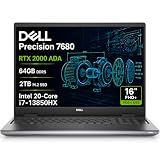
- POWERFUL FOR CREATIVITY - The Dell Precision 7000 series, positioned at the apex of the Precision lineup, surpasses the 3000 and 5000 series and aligns closely with the evolving direction of the Dell Pro Max series. This top-tier 7680 features the NVIDIA RTX 2000 Ada 8GB GPU to deliver robust performance for professionals in design, architecture, photography, video editing, and engineering. Furthermore, the series' intelligent design for data science leverages AI to optimize system performance for key applications, enabling accelerated workflow efficiency
- HIGH PERFORMANCE - Powered by Intel Core i7-13850HX vPro Processor for superior efficiency and speed, 64GB DDR5 CAMM RAM and 2TB PCIe NVMe M.2 SSD for seamless multitasking and fast storage. CAMM was designed specifically to overcome the performance limits of SODIMM while reducing both Z height and routing traces on the PCB to ultimately allow for laptops with both faster RAM and thinner profiles
- CRISP DISPLAY - 16" FHD+ (1920 x 1200) Anti-Glare 45% NTSC display delivers crisp visuals, supported by the ability to connect 4 external monitors via HDMI, USB-C and Thunderbolt ports at 4K (3840x2160) @60Hz (without docking station). 1080p FHD RGB webcam for crystal-clear video calls and meetings
- VERSATILE CONNECTIVITY - Equipped with 2x Thunderbolt 4, USB-C, 2x USB-A, HDMI, Ethernet (RJ-45), and an Audio combo jack. With Wi-Fi 6E and Bluetooth 5.2, ensuring fast wireless connectivity and compatibility with a wide range of peripherals. A full-size keyboard with a dedicated numeric keypad boosts productivity.
- OPERATING SYSTEM - Windows 11 Pro 64‑bit, with AI‑powered Copilot, offers intelligent assistance to streamline complex professional workflows, enhance productivity, and support advanced multitasking across demanding applications. Built for workstation‑class computing, it delivers enterprise‑grade security and IT manageability
Noise and heat
Both systems can become audible under full GPU load. Desktop cases generally move heat away from the user more effectively, while a laptop may exhaust warm air near the display hinge or keyboard. If you record audio or work in a quiet room, include acoustic behavior in the decision rather than looking only at benchmark points.
Total system cost and service
A fair cost comparison includes the desktop’s monitor, keyboard, mouse, operating-system license, and possibly a UPS, versus the laptop’s included display and input devices. A desktop may cost more initially after adding peripherals but can be upgraded in stages. A laptop may be simpler to deploy but expensive to replace when its soldered GPU or memory becomes limiting.
What is the practical buying decision?
Start with the workload that would be most expensive to wait for or impossible to fit in memory. If that workload is a long Cycles render or a local model that needs the largest available VRAM, prioritize the desktop RTX platform. If the limiting factor is carrying the computer to several locations, prioritize a laptop with the highest verified TGP, cooling capacity, and VRAM that fits your mobility requirements.
- Choose the desktop GeForce RTX 5090 32GB class when sustained speed, scene capacity, and future upgrades are more valuable than a single-device setup.
- Choose an RTX 5090 Laptop GPU workstation when you need mobility and can accept lower sustained throughput, a model-specific power limit, and tighter upgrade boundaries.
- Delay the purchase if the seller will not state the laptop’s TGP, VRAM, RAM layout, or cooling configuration. Those omissions prevent a meaningful comparison.
Frequently Asked Questions
Can I use an RTX laptop while it is disconnected from its charger for Blender?
You can edit and preview on battery, but battery-saving limits normally reduce GPU and CPU power. For repeatable Cycles timings or local AI inference, run from the supplied AC adapter and use the same performance profile each time.
Will adding an external monitor make a laptop render faster?
An external display changes workspace area and color workflow, not the laptop GPU’s TGP or cooling capacity. It can improve ergonomics, but it does not turn a mobile RTX GPU into the desktop version.
What happens if a Blender scene exceeds the laptop’s VRAM?
Cycles may move data to system memory or fail with an out-of-memory error, depending on the scene and settings. Reducing texture resolution, using instancing, rendering in layers, or switching to a card with more VRAM can restore a workable margin.
Can an external GPU enclosure make a workstation laptop equal to a desktop?
An enclosure can add graphics memory to some laptops, but its connection bandwidth, enclosure power supply, driver support, and portability cost become new constraints. It should be evaluated as a separate desktop-like setup, not assumed to match an internally connected desktop card.
Quick Recap
Product prices and availability are accurate as of the date/time indicated and are subject to change. Any price and availability information displayed on Amazon at the time of purchase will apply.

