Some links on this page are affiliate links: if you buy through them we may earn a commission, at no extra cost to you.
The Samsung ViewFinity S9 5K is aimed at people who want a premium “desk centerpiece” display: crisp 5K detail, modern connectivity, and a look that doesn’t feel like a compromise. This review focuses on what matters in daily use—text readability, color consistency, scaling behavior, and real-world quirks you’ll hit on day one.
I’m treating this like a buying checklist, not a spec sheet. If you’re deciding between this and another high-resolution monitor (especially for work, design, or heavy document use), you’ll get a clear “buy vs pass” recommendation—and troubleshooting paths if the setup doesn’t cooperate.
As an Amazon Associate I earn from qualifying purchases.
The Tool Desk
Outbyte PC Repair FREERepair Windows errors before they cause bigger problemsFix Now →Outbyte Driver Updater FREEScan for outdated or missing drivers - takes under a minuteDriver Scan →What the Samsung ViewFinity S9 5K is
The ViewFinity S9 line is Samsung’s premium monitor series designed for productivity and creative work. The 5K variant targets users who want sharp UI and text without jumping to ultrawide or multi-monitor setups.
In practice, a 5K panel is about pixel density and usable workspace: you get very crisp rendering for documents, spreadsheets, and code, with scaling options that aim to keep fonts readable at 100%.
Popular on Amazon
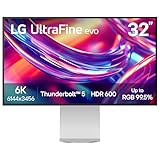
- The World’s First 6K Monitor with Thunderbolt 5 - Crafted for creatives who demand more, the LG UltraFine evo brings 6K clarity, stunning clarity, and rich color to every frame. With Thunderbolt 5 and seamless Mac and Windows compatibility, it's the display your ideas deserve—and your tools demand.
- 6K Resolution and 224 PPI Ultra-High Pixel Density - With 6K resolution (6144 × 3456) and a razor-sharp 224 PPI, the LG UltraFine evo packs over 21 million pixels into a 32" panel—delivering 156% more pixels than standard 4K. UltraFine evo has has more working pixels in every inch—allowing you to view full-resolution content while keeping creative tools and editing interfaces clearly visible, sharp, and distortion-free.
- Performance and Precision for Creative Pros - Whether you’re editing 6K video, retouching photos, sculpting in 3D, designing responsive web layouts, or training AI visuals—the Mac and Windows compatible UltraFine evo display supports your craft with immaculate color and impeccable visual fidelity.
- Next-Gen Compatibility, Powered by Thunderbolt 5 - Thunderbolt 5 empowers creators, editors, and AI professionals with ultra-fast transfer speeds- 2x faster than Thunderbolt4, along with 6K daisy chaining support, and DisplayPort 2.1—all via one cable. With 96W power delivery, Mac and Windows support, Thunderbolt 5 bridges future-ready workflows with maximum scalability and efficiency.
- Daisy Chain Your Creative Workflow - Connect multiple monitors with a single cable using Daisy Chain support—ideal for multitasking across design software, editing timelines, and reference materials. This streamlined setup reduces desk clutter and boosts productivity, giving creative professionals the expansive workspace they need.
Key specifications and what they mean
Because monitor model naming can vary by region, treat the following as the typical “what to verify on your box” checklist. If your unit differs, use these categories to compare apples-to-apples.
| Spec category | What to look for | Why it matters |
|---|---|---|
| Resolution | 5K (commonly 5120×2880) | Sharper text, more detail in photos and UI |
| Panel type | Typically IPS-class for consistency | Better viewing angles and stable color |
| Refresh rate | Usually 60Hz for this class | Great for work; not a competitive esports gaming panel |
| Color support | sRGB coverage first; higher gamut optional | Determines how accurate creatives can be without extra calibration |
| Connectivity | DisplayPort + HDMI (and often USB-C) | One-cable workflows for laptops |
| USB hub | Ports built into the monitor | Desk docking convenience |
Verification checklist: confirm the exact panel resolution, input ports (DP/HDMI/USB-C), USB hub version, and whether your unit supports power delivery over USB-C. These details often decide whether the S9 fits your current workstation.
Design, build, and ergonomics
The ViewFinity S9 5K is built for modern desks: clean lines, a premium stand, and a minimal visual footprint. The goal is to feel “expensive” even when you aren’t thinking about monitors—no rattles, no flexy plastics at the stand joint.
Ergonomics matter more on high-resolution screens than you might expect, because you’ll spend longer reading small UI elements. Look for a stable base and enough adjustability (height and tilt at minimum). If the stand range is limited for your setup, a monitor arm can be a better long-term fit.
Setup experience (out of the box to first day)
Setup for a 5K monitor typically comes down to three things: getting the correct cable, setting scaling correctly, and ensuring the monitor is in the right picture mode. Most “bad experience” reports come from the wrong input format or default scaling.
- Unbox and place the monitor on a stable surface, then connect the stand (or mount kit if you plan to use a VESA arm).
- Connect your computer using DisplayPort or USB-C (preferred) and avoid cheap HDMI adapters if you want full 5K behavior.
- Power on and select the correct input source on the monitor (label usually shows HDMI 1/2 or DP 1/USB-C).
- On Windows, open Settings → System → Display and confirm the resolution is set to the monitor’s native 5K.
- Set scaling to a sane value (commonly 150%–200% on Windows depending on your eyesight and how the OS handles 5K).
- On macOS, confirm the display appears at native resolution and check scaling options under System Settings → Displays.
Connectivity and ports you’ll actually use
A good 5K work display earns its keep by reducing desk clutter. The ViewFinity S9 5K is typically sold with a mix of DisplayPort, HDMI, and USB-C (often including USB hub functionality). If your workflow involves a laptop, USB-C power delivery and data are the difference between “premium” and “pain.”
Windows Errors? Fix Them Before They Spread
Repair common Windows errors and clear accumulated junk for a smoother, more stable PC - no reinstall needed.Free scan · no reinstallCrashes, No Sound, or Screen Glitches?
Random freezes, missing sound and display glitches usually trace back to one bad driver. Find and replace yours safely.Free scan · under a minuteHere’s what to map to your devices before you buy cables:
- Desktop PC: prioritize DisplayPort for maximum reliability at high resolutions.
- Laptop (USB-C): confirm USB-C supports video + data + power delivery (commonly 65W/90W-class on many monitors, but verify your exact model).
- Peripherals: if the monitor has USB ports, use them for your keyboard/mouse and keep your laptop dock simplified.
- Audio: check if the monitor provides headphone out or speaker audio (and whether your OS auto-switches output correctly).
Picture quality review
The Samsung ViewFinity S9 5K delivers the core promise: sharp, high-density image detail. In day-to-day work, the biggest “wow” moment is often text rendering—subpixel clarity and the way UI elements stay crisp even when you scale.
Also popular on Amazon

- SAMSUNG’S 27" VIEWFINITY S8 (S80HF) HIGH-RESOLUTION MONITOR: Delivers exceptional clarity and speed for a more productive workflow
- 5K RESOLUTION (5120x2880) WITH HIGH PIXEL DENSITY OF 218 PPI: Provides a larger and sharper screen space, and a more streamlined experience
- HDR10+: Optimizes contrast, offering a gamut of accurate colors with darker blacks and brighter highlights for engaging content
- USB-C PORT: Allows simultaneous 90W charging and data transfer and built-in LAN port offers seamless Ethernet connectivity; monitor features built-in KVM switch, PIP and PBP
- ERGONOMIC DESIGN: Provides enhanced viewing angles
You should still run a few sanity checks, because panel modes and color settings can make the same hardware look very different.
Resolution, sharpness, and scaling
At 5K, the monitor has enough pixels that UI scaling doesn’t feel like a compromise. On Windows, if scaling is set too low, fonts look tiny; too high and you waste workspace. The sweet spot is personal, but most people land somewhere around 150%–200% for 5K.
Common failure mode: the OS thinks you’re running a lower mode (like 4K or an intermediate scaling), making text look softer. If that happens, revisit the resolution dropdown and confirm the signal format.
Color, contrast, and HDR behavior
For an office-first premium monitor, expect consistent color with good viewing angles. Contrast isn’t OLED-level, but it’s typically strong enough for readable dark text and comfortable shadow detail in movies.
HDR on this class is usually “HDR-like,” not true cinema HDR. You’ll get better tone mapping than SDR-only modes, but don’t expect the kind of deep blacks you’d associate with OLED displays.
Text clarity for coding and reading
This is where a high-resolution productivity panel earns its keep. With the right scaling, you’ll read longer without eye strain. Hinting and font rendering depend heavily on OS settings, so pair the monitor’s native resolution with the OS’s preferred scaling.
Recommended Free Tools
If you see blur around small text, it’s usually not the panel—it’s Windows ClearType settings, scaling mode, or the app not being DPI-aware.
Performance for common workloads
Let’s break down how the S9 5K behaves depending on what you actually do on it. The answers are different for spreadsheets, design work, and real-time motion.
Also popular on Amazon

- PANORAMIC PRODUCTIVITY: Immerse yourself in enhanced productivity for all your projects; A 49" 1000R curved display wraps around you with a 32:9 aspect ratio, closely matching your field of view. See and do more with a wider screen in Dual QHD
- A CLEAN WAY TO CONNECT: A monitor and docking station in one; Tap into DisplayPort, 2 HDMI inputs, USB, and USB Type-C inputs that support 90W charging; Keep your desk less cluttered by using the monitor as your hub to connect across devices
- SMOOTHER SCROLLING, SEAMLESS VISUALS: Take a break from work projects and enjoy gaming on a smoother screen; 120Hz refresh rate keeps screen running smoothly for a more immersive experience during gameplay and reduces lag when scrolling
- WITNESS RICHER, MORE REFINED SHADES: See more in every shade while working on video or design projects; VESA DisplayHDR 400 support delivers a high dynamic range of luminous blacks and whites to the screen
- MAXIMUM SOUND IN MINIMUM SPACE: Work, learn, and play without needing additional peripherals; With built-in speakers, you can free up desk space by minimizing the connections needed for a more efficient working environment and listen with ease
Office and spreadsheets
Excel and Google Sheets benefit immediately from 5K vertical and horizontal space. You can keep toolbars visible, view more rows, and still read cell content comfortably.
Motion is minimal here, so refresh rate isn’t a concern. The monitor shines in stability and clarity.
Photo and creative workflows
If your work involves photo editing, the key is whether the monitor supports a wide color gamut and whether picture modes map cleanly to standard targets like sRGB. Many users will rely on factory calibration and then fine-tune with a hardware colorimeter later.
The practical question: does it look consistent across inputs and does it hold up when you switch between presets? If yes, you’ll spend less time re-correcting your edits.
Development and document work
Developers often care about two things: text sharpness and predictable scaling. At 5K, you can fit more code and documentation without constantly zooming.
For best results, use your OS’s built-in HiDPI scaling rules and keep your editor DPI settings aligned with the OS.
Free tools Windows power users keep installed
One-click scans. No signup required.
Video calls and presentation
During video calls, you’ll notice skin tones and background contrast more than spec-sheet numbers. The S9 5K’s viewing angles help keep the image consistent when your camera isn’t perfectly centered.
For presentations, crispness at native resolution makes screen sharing and on-screen text easier to read for remote viewers.
Also popular on Amazon
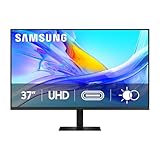
- Samsung’s 37” ViewFinity S8 Monitor with 4K UHD Resolution reveals crystal-clear excellence with higher pixel density.
- The additional 5 inches, compared to a 32” display, provides an ergonomic, expanded workspace to boost productivity.
- With 1.07 billion colors, HDR10 provides near-limitless hues and true-to-life color representation with deeper contrast for darker darks and brighter brights.
- A USB-C port allows up to 90W charging and data transfer at the same time, while a built-in LAN port provides seamless Ethernet connectivity for laptops.
- The built-in KVM switch enables you to choose split screen, Picture-in-Picture, or Picture-by-Picture for enhanced efficiency when multitasking.
Gaming reality check
With a typical 60Hz refresh rate, this is not a competitive gaming monitor. If you want casual gaming and you care about visual detail, it can still work—just expect input latency and motion clarity to be more “work monitor” than “esports monitor.”
If you do game, verify if the monitor offers a game mode and whether it changes overdrive or sharpness processing. Some picture enhancements can add artifacts around motion.
Do these 3 things before closing this tab:
1Repair Windows errors before they cause bigger problems2Fix the driver behind crashes, sound loss and screen glitches3Clear out junk files and repair common Windows errorsCalibration and color management
For creative professionals, factory settings may not be enough. The Samsung ViewFinity S9 5K can still be a strong base for calibration as long as picture modes and color temperatures behave predictably.
- Pick a baseline mode (often “Standard” or “Movie”) and disable dynamic contrast features if available.
- Set the color temperature to a known value (commonly D65-style like 6500K) so your calibration starts from a stable point.
- If the monitor supports an sRGB mode, use that for web and SDR workflows. For broader gamut work, use a calibrated profile.
- After calibration, test with a few known images: skin tones, grayscale ramps, and a saturated color chart.
Practical note: color calibration software will ask whether you’re targeting sRGB, Display P3, or Rec. 709. Pick based on your final output and don’t mix targets.
Sound, power use, and fan/noise checks
Many premium monitors prioritize video performance over speakers. If the ViewFinity S9 5K includes audio output, treat it as a convenience rather than a replacement for real desk speakers.
Power draw varies by brightness and picture mode. The most reliable approach is to measure with a plug-in meter if you care about exact consumption. Otherwise, pick an ergonomic brightness level and avoid maxing it out in a dim room.
Quick wins for a faster PC:
Clear out junk files and repair common Windows errorsFree Scan →Fix the driver behind crashes, sound loss and screen glitchesFind Drivers →Software, firmware, and known gotchas
Monitor firmware updates aren’t glamorous, but they can fix compatibility issues—especially with USB-C docks, wake/sleep behavior, and color range handling. Samsung typically provides firmware updates via its support ecosystem.
Gotchas to watch for:
- USB-C dock compatibility: high-resolution video over USB-C is sensitive to dock chipsets and cable quality.
- Sleep/wake glitches: some systems briefly drop signal after sleep. If it happens, test a different port and update firmware.
- OS scaling mismatch: if Windows or macOS reports the “wrong” effective DPI, some apps will look blurry.
Troubleshooting checklist
If your ViewFinity S9 5K doesn’t look right, don’t assume the panel is defective. Start with signal integrity and OS scaling, then move to monitor picture settings.
Also popular on Amazon

- DO MORE ON ONE SCREEN: See every detail on the wider display featuring a 21:9 aspect ratio; Ultra WQHD provides the simplest way to maximize screen real estate and experience truly seamless multitasking on just one screen.Brightness (Typical) : 300 cd/㎡. Static Contrast Ratio 3000:1.
- ENJOY A BILLION COLORS W/ INCREDIBLE DEPTH: With HDR10 that displays over 1 billion colors compared to 16.7 million for typical SDR technology, dark colors are darker and the brightest are even brighter; Content is experienced as the creator intended
- CARE FOR YOUR EYES DAY and NIGHT: An ambient light sensor on the monitor detects lighting in your workstation and automatically adjusts brightness; Eye Saver Mode minimizes excessive blue light, and Flicker Free relieves eye strain
- SEE CONTENT SMOOTHER, EVEN GAMING: A faster than average refresh rate updates the image on screen more often every second; 100Hz refresh rate reduces lag and motion blur when playing games, watching videos, or working on design projects
- STAY IN SYNC WITH THE ACTION: AMD Radeon FreeSync keeps the refresh rate of your monitor and graphics card in sync to reduce image tearing for a superfluid entertainment experience; Watch movies and play games without interruptions
No signal or flickering
Try these in order:
- Swap cables (DP↔DP, or replace HDMI if that’s what you’re using). High-refresh/high-res modes are picky.
- Change the input source on the monitor using the physical input button/menu.
- On your computer, disable and re-enable the display in Device Manager (Windows) or Displays (macOS).
- Update the GPU/graphics driver to the latest stable version.
- If you’re on USB-C, connect directly to the laptop instead of a dock to isolate the issue.
Blurry text or wrong scaling
Blurry text is usually a scaling/DPI problem, not a monitor blur problem.
- Confirm the resolution is set to the monitor’s native 5K in your OS display settings.
- On Windows, adjust scaling (common working range: 150%–200%).
- Check whether your editor/browser is set to use system DPI.
- If you use custom scaling or zoom inside apps (browser zoom, IDE zoom), reset to 100% so you can evaluate OS scaling.
Limited color range over HDMI/DP
If colors look washed out, it’s often RGB vs YCbCr settings or full vs limited range.
What’s actually slowing this PC down?
Pick the symptom - the matching free tool is one click away.
- In your GPU control panel, switch between RGB and YCbCr options if available.
- Change the monitor’s HDMI black level setting if your model exposes it in the OSD.
- Try a different port (HDMI 1 vs HDMI 2) or switch to DisplayPort for a cleaner signal path.
Audio not switching
If the monitor has speakers or headphone output, your OS may fail to switch audio automatically.
- On Windows: Settings → System → Sound, then set the monitor as the output device.
- On macOS: System Settings → Sound → Output, then select the monitor output.
- Check cable type: audio over USB-C often works differently than audio over HDMI depending on your setup.
Who should buy it (and who shouldn’t)
Buy the Samsung ViewFinity S9 5K if you want a premium, high-density work display and you spend most of your day on text, spreadsheets, and creative review. The 5K resolution helps reduce zooming and improves readability—especially when you run multiple windows.
Don’t buy it if your top priority is competitive gaming or if you know you’ll only ever use 1080p input sources. You’ll still get a great panel, but you won’t get the full value of 5K.
Alternatives worth considering
If the S9 5K’s pricing doesn’t fit your budget or you need a different feature set (higher refresh rate, ultrawide, more ports), here are realistic alternatives to compare.
Less expensive 5K/4K options
- 4K 27-inch class: typically cheaper and easier to run, but you’ll either use smaller UI or higher scaling settings.
- Value 5K models: some exist, but you’ll usually trade off color accuracy, build quality, or input flexibility.
When comparing, don’t focus only on resolution. Check port types, USB hub usefulness, and whether the scaling behavior is consistent with your OS.
High-end 6K/8K alternatives
- 6K class: often a good creative middle ground with excellent sharpness.
- 8K class: can be stunning for static work, but it can stress GPUs and scaling can become more complex depending on your OS and apps.
For most users, 5K is the practical “sweet spot” between crispness and setup simplicity.
Final Thoughts
The Samsung ViewFinity S9 5K is the kind of monitor you buy once and live with for years—if your workflow values sharp text, stable color, and a clean desk setup. It’s not a gaming-first panel, and it won’t magically fix bad scaling settings, but when configured correctly it feels premium every time you sit down.
If you’re choosing between this and a cheaper 4K model, the extra resolution and improved readability are often the deciding factor. If you’re choosing between 5K and something higher like 6K/8K, the S9’s strength is setup simplicity and day-to-day clarity rather than absolute peak pixel density.

