What’s actually slowing this PC down?
Pick the symptom - the matching free tool is one click away.
Some links on this page are affiliate links: if you buy through them we may earn a commission, at no extra cost to you.
Microsoft Teams channel moderation helps organizations control who can start conversations, reply to posts, and manage discussions inside specific channels. In 2026, it remains an essential governance tool for keeping high-visibility, compliance-sensitive, or announcement-focused spaces from becoming noisy, inconsistent, or difficult to audit.
Used well, moderation gives teams a structured way to protect communication without slowing collaboration across the entire workspace. It is especially valuable for leadership updates, HR and policy channels, project governance spaces, regulated departments, and communities where clear posting rules matter.

As an Amazon Associate I earn from qualifying purchases.
This guide explains how to configure Microsoft Teams channel moderation, assign the right responsibilities, align settings with governance and compliance requirements, and avoid the common mistakes that make moderated channels confusing or ineffective.
What Microsoft Teams Channel Moderation Does in 2026
Microsoft Teams channel moderation controls who can start new posts and reply in a channel, helping organizations keep high-visibility spaces focused and manageable. In 2026, it is most useful for announcement channels, executive updates, HR communications, IT service bulletins, project governance spaces, and communities where a small group needs to publish information while a wider audience reads or responds in a controlled way.
Popular on Amazon
Moderation applies at the channel level, so owners can use different rules for different channels inside the same team. For example, a department team might have a standard “General” channel for day-to-day collaboration, a moderated “Leadership Announcements” channel where only approved moderators can post, and a moderated “Policy Questions” channel where members can reply to specific threads but cannot create unrelated new conversations. This allows Teams to support both open collaboration and structured communication without creating separate teams for every communication pattern.
Core moderation capabilities
- Control who can start new posts: Channel moderators can restrict new conversations to moderators only, preventing duplicate topics, off-topic announcements, or unapproved operational updates.
- Control whether members can reply: Depending on the channel design, members may be allowed to reply to moderator posts or limited to read-only access for broadcast-style communication.
- Assign moderators: Team owners can designate specific users as channel moderators, such as communications leads, service owners, project managers, compliance coordinators, or department administrators.
- Separate team ownership from channel moderation: A person can moderate a specific channel without being responsible for the entire team, which helps distribute publishing responsibility safely.
- Reduce noise in critical channels: Moderation keeps urgent, official, or compliance-sensitive messages from being buried under casual conversation or unrelated questions.
Channel moderation does not turn Teams into a full pre-approval publishing system. It does not automatically review message content before publication, apply legal approval workflows by itself, or replace records management controls in Microsoft Purview. Instead, it defines who is allowed to post or reply in a channel. Organizations that need formal approvals, audit workflows, or content classification should combine Teams moderation with governance policies, sensitivity labels, retention settings, Power Automate workflows, and Microsoft Purview compliance capabilities.
Do these 3 things before closing this tab:
1Scan for outdated or missing drivers - takes under a minute2Clear out junk files and repair common Windows errors3Fix the driver behind crashes, sound loss and screen glitchesIn practice, moderation works best when it supports a clear communication purpose. A moderated IT outage channel might allow only IT service managers to post updates, while employees are directed to a help desk form for individual issues. A moderated HR benefits channel might allow HR specialists to create posts and permit employees to reply during open enrollment. A moderated project steering channel might limit posts to the project manager, sponsor, and workstream leads, ensuring that decisions and status updates remain easy to find.
| Channel type | Typical moderation setup | Common use case |
|---|---|---|
| Announcement channel | Only moderators can start posts; replies may be disabled | Executive, HR, facilities, or IT updates |
| Q&A channel | Moderators start topics; members can reply | Policy questions, training support, rollout feedback |
| Governance channel | Designated leads can post decisions and actions | Project steering, audit readiness, change control |
The value of moderation in 2026 is not simply restriction; it is clarity. By deciding who can publish, where employees should respond, and which channels are official sources of information, organizations reduce confusion and improve accountability. Well-moderated channels make Teams easier to navigate, especially in large tenants where employees may belong to dozens of teams and receive hundreds of notifications each week.
When to Use Moderated Channels vs Standard Channels
Use a moderated channel when the cost of an unfocused, incorrect, or premature message is high. In Microsoft Teams, moderation is most useful for channels that act as official communication spaces, operational command centers, or controlled collaboration areas where posts need to come from approved people. Standard channels work better when the goal is open teamwork, fast discussion, and low-friction knowledge sharing among trusted members.
A practical way to decide is to look at the channel’s purpose, audience size, compliance exposure, and required response speed. If the channel is used by a small project team to brainstorm, share drafts, and make day-to-day decisions, a standard channel usually provides the right balance. If the channel broadcasts policy updates to hundreds or thousands of users, supports regulated workflows, or includes executives, frontline managers, or external participants, moderation can reduce noise and prevent accidental disruption.
Quick wins for a faster PC:
Fix the driver behind crashes, sound loss and screen glitchesFind Drivers →Repair Windows errors before they cause bigger problemsFix Now →Scan for outdated or missing drivers - takes under a minuteDriver Scan →Use moderated channels for controlled communication
- Company announcements: HR, IT, legal, security, and leadership channels where only approved owners should start new posts.
- Incident response: Security, outage, or business continuity channels where moderators keep updates accurate and prevent duplicate threads.
- Compliance-sensitive work: Channels involving legal matters, audits, financial reporting, healthcare operations, or customer commitments.
- Large communities: Organization-wide or department-wide channels where unrestricted posting could create notification fatigue.
- Training and onboarding: Channels where moderators publish structured learning materials and allow questions in specific threads only.
- External collaboration: Shared or guest-access channels where internal teams need tighter control over what is posted and when.
Use standard channels for collaborative work
Standard channels are usually the better choice for active teams that need speed and shared ownership. Product squads, sales account teams, engineering groups, internal working groups, and project teams often benefit from letting all members start conversations, ask questions, and attach files without waiting for approval. Over-moderating these spaces can slow decisions, push people into private chats, and reduce transparency.
| Scenario | Recommended channel type | Configuration approach |
|---|---|---|
| IT posts monthly maintenance windows to all employees | Moderated | Allow only IT service owners to start posts; permit replies if questions are expected. |
| Marketing team plans a campaign launch | Standard | Keep posting open so designers, writers, and managers can collaborate quickly. |
| Security team coordinates a major incident | Moderated | Limit new posts to incident leads; use threaded replies for status updates and actions. |
| Department shares peer questions and informal updates | Standard | Use channel guidelines instead of strict moderation. |
Many organizations use a mixed model. For example, a department team may have a moderated Announcements channel, a standard General channel, and several standard project channels. This structure keeps official messaging controlled without blocking everyday collaboration. Review the setup quarterly: a channel that starts as moderated for a launch may become standard after stabilization, while a fast-growing standard channel may need moderation once the audience expands.
Also popular on Amazon
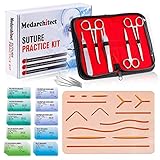
- Complete Suture Practice Kit – We supply a complete kit with the materials commonly used in suture training courses. It includes an authentic skin-like suture pad with 14 pre-cut wounds, coordinated practice accessories, and four main types of non-absorbent sutures: nylon and polypropylene monofilament, plus silk and polyester braided sutures
- Realistic 14 Pre-Cut Wounds – The skin-like suture pad features 14 practice wounds in varied shapes and sizes, including 6-inch straight and curved cuts, 3-inch avulsion-style wounds, and triangular punctures. Suitable for skill assessments, study practice, classroom demonstrations, and repeated training
- 3 layers suture pad is made by high quality silicone, it's not easy to rip. Aim to strengthen durability, we place one protective mesh at skin-like layer as close as possible to the surface. It prevents suture pad from breaking, especially for beginners who do elementary training
- Say good bye to the smelly banana & pork skin. The new suture pad is made by food grade silicone, non-smell, non-toxic, environmentally friendly, able to cycle use & portable, make suture training more easy & happy. The suture pad texture is close to real skin, not just a hard rubber
- This suture practice kit is for demonstration and educational purposes only. It is ideal for students looking to enhance their skills and provides an affordable alternative to expensive simulation
How to Configure Channel Moderation Settings
Channel moderation is configured at the individual channel level, so start by identifying the specific standard channel that needs tighter posting controls. In Microsoft Teams, open the team, select the channel, choose More options, then open Manage channel. Under Channel settings, look for the moderation controls and turn moderation on. Once enabled, Teams separates what owners, moderators, and regular members can do inside that channel.
Core moderation settings to review
- Who can start new posts: Restrict new conversation threads to moderators when the channel is used for announcements, policy updates, leadership communications, incident coordination, or project status reporting.
- Whether members can reply: Allow replies when discussion is useful, but disable or limit them when the channel should function as a broadcast or controlled update space.
- Whether bots can submit messages: Permit bots only when they support a clear business process, such as ticket updates, service health alerts, or workflow notifications.
- Whether connectors can submit messages: Review connectors carefully because they can create high-volume automated posts from third-party systems.
After enabling moderation, add the right moderators. Team owners are usually moderators by default, but they are not always the best day-to-day managers of a channel. For example, a Human Resources team may own the broader team workspace, while an HR communications lead moderates the “Benefits Updates” channel. Similarly, an IT service owner may moderate a “Major Incidents” channel even if mulle IT managers own the team. Assign moderators based on operational responsibility, not only seniority.
Recommended configuration pattern
| Channel type | Who can start posts | Replies | Automation |
|---|---|---|---|
| Executive announcements | Moderators only | Disabled or limited | Usually disabled |
| Project status | Moderators only | Allowed | Approved workflow alerts only |
| Service incidents | Moderators and approved responders | Allowed | Monitoring and ticketing alerts |
| Department Q&A | Members or moderators, depending on volume | Allowed | Limited |
Test the configuration with a regular member account before announcing the channel rules. Confirm whether a member can start a post, reply to an existing thread, mention the channel, interact with tabs, and view automated messages. This quick validation helps catch misaligned settings, especially in channels that rely on bots, connectors, Power Automate workflows, or service desk integrations.
Document the settings in a simple channel governance register that includes the channel name, business purpose, moderators, allowed posting model, approved automation sources, and review date. Revisit moderated channels at least quarterly, or sooner after reorganizations, ownership changes, compliance updates, or major changes to connected apps. Moderation should stay aligned with how the channel is actually used, not just how it was designed when the team was created.
Moderator Roles, Permissions, and Responsibilities
Channel moderation works best when every participant understands who can publish, who can reply, and who is accountable for keeping the channel useful. In Microsoft Teams, moderation is typically managed at the channel level, with team owners retaining broad administrative control and designated moderators handling day-to-day conversation quality. For busy announcement, operational, executive, HR, IT support, compliance, or incident-management channels, this separation helps prevent the team owner role from becoming a bottleneck.
Core moderation roles
| Role | Typical permissions | Primary responsibilities |
|---|---|---|
| Team owner | Manage team settings, members, channels, apps, and ownership; adjust channel moderation where permitted. | Set governance expectations, approve moderator assignments, review access, and ensure the channel aligns with organizational policy. |
| Channel moderator | Start new posts in a moderated channel, control whether members can reply, and manage conversation flow based on channel settings. | Publish approved updates, redirect off-topic discussion, enforce posting rules, and keep conversations accurate and timely. |
| Team member | Read channel content; reply only if replies are enabled; create posts only if moderation settings allow it. | Consume official information, ask questions in approved formats, and follow channel posting guidance. |
| Guest or external participant | Limited by guest access, shared channel policies, and channel moderation settings. | Participate within the agreed collaboration scope without exposing confidential or regulated information. |
A practical moderator model usually includes at least two moderators per critical channel. This avoids delays when one person is unavailable and reduces the risk of a single individual becoming the unofficial gatekeeper for all communication. For high-volume channels, assign moderators from the business function that owns the content, not only from IT. For example, HR should moderate benefits announcement channels, the service desk should moderate outage update channels, and compliance or legal teams should moderate policy interpretation channels.
What moderators should do regularly
- Approve the purpose of each post: Confirm that new threads match the channel’s stated scope, such as announcements, service updates, project decisions, or executive communications.
- Control replies deliberately: Enable replies when discussion adds value, and disable or redirect them when the channel is intended for one-way communication.
- Redirect misplaced conversations: Move informal discussion, troubleshooting, or side questions to a better channel, chat, Viva Engage community, ticketing system, or meeting.
- Maintain posting standards: Use clear subject lines, dates, owners, links to source documents, and concise next steps so channel history remains searchable.
- Escalate sensitive content: Involve security, HR, legal, or compliance teams when posts contain confidential data, personal information, harassment, regulated records, or potential incidents.
Moderator permissions should be reviewed on a fixed schedule, especially in large organizations where job roles change frequently. A quarterly review is often sufficient for normal business channels, while regulated, executive, or incident-response channels may need monthly checks. Remove moderators who have changed roles, left the department, or no longer need posting authority. Add new moderators through a documented request process so there is a record of who approved the access and what responsibilities were assigned.
Clear responsibility boundaries also reduce confusion. Moderators should not be expected to solve every business issue raised in a channel, act as records managers, or override retention and compliance controls. Their role is to manage conversation quality and posting flow within the permissions granted by Teams and organizational policy. Team owners, compliance administrators, records managers, and Microsoft 365 administrators still own broader controls such as membership governance, retention labels, eDiscovery, sensitivity labels, external collaboration policy, and lifecycle management.
Also popular on Amazon

- Author - Lawrence Brother
- Publisher - Whitaker House
- Great Gift Idea.
- Satisfaction Ensured.
- Publisher - Whitaker House
Governance Best Practices for Large Organizations
In large organizations, Microsoft Teams channel moderation works best when it is part of a broader collaboration governance model rather than a one-off setting controlled by individual team owners. Standardize how moderated channels are requested, approved, named, reviewed, and retired so departments do not create inconsistent rules across similar business scenarios. A moderated executive announcements channel, for example, should follow a predictable pattern across regions: limited posting rights, named backup moderators, documented escalation paths, and clear expectations for replies.
Start by defining channel categories and matching each category to an approved moderation approach. This prevents every workspace from becoming a custom exception and makes audits easier. A practical governance model should distinguish between high-control channels, such as HR policy updates or incident communications, and collaborative channels, such as project discussions or product feedback. Moderation should be applied only where it improves signal quality, protects sensitive communication, or supports compliance needs.
Recommended governance controls
- Channel purpose standards: Require a short description that explains who the channel is for, what content belongs there, and whether replies are allowed.
- Naming conventions: Use prefixes or suffixes such as ANN-, Leadership Updates, or Read Only to make moderated channels easy to identify.
- Moderator assignment rules: Require at least two moderators per moderated channel, including one business owner and one backup.
- Approval workflow: Route requests for organization-wide or sensitive moderated channels through IT, compliance, communications, or the relevant data owner.
- Review cadence: Review moderated channels quarterly or semiannually to confirm that owners, moderators, membership, and settings are still valid.
- Lifecycle controls: Archive or delete inactive moderated channels based on retention requirements and business value.
For enterprise environments, governance should also address who can create teams and channels in the first place. If every user can create teams freely, moderated channels may spread without consistent ownership or review. Many organizations use Microsoft Entra ID groups, Teams policies, sensitivity labels, and provisioning workflows to control workspace creation. A request form can capture the business purpose, audience, data sensitivity, required retention, external access needs, and whether moderation is required before the team is created.
Documenting responsibilities is just as as configuring settings. Team owners should remain accountable for the workspace, but moderators need operational guidance for day-to-day decisions. They should know when to approve posts, redirect off-topic content, escalate policy violations, or temporarily adjust posting permissions during incidents. For channels used by corporate communications, HR, legal, security, or executive leadership, establish a publishing calendar and approval chain so messages are timely without bypassing review.
Governance checklist for moderated channels
| Governance area | Recommended practice |
|---|---|
| Ownership | Assign a named business owner and at least two active moderators. |
| Access | Review members, guests, and external sharing settings on a scheduled basis. |
| Content control | Define which topics are allowed and when posts require prior approval. |
| Auditability | Keep records of channel purpose, approval, moderation model, and review dates. |
| Lifecycle | Archive channels that no longer serve an active business process. |
Automation can make these practices sustainable at scale. Use provisioning tools, Microsoft Graph-based workflows, or service management platforms to apply templates for moderated channels, assign default owners, set sensitivity labels, and schedule access reviews. Combine this with reporting that identifies channels with no active owner, a single moderator, high guest participation, stale activity, or unclear naming. The goal is not to lock down every conversation, but to ensure that moderated channels remain purposeful, discoverable, and aligned with organizational policy.
Compliance, Retention, and eDiscovery Considerations
Channel moderation helps control who can start or reply to conversations, but it does not replace Microsoft Purview compliance controls. In 2026, Teams channel messages are still governed through Microsoft 365 retention, eDiscovery, audit, communication compliance, information barriers, sensitivity labels, and legal hold capabilities. Moderation should be treated as a front-line conversation control, while Purview policies provide the formal recordkeeping and investigation layer.
PC Slower Than It Used to Be?
A free scan shows the junk files, broken settings and background clutter dragging Windows down - then fixes them in one click.Free scan · Windows 10 & 11Crashes, No Sound, or Screen Glitches?
Random freezes, missing sound and display glitches usually trace back to one bad driver. Find and replace yours safely.Free scan · under a minuteRetention policies are especially for moderated channels used for leadership announcements, regulated project updates, HR communications, legal matters, financial operations, or customer-impacting decisions. If a channel contains business records, apply a retention policy that matches the organization’s records schedule rather than relying on users or moderators to preserve content manually. Retention can keep messages for a defined period, delete them after a set period, or do both in sequence depending on legal and operational requirements.
Areas to validate with compliance teams
- Retention scope: Confirm whether the policy applies to Teams channel messages, private channel messages, shared channel messages, and related Microsoft 365 group content.
- Legal hold: Ensure custodians and relevant Teams locations can be placed on hold when litigation, investigation, or regulatory review requires preservation.
- eDiscovery searchability: Verify that moderated channel conversations can be searched, collected, reviewed, and exported through Microsoft Purview eDiscovery workflows.
- Audit logging: Monitor moderation-related actions where available, including changes to channel settings, membership, ownership, and policy assignments.
- External collaboration: Review guest access, shared channels, cross-tenant collaboration settings, and data residency obligations before allowing external participants in moderated spaces.
eDiscovery planning should account for how Teams stores and surfaces different types of content. Standard channel messages, private channel messages, shared channel messages, files, meeting artifacts, Loop components, and app-generated content may have different storage locations or discovery behavior. For example, files shared in a channel are typically stored in the connected SharePoint site, while conversations are discoverable through Teams message locations in Purview. A moderated channel that blocks casual posting can still contain discoverable replies, attachments, reactions, edits, and deleted messages depending on policy configuration.
Also popular on Amazon

- 【100% real hair professional hair braiding model】 hair length 22 inches, from forehead to tips, single hair length 14 inches, methoxymethane free, odorless, harmless to your health and the environment, all hairs are cleaned and sterilized
- 【Widely Used】For shampooing, hair care, curling, straightening, bleaching, dyeing, cutting, braiding and fine styling
- 【Excellent gift】It is not only a good helper for beauty school students, but also a perfect gift for kids. Kids can learn how to braid hair and use their imagination to design various hairstyles. You can also enjoy a good time designing with your kids
- 【Package Included】1*Doll Head,We provide free table clip holder,We sincerely serve every buyer,we are online 24 hours,any questions are welcome
- 【Note】All model heads will have slight hair loss, which is normal and not a quality issue. Before use, please comb the hair from the ends, then comb upwards little by little, especially for new doll heads, which will cause more hair loss, but it will not happen again after a few uses
Organizations in regulated industries should pair moderation with communication compliance policies where appropriate. These policies can help detect harassment, sensitive information sharing, insider risk signals, financial misconduct, or inappropriate communications. Moderators should not be expected to manually identify every compliance issue in real time. Instead, define an escalation path: moderators keep the channel orderly, compliance reviewers handle policy matches, records managers own retention schedules, and legal teams control litigation response.
| Control | Primary Purpose | Typical Owner |
|---|---|---|
| Channel moderation | Limit who can post, reply, or manage conversations | Team owners and channel moderators |
| Retention policies | Preserve or delete Teams content according to schedule | Records management or compliance |
| eDiscovery | Search, collect, review, and export relevant content | Legal and investigation teams |
| Communication compliance | Detect and review risky or inappropriate messages | Compliance reviewers |
Before rolling out moderated channels broadly, test a sample channel against your compliance requirements. Create representative posts, replies, files, edits, and deletions, then confirm how they appear in audit logs, retention behavior, and eDiscovery results. This practical validation reduces surprises during an investigation and ensures moderation supports governance without creating false confidence about preservation, supervision, or discoverability.
Free tools Windows power users keep installed
One-click scans. No signup required.
Common Channel Moderation Mistakes to Avoid
Channel moderation works best when it is intentional, documented, and reviewed regularly. Many Microsoft Teams environments become harder to manage not because moderation is unavailable, but because it is applied inconsistently or without clear ownership. In 2026, with Teams often connected to SharePoint, Loop components, Microsoft 365 Copilot experiences, retention policies, sensitivity labels, and external collaboration settings, a poorly moderated channel can quickly create confusion, compliance exposure, or unnecessary administrative work.
Over-moderating everyday collaboration
One of the most common mistakes is enabling moderation on channels that should remain open working spaces. If every post requires approval or only a small group can start conversations, employees may move discussions to private chats, unmanaged groups, or external tools. Use moderation for announcement channels, executive communications, regulated discussions, project intake, incident updates, and large communities where message quality matters. Avoid using it as a default setting for every department or project channel.
Failing to define moderator responsibilities
Adding moderators without defining their duties creates inconsistent decisions and delayed approvals. Moderators should know whether they are responsible for approving posts, redirecting off-topic conversations, enforcing naming standards, managing pinned content, escalating compliance concerns, or reviewing guest activity. For high-visibility channels, assign at least two moderators to prevent bottlenecks during vacations, time zone gaps, or role changes.
- No backup moderator: Posts can stall when the only moderator is unavailable.
- Unclear escalation path: Sensitive or disputed messages may be handled inconsistently.
- No review schedule: Former employees or transferred users may retain moderation rights longer than needed.
Ignoring guest and external access behavior
Guest participation is often where moderation gaps appear first. Organizations may allow guests into a team but forget to check whether they can start new posts, reply to moderated conversations, share files, or mention large groups. Moderation should be reviewed alongside Teams guest access, Microsoft Entra ID cross-tenant access settings, sensitivity labels, and SharePoint sharing controls. A channel may look controlled in Teams while related file permissions are still too broad in the connected SharePoint site.
Recommended Free Tools
Using moderation instead of governance
Moderation should not be used to compensate for missing governance. If teams are created without naming rules, ownership requirements, lifecycle controls, or retention policies, moderators will spend too much time correcting preventable issues. A stronger model combines channel moderation with team templates, approval workflows for new workspaces, expiration policies, owner attestation, and periodic access reviews.
| Mistake | Better Practice |
|---|---|
| Moderating every channel by default | Apply moderation only where message control, compliance, or audience size requires it. |
| Assigning one moderator | Use a small moderator group with primary and backup owners. |
| Relying on manual oversight only | Use alerts, audit logs, access reviews, and lifecycle policies to support moderators. |
| Forgetting connected storage | Review SharePoint, OneDrive, and file-sharing permissions for the team. |
Not communicating posting rules to users
Users should not have to guess how a moderated channel works. Add a short channel description, pinned welcome post, or tab that explains who can post, what content belongs there, expected response times, and how to request a new announcement. This is especially useful for all-company channels, HR updates, IT service alerts, and compliance communications. Clear posting rules reduce frustration and prevent moderators from being seen as blockers.
Also popular on Amazon
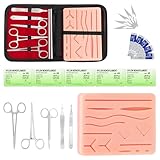
- COMPLETE HANDS-ON PRACTICE KIT:** Includes a 240g silicone training pad, 5 practice threads, reusable metal training tools, 5 replacement practice blades and a zippered storage pouch. A coordinated set for educational demonstrations, guided learning and hands-on simulation exercises.
- 240G SILICONE TRAINING PAD:** The weighted silicone pad provides a stable surface for repeated practice. It features 14 pre-shaped patterns plus open areas for creating custom practice lines, with an internal mesh layer designed to improve tear resistance during repeated use.
- DESIGNED FOR REPEATED SIMULATION:** Five included practice threads provide materials for repeated exercises on the silicone pad, helping users become familiar with thread handling, tool control and coordinated hand movements through hands-on simulation.
- REUSABLE TRAINING TOOLS & STORAGE:** Reusable metal tools are designed for repeated exercises with the included silicone practice pad. After each session, wipe the tools clean, dry thoroughly and keep the complete set organized in the included zippered storage pouch.
- EDUCATIONAL SIMULATION USE ONLY:** Designed exclusively for educational demonstrations and hands-on simulation using appropriate practice materials. This product is not a medical device and is not intended for diagnosis, treatment or procedures on people or animals. Contains sharp components. Adult use only.
Forgetting to audit and adjust settings
Teams usage changes over time. A channel created for controlled project updates may later become a daily collaboration space, or a standard channel may grow large enough to require moderation. Review moderated channels on a regular cadence, such as quarterly for business units and monthly for high-risk or regulated teams. Check moderator membership, guest access, message patterns, retention alignment, inactive channels, and whether users are bypassing the channel because restrictions are too heavy.
The best moderation programs are practical rather than restrictive. They protect conversations, keep large audiences focused, and support compliance without slowing normal teamwork. By avoiding these common mistakes, organizations can make Microsoft Teams channel moderation a useful governance control instead of an administrative burden.
The Tool Desk
Outbyte PC Repair FREEClear out junk files and repair common Windows errorsFree Scan →Outbyte Driver Updater FREEScan for outdated or missing drivers - takes under a minuteDriver Scan →Frequently Asked Questions
Can Microsoft Teams channel moderation stop members from posting new messages?
Yes. In a standard channel, you can enable channel moderation and restrict who can start new posts to channel moderators. Members may still be allowed to reply to existing posts depending on the channel settings, so review both posting and reply permissions before rolling it out.
Who should be assigned as a channel moderator in Microsoft Teams?
Assign moderators who understand the channel’s purpose, business context, and compliance requirements. In most organizations, this means team owners, department leads, project managers, communications staff, or trained delegated admins. Avoid assigning too many moderators, because inconsistent decisions can make the channel harder to manage.
Is channel moderation available for private or shared channels?
Microsoft Teams moderation settings are primarily associated with standard channels. Private and shared channels have different membership and ownership controls, so governance is usually handled through access management, owner responsibilities, naming standards, and lifecycle policies instead of the same moderation controls.
Does Teams channel moderation affect retention, eDiscovery, or legal hold?
Moderation controls who can post or reply, but it does not bypass Microsoft Purview retention, eDiscovery, audit, or legal hold capabilities. Messages in moderated channels are still subject to the organization’s compliance policies. Admins should align moderation rules with retention labels, audit requirements, and investigation workflows.
What is the most common mistake when enabling channel moderation?
The most common mistake is turning on moderation without telling users what changed and who can post. This often leads to confusion, duplicate channels, or people moving conversations to unmanaged chats. Publish clear channel rules, name the moderators, and explain how members can request a post or escalation.
Bottom Line
Microsoft Teams channel moderation works best when it is intentional, documented, and consistently reviewed. Define who can post, reply, manage announcements, and enforce standards before problems appear, then align those settings with your broader governance, compliance, and retention policies.
For 2026, treat moderation as an ongoing operating practice rather than a one-time configuration. Start by auditing your most active channels, assign clear moderator responsibilities, standardize templates for channel rules, and use automation where it reduces manual effort without weakening oversight.

