Quick wins for a faster PC:
Fix the driver behind crashes, sound loss and screen glitchesFind Drivers →Clear out junk files and repair common Windows errorsFree Scan →Some links on this page are affiliate links: if you buy through them we may earn a commission, at no extra cost to you.
When news and community posts say Meta wants the Google Play Store on Quest, it usually points to one question: will you be able to install Android-style apps from Google’s app marketplace on Quest devices running Horizon OS?
That change would affect how you discover apps, how updates are delivered, and how much friction exists between “Android apps” and “VR-ready apps.” Until (and unless) that support is available broadly, Quest owners still have several reliable ways to install and run apps.
As an Amazon Associate I earn from qualifying purchases.
PC Slower Than It Used to Be?
A free scan shows the junk files, broken settings and background clutter dragging Windows down - then fixes them in one click.Free scan · Windows 10 & 11Crashes, No Sound, or Screen Glitches?
Random freezes, missing sound and display glitches usually trace back to one bad driver. Find and replace yours safely.Free scan · under a minuteThis guide treats the Play Store request as a practical decision for device owners and developers: what it means, what you can do now, and how to handle installs safely on Horizon OS.
What people mean by Meta wanting the Google Play Store on Quest Horizon OS
In plain terms, “Meta wants the Google Play Store on Quest” means Meta is (or would be) aligning Horizon OS’s app distribution story with Google’s Play ecosystem. The key detail isn’t just the store UI—it’s compatibility, security review, signing, and update delivery.
Popular on Amazon

- GOLF+ — Play your next round at TPC Sawgrass. Get GOLF+, 1,800 in-game credits and more with Meta Quest 3S.
- HOW TO REDEEM — Activate and set up your Meta Quest, pair your Meta Quest with the Meta Horizon app and claim GOLF+ during the pairing process.
- NO WIRES, MORE FUN — Break free from cords. Game, play and explore immersive worlds — untethered and without limits.
- 2X GRAPHICAL PROCESSING POWER — Enjoy lightning-fast load times and next-gen graphics for smooth gaming powered by the Snapdragon XR2 Gen 2 processor.
- EXPERIENCE VIRTUAL REALITY — Take gaming to a new level and blend virtual objects with your physical space to experience two worlds at once in your VR headset.
For most users, the practical result would be easier access to a larger catalog of apps packaged for Android, plus more predictable updates and fewer side-loading workflows.
Why a Play Store on Horizon OS matters
A Quest headset is not a phone. So the Play Store promise would matter most in four areas:
Free tools Windows power users keep installed
One-click scans. No signup required.
- App discovery: you’d find apps from one familiar marketplace instead of bouncing between Quest’s store, developer links, and APK sources.
- Updates: Play-managed updates typically reduce “manual re-install” cycles and version mismatches.
- Compatibility expectations: users often assume Android app installs behave the same everywhere. A Play Store would tighten that expectation—at least for Android-compatible packages.
- Developer distribution: devs can target more users without building separate install paths per headset platform.
What Horizon OS actually is (and what it changes)
Quest runs Horizon OS, Meta’s VR-focused OS. Compared to a phone OS, it’s designed around VR runtime, controller input, motion tracking, and performance constraints that matter for comfort and stability.
Even if an app is “Android,” VR quality requires more than an APK: it needs correct input handling, rendering performance, and often VR-specific configuration.
Also popular on Amazon

- GOLF+ — Play your next round at TPC Sawgrass. Get GOLF+, 1,800 in-game credits and more with Meta Quest 3.
- HOW TO REDEEM — Activate and set up your Meta Quest, pair your Meta Quest with the Meta Horizon app and claim GOLF+ during the pairing process.
- NEARLY 30% LEAP IN RESOLUTION — Experience every thrill in breathtaking detail with sharp graphics and stunning 4K+ Infinite Display.
- NO WIRES, MORE FUN — Break free from cords. Game, play and explore in immersive worlds — untethered and without limits.
- 2X GRAPHICAL PROCESSING POWER — Enjoy lightning-fast load times and next-gen graphics for smooth gaming powered by the Snapdragon XR2 Gen 2 processor.
Current reality: where the Google Play Store stands on Quest
As of my last knowledge update (2025-08), Quest devices do not universally expose the full Google Play Store experience in the same way a standard Android phone does. In practice, most Quest app installs still come from Meta’s distribution channels or from controlled sideloading flows.
So when you see claims about “Play Store on Horizon OS,” treat it as a direction of travel—not an immediate guarantee for a working, broadly supported store install today.
If you want the most accurate status for your specific headset model and firmware version, check the device’s current store availability and any official Meta support pages for app installation and third-party APK support.
Prerequisites before you try anything
- A supported Quest headset: the exact steps can vary by model (for example Quest 2, Quest 3, Quest Pro) and by firmware version.
- Wi‑Fi stability: unstable networks cause downloads to fail mid-install, which often looks like “app won’t install.”
- Developer Mode: sideloading commonly requires enabling Developer Mode in the Meta Quest ecosystem.
- ADB tooling on your PC: for many sideload workflows, you’ll use Android Debug Bridge (ADB). You don’t need it for every store method, but it’s the backbone for most manual installs.
Method 1: Use Meta Quest’s native app ecosystem (recommended default)
If the app exists in the Quest store, that’s usually the cleanest path. It’s also the most reliable for VR optimization, controller mappings, and update cadence.
Also popular on Amazon
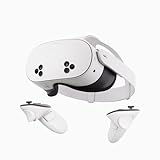
- NO WIRES, MORE FUN — Break free from cords. Game, play, exercise and explore immersive worlds — untethered and without limits.
- 2X GRAPHICAL PROCESSING POWER — Enjoy lightning-fast load times and next-gen graphics for smooth gaming powered by the SnapdragonTM XR2 Gen 2 processor.
- EXPERIENCE VIRTUAL REALITY — Take gaming to a new level and blend virtual objects with your physical space to experience two worlds at once.
- 2+ HOURS OF BATTERY LIFE — Charge less, play longer and stay in the action with an improved battery that keeps up.
- 33% MORE MEMORY — Elevate your play with 8GB of RAM. Upgraded memory delivers a next-level experience fueled by sharper graphics and more responsive performance.
- Open Meta Quest store in your headset.
- Search by app name, developer, or VR genre.
- Install and confirm it launches from Apps.
- If the app updates, wait for the store-managed update rather than replacing versions manually.
Method 2: Sideload Android APKs on Quest (when you have control over the install)
Sideloading is the most common workaround people use when they want an app that isn’t in the Quest store, or when they’re testing a build that doesn’t ship to end users yet. It’s also the area most likely to fail if permissions or Android compatibility aren’t aligned with Horizon OS’s VR runtime.
Step-by-step: prepare for sideloading
- On a PC, install platform-tools (contains ADB). Use the official Android SDK Platform-Tools package (not random “ADB installers”).
- Log into the same Meta account that owns the Quest device.
- Enable Developer Mode for the Quest headset (the process is typically done through Meta’s device management pages and may require a payment method or verification depending on region/policy).
- Put on your Quest headset and connect it to your PC via the recommended method (commonly USB for initial setup; some setups support wireless debugging depending on your tools and firmware).
- On your Quest, accept any prompts that request computer authorization for debugging.
Step-by-step: install an APK and verify it launched
- Open a terminal/command prompt on your PC in the folder where the APK is located.
- Confirm the headset is visible:
adb devices
- Install the APK:
adb install -r your-app.apk
- Verify the package exists:
adb shell pm list packages | grep -i your-app
- Launch the app to confirm VR runtime access:
adb shell monkey -p your.package.name -c android.intent.category.LAUNCHER 1
Common gotchas specific to Horizon OS and VR apps
- VR intent vs flat launcher: some apps are packaged for phone-only launch flows and don’t enter a VR mode on Quest.
- Missing VR permissions: apps may require mic/camera permissions. If those aren’t granted (or if they’re blocked by device policy), the app can crash early.
- Incorrect architecture: ensure the APK matches the device’s CPU architecture (commonly arm64-v8a for modern Android devices). Wrong builds can install but fail at runtime.
- Outdated API expectations: apps built for a different Android version may misbehave if they rely on deprecated services.
Method 3: Use alternative app delivery (Amazon Appstore, direct app installers, or vendor store paths)
If your goal is simply “get this app running,” the easiest non-Quest path depends on what the app publisher offers. Some apps provide direct distribution; others are available via alternative Android stores where supported.
Do these 3 things before closing this tab:
1Repair Windows errors before they cause bigger problems2Scan for outdated or missing drivers - takes under a minute3Clear out junk files and repair common Windows errors- Check whether the app has a Quest-optimized listing in Meta’s store.
- If not, check the app developer’s official support page for Quest or Android TV installation instructions.
- If the publisher provides an installer or APK, use only sources the publisher directly hosts.
- After install, verify permissions and test controller input in a controlled environment (stand near a wall first if the app spawns unfamiliar guardian boundaries).
Method 4: If you’re a developer, plan for distribution with or without Play Store
Even if a Google Play path becomes available, Horizon OS’s VR requirements won’t disappear. You’ll still need to ensure the app performs well, handles tracking reliably, and fits Meta’s app policies.
Distribution paths to consider
- Meta Quest distribution: recommended for maximum reach among Quest users.
- Side-loading for beta/testing: useful for internal users or limited testers who can manually install APKs.
- Cross-platform Android targeting: if Horizon OS support grows, you can reduce duplication by sharing Android project code (where feasible) and only branching VR-specific runtime pieces.
- Enterprise distribution: if you’re deploying to organizations, distribution methods can differ by policy and device management.
Testing checklist for VR performance and permissions
- Test on the minimum supported hardware and on your target “best experience” model.
- Verify motion-to-photon comfort: keep frame drops and stutters minimal during head turns.
- Confirm controller mappings (trigger/grip, menu buttons, thumbsticks) don’t conflict with system UI.
- Validate permission flows (camera/mic/location if relevant). If permission prompts appear, confirm the app behaves safely when denied.
- Run stability testing for at least 30 minutes with repeated app resumes/suspends.
Security and compliance: what to watch for
“Get the Play Store” discussions often tempt people to seek unofficial installers. That’s where risk spikes: malicious APK bundles, modified package signatures, or fake “Play Store” front-ends.
Also popular on Amazon

- NEARLY 30% LEAP IN RESOLUTION — Experience every thrill in breathtaking detail with sharp graphics and stunning 4K Infinite Display.
- NO WIRES, MORE FUN — Break free from cords. Play, explore and exercise in immersive worlds — untethered and without limits.
- 2X GRAPHICAL PROCESSING POWER — Enjoy lightning-fast load times and next-gen graphics for smooth gaming powered by the Snapdragon XR2 Gen 2 processor.
- EXPERIENCE VIRTUAL REALITY — Blend virtual objects with your physical space and experience two worlds at once.
- 2+ HOURS OF BATTERY LIFE — Charge less, play longer and stay in the action with an improved battery that keeps up.
- Prefer official developer hosts or well-known distribution sources.
- Never install APKs that require you to disable security settings unless you fully understand the implications.
- Check app permissions after install and revoke anything unnecessary.
Troubleshooting when an install or app launch fails
Most Horizon OS install issues aren’t “mystery bugs.” They’re usually permission, compatibility, packaging, or versioning problems. Use the checks below before reinstalling repeatedly.
App won’t install
- Confirm Developer Mode is enabled: sideload tools commonly fail silently without it.
- Try a reinstall:
adb install -rreplaces an existing build; omitting-rcan cause conflicts. - Verify APK architecture: look for arm64-v8a support.
- Check storage: a full device can cause install failures mid-stream.
App installs but won’t open
- Check logs: capture runtime errors using
adb logcatand search for “FATAL EXCEPTION” or permission-related lines. - Permissions: verify mic/camera/storage permissions in the device’s app settings.
- VR entry point: some apps require a specific intent to start VR mode; the default launcher may not be the VR path.
App crashes or black-screens
- Reduce variables: try launching with fresh head tracking, no unusual overlays, and default resolution settings.
- Use the correct build: if the app offers multiple APK flavors (debug/release, arm64-only, etc.), install the release variant.
- Update or roll back: if you recently changed system firmware, test against a previous app version if you have it.
Controllers/motion tracking doesn’t work in the sideloaded app
- Confirm input focus: some apps need an explicit “start session” step to bind controller input.
- Controller remaps: ensure you haven’t globally remapped buttons in a way the app doesn’t expect.
- App is not VR-capable: some Android apps are not designed to use Quest controller input properly even if they install.
Alternatives to the Play Store that can still meet your needs
If the only reason you care about Play Store is “I want more apps,” consider whether you actually need general Android coverage or just specific app categories.
What’s actually slowing this PC down?
Pick the symptom - the matching free tool is one click away.
- Gaming & VR social apps: the Quest store is typically the best source for compatibility and comfort.
- Media playback apps: search within Quest first; many major services have native or VR-adapted clients.
- Tools and productivity: favor apps built specifically for Quest or those explicitly documented to work on Horizon OS.
If your target app isn’t available, sideloading (carefully) or waiting for the publisher’s Quest support often beats chasing unofficial “store” bundles.
FAQ
Will adding the Google Play Store automatically make Android apps work on Quest?
No. VR performance, controller input, and VR runtime integration matter. Many Android apps will install, but they may not enter VR mode or may crash due to missing VR-capable interfaces.
Also popular on Amazon

- 🥇【Compatible With 】---- Unlike other products, our Headstap for Meta Quest 2/3/3s has been upgraded to support not only for Meta Quest 3/3s , but also for Oculus Quest 2
- 💎【Improve VR Gaming Comfort】----Saqico Head Strap is Specially Designed For Newest Meta Quest 3S/3 and Quest 2, Longer immersion in Virtual Reality Video Games, Reduce Head & Face Pressure for a truly comfortable experience.
- ☀️【Reduce Face & Head Pressure】 ----Full surround Comfortable cushion with inner soft memory foam thickness (0.67inches) with larger head support, making the head strap more comfortable and reduce Face & Head pressure. The head strap for oculus quest 2/3S/3 accessories is weight balance fit for any game experience
- ❤【Adjustable for Adults and Children】 ----This elite strap with for oculus quest 2/3S/3 has upgraded the knob, Designed with a 360 rotatable knob, this head strap makes it easy to adjust the length and size of the headband. Also comes with an adjustable top strap to meet the needs of all VR players head size.is suitable for both adults and children, and children can easily adjust it themselves.
- 💎【New Detachable Design】---3 kinds of wearing ways for Choose,Detachable Design make the package size for for smaller, It's better advocacy of environmental protection. Lightweight and Portabl Saqico vr accessories for oculus quest3S/3 weighs only 6.5 oz,Package include 1 x elite headstrap, 1 x user manual
Do I need a PC to install apps on Quest?
Often, yes—especially for sideloading via ADB. Some alternative installers provide a headset-only flow, but those are highly dependent on the app publisher and your device policy.
Is sideloading safe?
It can be safe if you use trusted sources and only install APKs you understand. The biggest risks are malicious packages and incorrect builds that lead to instability.
How can I tell whether my Horizon OS version supports a specific method?
Use Developer Mode status, check available debugging/installation behaviors, and consult official Meta guidance for your device model. When in doubt, test with a small, known-good APK first.
What should developers focus on if Play Store support arrives later?
Keep VR runtime quality strong: controller handling, performance targets, and correct permission handling. Distribution changes are only half the problem; app stability in Horizon OS is the other half.
Bottom Line
Meta wanting the Google Play Store on Quest Horizon OS would be a major distribution upgrade for users and developers—mostly through easier discovery, updates, and broader Android compatibility expectations.
Until that support is clearly available on your headset, the most dependable approach is still the Quest app ecosystem, with sideloading used selectively when you can validate app sources and compatibility.
Recommended Free Tools

