Do these 3 things before closing this tab:
1Scan for outdated or missing drivers - takes under a minute2Clear out junk files and repair common Windows errors3Fix the driver behind crashes, sound loss and screen glitchesSome links on this page are affiliate links: if you buy through them we may earn a commission, at no extra cost to you.
Locking and hiding apps on iPhone is about two different layers: visibility (where you can find an app) and access (whether someone can open it). iOS 18 may include built-in app lock controls on some iPhone models and configurations, but you can still get strong results using Home Screen hiding and Screen Time restrictions.
This guide gives you multiple ways to lock and hide apps on iPhone in iOS 18, starting with the most direct option. If your device doesn’t show a built-in lock feature, the Screen Time method below is the most reliable fallback.
As an Amazon Associate I earn from qualifying purchases.
Recommended Free Tools
Before you change anything, decide what you’re protecting against: curious tapping, screen sharing, search, or time-based access. Your best setup depends on that threat level.
What you can and can’t do in iOS 18
Apple generally limits how deeply iOS lets you “hide” apps. In most cases, you can remove app icons from the Home Screen, but the apps aren’t truly deleted—they remain in the App Library, can often be found by search, and may appear in suggestions depending on your settings.
Popular on Amazon

- Super Magnetic Attraction: Powerful built-in magnets, easier place-and-go wireless charging and compatible with MagSafe
- Compatibility: Only compatible with iPhone 13/14; precise cutouts for easy access to all ports, buttons, sensors and cameras, soft and sensitive buttons with good response, are easy to press
- Matte Translucent Back: Features a flexible TPU frame and a matte coating on the hard PC back to provide you with a premium touch and excellent grip, while the entire matte back coating perfectly blocks smudges, fingerprints and even scratches
- Shock Protection: Passing military drop tests up to 10 feet, your device is effectively protected from violent impacts and drops
- Check your phone model: Before you order, please confirm your phone model to find out which product is right for you
For access control, iOS offers a few practical routes: a device-level lock (Guided Access), parental-style restrictions (Screen Time), or a dedicated app lock feature if iOS 18 exposes it on your device.
So the goal is to combine methods: hide for reduced visibility, plus lock/restrict for actual access control.
What’s actually slowing this PC down?
Pick the symptom - the matching free tool is one click away.
Prerequisites (before you start)
- Update and confirm iOS 18: Open Settings → General → Software Update to confirm you’re on iOS 18.
- Know your passcode: If you’re using Screen Time, you may need the Screen Time passcode (often different from your iPhone passcode).
- Decide whether this is for you or a child/another family member: Family situations change which passcode prompts appear and who can “ask for more time.”
- Be realistic about “search”: Even if the app isn’t on the Home Screen, it can sometimes still be found via Spotlight search unless restrictions cover it.
Method 1: Lock apps with iOS 18 built-in controls (if available)
Some iOS 18 configurations include a direct way to lock individual apps. Apple may label this differently depending on region, settings, and iPhone model. Use the steps below to check for it and apply it if you see the option.
Check whether your iPhone shows the lock option
Try these checks:
- Open Settings.
- Look for a menu related to App Lock, Privacy, or Screen Time variants (names can vary).
- Also check Settings → Face ID & Passcode for app-specific privacy controls.
If you see an app-by-app lock toggle, you’re set to use Method 1. If you don’t, skip to Screen Time in Method 3.
Lock an app
Once you find the built-in app lock screen:
- Open the app lock menu (for example, Settings → App Lock).
- Confirm the lock requires your device passcode or Face ID (the prompt may appear when you first enable it).
- Select the app you want to lock.
- Turn on the lock toggle for that app.
If iOS asks whether you want to require authentication for the app, choose the most strict option available (typically Require Authentication / Use Face ID or Passcode).
Verify the lock works
- Return to the Home Screen and open the locked app.
- Confirm you get an authentication prompt (Face ID or passcode).
- After canceling the prompt, make sure the app doesn’t open or doesn’t remain usable.
Unlocking and managing locked apps
- Go back to the app lock settings menu.
- Disable the lock for the app when you need it.
- If multiple apps are locked, unlock them one by one and retest—some settings can behave differently depending on how the app handles background sessions.
Method 2: Hide apps on the Home Screen and move them out of sight
Hiding is the fast, low-friction move. It doesn’t prevent use by itself, but it reduces accidental opening and cleans up the Home Screen.
Hide an app (App Library approach)
Use one of these common patterns on iOS 18:
- Find the app icon on the Home Screen.
- Long-press the icon.
- Tap Remove App.
- Choose Remove from Home Screen (not delete).
The app remains in the App Library, so you can still find it when you want it.
Restore a hidden app back to the Home Screen
- Open the App Library.
- Find the app by scrolling or using the App Library search bar.
- Long-press the app icon.
- Choose Add to Home Screen.
Use Focus to reduce visibility during specific times
If you’re trying to curb distractions (social apps, shopping, etc.), Focus can suppress notifications and reduce “ambient” access.
Also popular on Amazon

- Compatibility: This case Fit for iPhone 15 (6.1 inch, Released in 2023), iPhone 14 (6.1 inch, Released in 2022), iPhone 13 (6.1 inch, Released in 2021). Please confirm your phone moderl before purchasing
- Strong Magnetic Charging: This iPhone 15 Case 6.1 inch has built with 38 super-strong N52 magnets, delivering 2400 gf magnetic attraction—over 7× stronger than standard cases. Ensures a secure, stable connection to Magnetic chargers, car mounts, and wireless charging stands. Perfectly aligned for fast, stable charging every time
- Tempered Glass Screen Protector: This iPhone 14 Case 6.1 inch includes 1× premium tempered glass screen protector that preserves original touch sensitivity and HD clarity. Offers reliable scratch and drop defense for your Screen, without compromising responsiveness or display quality
- Translucent Matte Back: This iPhone 13 Case 6.1 inch crafted from high-quality matte TPU and translucent PC, this case reveals the phone logo with an elegant, refined finish. The frosted texture delivers a comfortable, non-slip grip, while the nano antioxidant layer effectively resists stains, sweat, and minor scratches—keeping your case clean and clear longer
- 14FT Military Grade Drop Protection: 6.1 inch Phone Case iPhone 15/14/13 has rigid polycarbonate backplate paired with flexible, shock-absorbing TPU bumpers around the edges, plus 4 built-in corner air bags. Provides comprehensive protection against accidental drops, bumps, and impacts
- Open Settings → Focus.
- Create or open a Focus mode (for example, Work or a custom one).
- Set allowed notifications (choose who/which apps can notify).
- Schedule the Focus mode for the hours you want fewer interruptions.
Focus won’t fully block app opening by itself, but paired with hiding and Screen Time, it improves the outcome.
Method 3: Lock access using Screen Time (reliable fallback)
Screen Time is the most consistent way to restrict app access when iOS 18 doesn’t show a dedicated app lock feature. It can limit usage by time, require approval, and enforce schedules via Downtime.
Windows Errors? Fix Them Before They Spread
Repair common Windows errors and clear accumulated junk for a smoother, more stable PC - no reinstall needed.Free scan · no reinstallOutdated Drivers Are Slowing You Down
One free scan finds every outdated or missing driver and matches the right update for your exact hardware.Free scan · exact hardware matchSet up Screen Time if it isn’t enabled
- Open Settings → Screen Time.
- Tap Turn On Screen Time.
- Choose whether this is for you or for a child account (if prompted).
- Set a Screen Time passcode when asked.
Make sure the Screen Time passcode is something you can reliably use—changing it later can cause confusion with existing restrictions.
Create an app limit for the app you want to lock
- Go to Settings → Screen Time.
- Tap App Limits.
- Tap Add Limit.
- Select the app(s) you want to restrict.
- Choose the limit duration (use a low number like 1 minute for a “near lock” behavior).
- Select a schedule if the screen prompts you, or set it to Every day.
- Save.
When the user hits the limit, iOS shows a block screen with an Ask for More Time option (or a similar approval flow). That’s your enforcement layer.
Use Downtime to force the lock during certain hours
For a stronger “locked at night / locked during work hours” setup:
- Go to Settings → Screen Time.
- Tap Downtime.
- Turn on Downtime.
- Set start and end times (for example, 10:00 PM to 7:00 AM).
- Choose which apps are allowed during Downtime (you can allow essential apps and restrict everything else).
Depending on your configuration, the blocked apps won’t just be “limited”—they’ll be effectively unavailable for the Downtime window.
How the “Ask for More Time” flow behaves
When a limit is reached, iOS typically offers an option to request additional time. For adult self-control, that may reduce effectiveness if you can approve instantly.
For better results on shared devices, configure who can approve requests (for example, if you’re using Family Sharing, the parent/guardian account usually handles approvals). Verify this behavior by testing: wait until you cross the limit, then confirm what appears.
Also popular on Amazon

- Designed for iPhone 15/14/13: This case is only designed for iPhone 15/14/13 6.1 inch and does not support any other models
- Strong Magnetic Attraction: Designed for iPhone 15/14/13 case with 38 N52 magnets for 2400g lock. Fully compatible with MagSafe chargers, magnetic car mounts & Qi wireless charging without signal drop
- Tempered Glass Screen Protector: All-in-one set features a 9H tempered glass screen protector for iPhone 15/14/13 case. High-definition screen cover guards display against scratches while keeping touch response fast
- Crystal Clear: Premium clear iPhone 15/14/13 case made with Bayer TPU & PC. Nano antioxidant layer resists yellowing, oil, and smudges, keeping your phone looking brand-new with lasting clarity
- 10FT Military Grade Protection:10FT military drop protection for iPhone 15/14/13 case. Hard PC backplate, flexible shockproof TPU bumpers, and 4 corner airbags absorb heavy impacts from accidental falls
For a child account: use Family Sharing carefully
If the phone belongs to a child profile, Screen Time is designed to require approval for increases. Still, you want to avoid loopholes:
- Set the Screen Time passcode on the parent account, not the child.
- Confirm which account receives Ask for More Time requests.
- Check that app limits apply to the correct user profile (each profile can have different rules).
Method 4: Use Guided Access for one-app “lock down” (museum/kiosk style)
Guided Access is different from “locking an app on the Home Screen.” It locks the iPhone to a single app and disables navigation gestures, useful for kiosks, lessons, or controlled sessions.
Enable Guided Access
- Open Settings → Accessibility.
- Tap Guided Access.
- Turn on Guided Access.
- Set an access passcode and settings you want (like whether to use Face ID for the session).
Start Guided Access and set a passcode
- Open the app you want to lock to.
- Triple-click the side button (or use the gesture your iPhone uses for Guided Access).
- Adjust available controls if you see options (for example, certain areas of the screen).
- Start the session.
During the session, the user can’t easily exit the app or open other apps.
End Guided Access and troubleshoot it
To end, triple-click again and enter the Guided Access passcode. If you can’t end it, double-check that the triple-click shortcut isn’t being overridden by other accessibility shortcuts you’ve enabled.
Choosing the right method for your goal
Here’s how to map features to outcomes.
| Goal | Best method(s) | What it does | What it doesn’t do |
|---|---|---|---|
| Stop someone from opening a specific app | Method 1 (built-in lock) or Method 3 (Screen Time) | Requires authentication or blocks after limits | May not hide the app from search |
| Hide distracting apps from the Home Screen | Method 2 | Removes icons; keeps app in App Library | Doesn’t prevent opening from search/App Library |
| Block apps during certain hours | Method 3 (Downtime) | Enforces schedules | Still leaves allowed apps usable during Downtime |
| Lock the phone into one app during a session | Method 4 (Guided Access) | Prevents navigation out of the app | Not a permanent app lock for daily use |
Troubleshooting when locking/hiding doesn’t work
If your setup doesn’t behave as expected, the fix is usually one setting away. Work through these scenarios in order.
Screen Time prompts never appear
Try these checks:
- Confirm Screen Time is turned on for the correct user profile.
- Check that the app limit schedule is set (for example, if you selected a specific day/time window).
- Verify you’re actually crossing the threshold. If your limit is 1 minute, the block should appear after sustained usage beyond that window.
- Make sure the app isn’t exempt from restrictions due to allowed categories during Downtime.
Locked apps still open from search
Hiding alone doesn’t stop Spotlight. Combine approaches:
The Tool Desk
Outbyte Driver Updater FREEScan for outdated or missing drivers - takes under a minuteDriver Scan →Outbyte PC Repair FREERepair Windows errors before they cause bigger problemsFix Now →- Hide the app icon using Remove from Home Screen.
- Apply a Screen Time app limit (Method 3) so the app is blocked even if found.
- If the app is allowed during Downtime, remove it from allowed apps.
You forgot the Screen Time passcode
This is the hardest failure mode. If you don’t know the passcode, you may need to recover via Apple ID/parent account options provided by Screen Time. On shared devices, the recovery method depends on whether the passcode is managed by a parent/guardian profile through Family Sharing.
If you’re stuck, check Settings → Screen Time for the specific recovery options shown on your device.
Also popular on Amazon
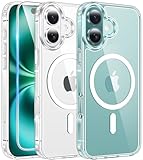
- Designed for iPhone 16: This case is only designed for iPhone 16 6.1 inch and does not support any other models
- Strong Magnetic Attraction: Designed for iPhone 16 case with 38 N52 magnets for 2400g lock. Fully compatible with MagSafe chargers, magnetic car mounts & Qi wireless charging without signal drop
- Tempered Glass Screen Protector: All-in-one set features a 9H tempered glass screen protector for iPhone 16 case. High-definition screen cover guards display against scratches while keeping touch response fast
- Crystal Clear: Premium clear iPhone 16 case made with Bayer TPU & PC. Nano antioxidant layer resists yellowing, oil, and smudges, keeping your phone looking brand-new with lasting clarity
- 10FT Military Grade Protection:10FT military drop protection for iPhone 16 case. Hard PC backplate, flexible shockproof TPU bumpers, and 4 corner airbags absorb heavy impacts from accidental falls
App still shows in Siri suggestions
Siri suggestions are powered by usage patterns. Locking can prevent opening, but you may still see suggestions. Reduce visibility by combining:
- Hide the app from the Home Screen (Method 2).
- Enable Focus modes that reduce notifications and reduce relevance of app suggestions during work hours.
- For stronger enforcement, ensure Screen Time blocks the app when limits are reached.
Family account conflicts
If you set limits under one profile but another profile is being used, it will look like “locking doesn’t work.” Confirm which profile is active and adjust rules on that same account.
Free tools Windows power users keep installed
One-click scans. No signup required.
Common mistakes to avoid
- Hiding without restricting: Hiding reduces clutter, but it won’t stop an intentional user from opening the app from App Library or search.
- Setting limits too high: A 2–3 hour limit may be too generous for distraction apps. If you want near-lock behavior, use a small number like 1 minute plus a schedule.
- Forgetting Downtime allowed apps: Downtime can block “everything else” except what you explicitly allow.
- Trying to manage restrictions without a passcode: Screen Time requires passcode control; if you can’t secure it, restrictions won’t hold.
- Assuming Guided Access is permanent: Guided Access is session-based. It’s great for kiosks, not daily app hiding.
FAQs about locking and hiding apps on iPhone in iOS 18
Will locking an app remove it from the Home Screen?
Not automatically. App locking controls access; hiding controls visibility. For best results, use both: lock/restrict access and hide the icon.
Can someone delete restrictions or bypass Screen Time?
On a properly secured device, Screen Time restrictions require the Screen Time passcode and/or parent approvals. If someone has access to the passcode or is the admin/parent account, enforcement will weaken.
Does hiding an app stop notifications?
It reduces where the app appears, but notifications depend on notification settings and Focus. For distraction reduction, pair hiding with Focus and/or notification settings.
Why does the locked app still show up in recent apps?
Depending on the method used, recent app state may remain visible until the lock triggers. Use Screen Time limits or verify the authentication prompt behavior if you’re seeing it reopen too easily.
Is Guided Access the same as app locking?
No. Guided Access is a single-session “stay in this app” mode. App lock/restrictions are meant for day-to-day access control.
Final Thoughts
If you want true protection, don’t rely on hiding alone. Use iOS 18’s built-in app lock if your device offers it, otherwise set up Screen Time with app limits and Downtime for predictable enforcement.
For the cleanest day-to-day experience, combine methods: hide distracting icons, restrict access with Screen Time, and use Focus to keep notifications from pulling you back in.

