What’s actually slowing this PC down?
Pick the symptom - the matching free tool is one click away.
Some links on this page are affiliate links: if you buy through them we may earn a commission, at no extra cost to you.
iOS 18.6 beta 2 is a point release in Apple’s ongoing beta cycle. For testers, that usually means bug fixes, refinements, and stability work—rather than a brand-new feature set.
If you also see “more now available” alongside iOS 18.6 beta 2, that typically refers to matching betas for other Apple platforms (for example, iPadOS) or additional build variants that share the same train. The safest way to know what you’re actually downloading is to verify inside each device’s Software Update screen.
As an Amazon Associate I earn from qualifying purchases.
Crashes, No Sound, or Screen Glitches?
Random freezes, missing sound and display glitches usually trace back to one bad driver. Find and replace yours safely.Free scan · under a minutePC Slower Than It Used to Be?
A free scan shows the junk files, broken settings and background clutter dragging Windows down - then fixes them in one click.Free scan · Windows 10 & 11This guide walks through what to expect, how to install, how to troubleshoot the most common beta problems, and how to plan your backup/rollback so you’re not stuck if things go sideways.
What iOS 18.6 beta 2 being available usually signals
Apple’s beta numbering tracks iterative development. When a beta reaches “beta 2,” it generally reflects follow-up fixes from beta 1 feedback—things like crash regressions, account/auth edge cases, performance tuning, and UI/behavior consistency.
Popular on Amazon

- 6.1" Super Retina XDR OLED, HDR10, 800 nits (HBM), 1200 nits (peak), 2532x1170px at 460ppi, 4005mAh Battery
- 8GB RAM, Apple A18 6-core CPU (2 performance + 4 efficiency cores), Apple GPU 4-core, 16‑core Neural Engine
- Rear camera: 48MP, f/1.6, wide, Front Camera: 12MP, f/1.9, wide, iOS 18.3.1, upgradable to iOS 18.5
- Connectivity: Global 4G LTE, Sub-6 GHz 5G, LTE, Wi-Fi 6, Bluetooth 5.3, NFC, USB-C, Wireless Charging (7.5W). (does not have mmWave 5G or MagSafe or physical SIM card) - Dual eSIM Only
- Unlocked for freedom to choose your carrier. Compatible with both GSM & CDMA networks. The phone is unlocked to work with all GSM Carriers & CDMA Carriers Including AT&T, T-Mobile, Verizon, Straight Talk., Etc.
At this stage, the release is often best treated as a test build rather than a “daily driver upgrade.” Even small updates can introduce new bugs on specific device models, carriers, or app ecosystems.
Check what else is available (iPadOS, watchOS, tvOS, macOS)
When you see iOS 18.6 beta 2 announced together with other items, Apple commonly distributes related betas to keep device features in sync. Your exact availability depends on how you enrolled and which devices are eligible.
Use these quick checks before you install:
- On your iPhone: Settings > General > Software Update
- On your iPad: Settings > General > Software Update
- On your Mac (if applicable): System Settings > General > Software Update
- For watchOS: open the Watch app on your paired iPhone, then check General > Software Update
If you don’t see an update for a device you expected to receive one, don’t assume something is broken. Enrollment state, device support, and Apple’s rollout timing can differ.
Prerequisites before you install
Betas are manageable when you prepare. The most common regret is not having a clean backup or enough storage to download the build.
1) Confirm your iPhone model and iOS enrollment
- Make sure the device is eligible for iOS 18.x betas.
- If you’re using a beta program, confirm you’re signed in under the correct Apple ID.
2) Free up storage (leave headroom)
Betas often need more free space than the update file size suggests. Aim for at least 5–10 GB free before downloading, especially if you’re updating a device with heavy media usage.
3) Back up—then verify the backup exists
You want a backup you can actually restore. Two practical options:
Do these 3 things before closing this tab:
1Scan for outdated or missing drivers - takes under a minute2Clear out junk files and repair common Windows errors3Fix the driver behind crashes, sound loss and screen glitches- iCloud Backup: Settings > [your name] > iCloud > iCloud Backup > Back Up Now
- Computer backup (Finder on macOS or iTunes on older Windows): connect your device and create the backup before updating
After starting a backup, wait for it to finish and confirm completion status. A “started but not done” backup is a common failure point during recovery.
4) Charge and connect to stable Wi‑Fi
Install times vary by device and network. Use Wi‑Fi you trust, and plug in your iPhone—especially for long downloads or when cellular coverage is unreliable.
Also popular on Amazon

- This pre-owned product is not Apple certified, but has been professionally inspected, tested and cleaned by Amazon-qualified suppliers.
- There will be no visible cosmetic imperfections when held at an arm’s length. There will be no visible cosmetic imperfections when held at an arm’s length.
- This product will have a battery which exceeds 90% capacity relative to new.
- Accessories will not be original, but will be compatible and fully functional. Product may come in generic Box.
- This product is eligible for a replacement or refund within 365 days of receipt if you are not satisfied.
How to install iOS 18.6 beta 2
There are two viable paths: over-the-air (OTA) from the device, or installation via a computer. OTA is easiest; computer install is more predictable when downloads keep failing.
Over-the-air via iPhone (Settings)
- Open Settings.
- Go to General > Software Update.
- Wait for iOS 18.6 beta 2 to appear.
- Tap Download and Install.
- Enter your passcode if prompted.
- Accept any terms and confirm the update when asked.
- Keep your iPhone connected to power during the install.
If you see a message about your device needing more space, cancel and free storage before trying again. Repeated “almost enough space” retries can corrupt the download cache and waste time.
Install from a computer (Finder/iTunes)
If OTA keeps stalling, a computer-based install often gets you past it.
- Connect your iPhone to your computer with a reliable cable.
- Open Finder (macOS) or iTunes (Windows).
- Select your iPhone when it appears.
- Choose the option to update/restore.
- Follow the prompts to install the beta build.
- When complete, keep the device connected until it finishes any post-update setup.
Use a cable that you know supports data transfer. Charging-only cables are a frequent cause of failed device detection.
What to expect after updating
Because beta releases prioritize fixes, the “what’s new” list can be short, while the “things that feel different” list can be long—depending on your usage. Focus on stability, UI behavior, and app interactions.
Performance and battery behavior
After updating to iOS 18.6 beta 2, it’s normal to see short-term battery variability while the system finishes background tasks (indexing, photo library updates, and app re-setup).
Free tools Windows power users keep installed
One-click scans. No signup required.
- If battery drain looks unusual for 24–48 hours, start investigating (see troubleshooting below).
- If the phone feels warmer than before, check whether a specific app is chewing CPU in the background.
App compatibility and notifications
Most apps continue working fine, but betas can change system-level behavior (permissions prompts, notification timing, or background refresh rules). Watch for:
- Notifications that don’t arrive or arrive late
- Apps that request permissions again (or stop functioning after a permission reset)
- Widgets or lock screen components that don’t refresh reliably
When in doubt, verify per-app settings under Settings > Notifications.
Also popular on Amazon
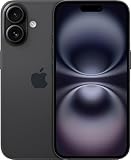
- This pre-owned product is not Apple certified, but has been professionally inspected, tested and cleaned by Amazon-qualified suppliers.
- There will be no visible cosmetic imperfections when held at an arm’s length. There will be no visible cosmetic imperfections when held at an arm’s length.
- This product will have a battery which exceeds 90% capacity relative to new.
- Accessories will not be original, but will be compatible and fully functional. Product may come in generic Box.
- This product is eligible for a replacement or refund within 365 days of receipt if you are not satisfied.
Security and privacy changes
Apple often uses point releases to tighten platform behavior and harden edge cases. You may not notice security improvements directly, but you can still validate your privacy posture:
- Review Settings > Privacy & Security for any toggles that changed.
- Confirm microphone/camera permissions for apps you use heavily.
- Check location access (especially for navigation and social apps).
Common problems and what to try first
Beta builds are usually usable, but the “first fix” flow matters. Start with the least destructive steps before you restore anything.
Update download fails or stalls
If iOS 18.6 beta 2 won’t complete the download, try these in order:
- Toggle Wi‑Fi off/on or switch to another network.
- Restart the iPhone, then retry Settings > General > Software Update.
- Check free storage again (aim for 5–10 GB free).
- Turn off VPN if you use one.
- Install via a computer using Finder/iTunes if OTA repeatedly stalls.
If the update shows as downloaded but won’t install, don’t keep tapping “retry” endlessly—restarting the phone and switching install method is often faster.
Install completes but iPhone won’t boot normally
If the device reboots repeatedly or gets stuck during startup:
- Force restart your iPhone (method depends on model).
- Try the install again only after a full reboot.
- If the problem persists, connect to a computer and attempt update/restore via Finder/iTunes.
Because force-restart steps vary by iPhone model, verify the exact procedure for your device on Apple’s support pages or from your device manual.
Recommended Free Tools
Battery drain, overheating, or fast app crashes
After iOS beta updates, a handful of issues are often caused by one misbehaving app or background activity.
Try this sequence:
- Reboot once and leave the phone idle for 10–15 minutes.
- Check Settings > Battery for the highest consumer.
- Update the problematic app(s) in the App Store.
- Disable background refresh for the worst offender: Settings > General > Background App Refresh.
- If a crash started immediately after installing, uninstall and reinstall the app (after backup if needed).
If overheating happens during normal idle use, it’s worth reporting to Apple via the feedback tools provided to beta testers.
Also popular on Amazon
- This pre-owned product is not Apple certified, but has been professionally inspected, tested and cleaned by Amazon-qualified suppliers.
- There will be no visible cosmetic imperfections when held at an arm’s length. There will be no visible cosmetic imperfections when held at an arm’s length.
- This product will have a battery which exceeds 90% capacity relative to new.
- Accessories will not be original, but will be compatible and fully functional. Product may come in generic Box.
- This product is eligible for a replacement or refund within 365 days of receipt if you are not satisfied.
Cellular/Wi‑Fi issues
Connectivity problems are a common beta side effect on some carrier setups.
- Toggle Airplane Mode on/off.
- Forget and rejoin the Wi‑Fi network.
- Reset network settings: Settings > General > Transfer or Reset iPhone > Reset > Reset Network Settings.
- Restart after the reset.
Resetting network settings clears saved Wi‑Fi networks and VPN settings, so be prepared to re-enter credentials.
Permissions, Face ID/Touch ID quirks, and Bluetooth oddities
System permissions can shift after betas, especially if an app was updated around the same time.
- Check Face ID/Touch ID in Settings > Face ID & Passcode or Touch ID & Passcode.
- Verify notifications and permissions for each app under Settings.
- For Bluetooth, toggle Bluetooth off/on, then remove and re-pair the accessory.
If a security feature is failing repeatedly, stop using the beta for critical sign-in flows and consider restoring once you’re confident you have a working backup.
Independent reader supportYour contribution helps us test, update, and keep practical guides available for everyone.Rollback options if the beta isn’t for you
Rolling back from a beta build can be straightforward only if you planned ahead. Your ability to downgrade depends on whether Apple still signs the previous release for your device.
What you can and can’t downgrade
In practice:
- Downgrade is usually possible only to a version Apple is currently signing.
- If Apple stops signing your target version, you may be limited to the closest signed release.
- If you backed up while on the beta, restoring that backup onto a non-beta OS can sometimes cause app or data inconsistencies.
That’s why a pre-beta backup is so important.
How to restore from a backup (and where data can get stuck)
If you need to go back, use one of these approaches:
The Tool Desk
Outbyte Driver Updater FREEScan for outdated or missing drivers - takes under a minuteDriver Scan →Outbyte PC Repair FREEClear out junk files and repair common Windows errorsFree Scan →- Restore from iCloud Backup: after restoring the OS, sign in and select the backup created before installing iOS 18.6 beta 2.
- Restore from computer backup: use Finder/iTunes to restore your pre-beta backup.
If you used iCloud and your backup timestamp is unclear, verify the date/time before you erase the device. A wrong backup selection is the fastest route to “missing data” stress.
Beta settings and safety checklist
You don’t need to run your life on “beta mode.” You can reduce blast radius while still testing.
Also popular on Amazon

- The large 6.9-inch display combines ProMotion 120Hz technology with advanced color calibration, giving movies, games, and productivity apps a spacious, crisp, and fluid visual experience that’s ideal for multitasking or immersive media consumption.
Report issues the right way
Most beta programs include a Feedback app or similar reporting pathway. When you submit a report:
- Include device model and iOS version number.
- Describe the steps to reproduce.
- Attach logs only if the process asks for them (don’t guess).
Good reports speed up fixes; vague reports slow them down.
Reduce risk while you test
- Use the beta on a device that isn’t your only phone for work.
- Avoid testing multiple risky changes at once (like swapping carriers, changing Apple ID security settings, and installing the beta the same day).
- Keep 2FA access working—make sure you can still receive codes if SMS/iMessage behavior changes temporarily.
How to decide whether to install right now
If you rely on your iPhone daily for critical tasks—work apps, banking, travel—consider waiting for stability improvements. A beta is best when you can afford inconvenience.
If you’re comfortable troubleshooting, have a verified backup, and you want to test iOS 18.6 beta 2 early, installing now is reasonable—especially if you’ve already used beta builds before without major issues.
When deciding, weigh these factors:
- Do you have enough free storage to install cleanly?
- Is your iPhone set up for easy recovery (backup verified, computer available)?
- Are your core apps updated?
- Do you need cellular stability for the next 48 hours?
Frequently asked questions
Is iOS 18.6 beta 2 safe to install on a primary iPhone?
It can be safe if you’re an experienced beta tester, have verified backups, and you’re willing to troubleshoot. If you can’t afford downtime, treat it as a non-primary-device update.
Will iOS 18.6 beta 2 delete my data?
OTA updates generally shouldn’t wipe your data, but any update can fail mid-process. That’s why you should back up first and ensure you have power and free storage.
Quick wins for a faster PC:
Scan for outdated or missing drivers - takes under a minuteDriver Scan →Repair Windows errors before they cause bigger problemsFix Now →Fix the driver behind crashes, sound loss and screen glitchesFind Drivers →Why doesn’t my iPad (or other device) show the beta too?
Enrollment status and device compatibility vary. Also, Apple may release matching betas to different platforms at slightly different times. Check each device’s Software Update screen.
What should I do if the beta drains battery quickly?
Check Settings > Battery to identify the culprit, update apps, and reboot. If it persists after 24–48 hours, try reducing background activity or resetting network settings only if connectivity is involved.
Can I go back to the non-beta iOS after installing iOS 18.6 beta 2?
Possibly. Downgrade depends on whether Apple is still signing the older iOS version for your device. If you want the easiest path back, keep a pre-beta backup and be ready to restore using Finder/iTunes or iCloud.
Bottom Line
iOS 18.6 beta 2 is best viewed as a stability-focused update inside Apple’s beta cycle. If you install, do it with verified backups, enough free storage, and a plan for recovery.
Quick wins for a faster PC:
Fix the driver behind crashes, sound loss and screen glitchesFind Drivers →Clear out junk files and repair common Windows errorsFree Scan →If something breaks, start with the most reversible fixes—restart, app updates, and network resets—before you consider a restore. With preparation, you’ll spend more time testing and less time chasing problems.

