Some links on this page are affiliate links: if you buy through them we may earn a commission, at no extra cost to you.
Apple’s iOS release notes are more than marketing. They’re the only place you’ll consistently see what changed, which issues were addressed, and what constraints may still apply—written by the vendor that shipped the update.
The catch: “iOS 18.1” can show up under different build identifiers across rollout waves. If you want Apple’s full release notes for your exact update, you need a quick verification step before you trust any copied text.
As an Amazon Associate I earn from qualifying purchases.
Free tools Windows power users keep installed
One-click scans. No signup required.
Below is a reliable, step-by-step way to access Apple’s complete iOS 18.1 release notes and make them actionable.
What iOS 18.1 release notes mean (and why you should read all of them)
Release notes typically cover three categories: changes and feature updates, bug/security fixes, and limitations/known issues. Even when a headline sounds small, a single fix can affect core areas like Safari behavior, notifications, Bluetooth performance, camera processing, or account sign-in.
Popular on Amazon
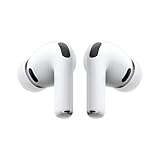
- WORLD’S BEST IN-EAR ACTIVE NOISE CANCELLATION — Removes up to 2x more unwanted noise than AirPods Pro 2* so you can stay fully immersed in the moment.*
- BREAKTHROUGH AUDIO PERFORMANCE — Experience breathtaking, three-dimensional audio with AirPods Pro 3. A new acoustic architecture delivers transformed bass, detailed clarity so you can hear every instrument, and stunningly vivid vocals.
- HEART RATE SENSING — Built-in heart rate sensing lets you track your heart rate and calories burned for up to 50 different workout types.* With iPhone, you will have access to the Move ring, step count, and the new Workout Buddy,* powered by Apple Intelligence.*
- LIVE TRANSLATION — Communicate across language barriers using Live Translation,* enabled by Apple Intelligence.*
- EXTENDED BATTERY LIFE — Get up to 8 hours of listening time with Active Noise Cancellation on a single charge. Or up to 10 hours in Transparency using the Hearing Aid feature.*
Reading the entire note matters because the “known issues” section often contains the real-world gotchas that don’t show up until after you update.
Prerequisites before you install iOS 18.1
- Back up your iPhone: Use iCloud Backup or a computer backup before starting.
- Free storage: Aim for at least 8–10 GB free to reduce update failures caused by temporary files.
- Stable power: Plug into power during download and install.
- Network reliability: Prefer Wi‑Fi. If cellular is your only option, be ready for longer download times.
If your device is low on storage, the update can stall partway through even though the release notes look fine.
Windows Errors? Fix Them Before They Spread
Repair common Windows errors and clear accumulated junk for a smoother, more stable PC - no reinstall needed.Free scan · no reinstallOutdated Drivers Are Slowing You Down
One free scan finds every outdated or missing driver and matches the right update for your exact hardware.Free scan · exact hardware matchWhere to find Apple’s full, official iOS 18.1 release notes
To get Apple’s complete notes (the authoritative text), use one of these official paths. They’re the safest ways to avoid partial copies or outdated summaries.
Apple device (Settings)
Your iPhone can display release-note style summaries depending on the update flow you’re using. This won’t always show the entire canonical release notes page, but it’s the most direct way to confirm what your device thinks it’s installing.
- Open Settings.
- Tap General > Software Update.
- Select iOS 18.1 (or whatever is shown on your device).
- Look for a Release Notes link or a scrollable changelog page during the update prompt.
Apple Support / release notes pages
Apple also posts release notes under its official support documentation for iOS versions. This is where you’ll typically find the most complete and stable text for that version line.
- Open your browser and go to the official Apple Support site.
- Search for iOS 18.1 release notes.
- Open the result that explicitly references iOS 18.1 (not “iOS 18” or “iOS 18 updates”).
- Copy the text or bookmark the page for later reference.
Search tip to avoid the wrong notes
When you search, include the version term exactly as Apple formats it (for example, “iOS 18.1 release notes”). Avoid searches that mix betas, developer previews, or old point releases.
How to verify you’re reading notes for the exact iOS 18.1 build
Apple’s rollout is staged, and some fixes appear in the same named version while builds differ. To reduce the chance you’re reading the wrong text, confirm your build number.
Also popular on Amazon
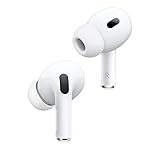
- This pre-owned product is not Apple certified, but has been professionally inspected, tested and cleaned by Amazon-qualified suppliers.
- On your iPhone, open Settings > General > About.
- Find the Version line (it should say iOS 18.1).
- Note the Build Number (it’s usually labeled as such and appears like a short alphanumeric code).
- Match the build/build range against the release notes page if Apple provides that detail, or check for the same version label in the official notes.
If you’re comparing screenshots from the internet, your build mismatch is the most common reason the release notes “don’t match” what you observe after updating.
How to interpret the release notes Apple lists
Don’t read iOS release notes as a promise that everything is fixed everywhere. Treat them as a map of what Apple changed and what may still be impacted.
To make the notes useful, translate each bullet into an “action or expectation” for your device:
Do these 3 things before closing this tab:
1Fix the driver behind crashes, sound loss and screen glitches2Repair Windows errors before they cause bigger problems3Scan for outdated or missing drivers - takes under a minute- If you use the area mentioned (camera, car integration, banking apps, Wi‑Fi stability), treat the update as potentially relevant.
- If the notes list security fixes, understand that the benefit is risk reduction, not a visible feature.
- If there’s a known issue, decide whether to pause the update on that device profile.
Common sections you’ll see in iOS release notes
Apple’s release notes pages vary slightly in wording, but the structure is usually predictable. Here’s what to look for and how to interpret it.
Security updates
Security entries often name categories (for example, kernel, WebKit, or authentication) without always describing the full exploit scenario. The practical meaning: update promptly, and don’t assume a security fix is limited to one app.
Bug fixes
Bug fix bullets can be very specific—sometimes referencing an app behavior or a system component. If you’ve seen a particular issue recently, cross-check it with these bullets so you know whether iOS 18.1 is meant to address it.
Features and changes
Feature bullets can affect settings, permissions, or how content is displayed. Pay attention if the notes mention new options in Settings or behavior changes in system apps.
What’s actually slowing this PC down?
Pick the symptom - the matching free tool is one click away.
Also popular on Amazon
- Active Noise Cancellation reduces unwanted background noise
- Adaptive Transparency lets outside sounds in while reducing loud environmental noise
- Personalized Spatial Audio with dynamic head tracking places sound all around you
- Multiple ear tips (XS, S, M, L)
- Touch control lets you swipe to adjust volume, press to direct media playback, answer or end calls, and press and hold to switch between listening modes
Known issues and limitations
This is the section that prevents surprises. Known issues can include device-specific behavior, region/provider constraints, or temporary workarounds until a follow-up update lands.
What to do after updating to iOS 18.1 (checklist)
After you install iOS 18.1, verify the most common areas that release notes frequently touch. This checklist helps you confirm whether the update improved things on your device.
- Confirm the version: Settings > General > About > Version shows iOS 18.1.
- Check system settings: Review any settings that commonly change after major updates (notifications, location permissions, background app activity).
- Test core apps: Make a quick pass through Messages, Mail, Safari, Photos, and your most-used bank or productivity app.
- Restart once: A single reboot after the update can clear “post-install” glitches.
- Update app dependencies: Open the App Store and install any app updates released after iOS 18.1.
Troubleshooting when iOS 18.1 install or behavior doesn’t match the notes
Sometimes your experience won’t match the expectation implied by the release notes. That doesn’t mean the notes are wrong—it means your device state, app versions, or data configuration may be different.
If iOS 18.1 won’t download or install
- Check storage: Free up space and try again.
- Switch networks: Move between Wi‑Fi networks if possible.
- Restart: Reboot the iPhone and retry.
- Try via computer: If over-the-air fails repeatedly, updating via a computer restore/update tool can work better (follow Apple’s official steps for your platform).
If apps behave differently after updating
- Re-check permissions: Settings > Privacy & Security for camera, microphone, location, and Photos access.
- Update the app: Developers ship fixes for iOS point releases.
- Sign out/in if needed: Some authentication issues clear after re-authentication.
If battery life or performance feels worse
- Allow indexing time: After an update, background tasks can temporarily affect battery.
- Check battery usage: Settings > Battery shows which apps increased activity.
- Reduce heavy background activity: Disable background refresh for apps you don’t need running constantly.
If the update fails verification or repeats
- Verify time settings: Settings > General > Date & Time should be correct.
- Reset network settings: This can resolve connectivity handshake problems.
- Use a fresh update attempt: Don’t keep re-tapping the same failed prompt for hours—restart and retry later.
Alternatives if you need the release notes immediately
If you’re on a tight timeline (for example, you’re deciding whether to update before travel), you can still get the complete notes quickly and safely.
Read the notes from your device
During the update prompt, iOS often shows a release-note summary. Even if it’s not as long as the official support page, it’s accurate for what your device is about to install.
- Go to Settings > General > Software Update.
- Tap the iOS 18.1 entry and open Release Notes if present.
Compare with Apple Support documentation
Use the official support release notes page as your “full text” source, then compare it with what your device shows so you know nothing was filtered or shortened.
- Open the official support release notes page for iOS 18.1.
- Scroll to see security updates, bug fixes, and known issues.
- Bookmark it in case you need it later for troubleshooting.
Check build-to-device compatibility
Some issues appear only on particular iPhone models or under specific conditions (carrier settings, Bluetooth devices, language/region). Your build number helps you confirm you’re aligned with the notes you read.
Also popular on Amazon

- REBUILT FOR COMFORT — AirPods 4 have been redesigned for exceptional all-day comfort and greater stability. With a refined contour, shorter stem, and quick-press controls for music or calls.
- ACTIVE NOISE CANCELLATION — AirPods 4 with Active Noise Cancellation help reduce outside noise before it reaches your ears, so you can immerse yourself in what you’re listening to.*
- HEAR THE WORLD AROUND YOU — The powerful H2 chip comes to AirPods 4. Adaptive Audio seamlessly blends ANC and Transparency mode — which lets you comfortably hear and interact with the world around you exactly as it sounds — to provide the best listening experience in any environment.* And when you’re speaking with someone nearby, Conversation Awareness automatically lowers the volume of what’s playing.*
- IMPROVED SOUND AND CALL QUALITY — Voice Isolation improves the quality of calls in loud conditions. Using advanced computational audio, it reduces background noise while isolating and clarifying the sound of your voice for whomever you’re speaking to.*
- MAGICAL EXPERIENCE — Just say “Siri” or “Hey Siri” to play a song, make a call, or check your schedule.* And with Siri Interactions, now you can respond to Siri by simply nodding your head yes or shaking your head no.* Pair AirPods 4 by simply placing them near your device and tapping Connect on your screen.* Easily share a song or show between two sets of AirPods.* An optical in-ear sensor knows to play audio only when you’re wearing AirPods and pauses when you take them off. And you can track down your AirPods and Charging Case with the Find My app.*
FAQ about iOS 18.1 release notes
Why do some online posts quote only parts of the iOS 18.1 release notes?
Because screenshots and short quotes often miss the security/known-issues bullets. Use Apple’s official release notes page (or the release notes view inside Settings) for the complete wording.
Do iOS 18.1 release notes include every fix for every iPhone model?
Usually the release notes reflect what Apple shipped for the version line, but impact can vary by device capability, region, and app versions. Known issues typically exist because not every scenario behaves identically.
How can I tell if a bug fix in the notes applies to me?
Match the bullet’s area (for example, Wi‑Fi, camera, notifications, Safari, Bluetooth) to your recent problem. If your issue isn’t described, the fix may still help indirectly, but you shouldn’t assume it’s the exact match.
Should I update if the release notes list a known issue?
It depends on your workflow. If the known issue affects something you rely on daily, consider waiting for the next point release. If it’s a rare edge case, you may decide to update and monitor.
Bottom Line
To get Apple’s full iOS 18.1 release notes, use official sources and verify your build number so the text matches what your iPhone is actually installing. Then translate the bullets into real checks on your device—especially around security items, known issues, and the system areas you use most.
The Tool Desk
Outbyte PC Repair FREEClear out junk files and repair common Windows errorsFree Scan →Outbyte Driver Updater FREEFix the driver behind crashes, sound loss and screen glitchesFind Drivers →If you share your iPhone model and your Build Number, I can help you map the release-note categories to the settings and apps most likely to be affected for your setup.

