PC Slower Than It Used to Be?
A free scan shows the junk files, broken settings and background clutter dragging Windows down - then fixes them in one click.Free scan · Windows 10 & 11Outdated Drivers Are Slowing You Down
One free scan finds every outdated or missing driver and matches the right update for your exact hardware.Free scan · exact hardware matchSome links on this page are affiliate links: if you buy through them we may earn a commission, at no extra cost to you.
Use the software path that matches your Google Cloud TPU resource. Google Cloud’s current PyTorch overview presents TorchTPU as the PyTorch-native backend: install it with pip install torch_tpu, create tensors on torch.device("tpu"), and then add torch.compile or distributed training as your workload grows. Google also maintains a separate, established PyTorch/XLA workflow for TPU VMs and multi-host slices. That route uses torch_xla[tpu], the PJRT runtime, and PJRT_DEVICE=TPU.
These are not interchangeable installation recipes. Select a TPU generation, resource shape and software stack first, then verify the current compatibility guidance before pinning versions. The practical sequence is: obtain quota and TPU capacity, connect to the VM or workers, install the matching runtime, verify device visibility, move model and input tensors to the accelerator, and synchronize XLA work correctly.
As an Amazon Associate I earn from qualifying purchases.
What’s actually slowing this PC down?
Pick the symptom - the matching free tool is one click away.
What is the supported way to run PyTorch on a Google Cloud TPU?
A Cloud TPU is a Google-designed application-specific integrated circuit for accelerating machine-learning workloads. In the current Google Cloud PyTorch direction, TorchTPU exposes a PyTorch-native device named tpu. The older and still-documented PyTorch/XLA route sends PyTorch operations through XLA and PJRT, using an XLA device such as xla:0.
Choose TorchTPU when the current Google Cloud documentation lists your TPU generation and release as supported and you want the newest native PyTorch entry point. Choose PyTorch/XLA when your code, training scripts or distributed workflow already depend on XLA APIs, or when the TPU VM or slice guide for your selected generation specifies that stack. Google has not published one authoritative compatibility matrix covering every TorchTPU and PyTorch/XLA release against every TPU generation, so check the live release guidance before installing exact versions.
#1 Best Overall
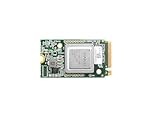
- ✅Powered by 26 Tera-Operations Per Second (TOPS) Hailo-8 AI Processor. 2.5W typical power consumption
- ✅Scalable, enabling simultaneous processing of multi-streams & multi-models
- ✅Enabling real-time, low latency and high-efficiency AI inferencing on the edge devices
- ✅Supports TensorFlow, TensorFlow Lite, ONNX, Keras, Pytorch frameworks
- ✅Supports Linux and Windows. Supports the temperature range of -40°C to 85°C
Which TPU software path should I choose?
| Decision | TorchTPU path | PyTorch/XLA path |
|---|---|---|
| Device API | torch.device("tpu") |
xla:0, xla:1 and other XLA devices selected through PJRT |
| Initial package command | pip install torch_tpu |
torch plus torch_xla[tpu]; the TPU VM guide shows a version-pinned example around 2.6 |
| Typical resource | A supported Cloud TPU VM or slice using the current native backend | A TPU VM or multi-host TPU slice configured for PyTorch/XLA |
| Distributed work | Use the distributed mechanisms documented with the current TorchTPU release | Install dependencies on every worker and launch an SPMD or other distributed script across the slice |
| Execution model | PyTorch-native device and compiler integration | XLA builds computation graphs and PJRT dispatches them to TPU devices |
| Version caution | Confirm supported TPU generations and package releases in current documentation | The 2.6 example is a dated guide example, not a claim that 2.6 is the latest supported release |
Do not install both stacks by habit. A package set that works for one backend can leave the other backend unregistered, select the wrong runtime or fail during import.
How do I prepare a Google Cloud TPU for PyTorch?
Before installing Python packages, decide whether you need one host or several hosts and confirm that the selected TPU generation is supported by your chosen backend.
1. Confirm project, region and quota
- Select the Google Cloud project that will own the TPU resource and verify billing, IAM permissions and TPU quota in the target region.
- Choose a TPU VM for interactive development, experiments and single-host jobs. Choose a TPU slice when the model or throughput target requires several hosts and the software supports distributed execution.
- Record the TPU name, zone or region, runtime image and worker count. These values are needed for SSH, package installation and log collection.
- Read the current TorchTPU or PyTorch/XLA support notes for that generation before creating an expensive resource. Availability and package support can change independently.
2. Provision using a current resource workflow
Use the current Compute Engine or GKE-oriented TPU resource workflow documented for your generation. An older ResNet tutorial warns that the Cloud TPU API is no longer under active development and does not support TPU7x and later; for newer resources, follow the current Compute Engine or GKE guidance instead of copying that legacy API flow.
3. Connect and identify the host
For a TPU VM, Google’s example uses the Cloud SDK command below, replacing the names with your resource values:
gcloud compute tpus tpu-vm ssh TPU_NAME --zone ZONEFor a slice, establish access to every worker. A successful connection to one worker does not prove that the other hosts have the same image, Python environment or network access.
How do I install and test the current TorchTPU backend?
The current Google Cloud PyTorch overview starts with the TorchTPU package and a tensor operation on a TPU device. Keep this workflow separate from the PyTorch/XLA instructions that follow.
Recommended Free Tools
1. Install the package in the environment used by your job
python3 -m pip install --upgrade pip
python3 -m pip install torch_tpu
Install inside the TPU VM or the image environment that will actually launch training. If you use a virtual environment, activate it before both commands and before running your script. On a slice, repeat the installation on every worker unless your image-management process already guarantees identical environments.
2. Run a minimal device test
import torch

x = torch.tensor([1.0, 2.0, 3.0], device=torch.device("tpu"))
y = x * 2
print(y)
The important check is that tensor creation succeeds with torch.device("tpu") and the operation returns without falling back to a CPU device. Print the tensor’s device in a larger test so an accidental host tensor is visible:
print(x.device)
print(y.device)
If this small operation fails, do not begin a multi-host run. First resolve package, image, generation or resource-access problems on one host.
3. Add compilation after the basic operation works
Google’s current overview also demonstrates torch.compile. Apply it to a model only after the uncompiled forward pass works and your operators are supported by the selected release:
The Tool Desk
Outbyte PC Repair FREERepair Windows errors before they cause bigger problemsFix Now →Outbyte Driver Updater FREEFix the driver behind crashes, sound loss and screen glitchesFind Drivers →model = model.to(torch.device("tpu"))
model = torch.compile(model)Move the input tensors to the same TPU device before calling the compiled model. The first execution can include compilation and therefore be slower than later iterations; measure steady-state iterations separately from startup.
Rank #2
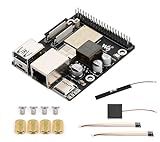
- High-Performance Dual-Core with Ample Memory--- Equipped with a 360MHz dual-core RISC-V processor, 32MB of onboard PSRAM, and 32MB of Flash memory, providing powerful processing capabilities and ample runtime for complex multimedia applications and edge computing.
- Powerful Multimedia Processing Center--- Integrated with a dedicated image processor (ISP), H.264 video encoder, and JPEG codec, perfectly supporting camera input and video processing, making it an ideal choice for developing smart displays, video surveillance, and other projects.
- Hardware-Level Security Protection--- Built-in digital signature, encryption accelerator, and key management unit, providing a one-stop hardware-level security solution from secure boot and data encryption to access control management, ensuring the security of your products and data.
- Full Connectivity Coverage: Wi-Fi 6, Bluetooth, PoE Power Supply--- Onboard with an ESP32-C6 chip, supporting the latest Wi-Fi 6 and Bluetooth 5.0; it also integrates an Ethernet port with PoE functionality, providing high-speed, flexible, and stable network connectivity, and can be powered directly via Ethernet cable, simplifying deployment.
- Rich interfaces and strong expandability--- It provides a MIPI camera/display interface, high-speed USB, SD card slot, microphone/speaker interface and a large number of programmable GPIOs, which greatly facilitates the expansion of external devices and meets the needs of various human-computer interaction and Internet of Things applications. Supports AI Speech Interaction: Allows access to online large model platforms such as ChatGPT, DeepSeek, Doubao, etc.
4. Scale with the documented distributed interface
For distributed training, follow the TorchTPU release’s launch and process model rather than assuming that a PyTorch/XLA launcher will work unchanged. Every process must select the intended TPU device, receive the correct shard of data and participate in the same collective operations. Confirm the supported distributed pattern for your TPU generation before creating a large slice.
How do I install PyTorch on a Cloud TPU VM with PyTorch/XLA?
Use this workflow when the TPU VM guide for your generation specifies PyTorch/XLA. The Google Cloud calculation guide shows a concrete example pinned around PyTorch 2.6 and PyTorch/XLA 2.6. Treat those pins as the guide’s example, not as a statement of the latest release.
1. Open the TPU VM
Connect with the Cloud SDK command shown earlier. Verify that the shell is on the TPU VM, not your local workstation, before installing packages.
Do these 3 things before closing this tab:
1Fix the driver behind crashes, sound loss and screen glitches2Clear out junk files and repair common Windows errors3Scan for outdated or missing drivers - takes under a minute2. Install the example package pair
python3 -m pip install --upgrade pip
python3 -m pip install "torch~=2.6.0" "torch_xla[tpu]~=2.6.0"
The official example also uses the TPU wheel and libtpu release indexes. If the resolver cannot find a compatible wheel, use the index arguments and package versions from the current Google guide for your generation. Do not reuse an old index URL or pin simply because it appeared in a previous tutorial.
3. Verify PJRT can enumerate TPU devices
PJRT_DEVICE=TPU python3 -c "import torch_xla.core.xla_model as xm; print(xm.get_xla_supported_devices("TPU"))"The guide’s sample output lists xla:0 through xla:7. That is illustrative output from its example configuration, not a universal device count. A different TPU VM shape can expose a different number of devices. An empty list or import error points to a runtime, package, image or environment problem that should be fixed before running training.
4. Select an XLA device in code
import torch
import torch_xla.core.xla_model as xm

device = xm.xla_device()
model = model.to(device)
inputs = inputs.to(device)
targets = targets.to(device)
outputs = model(inputs)
Every model parameter and input participating in the TPU computation must be on the XLA device. Keep host-only data processing, logging and control code on the CPU unless it is explicitly part of the TPU computation.
How do I run PyTorch across a Google Cloud TPU slice?
A slice is a multi-host resource, so setup and launch are multi-host operations. Google’s slice guide installs the requirements on all workers, copies the PyTorch/XLA source tree to each worker and launches an SPMD ResNet training script. Its fake-data example demonstrates orchestration; its sample output is not an independent benchmark or a promise of training time.
1. Make worker environments identical
- Connect to each worker using the worker-selection options in the current TPU slice guide.
- Install the same Python version, PyTorch package, PyTorch/XLA package, TPU runtime and operating-system dependencies on every worker.
- Copy the requirements file or equivalent environment definition to every host and install it there. A package installed only on worker zero does not satisfy the other processes.
- Clone the same revision of the PyTorch/XLA repository or copy the same training code to every worker. Check that paths, permissions and configuration files match.
- Run the PJRT device check on each worker and record the devices it sees.
2. Launch the distributed script
Use the SPMD launch command and environment variables specified by the current slice guide. The essential properties are that every worker starts the same program, all processes agree on the world size and rank, and each process can reach its peers. Do not replace the guide’s launcher with a single-host command unless the TorchTPU or XLA release explicitly documents that arrangement.
3. Validate with a small job first
Begin with a short run, a small dataset or the guide’s illustrative fake-data mode. Check that every worker reports a device, that collective operations complete and that checkpoints or logs are written where you expect. Only then increase batch size, sequence length or training duration.
4. Treat failures as a cluster problem
If one worker has a different package build, missing file or blocked port, the whole job can hang or fail. Compare package versions, environment variables, repository revisions and free disk space across workers before changing model code.
How should I adapt a PyTorch training loop for XLA?
PyTorch/XLA uses lazy execution. Python statements enqueue operations; XLA compiles the resulting computation graph and sends executable TPU code when synchronization is requested. Code that is not part of the compiled graph continues to run on the TPU host.
Rank #3

- Powered by 26 Tera-Operations Per Second (TOPS) Hailo-8 AI Processor.
- 2.5W typical power consumption
- Enabling real-time low latency and high-efficiency AI inferencing on the edge devices
- Supports TensorFlow TensorFlow Lite, ONNX, Keras, Pytorch frameworks
- Supports Linux and Windows.
Place data and parameters explicitly
Obtain the XLA device once and use it consistently for the model, inputs, targets and any tensors created inside the training step. A CPU tensor combined with an XLA tensor can cause a device mismatch or an unintended transfer.
Trigger execution at a deliberate boundary
Use the synchronization or optimizer-step API documented for your installed PyTorch/XLA release. In common XLA training loops, xm.mark_step() marks the end of a step, while xm.optimizer_step(optimizer) combines the optimizer update with the required XLA coordination. Do not add synchronization after every tiny operation without a reason: excessive barriers can reduce throughput.
Expect compilation on new graph shapes
Changing tensor shapes, control-flow paths or unsupported operations can produce another compilation. Keep batches and input shapes stable where practical, and separate startup compilation time from steady-state measurements.
Keep host work visible
Input decoding, Python-side metrics and logging execute on the host unless represented in the TPU graph. A job can therefore show high host activity while TPU utilization is low. Profile the input pipeline and inspect device placement before concluding that the TPU itself is underperforming.
Free tools Windows power users keep installed
One-click scans. No signup required.
How does XLA execution affect debugging and performance?
Google’s Cloud TPU introduction states that code running on TPUs must be compiled by the accelerated linear algebra (XLA) compiler. XLA turns framework-generated graphs into TPU machine code, while other program work runs on the TPU host. This split explains several behaviors that look unusual if you expect immediate CUDA-style execution.
- Errors can appear at a step boundary. An operation may be queued successfully and fail when the graph is compiled or synchronized.
- The first iteration can be slower. Compilation and runtime initialization happen before steady-state execution.
- Shape changes matter. A new shape or graph structure may trigger a new compilation.
- Host bottlenecks still count. Slow input loading, Python control flow or logging can leave the TPU waiting.
- Device checks must be explicit. Print tensor devices and use the PJRT enumeration command rather than inferring TPU use from process activity alone.
How do TPU generation and package versions change the installation?
There is no single version pin that should be presented as current for every Cloud TPU generation. The PyTorch/XLA guide’s torch~=2.6.0 and torch_xla[tpu]~=2.6.0 requirements are a dated, concrete example. TorchTPU support and release cadence can differ from PyTorch/XLA support.
Before provisioning, verify four pairings in the current documentation:
- The TPU generation and resource shape.
- The runtime image and libtpu release expected by that generation.
- The supported TorchTPU or PyTorch/XLA package versions.
- The launch method for single-host and multi-host execution.
If a package import fails after a seemingly successful installation, suspect an unsupported pairing before rewriting your model. A newer PyTorch wheel is not automatically compatible with an older TPU runtime, and a tutorial written for an earlier generation may omit required worker configuration.
What should I check when a TPU job fails?
The resource cannot be created
- Confirm that billing is enabled and that the project has TPU quota in the selected region.
- Check regional capacity and the exact generation requested.
- Verify that your account can create, connect to and delete TPU resources.
SSH or worker connectivity fails
- Confirm the TPU name, zone and project passed to the Cloud SDK.
- Test one worker first, then connect to every worker in the slice.
- Check firewall, IAM and OS Login settings used by the project.
The package will not import
- Confirm that the installation ran inside the TPU VM or worker environment.
- Check Python, PyTorch, TorchTPU or PyTorch/XLA and libtpu versions against the current generation guidance.
- Remove conflicting environments or activate the virtual environment used by the launch command.
- For the XLA route, ensure the TPU wheel and libtpu indexes required by the guide were used.
No TPU devices are listed
Run the PJRT enumeration command again with PJRT_DEVICE=TPU. An empty result usually indicates a runtime or resource problem rather than a model bug. On TorchTPU, repeat the minimal torch.device("tpu") tensor test and print the resulting device.
The script runs on CPU
- Print
model.parameters()device information and the device of a real input batch. - Ensure the model and every input tensor are moved to the same TPU device before the forward pass.
- Check that a data-loader or preprocessing function is not recreating CPU tensors inside the training step.
- For XLA, confirm that
PJRT_DEVICE=TPUis present in the process environment.
The job hangs during distributed startup
- Compare package versions, code revisions, worker ranks and world-size settings on all hosts.
- Verify that every worker can reach its peers and that all workers start the same script.
- Reduce the run to a short, known-good example before changing model architecture.
Should I use one TPU VM or a multi-host slice?
Use one TPU VM when the model fits on one host, you are developing interactively or you want the smallest operational surface. A slice is appropriate when the model, batch size or throughput target requires multiple hosts and your chosen backend documents distributed support.
| Requirement | TPU VM | TPU slice |
|---|---|---|
| Installation scope | One host | Every worker |
| Connectivity | SSH to one VM | SSH and network coordination across workers |
| Code launch | Single-host script | Distributed or SPMD launch with consistent ranks |
| Debugging order | Verify package, device and one training step | Verify each worker, then collectives, then the full job |
| Operational overhead | Lower | Higher because environments and failures span hosts |
Starting on one VM does not prove that a slice will work: worker-wide installation, network reachability and distributed synchronization add separate failure modes.
Rank #4

- Delivers 25 TFLOPS of AI inference performance using four MemryX MX3 accelerators in a compact M.2 2280 M-key module.
- Connects through PCI Express Gen 3 and above for straightforward integration into embedded and edge systems with an M.2 M-key slot.
- Includes 42 MB of distributed on-chip weight storage to support low-latency, batch-1 pipelined inference.
- Designed for low-power deployment with a 1 W–12 W operating range and host-managed airflow requirements.
- Supports ONNX, TensorFlow, Keras, and TFLite models through the MemryX software stack on Linux and Windows hosts.
How do I stop TPU charges and clean up?
Cloud TPU VMs and slices are allocated cloud resources and can incur charges while they exist. When testing is complete, stop or delete the TPU resource using the current Compute Engine or GKE workflow for its generation. Remove attached disks, snapshots or reserved networking that you no longer need, and verify in the Cloud Console that the workers are released. The legacy ResNet tutorial makes the same practical point: delete resources after training to avoid ongoing charges.
What are the most important rules for a reliable PyTorch TPU setup?
- Choose TorchTPU or PyTorch/XLA deliberately; do not merge their installation commands.
- Verify generation and release compatibility in current Google documentation before pinning packages.
- Prove device visibility with a minimal tensor test or PJRT enumeration before launching training.
- On XLA, place parameters and inputs on the XLA device and synchronize at documented step boundaries.
- On slices, install and validate the environment on every worker.
- Use current Compute Engine or GKE resource workflows for newer generations instead of the legacy Cloud TPU API tutorial.
- Delete allocated resources when the job ends.
Frequently asked questions
Can I use a TorchTPU script with torch_xla[tpu] installed?
Installing both packages does not make the backends interchangeable. A script written for torch.device("tpu") should follow TorchTPU’s supported environment, while code using xm.xla_device() and PJRT should follow the PyTorch/XLA environment and launch instructions.
Why does my TPU VM show fewer than eight XLA devices?
The eight-device list is sample output from one Google guide configuration. Device count depends on the TPU VM shape and generation, so use PJRT enumeration on your own VM instead of assuming that every host exposes xla:0 through xla:7.
Do I need a TPU slice for inference?
No. A single TPU VM can be the simpler choice for inference or development when the model fits and the serving stack supports that generation. Use a slice only when the workload needs multiple hosts and the selected backend documents the required distributed serving pattern.
Why is the first training step much slower than later steps?
With XLA, graph compilation and runtime initialization occur before steady-state execution. TorchTPU workloads that use compilation can show the same startup effect; measure after warm-up and keep input shapes stable where possible.
Quick wins for a faster PC:
Scan for outdated or missing drivers - takes under a minuteDriver Scan →Repair Windows errors before they cause bigger problemsFix Now →Fix the driver behind crashes, sound loss and screen glitchesFind Drivers →Is the old Cloud TPU API suitable for every new TPU generation?
No. Google’s older ResNet tutorial says the Cloud TPU API is no longer under active development and does not support TPU7x and later. Use the current Compute Engine or GKE resource workflow and generation-specific software guidance for newer TPUs.
Frequently Asked Questions
Can I use a TorchTPU script with torch_xla[tpu] installed?
Installing both packages does not make the backends interchangeable. A script written for torch.device("tpu") should follow TorchTPU’s supported environment, while code using xm.xla_device() and PJRT should follow the PyTorch/XLA environment and launch instructions.
Why does my TPU VM show fewer than eight XLA devices?
The eight-device list is sample output from one Google guide configuration. Device count depends on the TPU VM shape and generation, so use PJRT enumeration on your own VM instead of assuming that every host exposes xla:0 through xla:7.
Do I need a TPU slice for inference?
No. A single TPU VM can be the simpler choice for inference or development when the model fits and the serving stack supports that generation. Use a slice only when the workload needs multiple hosts and the selected backend documents the required distributed serving pattern.
Do these 3 things before closing this tab:
1Scan for outdated or missing drivers - takes under a minute2Repair Windows errors before they cause bigger problems3Fix the driver behind crashes, sound loss and screen glitchesWhy is the first training step much slower than later steps?
With XLA, graph compilation and runtime initialization occur before steady-state execution. TorchTPU workloads that use compilation can show the same startup effect; measure after warm-up and keep input shapes stable where possible.
Is the old Cloud TPU API suitable for every new TPU generation?
No. Google’s older ResNet tutorial says the Cloud TPU API is no longer under active development and does not support TPU7x and later. Use the current Compute Engine or GKE resource workflow and generation-specific software guidance for newer TPUs.
Quick Recap
Product prices and availability are accurate as of the date/time indicated and are subject to change. Any price and availability information displayed on Amazon at the time of purchase will apply.

