Recommended Free Tools
Some links on this page are affiliate links: if you buy through them we may earn a commission, at no extra cost to you.
Night mode is one of the biggest camera upgrades Apple added for low-light photos. On iPhone 11 and iPhone 12, it can automatically brighten scenes, reduce noise, and keep highlights more natural—if you use it correctly.
This guide walks you through exactly how to use Night mode on iPhone 11 and 12, including how to turn it on/off, adjust exposure time, and troubleshoot when it doesn’t show up or your photos come out blurry.
As an Amazon Associate I earn from qualifying purchases.
What Night mode is and why it matters on iPhone 11 and iPhone 12
Night mode helps capture clearer low-light photos by combining multiple frames and processing them to reduce blur and noise. Instead of relying on a single long exposure, your iPhone “builds” the final image with computational photography.
On iPhone 11 and iPhone 12, Night mode is available in the built-in Camera app for supported lenses. When lighting is dim enough, the interface shows a Night mode control so you can fine-tune the result.
Popular on Amazon

- 100% LIFETIME PROTECTION: Enjoy reliable performance with lifetime coverage, guaranteeing your tripod is always protected against any defects or issues.
- Ultimate Materials & Engineerin: EUCOS's phone tripod utilizes modified Nylon PA6/6 for all-weather durability. The engineered polymer delivers exceptional crush/shear resistance and toughness, achieving optimal rigidity-flexibility balance.
- Rapid Extension Tripod for Phone: Glide the rod in a single, fluid motion to convert it from a compact tripod into a full 62" selfie stick. Achieve instant elevation for dynamic filming.
- Studio-Grade Phone Rig: Safely harness phones from 2.2" to 3.6" wide with pro-level clamping and effortless framing. Built-in cold shoe expands your creative options with lights and mics.
- Hands-Free Control: The Wireless remote enables instant pairing with smartphone and remote capture from up to 33ft/10m. Ensures rock-solid stability for blur-free photography and Start/Stop video recordings effortlessly—all without device contact.
Prerequisites: check your iPhone, camera app, and settings
1) Confirm you have iPhone 11 or iPhone 12
Night mode is supported on iPhone 11 and iPhone 12 models. Models like iPhone SE (and most older devices) don’t have the same Night mode behavior.
2) Update iOS if Night mode controls look different
Night mode behavior can change slightly with iOS updates (UI wording, timers, and lens availability). If your controls don’t match the steps below, update iOS to the latest version available for your device via Settings → General → Software Update.
What’s actually slowing this PC down?
Pick the symptom - the matching free tool is one click away.
3) Use the standard Camera app
Night mode controls are tied to Apple’s Camera pipeline. Third-party camera apps may not expose Night mode controls even if your iPhone supports the hardware.
How Night mode works (so you know what you’re seeing)
When conditions are dark enough, the camera will suggest (or automatically apply) a Night mode exposure time. You’ll see a moon icon and a timer like 1s, 2s, or 3s.
- Shorter time (for steadier scenes or brighter light) reduces blur risk from movement.
- Longer time (dimmer scenes) captures more light but needs steadier hands or a stable surface.
- Your iPhone typically recommends a time based on available light, lens, and motion.
Turn on Night mode manually (and what the UI means)
You don’t have to rely on auto behavior. Here’s the manual way to ensure Night mode is used.
- Open the Camera app.
- Frame your shot in the viewfinder.
- Look for the moon icon (Night mode). If it appears, Night mode is available.
- Tap the moon icon or the Night mode control to activate Night mode.
- Choose the exposure time if you want (the steps are below).
- Press the shutter button. Keep the iPhone steady until the capture finishes (the progress indicator will show you).
Let iPhone choose: Automatic Night mode behavior
If you see the moon icon but it isn’t locked in, your iPhone may use Night mode automatically once lighting drops. In many situations, this is the easiest way to get consistent results.
The Tool Desk
Outbyte PC Repair FREERepair Windows errors before they cause bigger problemsFix Now →Outbyte Driver Updater FREEFix the driver behind crashes, sound loss and screen glitchesFind Drivers →Also popular on Amazon

- 62" Phone Tripod & Selfie Stick Combo: Extendable phone tripod for iPhone and Android, combining a tripod stand and selfie stick in one lightweight design for selfies, photos, videos, vlogging, live streaming, and family gatherings.
- Adjustable Height & 360° Rotation: The tripod extends up to 62 inches to support standing shots, group photos, video calls, and content creation. The 360° rotating phone holder allows vertical or horizontal shooting.
- Stable Phone Holder for Daily Recording: Designed for hands-free video recording, online meetings, tutorials, livestreams, and social content. The phone holder keeps your device positioned securely for clear, steady shots.
- Wide Compatibility with Phones and Cameras: Fits most smartphones from 2.8" to 5.7" wide and includes a universal 1/4" screw mount for compatible cameras, action cameras, webcams, and camcorders.
- Wireless Remote & Complete Kit: Includes 1 phone tripod/selfie stick, 1 universal phone holder, 1 adapter, and 1 wireless remote shutter. Backed by 12-month after-sales support for everyday shooting needs.
When auto Night mode is active, the shutter behaves normally, but the camera runs the Night mode capture sequence in the background. If the scene brightens, the recommended time usually shortens or Night mode may disengage.
How to adjust Night mode exposure time
Exposure time controls how long your iPhone spends capturing frames. In dim conditions, a longer time can improve brightness and reduce noise, but it also increases blur risk from subject or camera movement.
- Open Camera and position your shot.
- Find the Night mode timer near the moon icon.
- Tap the moon icon (or tap the Night mode timer) to bring up the time control.
- Drag the time slider (or tap the +/− options) to adjust the seconds.
- Hold the iPhone steady and press the shutter.
If you’re on a tripod or resting the phone on something solid, longer times are usually safe. If you’re hand-holding and the scene has motion (people walking, cars passing), shorter times often look sharper.
How to turn Night mode off
If you want a faster shot or prefer the lighter look of standard exposure, you can disable Night mode.
Quick wins for a faster PC:
Fix the driver behind crashes, sound loss and screen glitchesFind Drivers →Clear out junk files and repair common Windows errorsFree Scan →Scan for outdated or missing drivers - takes under a minuteDriver Scan →- Open Camera.
- Tap the moon icon (Night mode) or the Night mode timer.
- Lower the time to Off (the UI may show a slider ending at off, depending on iOS version).
- Confirm the moon icon is no longer active.
- Take the photo normally.
Even when you turn it off, your iPhone may still brighten dark areas slightly using other processing. Night mode is the specific multi-frame low-light workflow.
Best practices for sharper Night mode photos
- Stabilize your grip. Hold with two hands, elbows tucked, and keep movements minimal during the capture.
- Wait for the timer to finish. The iPhone may show a progress indicator. Don’t move until it’s done.
- Use your nearest stable surface. A table, railing, or window ledge helps more than you’d expect.
- Clean the lens. Smudges can bloom highlights and add haze, especially in night scenes with streetlights.
- Control exposure time. If your photo blurs, try shorter times first.
Night mode limits and edge cases (people, motion, and distances)
Night mode is great, but it can’t fully defeat motion blur. If the subject moves, you’ll often see blur or ghosting—especially when the timer is long.
Also popular on Amazon
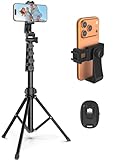
- 【Sturdy and Stable】: Made of premium aluminum alloy and stainless steel, Liphisy phone tripod with remote keeps your device stay securely in place for still shots and video recording.
- 【Multi-angle Shot】: With a max height of 64”, this tripod stand with a 210-degree rotation head and 360-degree rotation holder allows you to capture shots from any angle, catering to different photography needs.
- 【Wireless Remote Included】: Package includes a wireless remote that connects to your cell phone easily, making it a breeze to snap photos or video recordings.
- 【Height Adjustable】: The height of this cell phone tripod with remote can be adjusted from 17” to 64” and the easy lock mechanism makes it really easy to set up. It gives you an excellent vantage point for capturing photos and videos.
- 【Wide Application】: Compatable with different phone and camera, this tripod is great for photography and video recording, perfect for travel and home use.
- Moving subjects: Use shorter Night mode times. If you can’t, consider disabling Night mode for that shot.
- Very dark scenes: The phone may request a longer exposure time. If you can’t stabilize, shorten it.
- Backlit scenes: Bright lights can flare. Try a slightly different angle or reframe to reduce direct light hitting the lens.
- Distance and focus: Night mode works best with stable focus and enough contrast. Low-contrast subjects (foggy darkness) can look soft.
Using Night mode in different camera scenarios
Night mode availability depends on the active lens. iPhone 11 and iPhone 12 models support Night mode on wide and other supported lenses; ultra-wide support and UI presentation can vary by model and iOS version.
Night mode portraits (if supported)
If you’re using Portrait mode in dark conditions, Night mode may behave differently because Portrait mode adds background and subject processing. Look for the Night mode moon icon while in Portrait framing and choose a shorter time if the subject moves.
For best results, keep the subject fairly still and ensure the camera can lock focus on the face.
Night mode on the ultra-wide camera
When you switch to the ultra-wide lens, Night mode may offer a timer depending on conditions. Ultra-wide scenes often include more edges and background lights, which can increase flare and make stability more important.
- Open Camera.
- Tap the lens selector to switch to Ultra Wide.
- Look for the moon icon and adjust the timer as needed.
- Stabilize carefully and avoid moving the phone mid-capture.
Night mode with front camera (what to expect)
Front camera Night mode behavior varies across models and iOS versions. If the moon icon appears while using the front camera, it means Night mode is available. If you don’t see it, either lighting isn’t low enough or that lens doesn’t support it in your current mode.
For selfies, longer timers can be unforgiving—try shorter times and keep your face steady.
Also popular on Amazon
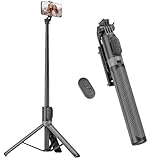
- [Versatile Design] RISEOFLE 71'' Phone Tripod and Selfie Stick combo is the perfect accessory for all your cell phone photography needs.The high-quality aluminum alloy telescopic pole allows you to extend effortlessly and smoothly, and turns into a tripod with just one pull. Its sturdy yet lightweight design provides stability and reliability, ensuring that your phone or camera stays safe during use. Ideal for Selfies/Live/Video Recording/Travel
- [Extra Tall 71" Adjustable Phone Tripod] This selfie stick tripod features a 7-section adjustable aluminum telescoping pole that adjusts from 12.2 in (31 cm) to 70.86 in (180 cm). Provides exceptional flexibility for shooting a variety of shots. Whether you're taking a selfie, a group photo or shooting a video, the adjustable height ensures you get the best angle every time.
- [Compact & Portable Design] The RISEOFLE phone tripod stand With a folded length of only 31cm (12.2 in) and a weight of 264g (0.58 lb), extremely portable and easy to store, it can be effortlessly placed into your backpack or carry-on luggage, making it the perfect companion for your travels. Wherever you go, it allows you to capture amazing footage with ease.
- [360° Rotation & Wide Compatibility] Featuring a 360° rotating phone holder, this selfie stick tripod allows you to easily switch between portrait and landscape modes for the best viewing angle. The universal holder fits smartphones with widths of 2.6''-3.6'' (4''-7'' screen size) and is compatible with most cameras, action cams, and webcams via the 1/4” screw mount (Note: the remote control function only applies to cell phones, the camera cannot use the remote control function).
- [Perfect for Content Creation] Ideal for selfies, vlogging, and social media content creation, the RISEOFLE Tripod comes with a wireless remote control for hassle-free shooting. Whether you're on Instagram, YouTube, TikTok, or Twitter, this phone stand for filming helps you capture professional-quality photos and videos with ease.
Night mode video vs. Night mode photos
Night mode is primarily a photo feature. iPhone 11 and iPhone 12 can capture better low-light video using other mechanisms (and on newer iPhones, dedicated video low-light features), but the classic moon-and-timer workflow is for still images.
If you’re recording video in dark rooms, use practical lighting improvements: face a lamp, stand near windows, or increase ambient light. Then shoot normally—don’t expect the Night mode timer to apply to video the same way.
Import, share, and manage Night mode results
Night mode photos save like standard images in the Photos app. There’s no separate file type or special folder just because Night mode was used.
- View results: Open Photos → select the image.
- Edit: Tap Edit for exposure and color tweaks. Be careful with aggressive changes in very dark scenes.
- Share: Use the share sheet in Photos (AirDrop, Messages, email, social apps).
Troubleshooting: Night mode missing, blurry, or stuck on a long timer
Problem: Night mode doesn’t show up (no moon icon)
Try these in order:
- Make sure you’re in Photo mode. Night mode won’t always appear in every camera mode.
- Lower the light level slightly. Night mode may only activate when conditions are dim enough.
- Switch lenses. If you’re on ultra-wide, try the wide lens and check again.
- Restart the Camera app. Close and reopen Camera, then try again.
- Update iOS. If your UI is unusual, a software update can restore expected controls.
Problem: Photos look blurry even with Night mode
Blurry Night mode shots usually come from movement during the capture or subject motion.
- Shorten the timer. Manually reduce the seconds and retake.
- Stabilize. Rest your elbows on a surface, or place the phone on something solid.
- Try a different angle. Reducing direct flare and improving contrast can help the camera focus better.
- Avoid moving subjects. If possible, wait for them to pause.
Problem: The timer jumps to a very long exposure
Long timers are a tradeoff for very low light. If you can’t keep the phone steady for that duration, choose a shorter time even if the image looks a bit noisier.
Also check for lens obstruction (a finger, smudge, or case edge) that might make the scene look darker than it really is.
Also popular on Amazon

- Rotatable twist with 1/4"screw allows 360° adjustment and 180° flipping, so you can take photos, video call or live broadcast with ease
- Universal compatibility with smartphones up to 3.7 inches wide, GoPros, digital cameras and webcams
- Includes a wireless remote with a range of 30 feet (without obstacle), so you can easily take individual, group and wide-angle shots
- Swaps easily between handheld selfie stick and stand-alone tripod for dual-purpose use
- Whether you're an amateur, enthusiast or professional, this is a must-have accesory for shooting on the go
Problem: Night mode won’t start when you tap the shutter
Try:
- Ensure the phone isn’t in a restricted mode (Low Power Mode usually doesn’t block Night mode, but unusual settings can affect behavior).
- Lock/unlock the screen once, then reopen Camera.
- Remove and reinsert any screen protector that might interfere with touch.
- If the camera app is glitching, restart the iPhone.
Comparisons: Night mode on iPhone 11 vs iPhone 12 (practical differences)
The core Night mode concept is the same, but real-world results can differ because of lens systems and processing.
| Topic | iPhone 11 | iPhone 12 |
|---|---|---|
| Overall Night mode feel | Reliable low-light brightness with strong noise reduction | Consistent low-light performance with strong detail retention |
| Lenses | Wide + ultra-wide; Night mode availability may vary by lens | Wide + ultra-wide; lens switching can change the Night mode timer options |
| How to pick settings | Shorter timers for hand-held motion; longer timers for steady scenes | Same rule: prioritize steadiness and shorter timers for moving subjects |
| Best tip | Use stabilization and control the timer manually when motion is likely | Check the moon icon when you switch lenses and select the exposure time accordingly |
There’s no universal “one device is always better” answer. If you learn how to choose the timer and stabilize, both iPhone 11 and iPhone 12 will produce strong low-light images.
Common mistakes that ruin Night mode shots
- Moving during the capture. Even small movements can soften the image.
- Using the longest timer by default. A longer timer helps only if you can stay steady and the subject is still.
- Ignoring lens smudges. Night light sources exaggerate haze and flare.
- Reframing too late. If the iPhone started processing, don’t change position immediately after pressing shutter.
- Over-editing in Photos. Pushing brightness and contrast too far can reintroduce noise.
FAQs
Does Night mode work indoors in very dim rooms?
Yes, when lighting is low enough to trigger the moon icon. For the best results, use a steadier stance and choose a shorter timer if people or objects are moving.
Can I use Night mode with the flash?
Night mode is designed for low-light computational capture. Depending on lighting and mode, the flash may not behave the same as standard flash photography. If you see a flash option in the UI, try both ways—then compare which looks more natural.
Why do my Night mode photos look darker than expected?
Night mode timing balances exposure and motion. If you chose a shorter timer, you may get less brightness. Also check framing: strong backlight can make the subject appear darker.
Why do lights look streaky or smeared?
That usually means camera movement during the capture or significant subject motion. Shorten the timer, stabilize the phone, and try a more stable angle.
Do these 3 things before closing this tab:
1Fix the driver behind crashes, sound loss and screen glitches2Repair Windows errors before they cause bigger problems3Scan for outdated or missing drivers - takes under a minuteWill Night mode work on every camera mode?
No. Night mode is most consistently available in standard Photo capture modes. If you don’t see the moon icon, try switching back to Photo mode and check lens selection.
Bottom Line
To use Night mode on iPhone 11 and iPhone 12, rely on the moon icon, choose the right exposure time, and stay still long enough for the capture to complete. Once you understand how the timer trades off brightness vs. motion blur, you’ll get far more keepers.
If Night mode doesn’t appear, check lighting, confirm you’re in Photo mode, and switch lenses. For blurry results, shorten the timer and stabilize—those two moves fix most real-world problems.

