Quick wins for a faster PC:
Scan for outdated or missing drivers - takes under a minuteDriver Scan →Clear out junk files and repair common Windows errorsFree Scan →Mac Bluetooth problems tend to look random: devices won’t connect, audio crackles, the Bluetooth toggle won’t stay on, or pairing loops forever. The good news is you can usually fix this without reinstalling macOS.
This guide walks you through the most reliable fixes in the right order—starting with quick checks, then resetting the Bluetooth module from macOS, and finally using advanced resets when needed.
As an Amazon Associate I earn from qualifying purchases.
Works across common macOS versions (Monterey 12, Ventura 13, Sonoma 14) and both Intel and Apple silicon Macs. If you don’t know what Mac model you have, that’s fine—steps below cover both.
What’s actually slowing this PC down?
Pick the symptom - the matching free tool is one click away.
What counts as Mac Bluetooth issues (and what to notice)
“Bluetooth issues” can mean different failures in the chain: device discovery, pairing, connection stability, audio routing, or hardware-level communication. The fastest fix depends on which part breaks.
#1 Best Overall

- - Compatible with: Magic Keyboard, Magic Trackpad/Magic Mouse/Magic iPad Keyboard
- - The cable length: 6ft (2m White)
- - With advanced superconducting copper wire design, it provides reliable 2A fast charging, Allowing your Magic to restore up to 100% of its power within 1 hour, Transfer speed can reach 40-60MB/S (480Mbps).
- - Enhanced Durability: Strong fiber, the most flexible, powerful and durable material, makes tensile force increased by 200%. Can bear 10000+ bending test.
- friendly customer service.
- Bluetooth won’t enable: the toggle does nothing, gets stuck spinning, or immediately turns off.
- Pairing fails: you can pair once, but the connection never establishes.
- Connection drops: the device connects for 10–60 seconds then disconnects.
- Audio problems: no sound over AirPods, wrong output device, delay, crackling, or stutter.
- Input lag: mouse/keyboard delays or freezes intermittently.
Also note what changed: a macOS update, a new Bluetooth device added, moving near strong RF sources (Wi‑Fi routers, microwaves, USB 3 hubs), or low battery on the Bluetooth device.
Before you reset anything: quick checks that solve most problems
Start with low-effort checks. They prevent you from wiping pairing state unnecessarily.
- Move closer and remove interference: keep the device within 1 meter (3 feet) during pairing. Avoid docks and USB 3 hubs that sit directly under your Bluetooth antenna area.
- Charge the Bluetooth device: low battery causes connection instability. AirPods/Headsets should be in their case until a solid charge, then put them back on.
- Toggle Bluetooth off/on: System Settings → Bluetooth → turn it off for 10 seconds, then on.
- Restart the device: turn the headset/mouse/keyboard fully off and back on (or hard reset it if the manufacturer supports it).
- Check macOS audio output: System Settings → Sound → Output. If Bluetooth audio exists but sound is still on another device, fix routing before blaming Bluetooth.
- Update macOS: Bluetooth fixes sometimes land in point releases. On Sonoma 14.x, Ventura 13.x, and Monterey 12.x, use System Settings → General → Software Update.
- Remove stale devices: if you’ve paired many devices, removing ones you don’t use can reduce confusion. (More on safe removal below.)
If Bluetooth is totally stuck (can’t enable, constantly reconnects, or never discovers devices), proceed to resetting the Bluetooth module.
Reset the Bluetooth module using the macOS UI (recommended)
This is the most practical “reset BT module” method for many Macs because it doesn’t require Terminal or deeper system changes.
macOS versions and UI naming vary slightly, but the flow is consistent: you’ll use the Bluetooth menu and reveal a debug reset option by holding a key.
How to reset from the Bluetooth menu
- Open the Bluetooth menu in the macOS menu bar.
- Press and hold Shift (and in some macOS builds, Option as well), then click the Bluetooth icon.
- Look for Reset the Bluetooth module (may appear under a Debug-style menu).
- Select Reset the Bluetooth module.
- Wait 10–60 seconds for Bluetooth to come back.
- Try reconnecting your device (or re-pair if it forgets pairing).
If you don’t see the “Reset the Bluetooth module” option, it can be due to macOS build, menu settings, or the Bluetooth icon not being enabled in the menu bar. Enable the icon in System Settings → Control Center (or Menu Bar settings depending on macOS version) and repeat.
What to expect during and after reset
- All current Bluetooth connections may drop.
- Paired devices usually remain paired, but some require reconnecting.
- If you were mid-pairing, you’ll need to re-initiate pairing after reset.
Remove and re-pair Bluetooth devices (when reset isn’t enough)
If only one device behaves badly (for example, your AirPods or a specific keyboard), remove that device and pair again. This clears device-specific pairing records without touching the whole Bluetooth stack.
Rank #2

- - Compatible with: Magic Keyboard, Magic Trackpad/Magic Mouse/Magic iPad Keyboard
- - The cable length: 3.3ft (1m White)
- - With advanced superconducting copper wire design, it provides reliable 2A fast charging, Allowing your Magic to restore up to 100% of its power within 1 hour, Transfer speed can reach 40-60MB/S (480Mbps).
- - Enhanced Durability: Strong fiber, the most flexible, powerful and durable material, makes tensile force increased by 200%. Can bear 10000+ bending test.
Remove a Bluetooth device in macOS
- Go to System Settings → Bluetooth.
- Find the device under Paired devices.
- Click (i) or More info next to the device.
- Select Forget This Device (wording may be “Forget”).
- Turn the device off and on if possible.
- Put the device into pairing mode (manufacturer-dependent).
- Click Connect to re-pair.
For AirPods, the pairing mode step is often just toggling them back in the case and near your Mac. If the Mac still shows the wrong pairing, forget and re-pair from Bluetooth settings.
Restart Bluetooth services and clear pairing state (advanced)
If the Bluetooth module reset doesn’t fix the problem, you can restart Bluetooth-related services and refresh the state. This is more “surgical” than reinstalling macOS, but it’s still safe for most users.
Use Terminal commands carefully. Copy/paste exactly, including spaces and punctuation.
Restart Bluetoothd and core Bluetooth services
On many macOS builds, restarting Bluetooth services effectively clears stuck sessions.
- Open Terminal (Applications → Utilities → Terminal).
- Run:
sudo pkill bluetoothd
Enter your admin password when prompted (it won’t show characters). macOS will automatically restart the service. After it comes back, try connecting again.
Clear Bluetooth preferences and caches (more disruptive)
This method can fix persistent pairing glitches, but it may remove remembered devices on some setups. Only use it if you’re okay re-pairing.
- In Terminal, run:
defaults delete com.apple.Bluetooth
If you get an error about missing domains, that’s okay—move on.
Rank #3
- - Compatible with: Magic Keyboard, Magic Trackpad/Magic Mouse/Magic iPad Keyboard
- - The cable length: 5ft (1.5m White)
- - With advanced superconducting copper wire design, it provides reliable 2A fast charging, Allowing your Magic to restore up to 100% of its power within 1 hour, Transfer speed can reach 40-60MB/S (480Mbps).
- - Enhanced Durability: Strong fiber, the most flexible, powerful and durable material, makes tensile force increased by 200%. Can bear 10000+ bending test.
Then restart your Mac and re-pair.
Why this works: Bluetooth config and pairing-related preferences can get out of sync after updates or failed pairing attempts.
Free tools Windows power users keep installed
One-click scans. No signup required.
Restart your Mac hardware Bluetooth stack (Intel vs Apple silicon)
Some older guides focus on SMC resets. Those still matter mainly for Intel-era Macs. Apple silicon Macs don’t use SMC the same way, so the better approach is to use module/service resets and a full Mac restart.
Intel Macs (SMC-era guidance)
If your Mac is an Intel model (for example, 2018 and earlier), an SMC reset can help with certain hardware power and peripheral problems. SMC behavior depends on model type.
- Non-T2 Intel Macs: shut down, unplug power, wait ~15 seconds, then hold the power button for ~5 seconds, then reconnect and boot.
- T2-equipped Intel Macs: follow Apple’s T2 power reset steps (in many cases: power down, hold Control + Option + Shift on the left side, then hold power for 10 seconds, then release and wait).
Exact key combinations vary by hardware. If you’re not sure whether your Intel Mac has a T2 chip, check Apple’s support documentation for your model year. If you prefer not to guess, stick to the Bluetooth module reset and service restart methods above.
Apple silicon Macs (no SMC reset)
On Apple silicon (M1, M2, M3 and newer), focus on restarting Bluetooth via module reset, restarting Bluetooth services, and doing a full restart of the Mac.
Recommended Free Tools
To fully restart:
- System Settings → General → Shut Down (or use the Apple menu → Shut Down).
- After shutdown, wait 30 seconds.
- Turn it back on.
This resets the hardware Bluetooth stack more reliably than trying to emulate an SMC reset.
Bluetooth troubleshooting by symptom
Here’s how to map common symptoms to specific fixes so you don’t waste time.
Rank #4
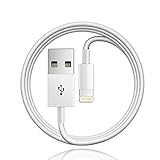
- 【Compatible with】: Magic Keyboard/ Magic Trackpad/Magic Mouse/ Magic Keyboard iPad Keyboard and Case NOTE: Only works with Lightning port, not compatible with USB C
- With Lightning Connector to your Lightning port for syncing and charging.
- 【IN THE BOX】: 1 x USB A to Lightning Cable(White)
- 【Fast Charge & Sync data】:USB Lightning Charging cable supports fast charging, ensuring safe, high-speed charging up to 2a, and works better for Magic Keyboard and quick charge Lightning Port Devices.
- 【Supply Warranty】:provides all of our customers with hassle-free and WARRANTY for all quality issues. If there are any problems with products, please contact our professional and responsible customer service.
Can’t turn Bluetooth on or it keeps disconnecting
- Try Bluetooth toggle off/on twice.
- Reset the Bluetooth module from the Bluetooth menu (Shift-click Bluetooth icon → Reset the Bluetooth module).
- Restart Bluetooth services:
sudo pkill bluetoothd. - Remove and re-pair all devices only if Bluetooth never stabilizes after reset.
Audio devices connect but no sound / wrong output
- Go to System Settings → Sound → Output and select your Bluetooth device (for example, AirPods).
- Open the Bluetooth device settings (System Settings → Bluetooth → (i)) and confirm output/connection state.
- Reset the Bluetooth module to clear routing glitches.
- Forget the device and re-pair if sound still won’t route.
If you’re using an app that manages audio (Zoom, Teams, music players), check the app’s audio device selector too.
AirPods or other headsets connect slowly or crackle
- Charge the case and earbuds.
- Keep your Mac awake during connection (some power-saving states can cause delayed handshake).
- Reset the Bluetooth module.
- Forget and re-pair the headset if crackling persists with only one device.
- Check for strong nearby interference: turn off other nearby Bluetooth devices temporarily and test.
Also confirm your Mac is running a current macOS version (14.x, 13.x, or 12.x). Audio stack changes occasionally land in point releases.
Bluetooth keyboard/mouse lags or stops responding
- Replace batteries (or fully charge rechargeable cells).
- Move the receiver away from USB 3.0 interference if you’re using a Bluetooth adapter or dongle.
- Forget and re-pair the device.
- Reset the Bluetooth module.
- Test with another Bluetooth device. If only one misbehaves, it’s likely device-specific.
Devices pair but fail to connect after reboot
- Reset Bluetooth module, then re-pair.
- Restart Bluetooth services (
sudo pkill bluetoothd), then test before logging into apps. - If it’s always the same device, remove it and add it again fresh.
If multiple devices all fail after reboot, focus on Bluetooth module/service resets first—not per-device fixes.
Resetting Bluetooth module vs forgetting devices: which one to do
These are related but not identical actions. Knowing which to use saves time.
| Action | What it resets | Best for | Re-pairing needed? |
|---|---|---|---|
| Reset the Bluetooth module | macOS Bluetooth connection stack | Multiple devices disconnecting, Bluetooth won’t stay on, audio routing glitches | Often not, but reconnecting may be required |
| Forget This Device | Device-specific pairing record | One device won’t connect, repeated pairing errors, persistent audio/input issues with a single device | Yes, re-pair the device |
| Restart bluetoothd / restart services | Bluetooth service state | Stuck connections, weird pairing state, long delays after wake/sleep | Usually no, reconnect if needed |
Common mistakes and what not to do
- Repeatedly pairing without clearing old state: many “pairing loops” are stale pairing records. Forget the device and retry.
- Ignoring audio output routing: “Bluetooth connected” doesn’t mean “audio playing there.” Always verify System Settings → Sound → Output.
- Trying the same fix for every symptom: if Bluetooth can’t enable at all, don’t focus on re-pairing a single device.
- Assuming it’s your Mac when it might be the headset: test the same headset on another device if possible.
- Skipping firmware updates for your device: some headphones/keyboard ecosystems require their own firmware update via Windows/macOS apps.
When all else fails: safe diagnostics and last-resort fixes
If module reset + re-pairing + service restart don’t help, collect information and escalate logically. This prevents a random “wiped it all” situation.
Try a clean user login test
Create a new temporary macOS user account (System Settings → Users & Groups). Log in there and test Bluetooth. If it works, the issue is likely account-specific settings or a background app interfering with audio/Bluetooth.
The Tool Desk
Outbyte Driver Updater FREEScan for outdated or missing drivers - takes under a minuteDriver Scan →Outbyte PC Repair FREEClear out junk files and repair common Windows errorsFree Scan →Check for macOS update-related regressions
If the issue started right after a macOS update (for example moving from Ventura 13.6 to 13.7, or Sonoma 14.0 to 14.1), check Software Update for follow-up patches. Point releases often include Bluetooth/audio stability fixes.
Best Value
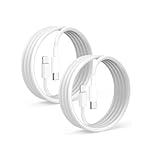
- 【What's Included】: 1 x White USB-C to USB-C CarPlay Cable,1 x USB-C to Iphone cable
- 【After-Sales Guarantee】: Your purchase experience is very important to us, in order to make your purchase experience good, we promise to provide 30 days unsatisfied refund, and 12 months worry-free service, during which the product is damaged, can be replaced for free.
- 【Universal Compatibility】: Connect your Apple phone or tablet to CarPlay with ease. Compatible with the full iPhone 15 series and iPad 10th generation, as well as iPad models including 12.9-inch (3rd to 6th generation), 11-inch (1st to 4th generation), the new iPad Mini 6th generation, and iPad Air 4th and 5th generation.
- 【Efficient Charging & Data Transfer】: Experience faster charging with up to 2.4A current output, ensuring optimal performance. Enjoy high-speed data transfer of up to 480 Mbps for seamless photo, music, video, and file transfers.
Consider interference and power quirks
- Unplug external USB devices one by one (especially USB 3 docks/hubs).
- Turn off nearby Wi‑Fi temporarily on another device to see if the problem shifts (this is a quick interference check, not a permanent solution).
- Avoid placing the Mac directly against large metal surfaces or inside constrained enclosures.
Last-resort: reinstall macOS (only after evidence)
If Bluetooth is broken at the system level across all devices, and you’ve tried module reset, service restarts, and safe user testing, reinstalling macOS may be warranted. It’s rarely the first step, but it can resolve corrupted system Bluetooth frameworks.
FAQs
Does resetting the Bluetooth module erase my paired devices?
Usually it doesn’t erase pairings, but it can force reconnects. If a device still won’t connect after reset, use System Settings → Bluetooth → (i) → Forget This Device, then re-pair.
Why can I see my device in Bluetooth, but it won’t connect?
This often points to stale pairing state or a partially broken handshake. Forget the device and re-pair, then try resetting the Bluetooth module. For audio devices, confirm System Settings → Sound → Output matches the Bluetooth device.
Do these 3 things before closing this tab:
1Fix the driver behind crashes, sound loss and screen glitches2Repair Windows errors before they cause bigger problems3Scan for outdated or missing drivers - takes under a minuteIs there a Bluetooth reset shortcut on macOS?
The most reliable method is the Bluetooth menu: hold Shift (and sometimes Option depending on the build) and choose Reset the Bluetooth module. If you don’t see it, enable the Bluetooth menu bar icon and verify you’re on a macOS version that exposes the option.
Will a Mac restart fix Bluetooth issues?
Sometimes, yes—especially if Bluetooth got stuck after sleep/wake or a software update. But if you restart and the issue returns immediately, a Bluetooth module reset and re-pairing typically addresses the underlying state better than repeating restarts.
What if Bluetooth won’t turn on at all?
Start with system toggles and a reset attempt from the Bluetooth menu. Then restart Bluetooth services using sudo pkill bluetoothd, and finally restart the Mac. If it still won’t enable, you may be dealing with a deeper system fault or a hardware issue.
Bottom Line
For most Mac Bluetooth issues, the fastest path is: do quick checks (distance, battery, audio output), then reset the Bluetooth module from the Bluetooth menu, and finally forget/re-pair only the devices that misbehave.
If problems persist, restart Bluetooth services with sudo pkill bluetoothd and do a clean user test. You’ll fix the majority of cases without reinstalling macOS—and you’ll know exactly what changed when the fix sticks.
Quick Recap
Product prices and availability are accurate as of the date/time indicated and are subject to change. Any price and availability information displayed on Amazon at the time of purchase will apply.




