What’s actually slowing this PC down?
Pick the symptom - the matching free tool is one click away.
Some links on this page are affiliate links: if you buy through them we may earn a commission, at no extra cost to you.
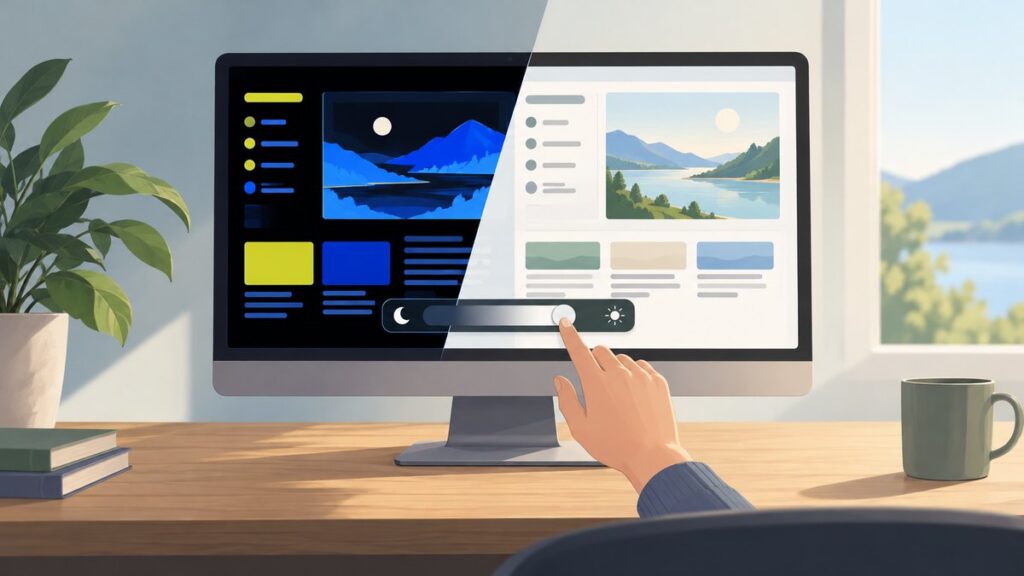
High Contrast problems on Windows 11 and Windows 10 can make the desktop, apps, websites, menus, and icons look harsh, inverted, washed out, or difficult to read. In many cases, the cause is a built-in accessibility feature such as High Contrast mode, Contrast Themes, Color Filters, or Night Light, but similar symptoms can also come from graphics driver faults, monitor profiles, browser settings, or corrupted personalization data.
As an optional shortcut to manual display-setting changes, Outbyte PC Repair can address common Windows configuration issues causing high-contrast problems.
Fixing the issue starts with identifying what actually changed. A system-wide black-and-white or inverted appearance usually points to accessibility settings, while problems limited to one app, browser, or external display may require a different fix. This guide walks through the practical checks and repairs for Windows 11 and Windows 10 in 2026, from turning off contrast features to resetting themes, reinstalling display drivers, and repairing damaged system files.
The Tool Desk
Outbyte PC Repair FREEClear out junk files and repair common Windows errorsFree Scan →Outbyte Driver Updater FREEScan for outdated or missing drivers - takes under a minuteDriver Scan →As an Amazon Associate I earn from qualifying purchases.
Check Whether High Contrast or Contrast Themes Are Enabled
The first thing to confirm is whether Windows is deliberately using a High Contrast or Contrast Theme. This can make the desktop, File Explorer, Settings app, browsers, and many older programs switch to stark colors such as black backgrounds, white text, bright outlines, or limited accent colors. On Windows 11, Microsoft labels these as Contrast themes. On Windows 10, the same feature is usually called High contrast. If it was turned on accidentally with a keyboard shortcut or synced from another device, the display may look broken even though the system is working normally.
Check the setting in Windows 11
- Right-click the desktop and select Personalize.
- Open Accessibility from the left side of the Settings window.
- Select Contrast themes.
- Look at the drop-down menu next to Contrast themes.
- If a theme such as Aquatic, Desert, Dusk, or Night sky is selected, choose None.
- Select Apply and wait for Windows to reload the theme.
After applying None, the screen may flicker briefly while Windows restores normal colors. This is expected. If the desktop returns to a regular light or dark theme, the problem was simply an enabled contrast theme. You can then go to Settings > Personalization > Themes and choose your preferred Windows theme again.
Popular on Amazon

- 14" diagonal, 1366x768 resolution, HD BrightView LED, Glossy NON-TOUCH Display
Check the setting in Windows 10
- Right-click the desktop and choose Personalize.
- Select High contrast settings, or open Settings > Ease of Access > High contrast.
- Check whether Turn on high contrast is enabled.
- If it is on, switch it off.
- Wait while Windows changes the theme back to normal.
Windows 10 may also show a selected high contrast theme in the theme picker. If turning the switch off does not fully restore normal colors, open Settings > Personalization > Themes and manually select a standard theme such as Windows or a custom theme you previously used.
Check the keyboard shortcut
High Contrast can be toggled with a keyboard shortcut on some systems: Left Alt + Left Shift + Print Screen. If you pressed this by mistake, Windows may have enabled the feature without you realizing it. On Windows 10, you can usually disable this shortcut from the High contrast settings page by clearing the option that allows the shortcut to turn High Contrast on or off. On Windows 11, review the Contrast themes page and related accessibility keyboard settings if the problem keeps coming back.
- If the entire Windows interface changed: check Contrast themes or High contrast first.
- If only websites look different: the issue may be a browser theme, forced colors setting, or extension.
- If only photos, videos, or games look wrong: check HDR, color management, graphics drivers, and display settings later in the troubleshooting process.
- If the colors return after signing out and back in: Windows may have temporarily failed to apply the correct personalization settings.
If High Contrast or a Contrast Theme was enabled, turning it off should immediately make Windows look closer to normal. If the setting is already off but the screen still has harsh colors, inverted tones, washed-out contrast, or missing interface details, continue by checking color filters, Night Light, HDR, and other display-related accessibility options.
Turn Off Color Filters, Night Light, and Other Display Accessibility Settings
If High Contrast or Contrast Themes are already turned off but the screen still looks inverted, washed out, overly yellow, grayscale, or unusually saturated, check the other Windows display accessibility options next. Color Filters, Night Light, HDR, and certain visual effects can all change how Windows 11 or Windows 10 renders colors, and the result can look similar to a High Contrast problem even when the actual High Contrast setting is disabled.
Check Color Filters
Color Filters are often mistaken for High Contrast because they can make the entire desktop appear black and white, inverted, or tinted. On Windows 11, open Settings > Accessibility > Color filters, then switch Color filters to Off. On Windows 10, go to Settings > Ease of Access > Color filters and turn off Use color filters.
Also check the keyboard shortcut setting on the same page. If Keyboard shortcut for color filters is enabled, pressing Windows + Ctrl + C can turn filters on accidentally. If the issue keeps coming back after you fix it, disable that shortcut so the filter cannot be toggled by mistake while typing or gaming.
Disable Night Light and color temperature changes
Night Light does not usually create true High Contrast behavior, but it can make whites look orange, reduce blue tones, and make images appear dull or muddy. On Windows 11, open Settings > System > Display > Night light and turn it off. On Windows 10, go to Settings > System > Display, then disable Night light. If you use it on a schedule, open the Night Light settings and temporarily disable scheduling as well.
If the display immediately looks normal after turning off Night Light, adjust its strength instead of leaving it at an extreme level. A lower strength can preserve the warmer evening tone without making contrast, photos, videos, and app backgrounds look incorrect.
Review HDR, transparency, and visual effects
HDR can change brightness and contrast dramatically, especially on external monitors or laptops switching between battery and power modes. In Windows 11, check Settings > System > Display > HDR. In Windows 10, check Settings > System > Display > Windows HD Color settings. Turn HDR off briefly and compare the desktop, File Explorer, browser pages, and photos. If only HDR content looks wrong, the problem may be HDR calibration rather than an accessibility setting.
- Transparency effects: In Windows 11, check Settings > Accessibility > Visual effects. In Windows 10, check Settings > Ease of Access > Display. Turning transparency off can make menus and panels easier to read.
- Animation effects: Disabling animations will not fix color inversion, but it can help if the problem is visual strain rather than incorrect colors.
- Text size and mouse pointer: Oversized text or a custom pointer color can make Windows look like an accessibility theme is active. Reset them to default while testing.
After changing these settings, sign out and sign back in, or restart the computer if the colors do not refresh everywhere. Some apps cache theme and color information until they are reopened. If the desktop looks normal but one browser, Office app, PDF reader, or remote desktop window still appears high contrast, the issue is more likely app-specific and should be checked separately.
Reset Windows Themes and Personalization Settings
If High Contrast or harsh colors remain after you have checked accessibility options, the problem may be a damaged or mismatched Windows theme. Windows stores theme choices, accent colors, wallpaper settings, and some visual preferences together. After an upgrade, driver change, remote desktop session, or third-party theme tool, these settings can become inconsistent and make menus, title bars, buttons, or backgrounds appear too bright, too dark, or unreadable.
Start by switching back to a built-in Windows theme. On Windows 11, open Settings > Personalization > Themes, then choose a default theme such as Windows or Windows Light. On Windows 10, go to Settings > Personalization > Themes and select a standard Microsoft theme. Avoid choosing anything listed under contrast themes or any custom theme that was downloaded from the Microsoft Store until the display looks normal again.
Reset color and background choices
After applying a default theme, review the related personalization pages. In Settings > Personalization > Colors, set the mode to Light or Dark instead of a custom mix if text and window backgrounds still clash. Turn off unusual accent color choices temporarily, especially if the accent color is being applied to title bars, borders, the Start menu, or taskbar. Then open Background and select a normal picture or solid color to rule out a corrupted slideshow, synced wallpaper, or high-contrast image that makes desktop icons difficult to read.
- Windows 11: Check Personalization > Colors and disable Show accent color on title bars and windows borders while testing.
- Windows 10: Check Personalization > Colors and turn off Automatically pick an accent color from my background if the interface keeps changing unexpectedly.
- Both versions: Remove custom theme packs, old accessibility themes, and third-party visual style tools if the issue started after installing them.
If your Microsoft account syncs themes between devices, a bad theme can return after you fix it locally. On Windows 11, open Settings > Accounts > Windows backup and review remembered preferences. On Windows 10, open Settings > Accounts > Sync your settings. Temporarily disable theme or personalization syncing, apply a default theme again, and restart the PC. This is especially useful when the same contrast problem appears after signing in on a new computer or after a reset.
Rebuild a broken theme profile
For stubborn theme corruption, create a fresh local test account and sign in to it. If colors, menus, and app backgrounds look normal in the new account, Windows itself is probably fine and the original user profile has corrupted personalization data. You can then keep using the new profile or migrate documents, browser data, and app settings gradually. Before deleting any old account, confirm that files in Desktop, Documents, Pictures, and other user folders are backed up.
You can also clear saved custom themes by returning to the Themes page, right-clicking any custom theme that is not active, and choosing Delete where available. Then select a built-in theme once more and restart Windows Explorer from Task Manager, or simply restart the computer. A clean default theme gives you a stable baseline before moving on to graphics drivers, monitor profiles, or app-specific contrast settings.
Update or Reinstall Graphics and Monitor Drivers
If High Contrast or contrast themes are turned off but Windows still shows harsh whites, crushed blacks, inverted-looking colors, washed-out text, or strange color shifts, the display driver stack may be involved. Windows 11 and Windows 10 rely on the graphics driver, monitor driver, ICC color profile, HDR handling, and sometimes vendor utilities from Intel, NVIDIA, AMD, Dell, HP, Lenovo, ASUS, or MSI. A bad driver update, missing monitor profile, or incorrect GPU color setting can make the desktop look like an accessibility mode is still active even when it is not.
Quick wins for a faster PC:
Repair Windows errors before they cause bigger problemsFix Now →Scan for outdated or missing drivers - takes under a minuteDriver Scan →Clear out junk files and repair common Windows errorsFree Scan →Update the graphics driver first
Start with the safest fix: install the latest stable driver for your GPU. Open Settings > Windows Update > Advanced options > Optional updates and check for display, graphics, or monitor updates. If Windows does not offer one, download the current driver directly from your device maker or GPU vendor. For laptops, the manufacturer’s support page is often the better first choice because it may include custom brightness, hybrid graphics, and panel color calibration support.
- Intel graphics: use the PC manufacturer’s driver first, then Intel Driver & Support Assistant if needed.
- NVIDIA graphics: install the latest Game Ready or Studio Driver from NVIDIA, choosing Studio for workstations and color-sensitive apps.
- AMD graphics: use AMD Software: Adrenalin Edition or the laptop maker’s customized package.
- External monitors: check the monitor brand’s support page for an INF driver or ICC color profile.
After installing a graphics driver, restart Windows even if the installer does not force you to. Then test the desktop, File Explorer, Settings, and a browser. If the problem appears only on one external screen, disconnect and reconnect the display cable, try another port, and confirm that Windows is using the expected refresh rate and resolution under Settings > System > Display > Advanced display.
Roll back or reinstall a problematic driver
If the contrast problem began immediately after a driver or Windows update, rolling back may be faster than updating again. Right-click Start, open Device Manager, expand Display adapters, double-click your GPU, and open the Driver tab. If Roll Back Driver is available, use it and restart. If it is greyed out, choose Uninstall Device, select Attempt to remove the driver for this device if shown, restart, and then install a fresh driver package from the manufacturer.
For stubborn cases, also check the monitor entry. In Device Manager, expand Monitors, right-click the listed display, and choose Uninstall device. Restart Windows so it can redetect the screen. This can help when Windows has assigned a generic or corrupted monitor profile that affects brightness, contrast, or color mapping. If your monitor manufacturer provides an ICC profile, install it and set it as the default under Control Panel > Color Management.
Windows Errors? Fix Them Before They Spread
Repair common Windows errors and clear accumulated junk for a smoother, more stable PC - no reinstall needed.Free scan · no reinstallOutdated Drivers Are Slowing You Down
One free scan finds every outdated or missing driver and matches the right update for your exact hardware.Free scan · exact hardware matchAlso popular on Amazon

- 256 GB SSD of storage.
- Multitasking is easy with 16GB of RAM
- Equipped with a blazing fast Core i5 2.00 GHz processor.
Check GPU color and HDR settings
Driver utilities can override Windows color output. In the NVIDIA Control Panel, AMD Software, or Intel Graphics Command Center, look for settings such as Dynamic range, Output color format, Color depth, Brightness, Contrast, Gamma, and Color enhancement. For most monitors, use the native resolution, the recommended refresh rate, full RGB range for PC monitors, and default brightness, contrast, and gamma values. If HDR makes normal desktop content look too bright or too flat, test with Settings > System > Display > HDR turned off.
When mulle displays are connected, test one monitor at a time. A docking station, USB-C hub, HDMI adapter, KVM switch, or low-quality cable can trigger incorrect color range detection, especially after sleep or a driver update. If the image improves when connected directly to the PC, update the dock firmware or replace the cable before changing more Windows settings.
Independent reader supportYour contribution helps us test, update, and keep practical guides available for everyone.Fix High Contrast Issues in Specific Apps and Browsers
If Windows itself looks normal but one browser, Microsoft Office app, PDF reader, chat client, or graphics tool still appears black-and-white, overly saturated, inverted, or unreadable, the problem is likely app-specific rather than a global Windows High Contrast setting. Many modern apps can follow Windows contrast themes, apply their own dark mode, use hardware acceleration, or load custom appearance settings from your user profile. Start by checking whether the issue appears in only one app, only one website, or across all apps from the same vendor.
Check the app’s own appearance settings
Open the affected app’s settings and look for options such as Theme, Appearance, Accessibility, Color mode, Reader mode, or Use system setting. In Microsoft 365 apps, for example, go to File > Account or File > Options > General and change the Office Theme to Colorful, White, or Use system setting. In Adobe Acrobat or similar PDF readers, disable any high-contrast document color override or accessibility color replacement. If an app has both dark mode and a high-contrast option, turn off high contrast first, then test dark mode separately.
Free tools Windows power users keep installed
One-click scans. No signup required.
- Browsers: Check appearance, theme, accessibility, and extension settings.
- Office apps: Reset the Office theme and disable document color overrides.
- PDF readers: Turn off custom page background and text color replacement.
- Media or design apps: Disable color-management overrides, HDR preview modes, or forced GPU rendering options.
Remove browser themes and extensions
Browser extensions are a common cause of contrast problems in 2026, especially dark mode extensions, reading tools, accessibility add-ons, ad blockers with cosmetic filters, and custom CSS extensions. In Microsoft Edge, Google Chrome, Brave, or other Chromium-based browsers, open the extensions page and temporarily disable anything related to dark mode, readability, accessibility, color, themes, or page styling. In Firefox, check Add-ons and themes and switch back to the default theme. Then reload the affected website with Ctrl + F5 to bypass cached styling.
If only one website looks wrong, test it in a private or InPrivate window with extensions disabled. Also check whether the site has its own theme toggle, usually marked as Light, Dark, System, or Accessibility. Some sites save this preference to your account, so the bad contrast may return on another device until you change the setting while signed in. If text is invisible only after zooming, reset browser zoom with Ctrl + 0 and confirm that Windows text scaling is not making the site layout break.
Disable hardware acceleration for the affected app
When colors look posterized, inverted, washed out, or flicker only inside one app window, hardware acceleration may be interacting badly with the graphics driver. In Edge or Chrome, go to Settings > System and performance and turn off Use hardware acceleration when available, then restart the browser. In Firefox, go to Settings > General > Performance, clear Use recommended performance settings, and disable hardware acceleration. For apps such as Teams, Slack, Discord, Zoom, and Adobe products, look for a similar graphics acceleration option under advanced, performance, or display settings.
If the app still displays incorrectly, reset its local settings or create a fresh profile. For browsers, create a new profile and test before signing in or syncing extensions. For Microsoft Store apps, use Settings > Apps > Installed apps, select the app, open Advanced options, then try Repair first and Reset only if needed. For traditional desktop programs, update the app, clear its cache if available, or reinstall it after exporting any needed settings. This helps separate a Windows display problem from a corrupted app profile or a theme setting stored inside the app itself.
Repair Corrupted System Files and Windows Display Settings
If High Contrast keeps turning itself back on, contrast themes appear broken, menus become unreadable after every restart, or display colors look wrong across mulle apps, the problem may be deeper than a single theme or driver setting. Windows stores accessibility, theme, and display preferences across system files, user profile data, registry entries, and component packages. When any of these become damaged after an update, failed driver install, forced shutdown, or profile migration, Windows 11 or Windows 10 may apply the wrong visual style even after you change the settings manually.
Run Windows system repair commands
Start with the built-in repair tools before resetting Windows. Open Windows Terminal, PowerShell, or Command Prompt as an administrator. On Windows 11, right-click the Start button and choose Terminal (Admin). On Windows 10, search for cmd, right-click Command Prompt, and select Run as administrator.
- Run sfc /scannow and wait for the scan to finish. This checks protected Windows files and replaces damaged copies where possible.
- If SFC reports that it could not repair some files, run DISM /Online /Cleanup-Image /RestoreHealth. This repairs the Windows component store used by SFC.
- After DISM completes, run sfc /scannow again.
- Restart the PC, then check Settings > Accessibility > Contrast themes and Settings > Personalization > Themes.
These commands do not remove your files or apps, but they can fix damaged Windows resources that affect menus, title bars, Start, File Explorer, Settings, sign-in screens, and default app rendering. If the repair succeeds, set your preferred theme again and restart once more to confirm that Windows remembers it.
Reset display-related cache and personalization data
If Windows repairs cleanly but the desktop still loads with incorrect contrast, the issue may be cached personalization data in the current user profile. Switch temporarily to a built-in Windows theme such as Windows Light or Windows, delete any custom contrast theme you no longer use, and sign out instead of only restarting. Signing out forces Windows Explorer and the user theme service to reload the profile’s visual settings.
Recommended Free Tools
- Check Settings > Personalization > Themes and remove old synced or third-party themes.
- Turn off theme syncing if you use a Microsoft account and the same bad theme returns from another device.
- Open Task Manager, select Windows Explorer, and choose Restart after changing themes.
- Create a new local test account to see whether the contrast problem is limited to your main Windows profile.
If a new test account looks normal, your Windows installation is probably healthy and the original user profile has corrupted personalization settings. In that case, move your documents, desktop files, browser data, and app settings to the new account instead of performing a full PC reset. If the same contrast problem appears in every account, continue with a repair install.
Use a repair install or reset as a last step
For persistent system-wide display corruption, use an in-place repair install. Download the latest Windows 11 or Windows 10 installation media from Microsoft, run the setup from within Windows, and choose the option to keep personal files and apps. This refreshes Windows system components while preserving most programs and data. If that still does not fix the issue, use Settings > System > Recovery on Windows 11 or Settings > Update & Security > Recovery on Windows 10 and choose Reset this PC. Back up files first, especially if you plan to remove apps or perform a clean reinstall.
Frequently Asked Questions
How do I know if Windows High Contrast is actually turned on?
On Windows 11, go to Settings > Accessibility > Contrast themes and check whether a contrast theme is active. On Windows 10, go to Settings > Ease of Access > High contrast and see if the toggle is enabled. You can also press Left Alt + Left Shift + Print Screen, which is the shortcut that may turn High Contrast on or off if it is enabled.
Why does my screen still look strange after turning off High Contrast?
The problem may be caused by Color Filters, Night Light, HDR, a custom theme, or a graphics driver issue rather than High Contrast itself. Check Settings > Accessibility > Color filters and Settings > System > Display for Night Light and HDR options. If the colors still look wrong, switch back to a default Windows theme and update or reinstall your display driver.
Do these 3 things before closing this tab:
1Clear out junk files and repair common Windows errors2Scan for outdated or missing drivers - takes under a minute3Repair Windows errors before they cause bigger problemsCan a graphics driver update cause high contrast or washed-out colors?
Yes, display driver updates can reset color profiles, change HDR behavior, or introduce rendering bugs that make Windows look too dark, too bright, or overly contrasted. Open Device Manager, expand Display adapters, and try updating the driver from your PC or GPU manufacturer. If the issue started right after an update, use Roll Back Driver or reinstall a stable driver version.
Why does high contrast only affect Chrome, Edge, or one specific app?
If only one app looks wrong, the issue is usually caused by that app’s own theme, accessibility setting, hardware acceleration, or forced color mode. In browsers, check appearance settings, extensions, and flags related to dark mode or forced colors. Turning hardware acceleration off and restarting the app can also fix contrast and color rendering problems.
What should I do if Windows keeps returning to a high contrast-looking theme?
First, choose a default theme from Settings > Personalization > Themes and remove any custom or third-party themes. Then check whether sync settings are restoring the same theme from your Microsoft account on mulle devices. If the problem continues, run system repair commands such as SFC and DISM, then restart Windows and set your theme again.
Bottom Line
High Contrast problems on Windows 11/10 usually come down to one of a few causes: an enabled contrast theme, color filter, app-specific setting, graphics driver issue, or corrupted personalization data. Start with the accessibility and theme settings first, then move through driver updates, app resets, and system repair tools if the display still looks wrong.
What’s actually slowing this PC down?
Pick the symptom - the matching free tool is one click away.
If the issue keeps returning, create a new user profile or perform a repair install to rule out deeper Windows corruption. Once the colors look normal again, save a clean theme and keep your graphics driver updated so the problem is easier to prevent and fix next time.

