Some links on this page are affiliate links: if you buy through them we may earn a commission, at no extra cost to you.
Bluetooth dropouts usually come from one of seven fixable conditions: streaming data that is stalling, excessive distance or obstacles, radio interference, a stale pairing record, power-saving, the wrong audio output, or an outdated driver. The fastest diagnosis is to play a downloaded file, move the source close to the headphones, then forget and re-pair the device. If the problem is limited to Windows, check the selected output, A2DP support, sample rate, Bluetooth driver, and adapter power settings. A USB Bluetooth adapter is a sensible hardware fix only when the computer’s built-in radio is missing or unreliable.
Work through the tests in order. Each result narrows the cause, so you avoid buying new headphones for a Wi-Fi problem or changing codecs when the computer is sending sound to the wrong device.
As an Amazon Associate I earn from qualifying purchases.
Why does Bluetooth audio keep cutting out?
Intermittent sound means the audio stream is being interrupted somewhere between the source device and the headphones or speaker. The cause may be the Bluetooth radio link, the operating system’s audio path, or the internet connection feeding a streaming app.
| Pattern you hear | Most likely area | First check |
|---|---|---|
| Only online music or video skips | Wi-Fi, cellular data, or the streaming app | Play a downloaded or locally stored file |
| Local and streamed audio both break up nearby | Interference, pairing, output selection, or hardware | Move the source within a few metres and re-pair |
| Audio fails after the computer sleeps | Power management or a Bluetooth driver | Disable adapter power-off and update the driver |
| Only a Windows PC has the problem | Output format, A2DP, driver, or adapter | Check Sound output, 2-channel 16-bit 48 kHz, and A2DP |
| Dropouts occur only with a high-quality codec mode | Codec bandwidth or radio congestion | Use the product’s standard-quality mode as a test |
Bluetooth has no single universal range, interference threshold, or codec setting that works for every product. Antenna design, walls, nearby radios, firmware, and the source device all matter. Sonos gives roughly 30 feet as a practical guideline, not a guaranteed limit; a shorter distance can still fail in a crowded radio environment.
#1 Best Overall

- 【Function】: Easily switch between TX mode, which connects non-Bluetooth audio sources such as TVs, MP3 players, or in-flight entertainment systems to Bluetooth speakers and headphones, and RX mode, which uses a 3.5mm AUX cable to stream audio from your smartphone to wired speakers or car stereos.
- 【Transmission Distance】Enhanced audio transmission with Bluetooth 5.3 technology to ensure a fast and stable connection. Enjoy seamless audio connectivity from non-Bluetooth to Bluetooth devices with a range of up to 390 inches, perfect for travel or home use. (The transmission distance will vary depending on the environment)
- 【How to use】: Simplify your audio experience with our auto-pairing feature. Once powered on, the device enters pairing mode and can be easily connected to your favorite device. A useful reset button allows you to easily switch connections. For the best pairing, consider turning off the Bluetooth devices around you.
- 【Audio Transmission】: Say goodbye to tangled wires by wirelessly streaming audio from a variety of devices, such as in-flight entertainment, game consoles, gym equipment, or TVs via any 3.5mm audio jack. Easily enjoy your favorite playlist with earbuds or wireless headphones.
- 【Compatibility note】: Please make sure that your Bluetooth headphones/speakers also support low-latency technology to reduce latency. This Bluetooth adapter works without the need for a volume control button.
How can I tell whether Bluetooth or streaming is at fault?
Play audio that is stored on the phone or computer. If the local file is clean but a live stream cuts out, the Bluetooth link is probably working and the network or streaming service needs attention.
- Download a song, podcast episode, video, or other audio file to the source device. Do not use a stream for this test.
- Turn off the screen if necessary, but keep the source awake and within a few metres of the headphones or speaker.
- Play the file for several minutes, then repeat with the service that normally skips.
- If only the stream fails, check Wi-Fi or cellular signal, move to a less congested network, and try the service’s offline-download feature.
Apple’s support guidance says: “Your headphones may lose their connection with streaming audio more often than they do with content that is stored on your device.”
Do these 3 things before closing this tab:
1Fix the driver behind crashes, sound loss and screen glitches2Repair Windows errors before they cause bigger problems3Scan for outdated or missing drivers - takes under a minuteSpecial offer. See more information about Outbyte and uninstall instructions. Please review EULA and Privacy policy.
Sonos also recommends checking the mobile-data connection when streamed audio is unstable. A local-file test is useful because it removes buffering, server response, and changing network conditions from the diagnosis.
What should I try first when Bluetooth audio is skipping?
Use this short sequence before changing advanced settings. It costs nothing and resolves many temporary connection and output errors.
- Stop the stream and test local audio. This separates a data problem from a radio problem.
- Bring the source close. Put the phone or computer in the same room, ideally with a clear line of sight to the headphones or speaker.
- Remove obvious interference. Move away from a crowded Wi-Fi area, microwave oven, cordless phone, wireless speaker, television, radio, metal rack, or thick concrete wall.
- Toggle Bluetooth. Turn it off, wait a few seconds, and turn it on again.
- Forget and reconnect the device. Remove the headphones or speaker from the saved Bluetooth list, restart the source, and pair again.
- Confirm the output. Select the Bluetooth headphones or speaker as the active audio output instead of the built-in speakers, a monitor, or a hands-free endpoint.
- Restart both ends. Reboot the phone or computer and power-cycle the headphones or speaker.
If the interruption returns immediately after this sequence, continue with the platform-specific checks instead of repeating the same pairing ritual.
How do distance, walls, and nearby wireless devices cause dropouts?
Bluetooth uses a low-power radio link. Every wall, floor, body, metal object, and competing transmission can reduce the margin that keeps packets arriving in time for continuous audio.
Recommended Free Tools
Use distance as a controlled test
Place the source within a few metres. Sonos describes about 30 feet as a practical maximum in ordinary conditions, while Apple recommends removing walls and floors between the devices. Treat both as guidance rather than a promised operating range; a headset can work farther away in an open room and fail closer to a busy access point.
Rank #2
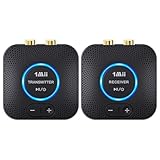
- 【Quick connection】The 1Mii wireless audio adapter connection is quicker and more stable than older versions. After connected to power, the transmitter and receiver will automatically power on and enter paring mode and there is a blue ring light to indicate its working state, hands free for audio entertainment. No more disturbing disconnection and manual re-connection.
- 【Dual AUX/RCA In/Out】Comes with 3.5mm plug to RCA adapter cable, the audio receiver support simoutaneous AUX/ RCA output for 2 powered speakers. Connect the transmitter with PC, TV, CD, MP4 output, and connect the receiver with powered speaker, amplifier or home theater, plug and play, easy operation for true wireless audio transmission. Dual AUX and RCA input at the same time is not recommended, as the audio would be mixed up at the receiving end.
- 【2.4GHz Hi-Fi Audio Enjoyment】The audio adapter kit features 2.4GHz true wireless connection, no more cords, freely enjoy high fidelity music. Very suitable for home TV, PC, powered speaker connection, get rid of distance limitation and enjoy high quality stereo streaming audio at every corner of your home. Please NOTE: the audio kit is not suitable for subwoofer.
- 【262ft Low Latency Syncronization】Designed with anti-interference technology, the transmission distance can reach up to 262ft(80m, no obstacle) and minimum 98ft(30m) for indoor use, enjoy lower than 25ms latency low noise audio. Please NOTE that the transmitter and receiver can only be connected to each other, cannot be paired with other bluetooth devices. Make the transmitter/ receiver powered with our included power adapter is suggested.
- 【Compact Size & Quick Button Control】The audio TX/RX has no external antenna and features extremely compact and light design, convenient for carrying. Volume adjusting is available on the transmitter and the receiver, press the volume +/- button to adjust the input or output audio volume individually. Center is the functional button, press once to mute and press 3s to power off, very easy to control while it's working.
Move away from common interferers
- Wireless LAN access points and areas with many active Wi-Fi devices
- Microwave ovens while they are operating
- Cordless phones, other wireless speakers, and nearby radios
- Televisions and dense collections of transmitting devices
- Metal shelving, equipment racks, and large concrete structures
Sony specifically warns about wireless access points, microwaves, walls, and metal. Apple suggests moving to a place with fewer people and less Wi-Fi activity. For a clean test, place the source on an open table, keep it on the same side of the wall as the headphones, and temporarily switch off nearby wireless accessories.
Interpret the result
If the sound becomes stable only when the devices are close together, the radio environment or obstruction is the leading cause. If it still breaks up at arm’s length with local audio, focus on pairing, output format, drivers, power management, or a hardware fault.
How do I reset a Bluetooth pairing correctly?
A fresh pairing removes a corrupted or stale connection record. Turning Bluetooth off and on without deleting the saved device often leaves the original problem intact.
- Turn Bluetooth off on the source device and wait briefly.
- Open the saved-device list and choose the headphones or speaker.
- Select Forget, Remove device, or the equivalent command.
- Power-cycle the headphones or speaker. Use its factory-reset procedure only if ordinary removal and re-pairing fail; a factory reset can erase device-specific settings.
- Restart the phone, tablet, computer, or other source.
- Turn Bluetooth back on, put the audio device into pairing mode, and add it as a new device.
- Play local audio first, then test the streaming app.
iPhone and iPad
In Settings, open Bluetooth, tap the information button beside the headphones or speaker, and choose the option to forget the device. Restart the iPhone or iPad, pair again from the same Bluetooth screen, and verify that audio is routed to the reconnected device. Apple recommends this forget-and-restart approach for persistent connection problems.
Android phones and tablets
Open the connected-device or Bluetooth settings, select the audio device, and remove or forget it. Toggle Bluetooth, restart the phone, and pair again. Menu names vary by manufacturer; the important parts are deleting the old record and creating a new pairing rather than merely reconnecting to it.
Mac
Open the Mac’s Bluetooth settings, remove the headphones or speaker, restart the Mac, and add the device again. Then select it in the Sound output settings. If local audio works but one streaming app does not, troubleshoot that app’s network path separately.
Windows
Open Settings, go to Bluetooth and devices, remove the audio device, restart Windows, and choose Add device to pair it again. Microsoft recommends turning Bluetooth off and on and removing then adding the device when a connection is unstable.
Quick wins for a faster PC:
Scan for outdated or missing drivers - takes under a minuteDriver Scan →Repair Windows errors before they cause bigger problemsFix Now →Fix the driver behind crashes, sound loss and screen glitchesFind Drivers →Rank #3

- Advanced Bluetooth 6.0 Dual-Mode Audio Freedom:In TX mode, use this bluetooth transmitter to connect to any AUX/RCA audio source—from TV as a bluetooth transmitter for TV, to airplane seatback as a bluetooth transmitter for airplane—pairing with headphones for clear, lag-free audio. In RX mode, receives wireless audio from a smartphone, tablet, or computer and plays it through audio systems that lack Bluetooth functionality.Hands-free calling via an integrated microphone.
- Smart Auto-Pairing & Universal Compatibility:Instant plug‑and‑play starts at power‑on. System memory enables quick reconnection with all models of AirPods, Bose, Sony, and other Bluetooth audio gear. Perfect as a Bluetooth adapter for various setups. Includes a dual‑prong AirFly‑style Bluetooth airplane adapter and QR guide for easy use.Note: Not compatible with live music, instruments, karaoke, 2.4G‑sync devices, or Bluetooth hearing aids.
- All-Day 20+ Hours Playback & Fast USB-C Charging An essential among plane travel essentials and travel accessories, our battery provides over 20 hours of playback—ideal for long flights. Recharge fully in 1.5 hours via USB-C while continuing to use. Stay powered anywhere.
- Compact Travel Design with Intuitive Control Engineered for life on the move, this ultra-lightweight device is a must-have travel gift. Easily adjust volume and switch modes with dedicated buttons. Clear LED indicators show battery and connection status, making it a reliable aux bluetooth adapter for any journey.
- Certified Safe & Versatile Everyday Companion Certified to global safety standards (FCC/CE/RoHS/BQB) with multi-layer protection. Whether you're watching TV, flying internationally, working out, or gaming, this adapter ensures safe and high-quality audio everywhere, truly living up to its name as a travel essential and airplane travel essential.
How do I fix Bluetooth audio dropouts in Windows 11 or Windows 10?
Windows problems are often resolved by checking the output endpoint, running the Bluetooth troubleshooter, correcting the audio format, and updating or reinstalling the adapter driver. Work through these checks in order.
1. Run Microsoft’s Bluetooth troubleshooter
Open the Get Help app, search for the Bluetooth troubleshooter, and follow its prompts. Apply the suggested repair, restart if requested, and test a local audio file. The troubleshooter can identify disabled services, pairing records, and common configuration errors that are easy to miss manually.
2. Select the correct sound output
Go to Settings > System > Sound and choose the Bluetooth headphones or speaker under Output. Disconnect or mute other Bluetooth audio devices while testing. Windows can remain connected to a headset while sending sound to a monitor, a dock, or its internal speakers, which looks like a Bluetooth failure even though the radio link is intact.
3. Test a conventional stereo format
Open Settings > System > Sound > More sound settings, select the Bluetooth device on the Playback tab, choose Properties, and open Advanced. Try 2 channel, 16 bit, 48000 Hz (DVD Quality), apply the change, and test again. Microsoft lists this format as a useful compatibility check; restore a different format later only if the device needs it.
4. Confirm A2DP support
A2DP is the Bluetooth profile used for ordinary high-quality stereo playback. If Windows exposes only a hands-free or headset endpoint, the computer may be using a different profile with lower-quality audio and more limited behavior. Check the audio device and adapter documentation for A2DP support; if the hardware does not provide it, a settings change cannot create that profile.
5. Update the Bluetooth driver
Install the current Bluetooth driver supplied for the computer or adapter model, then restart Windows. Microsoft identifies an outdated or incompatible driver as one of the most common causes of Bluetooth connection problems. Do not rely only on a generic driver if the computer maker provides a newer compatible package.
6. Reinstall the adapter when an update does not help
In Device Manager, expand Bluetooth, right-click the adapter, and choose the uninstall option. Restart the PC so Windows can detect and reinstall the hardware, then pair the headphones again. Record the adapter name before uninstalling it so you can obtain the correct driver if Windows does not restore one automatically.
Rank #4

- Listen music wireless: Connect with computer speakers, home stereo systems or other speaker systems via the 3.5 mm or RCA cable, then pair with the Bluetooth audio devices such as smartphones or tablet for streaming music.
- Easy setup and automatic reconnect: There is a big bluetooth symbol button in bluetooth receiver middle. Pair your bluetooth device to this adapter with a single button press. Click once means Bluetooth Connect/Disconnect. Hold the botton 3 second mean ON/OFF. It can reconnect automatically with the previously paired device.
- Wireless range: Indoors(without obstacles) connect rang up 30-40 ft (10-12 m).
- Works with most device: Bluetooth enabled device including smartphones, tablets, computers, laptops upon and any powered PC speakers, home stereo systems and A/V receivers.
- NOTE: This adapter doesn't have built-in battery, power by AC to DC power adapter or USB cable. This product is a bluetooth receiver ONLY, not a bluetooth transmitter. Only to give Bluetooth capabilities to an existing stereo / powered speaker / PA. If you have any problems, please contact us at any time by Amazon Order, and we will speed up the process to resolve the issue.
7. Remove power-saving interruptions
Temporarily turn off Windows battery saver and test. In Device Manager, open the Bluetooth adapter’s Properties, select Power Management, and clear Allow the computer to turn off this device to save power when that option is present. This is especially relevant when dropouts begin after sleep, on battery power, or during periods of low activity. Re-enable power saving later if it is not the cause.
The Tool Desk
Outbyte Driver Updater FREEScan for outdated or missing drivers - takes under a minuteDriver Scan →Outbyte PC Repair FREERepair Windows errors before they cause bigger problemsFix Now →8. Restart after every significant driver change
Restart Windows after installing, uninstalling, or changing the adapter driver. A restart reloads the Bluetooth service and audio endpoints; testing without it can leave the old driver state active and produce a misleading result.
What can I do on an iPhone, iPad, Android device, or Mac?
On mobile devices and Macs, the reliable sequence is the same: isolate streaming, reduce radio stress, forget the device, restart, and pair again. The exact labels differ by operating-system version and manufacturer.
iPhone and iPad checks
- Play a downloaded file to determine whether the network is involved.
- Use Settings rather than only the quick-control panel to turn Bluetooth off and on.
- Forget the headphones or speaker, restart the device, and pair again.
- Keep the source on the same side of walls and floors as the listener during testing.
Android checks
- Test local audio before changing app or codec settings.
- Forget and re-add the audio device from the connected-device settings.
- Temporarily disable battery-saver or aggressive app-battery restrictions if interruptions occur when the screen is off.
- Move away from access points, microwaves, and other wireless devices.
Battery-management controls have different names on Android models. Change one control at a time so you can identify whether it affects the dropout.
Mac checks
- Remove the device from Bluetooth settings and pair it again.
- Select the headphones or speaker under the Mac’s Sound output controls.
- Try local audio, then the affected streaming service.
- Install available macOS and manufacturer updates if the problem began after a system change.
Can a codec or sound-quality setting cause interruptions?
Yes, a higher-quality codec mode can demand more radio capacity in a noisy environment, but codec behavior is product-specific. Sony notes that changing the connected device’s sound-quality setting can improve interruptions when LDAC is in use.
Crashes, No Sound, or Screen Glitches?
Random freezes, missing sound and display glitches usually trace back to one bad driver. Find and replace yours safely.Free scan · under a minutePC Slower Than It Used to Be?
A free scan shows the junk files, broken settings and background clutter dragging Windows down - then fixes them in one click.Free scan · Windows 10 & 11Use the product’s standard or more stable quality mode as a diagnostic, not as a universal permanent answer. If dropouts stop, keep the stable mode in congested places and restore the higher-quality setting when the radio environment allows. If changing the codec has no effect, return to the distance, interference, pairing, output, and driver checks.
Independent reader supportYour contribution helps us test, update, and keep practical guides available for everyone.When is a Bluetooth USB adapter the right fix?
A compatible USB Bluetooth adapter is reasonable when a desktop lacks Bluetooth, the built-in radio is damaged, or its driver cannot provide the required audio profile. It will not fix a streaming-data problem, a blocked antenna, or headphones that fail with every source.
Best Value

- 【Dual Connection & Automatic Reconnection】This Bluetooth transmitter adapter has a "dual connection" function, which can connect two Bluetooth headsets/speakers at the same time. Enjoy a movie with your partner without disturbing others. After the first Bluetooth pairing is successful, 2 earphones/speakers can be reconnected to this wireless Bluetooth transmitter for TV automatically. Note: When using a fiber optic connection, please set the TV audio output format to PCM.
- 【10-30M Super Long Distance】Equipped with the highest Bluetooth range, this Bluetooth transmitter for TV can ensure a stable and reliable connection up to 10~30 meters (if there is an obstacle, the transmission range is 10–20 meters; if there is no obstacle, 10-30 meters). Whether you want to make dinner or do chores around the house, you never have to worry about audio loss.
- 【Convenient Design and Easy Operation】Clearly visible LCD status indicator on the TV Bluetooth transmitter, you can see and understand what is going on. Built-in volume controls are available for devices that don't have built-in volume controls, such as AirPods.
- 【Wide Compatibility】The Bluetooth splitter supports Optical, AUX, RCA Audio outputs/inputs. It is universally compatible with non-Bluetooth devices such as TV, PC, MP3 players and etc. to transmits audio to Bluetooth headphones/speakers/soundbars.
- 【Package and Warranty】Bluetooth Transmitter x 1, 3.5mm Aux to RCA Cable x 1, 3.5mm Audio Cable x 1, Optical Cable x 1, USB-C Power Cable x 1. We promised 24 months product warranty and lifetime technical support. Also offer 7*24 hours support, please feel free to contact us.
Check these requirements before buying
- Operating-system support for your Windows, macOS, or Linux version
- Support for the audio profiles your headphones require, including A2DP for stereo playback
- A current driver and a way to obtain it if the operating system does not install one automatically
- Physical placement away from USB 3 devices, metal enclosures, and crowded wireless equipment
- Compatibility with the computer’s USB ports and any manufacturer-specific software
Disable or disconnect the unreliable built-in adapter during testing so the operating system does not keep choosing the wrong radio. Pair the headphones to the new adapter, select them as the output, and repeat the local-file test. Verify current model compatibility and operating-system support before purchase; Bluetooth versions and advertised ranges do not guarantee identical audio behavior.
Which fix fits the symptom and costs the least?
Start with the least disruptive intervention and escalate only when the evidence points to hardware or a persistent platform problem.
Free tools Windows power users keep installed
One-click scans. No signup required.
| Intervention | Best fit | Cost and trade-off |
|---|---|---|
| Play downloaded audio | Only streaming skips | No cost; does not repair a weak radio link |
| Move closer and remove obstructions | Dropouts vary by room or position | No cost; may require changing where you sit or place the source |
| Forget and re-pair | Problem began after switching devices or an update | No cost; saved pairing information must be recreated |
| Change Windows output or sample rate | Connected device is silent, distorted, or unstable only on Windows | No cost; a format that helps one device may not suit another |
| Update or reinstall driver | Failures follow sleep, updates, or a particular PC | Usually no cost; requires a restart and the correct driver |
| Disable adapter power-off | Dropouts occur on battery or after idle periods | No cost; can increase power use |
| Use a USB Bluetooth adapter | Built-in radio is absent, defective, or incompatible | Hardware purchase; compatibility must be verified |
| Replace headphones or speaker | The device fails with multiple clean sources and environments | Highest cost; confirm the fault first to avoid replacing a working product |
How do I know whether the headphones or the source device is defective?
Cross-test one variable at a time. Pair the headphones with a second phone or computer and play a local file; then pair a different Bluetooth audio device with the original source.
- If the same headphones fail with two clean sources at close range, the headphones, their firmware, or their battery may be at fault.
- If two different audio devices fail only with one computer, focus on that computer’s adapter, driver, output format, or power management.
- If both devices fail only in one room, interference or obstruction is more likely than a defect.
- If every local file is stable but streams fail, investigate Wi-Fi or cellular data rather than replacing Bluetooth hardware.
This cross-test is more informative than changing several settings at once because it identifies whether the failure follows the source, the headphones, or the environment.
How can I prevent Bluetooth audio dropouts from returning?
After the connection is stable, keep the conditions that produced a reliable test.
- Keep the source within practical range and avoid placing it behind the body, inside a bag, or behind metal.
- Do not position the source beside a Wi-Fi access point, microwave, cordless phone, or dense wireless hub.
- Keep Bluetooth and operating-system drivers current, especially after a major update.
- Use a stable codec mode when moving through crowded radio environments.
- On Windows, review adapter power settings if interruptions return after sleep or on battery.
- When traveling, download important audio so a network outage does not look like a Bluetooth failure.
What is the practical decision rule?
Clean local audio at close range points away from Bluetooth and toward streaming data. Unstable local audio that improves when you remove walls or wireless devices points to the radio environment. Persistent failures after a fresh pairing call for platform checks: Windows output, A2DP, sample rate, driver, and power management; mobile and Mac users should verify output, updates, and battery behavior. Only after those tests should you consider a USB adapter or replacement hardware.
What’s actually slowing this PC down?
Pick the symptom - the matching free tool is one click away.
Frequently Asked Questions
Can Bluetooth dropouts happen even when the headphones are fully charged?
Yes. A full battery does not remove radio interference, a stale pairing record, an incorrect output, or a driver problem. Use a local-file test at close range to separate those causes from power-related behavior.
Will forgetting a Bluetooth device delete my music or photos?
No. Forgetting removes the connection credentials stored by the phone or computer; it does not erase local media or app data. You will need to pair the headphones or speaker again afterward.
Why does the sound break up only when my laptop lid is closed?
Closing the lid can trigger sleep or a more aggressive power state that suspends the Bluetooth adapter or changes the audio endpoint. Check adapter power management and test with the computer awake before changing the headphones.
Is a longer advertised Bluetooth range proof that a headset will not drop out?
No. Range figures are measured under particular conditions and do not account for walls, metal, Wi-Fi congestion, or the source device’s antenna. A shorter, unobstructed path can be more reliable than a longer rated range.
Quick Recap
Product prices and availability are accurate as of the date/time indicated and are subject to change. Any price and availability information displayed on Amazon at the time of purchase will apply.

