PC Slower Than It Used to Be?
A free scan shows the junk files, broken settings and background clutter dragging Windows down - then fixes them in one click.Free scan · Windows 10 & 11Outdated Drivers Are Slowing You Down
One free scan finds every outdated or missing driver and matches the right update for your exact hardware.Free scan · exact hardware matchSome links on this page are affiliate links: if you buy through them we may earn a commission, at no extra cost to you.
“Automatic backup” in the iTunes world usually isn’t a mysterious background job. It typically starts when your iPhone or iPad is connected (USB or Wi‑Fi sync) and iTunes/Finder is allowed to sync, which triggers a backup as part of the sync flow.
In 2024, the reliable way to stop that behavior is to turn off auto-sync for the device and disable Wi‑Fi syncing. On top of that, you may also need to disable iCloud Backup—because even if you stop iTunes/Finder backups, iCloud can keep backing up on its own.
As an Amazon Associate I earn from qualifying purchases.
This guide walks through the exact settings for Windows (iTunes) and macOS (Finder), plus troubleshooting when backups still start after you think you disabled everything.
What the iTunes automatic backup process actually is (and when it starts)
On Windows, iTunes creates a local backup when your device is syncing and the backup logic runs. On macOS 10.15+ (Catalina and later), backups and sync are managed by Finder, not iTunes. In both cases, the triggers are consistent:
Popular on Amazon

- 【Combination set】: More affordable, The data blocker combination kit shown in the main image, which can meet your daily use needs, suitable for any mobile phones and electronic devices with USB A and USB C interfaces.
- 【PROTECT YOUR PHONE / TABLET】 : Think about that Traveling or going out in public areas one time when you needed a charge at an airport but were too scared to get juice jacked. That is why we brought this data blocker for you. Charge your device with this powerful USB data blocker without worrying about any hacker getting in your device.
- 【HIGH SPEED CHARGING】: USB defenders are made for blocking the hacker as well as fast charging, The 4th generation design chip can be used for the universal charging standards automatically switch to, Compatible with Various brands of smartphones, ensure compatibility with your device. and charge at up to 2.4 Amps.
- 【to make high quality safety products】:Advance manufacturing process design The metal shell material has multiple safety protection functions such as heat dissipation and fire safety, USB Data Blocker are used by the governments of the USA, Canada, UK and New Zealand as well as 100s of corporations around the world to secure their devices,100% guarantee against hacker attack.
- 【Perfect Compatibility】: We USB-C to USB-C and USB-A to USB-C data blocker ensures seamless data security across all your Type-C tech gadgets including iPhone 15 and 16 series, Galaxy S25 S24 S23 S22 S21 S10, USB-C iPad, Android Tablets, MacBooks, and more
- USB connection: if iTunes/Finder is set to sync automatically, connecting your iPhone/iPad can trigger backup/sync.
- Wi‑Fi sync: if enabled, backups/sync can start while the device is on the same network and plugged in (or otherwise eligible for syncing).
- Manual sync: if you click Sync in iTunes/Finder, you may intentionally trigger a backup. Disabling auto-sync only prevents automatic behavior, not manual sync.
So the goal is to disable the automatic triggers: “Automatically sync” and “Sync over Wi‑Fi” (or the equivalent wording in iTunes/Finder).
Before you change anything: prerequisites and quick checks
Before you flip settings, confirm which environment you’re in and what you’re trying to stop.
What’s actually slowing this PC down?
Pick the symptom - the matching free tool is one click away.
Know which app controls sync on your device
- Windows: iTunes is the sync tool.
- macOS Catalina (10.15) through macOS Sonoma (14): Finder controls sync/backup.
If you’re on macOS Mojave (10.14) or earlier, iTunes is used.
Decide whether you’re stopping local backups, iCloud backups, or both
- Local backup (iTunes/Finder): stored on your computer.
- iCloud backup: stored on Apple servers and scheduled by iOS.
If backups still “happen” after you disable iTunes/Finder automation, check iCloud Backup—many people miss this part.
Disable automatic backups in iTunes on Windows 10/11
Use the iTunes device settings to stop both USB-triggered and Wi‑Fi-triggered sync. Disabling only one can still cause the process to start.
Turn off automatic sync for your iPhone/iPad
- Connect your iPhone or iPad to your Windows PC with a USB cable.
- Open iTunes.
- Click the device icon near the top-left (or choose the device from the sidebar if visible).
- Go to Summary.
- Find the section with the checkbox labeled Automatically sync when this iPhone is connected.
- Clear that checkbox.
- Click Apply (bottom-right).
After this, plugging in the device should no longer trigger iTunes to sync and run the backup routine automatically.
Quick wins for a faster PC:
Scan for outdated or missing drivers - takes under a minuteDriver Scan →Clear out junk files and repair common Windows errorsFree Scan →Turn off Wi‑Fi syncing (prevents backups from starting while you’re charging)
- In iTunes, keep your device selected (same device icon as above).
- Go to Summary.
- In the Options area, clear Sync with this iPhone over Wi‑Fi.
- Click Apply.
This setting is the biggest culprit when people see “automatic backups” shortly after reconnecting on the same network.
Also popular on Amazon
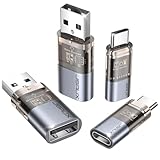
- The Ultimate Data Guardian: Worried about the risk of mobile phone data leakage or viruses when using public charging stations? A data blocker is an effective way to reduce these risks. By physically blocking data transfer, it helps protect your device from potential spyware or hacking attempts while charging
- Only for Charging: With our USB data blocker, you can charge your device without any risk of data transfer. It allows only the charging function while blocking data transfer and syncing. Your phone will not receive pop ups requesting data transmission
- Fast Charging for USB C Data Blocker: JSAUX USB C Data Blocker adopts PD 3.0/2.0 fast charging technology, supports 100W fast charging (20V/5A), and is also compatible with charging power of 240W/140W/60W/45W/36W/27W/15W, etc. The USB Data Blocker supports up to 2.4A charging. (NOTE: The actual charging speed depends on your device and wall charger.)
- Compact Design for Travel and Daily Use: Small and lightweight for easy carrying in pockets, backpacks, or keychains. Ideal for travelers, commuters, and anyone who frequently uses public charging stations. The transparent casing provides a modern and durable look
- USB & USB C Data Blockers 4 Pack: We offer you two USB Data Blockers and two USB C Data Blockers, compatible with iPhone 18 Pro/18 Pro Max, iPhone Duo, iPhone 17/17e/Air/17 Pro/17 Pro Max, iPhone 16/16 Plus/16 Pro/16 Pro Max, iPhone 15/15 Plus/15 Pro/15 Pro Max, Samsung, iPad, Macbook and other devices. Works with both USB and USB C ports, ideal for safe charging at airports, hotels, and public charging stations
Stop iTunes from starting backup/sync at app launch
This one’s less about “backup automation” and more about stopping iTunes from proactively engaging your device. iTunes can still communicate with your device when it launches.
- In iTunes, go to Edit > Preferences.
- Check Devices (wording varies slightly by iTunes version).
- Look for options like device connection handling and disable any that force automatic sync prompts.
- For safety, rely on the device-level settings you changed in Summary (auto-sync and Wi‑Fi sync). Those are the authoritative controls.
If your iTunes UI doesn’t show a relevant option here, don’t worry. The device settings in Summary are what actually stop automatic backup/sync behavior.
Disable automatic backups on macOS (Finder instead of iTunes)
On macOS Catalina (10.15) and later, iTunes is no longer the sync control panel. Finder manages the device sync and the backup routine.
Turn off automatic sync in Finder
- Connect your iPhone or iPad to your Mac with a USB cable.
- Open Finder.
- In the left sidebar, select your device under Locations (name may be your device name).
- In the main pane, locate the checkbox Automatically sync when this [device] is connected.
- Clear that checkbox.
- Click Apply (bottom-right).
This prevents Finder from automatically syncing the device when it’s plugged in.
Turn off Wi‑Fi syncing in Finder
- With your device selected in Finder, find the checkbox Sync with this [device] over Wi‑Fi.
- Clear it.
- Click Apply.
If you’ve ever seen periodic backup activity while your device is on the same network, this is usually the missing checkbox.
Also check iCloud Backup (so backups don’t happen elsewhere)
Even after disabling iTunes/Finder automation, your iPhone may still back up automatically to iCloud. That’s normal, but it can look like “automatic backups” in Activity logs or storage usage.
To fully stop backups from happening on a schedule, you’ll need to adjust iCloud Backup settings on the iPhone itself.
Do these 3 things before closing this tab:
1Clear out junk files and repair common Windows errors2Scan for outdated or missing drivers - takes under a minute3Repair Windows errors before they cause bigger problemsAlso popular on Amazon

- ✨ Absolutely Safe: Features an internal physical data line cut design, permanently disconnecting the data pins in the USB interface, leaving only the power pathway, effectively eliminating the risk of data leakage.
- ⚡ Fast Charging Without Slowdown:The usb data blocker Adapter supports charging up to 100W and is compatible with multiple fast charging protocols. Charging speed is the same as the original charger, ensuring both safety and efficiency.
- 🔗 Wide Compatibility: Suitable for all devices that use various charging interfaces. Whether it’s iPhone, Android phones, iPad, tablets, Bluetooth headsets, or power banks, just plug and play.
- 👌 Compact and Portable: The lightest model weighs only 2.2g, as compact as a USB drive. Protects safe charging anytime, anywhere.
- 🎯 Plug and Play: No drivers, no apps, no complicated setup required. Simply insert into a public USB port and connect your charging cable to start safe charging.
Disable iCloud Backup on iPhone or iPad
- On the iPhone/iPad, open Settings.
- Tap [your name] at the top.
- Tap iCloud.
- Tap iCloud Backup.
- Turn off Back Up This iPhone.
If you’re using an Apple ID and multiple devices, repeat this on each device you want to stop from backing up.
What you’ll lose and how to keep a backup plan
- You may lose automated disaster recovery coverage if your device is replaced or reset without another backup.
- If iCloud Backup is off, consider doing manual backups via iTunes/Finder or using a different workflow you control (for example, periodic manual backups).
- If you only want to stop local backups but keep iCloud, keep iCloud Backup on and just disable the computer-side sync triggers.
So the “right” configuration depends on whether you want backups locally, in iCloud, or both.
Alternative method: prevent the device from being recognized for sync
If you’re in a managed environment (shared PC, lab Mac, work device policies) or you simply want an extra layer beyond settings, you can stop the device from being recognized for sync.
Use a different cable/USB port or stop the connection at the right moment
If your device auto-sync prompts or sync activity starts as soon as you plug in, you can avoid it by connecting only when you intentionally want to sync/back up. Use a specific USB port/cable dedicated for charging if you prefer.
- Charging-only cables can reduce the chance of sync triggers.
- When you do need a backup, connect the device and then manually trigger sync/backup from iTunes/Finder with your preferred schedule.
Use Device Trust prompts carefully (iPhone pairing)
When you connect a new cable to a computer, iPhone may show a prompt like “Trust This Computer?” If you choose not to trust, sync typically can’t proceed.
Be careful: this can block more than backups (for example, file access, syncing, and device management). It’s a strong control, but it can also disrupt workflows that require the computer.
Troubleshooting: backups still happen after disabling auto-sync
If backups keep running, one of these is usually true: you disabled the wrong checkbox, you’re looking at iCloud Backup activity instead of local backup, or a different device is still allowed to sync.
Also popular on Amazon

- Special Attention: For optimal charging speeds, ensure the entire connection is USB-C to USB-C from end to end. Using this Data Blocker with a USB-A to USB-C cable may result in slow charging or no charging due to the absence of data pins
- No Loopholes Data Security: Hackers are everywhere—don't let your USB-C devices fall prey! Our blocker ensures comprehensive protection against malware, viruses, and hacking threats, guaranteeing data integrity and privacy, thanks to its no data pins feature
- Juice Jacking Shield: Our robust solution stands guard against data theft, ensuring your personal information remains secure from unauthorized access
- Perfect USB C-to-C Compatibility: Our USB C male to USB C female data blocker ensures seamless data security across all your Type-C tech gadgets including iPhone 15- 18 series, iPhone Duo, Galaxy S26 S25 S24, Fold & Flip Series, USB-C iPad, Android Tablets, MacBooks, and more
- Safe and Uncompromised Fast Charging: Experience worry-free charging of up to 240W PD, whether you're at hotels, airports, university libraries, or outdoor charging stations. With fast charging capabilities, your devices remain safeguarded wherever you go.
Confirm the setting truly applied (and to the correct device)
- Re-open iTunes (Windows) or Finder (macOS).
- Select the same device from the device list/sidebar.
- Re-check the exact toggles you changed:
- Windows iTunes: clear Automatically sync when this iPhone is connected and Sync with this iPhone over Wi‑Fi.
- macOS Finder: clear Automatically sync when this [device] is connected and Sync with this [device] over Wi‑Fi.
Also verify you’re not connected to a different Apple ID/device you forgot about.
Recommended Free Tools
Disable Wi‑Fi sync and “sync over Wi‑Fi” side-effects
Wi‑Fi sync can keep working even if your USB auto-sync is off, depending on what’s enabled. Clear Wi‑Fi sync in both the computer app (iTunes/Finder) and check whether the device still shows Wi‑Fi syncing behavior.
If you recently enabled “sync over Wi‑Fi,” give it time for your device to notice the change, then test by leaving the device on the same network and plugging/unplugging after the settings are applied.
Update iTunes/macOS to clear known sync bugs
Sync/backup behavior has had multiple fixes across years. For a 2024 troubleshooting pass, update to the latest stable versions available for your OS.
- On macOS, update via System Settings > General > Software Update.
- On Windows, update iTunes through Apple Software Update (or Microsoft Store version if that’s what you installed).
After an update, re-check the same two checkboxes—some updates can reset preferences.
Check for background sync and Windows services (Windows only)
If iTunes appears to reconnect or sync repeatedly on Windows, look at what’s running and what’s set to interact with devices.
- Unplug the iPhone/iPad.
- Open Task Manager and end any iTunes-related processes.
- Re-open iTunes and reconnect the device.
- If sync triggers immediately, re-check the device-level settings in Summary and click Apply.
Also confirm you don’t have multiple iTunes instances (for example, one launched automatically by OS behavior). The device-level checkbox control is still the most important fix.
Also popular on Amazon
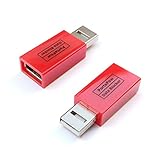
- Attach between your USB cable and charger to physically block data transfer / syncing; Charge mobile devices without any pop-ups or risk of hacking / uploading viruses in cars, airports etc
- This is our USB-A to A version, USB-C and others available; Read below if its the right one for your device
- The only data blocker to physically show you that its blocking data and several other great features; See full details below
- Allows charging without any risk of hacking / uploading viruses, can charge from an office PC even if USB socket has been disabled without breaking IT policy
Common mistakes that cause “automatic” backups to resume
- Forgetting to click Apply after changing checkboxes. In both iTunes and Finder, the UI can look “saved” but won’t apply without confirmation.
- Disabling only USB auto-sync but leaving Wi‑Fi sync enabled.
- Misreading iCloud Backup activity as iTunes/Finder backups.
- Disabling settings on one computer but connecting the device to another PC/Mac where auto-sync is still enabled.
- Assuming manual backups are blocked. Turning off auto-sync does not stop you from triggering backups manually.
FAQ: iTunes backup automation in 2024
If I turn off automatic sync, will my backups stop completely?
They’ll stop for that computer (local backups) when you connect via USB or Wi‑Fi sync. If iCloud Backup is on, your iPhone will still back up on its schedule.
Where do I check whether the backup happening is local or iCloud?
For local backups, watch iTunes/Finder sync status and your device’s connection behavior. For iCloud backups, go to Settings > [your name] > iCloud > iCloud Backup and check the latest backup time.
The Tool Desk
Outbyte Driver Updater FREEFix the driver behind crashes, sound loss and screen glitchesFind Drivers →Outbyte PC Repair FREERepair Windows errors before they cause bigger problemsFix Now →Does turning off Wi‑Fi sync also stop USB-triggered backups?
No. Wi‑Fi sync and USB auto-sync are separate toggles. If you only clear Wi‑Fi sync, connecting by USB can still trigger sync/backup if USB auto-sync remains enabled.
What if I don’t see “Sync with this iPhone over Wi‑Fi” in iTunes or Finder?
It can mean your iTunes/Finder version hides the option based on device state, or your device isn’t eligible at the moment (for example, it isn’t connected properly). Try reconnecting, select the correct device, and then re-check the Summary tab (iTunes) or the main Finder device pane.
Will disabling backups stop software updates or restore operations?
No. Disabling automatic sync prevents scheduled backup/sync triggers. You can still update iOS/iPadOS and restore when needed, but those actions are manual and controlled by you.
Should I disable iCloud Backup if I only want to stop iTunes from running?
Only if you also want to stop all automatic backups from your iPhone. If your goal is specifically to stop computer-side local backups, you can keep iCloud Backup enabled and just disable auto-sync and Wi‑Fi sync in iTunes/Finder.
Free tools Windows power users keep installed
One-click scans. No signup required.
Bottom Line
To disable the iTunes automatic backup process in 2024, turn off Automatically sync when this iPhone is connected and disable Sync with this iPhone over Wi‑Fi in iTunes (Windows) or the equivalent checkboxes in Finder (macOS Catalina and later).
If backups still appear to be happening, don’t forget iCloud Backup. Disable Back Up This iPhone under Settings > [your name] > iCloud > iCloud Backup when you want zero automated backups.

