Recommended Free Tools
Some links on this page are affiliate links: if you buy through them we may earn a commission, at no extra cost to you.
Gmail can quickly pile up with newsletters, alerts, receipts, promotions, and old conversations from the same sender. If one address is cluttering your inbox, you do not have to remove those messages one by one—you can search for that sender, select all matching emails, and delete them in bulk.
The process is easiest on desktop, where Gmail offers bulk selection tools for deleting every matching result, but you can also remove sender-specific emails from the mobile app. You can also empty Trash to permanently erase them, create a filter to delete future messages automatically, or block and unsubscribe to stop more emails from arriving.
As an Amazon Associate I earn from qualifying purchases.
PC Slower Than It Used to Be?
A free scan shows the junk files, broken settings and background clutter dragging Windows down - then fixes them in one click.Free scan · Windows 10 & 11Outdated Drivers Are Slowing You Down
One free scan finds every outdated or missing driver and matches the right update for your exact hardware.Free scan · exact hardware matchFind All Emails from One Sender in Gmail
The fastest way to delete every email from one sender is to first isolate those messages with Gmail search. This works best on desktop Gmail because the search bar gives you more room to review the query, but the same search terms also work in the Gmail mobile app. Start by opening Gmail and clicking or tapping the search box at the top of the inbox.
If you know the sender’s email address, type a search using the from: operator. For example, enter from:[email protected] to show messages sent from that exact address. If you only know the sender name, you can search for it directly, but using the full email address is more accurate because many senders use similar display names or send from mulle domains.
Popular on Amazon

- RELIABLE PERFORMANCE FOR EVERYDAY WORK: The Intel N150 processor works with 8GB LPDDR5 memory and 128GB UFS 2.2 storage to support web browsing, email, document editing, online classes, video streaming, and routine multitasking. Integrated Intel Graphics provides dependable visuals for business, education, and everyday home use.
- CLEAR 15.6-INCH FULL HD DISPLAY: The 1920x1080 anti-glare display offers a spacious view for documents, presentations, research, online learning, and entertainment. Its 250-nit brightness, 88% active-area ratio, and TÜV Rheinland Low Blue Light software solution support comfortable viewing during extended work or study sessions.
- LIGHTWEIGHT AND DURABLE DESIGN: Starting at only 3.42 lbs and measuring 0.70 inches thin, this Arctic Grey Lenovo laptop travels easily between home, school, and the office. MIL-STD-810H testing adds everyday durability, while the full-size keyboard includes a dedicated Copilot key for convenient access to AI assistance.
- MODERN CONNECTIVITY AND PRIVACY: Wi-Fi 6 and Bluetooth 5.2 provide reliable connections for networks and accessories. Two USB-A ports, USB-C with Power Delivery and DisplayPort, HDMI 1.4, an SD card reader, and a 3.5mm audio jack support displays and peripherals, while the 720p camera includes a physical privacy shutter.
- READY FOR BUSINESS AND EDUCATION: Windows 11 Home and Microsoft 365 Personal provide familiar tools for documents, communication, coursework, and daily productivity. A 47Wh battery supports mobile workflows, while the included 65W power adapter enables efficient charging. Dolby Audio stereo speakers and dual-array microphones enhance online meetings and classes.
Useful Gmail searches for one sender
- from:[email protected] finds messages from one exact email address.
- from:([email protected]) works the same way and can be easier to combine with other terms.
- from:(@example.com) finds messages from a whole domain, which is useful for companies that use several sender addresses.
- from:[email protected] older_than:1y finds emails from that sender that are older than one year.
- from:[email protected] has:attachment finds messages from that sender that include attachments.
- from:[email protected] in:anywhere searches more broadly, including Spam and Trash where available.
To avoid deleting the wrong emails, review the results before selecting anything. Gmail may show conversations instead of individual messages if conversation view is enabled, so one visible result can contain mulle emails in a thread. Open a few results to confirm the sender, especially if you searched by name rather than exact address. Also check whether the results include important receipts, account alerts, attachments, or personal replies mixed into automated emails.
You can narrow the results further with Gmail’s advanced search options. On desktop, click the slider icon at the right side of the search bar to open the advanced search panel. Enter the sender’s address in the From field, then add optional criteria such as date range, words included in the subject, attachment status, or message size. Click Search to apply the criteria. Once the search results show only the messages you want to remove, you can move on to selecting and deleting them in bulk.
Delete All Matching Emails on Desktop
Once Gmail shows the messages from the sender you searched for, you can delete them in bulk from the desktop web version. This is the fastest option when the sender has dozens, hundreds, or even thousands of emails in your mailbox, because Gmail lets you select the full search result set rather than only the messages visible on the current page.
- Open Gmail in a desktop browser and sign in.
- Use the search bar to find the sender, such as from:[email protected], then press Enter.
- Review the results to confirm they are the messages you want to remove.
- Click the Select checkbox at the top-left of the message list. This selects the emails shown on the current page.
- If Gmail displays a link that says Select all conversations in this search, click it to select every matching email, not just the first page.
- Click the Delete trash can icon in the toolbar.
The extra Select all conversations in this search link matters because Gmail usually shows only a limited number of emails per page. If your search returns 500 messages and your inbox is set to display 50 per page, clicking the checkbox alone selects only those 50 visible messages. Selecting all conversations applies the deletion to every matching result across the entire mailbox, including messages in Inbox, Promotions, Updates, Sent, Archive, and other labels if they match your search.
Before deleting, you can narrow the search if needed. For example, use from:[email protected] older_than:1y to remove only older messages, or from:[email protected] has:attachment to target emails with attachments. You can also add words from the subject line or message body if you only want to remove a certain type of email from that sender. This helps avoid deleting receipts, account alerts, or other records you may still need.
After you click the trash can icon, Gmail moves the selected messages to Trash. They are no longer in your regular mailbox, but they are not erased immediately. Gmail keeps trashed messages for up to 30 days unless you empty Trash manually. If you delete the wrong emails, open Trash, select the messages, and choose Move to to restore them to Inbox or another label.
Delete Emails from One Sender in the Gmail Mobile App
You can delete emails from one sender in the Gmail app for Android or iPhone, but the mobile app is less efficient than Gmail on desktop for large cleanups. The app lets you search for a sender, select matching messages, and move them to Trash. However, it does not offer the same “select all conversations in this search” option that appears on desktop, so you may need to select messages manually or delete them in batches.
Search for the sender in the Gmail app
Open the Gmail app and tap the search bar at the top. Enter the sender’s email address using Gmail’s search format, such as from:[email protected], then tap Search on your keyboard. This shows messages from that specific address across your mailbox, including mail in categories such as Primary, Promotions, Social, and Updates if those messages match the search.
If you do not know the full email address, open one message from that sender, tap the sender name, and look for the address shown in the contact details. Copy or type that address into the search bar with from: in front of it for a more accurate result. Searching by display name can work, but it may also include unrelated messages if mulle senders use similar names.
Select and delete matching messages
After the search results appear, press and hold one email to enter selection mode. Then tap the circular sender icons or checkmarks next to each additional message you want to remove. When the messages are selected, tap the trash can icon at the top of the screen to move them to Trash.
Quick wins for a faster PC:
Clear out junk files and repair common Windows errorsFree Scan →Fix the driver behind crashes, sound loss and screen glitchesFind Drivers →Repair Windows errors before they cause bigger problemsFix Now →- Android: Long-press the first email, tap more messages to select them, then tap the trash can icon.
- iPhone or iPad: Tap and hold a message or tap the sender icon to select it, choose more messages, then tap the trash can icon.
- Conversation view: If conversation view is enabled, deleting a thread may remove the visible conversation from your inbox, including multiple messages grouped under that thread.
For a sender with hundreds or thousands of messages, repeat the process as you scroll through the search results. Gmail usually loads more results as you move down the list, so you can keep selecting batches and deleting them. If the cleanup is very large, use Gmail in a desktop browser instead, where you can select all matching conversations from the search results in one action.
Check labels and archived messages
Deleting from mobile search results can include archived emails as long as they appear in the search. If you want to narrow the deletion to a specific location, add a search operator. For example, use from:[email protected] in:inbox to target inbox messages only, or from:[email protected] older_than:1y to focus on older mail from that sender. You can also search within a label by opening the label first, then searching for the sender from there.
Messages deleted in the Gmail app are not erased immediately. They are moved to Trash, where Gmail keeps them temporarily before automatic deletion. If you delete the wrong messages, open the Trash folder, select the messages, and move them back to the Inbox or another label before they are permanently removed.
Permanently Delete Emails from Trash
Deleting emails from a sender in Gmail usually moves them to Trash; it does not remove them from your account right away. Gmail automatically deletes messages in Trash after 30 days, but if you want to free up storage sooner or make sure the sender’s old messages are gone, you can empty them manually. Once messages are permanently deleted, they generally cannot be recovered, so review the Trash results before removing anything for good.
Permanent deletion on desktop
- Open Gmail in a web browser.
- In the left sidebar, click More if needed, then select Trash.
- Use the search bar at the top to narrow Trash to the same sender. For example, search from:[email protected] in:trash.
- Press Enter to show only deleted emails from that sender.
- Click the checkbox at the top-left of the message list to select the visible messages.
- If Gmail shows a link such as Select all conversations in Trash or all conversations matching the search, click it to include every matching email, not just the current page.
- Click Delete forever, then confirm when Gmail asks if you want to permanently delete the selected conversations.
If you do not need to target one sender anymore, you can also remove everything in Trash at once by opening Trash and clicking Empty Trash now. This is faster, but it deletes all trashed emails from all senders, including messages you may have deleted recently by mistake. For a sender-specific cleanup, the search method is safer because it limits the final deletion to matching messages.
Permanent deletion in the Gmail mobile app
- Open the Gmail app on your iPhone, iPad, or Android device.
- Tap the menu icon in the top-left corner.
- Scroll down and tap Trash or Bin, depending on your region.
- Tap the search bar and search for the sender inside Trash, using a query such as from:[email protected] in:trash.
- Open or select the matching messages, then use the delete options available in the message menu.
The mobile app is convenient for small batches, but it can be slower for large cleanups because selecting hundreds or thousands of messages is more limited than on desktop. If you deleted a large amount of mail from one sender and want to permanently remove every matching item, Gmail in a desktop browser usually gives you better bulk-selection controls. After the cleanup, check Storage in your Google Account if storage space was the main concern; it may take a little time for changes to appear across Google services.
Also popular on Amazon
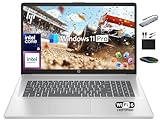
- 【16GB RAM + 1TB Storage (500GB SSD + 500GB External Driver)】Reams of high-bandwidth 16GB DDR4 RAM to smoothly run your games and video-editing applications, as well as numerous programs and browser tabs all at once. Get up to 15x faster performance than a traditional hard drive with 512GB of M.2 NVMe Solid State Drive storage. Enjoy additional storage with portable 500GB external drive.
- 【8-Core Intel Core i3-N305】Up to 3.8 GHz Max Boost Clock, 6 MB L3 Cache, 8 cores, 8 threads. Get the performance and graphics you need with an Intel processor at the affordability you want to connect, learn, and play anywhere.
- 【17.3" HD+ Display】Enjoy your photos, movies, and games with the crisp quality of 1.4 million pixels. Non-reflective and low gloss means you'll get less glare while you're outside. HP True Vision 720p HD camera with integrated dual array digital microphones. Online Class, Google Classroom, Remote Learning, Zoom Ready.
- 【Windows 11 Pro】Windows 11 Pro delivers a powerful, streamlined user experience that helps you stay focused and get more done – wherever your office might be. Safeguard data and access anywhere with hardware-based isolation, encryption, and malware protection built in. For Home, Student, Professionals, Small Business, School Education, and Commercial Enterprise.
- 【Authorized MarxsolAccessory】Bundle includes 6-in-1 USB-C Docking Station Hub (with USB 3.0, 4K-HDMI, USB C Connection, SD/TF Card Reader), HDMI cable, USB Cable, Mouse Pad, Wireless Mouse, and 500GB portable hard drive for your daily work and life. Free Microsoft Office Professional Plus with Lifetime license (including Word, Excel, OneNote, Outlook, PowerPoint, Access).
Create a Filter to Delete Future Emails Automatically
If you want Gmail to remove new messages from the same sender without manually searching and deleting them each time, create a filter. A Gmail filter can match incoming mail by sender address, subject text, keywords, size, or other conditions, then apply an action such as deleting the message, marking it as read, archiving it, or applying a label. For this task, the main action is Delete it, which sends future matching emails directly to Trash.
Create the filter from an existing email
- Open Gmail on a desktop browser.
- Open an email from the sender you want to target.
- Select the More menu, usually shown as three vertical dots near the top of the message.
- Choose Filter messages like this.
- Confirm that the sender’s email address appears in the From field.
- Select Create filter.
- Check Delete it.
- Select Create filter again to save it.
From that point forward, messages that match the filter will be moved to Trash automatically. They will not stay in your inbox, and they will be permanently removed after Gmail’s normal Trash retention period unless you restore them first. If you also want Gmail to apply the rule to messages that are already in your mailbox, check Also apply filter to matching conversations before saving the filter. This can help clean up older mail from the same sender while setting up automatic deletion for future messages.
The Tool Desk
Outbyte PC Repair FREEClear out junk files and repair common Windows errorsFree Scan →Outbyte Driver Updater FREEFix the driver behind crashes, sound loss and screen glitchesFind Drivers →Create the filter from Gmail search options
- In Gmail on desktop, select the search options icon at the right side of the search bar.
- Enter the sender’s address in the From field, such as [email protected].
- Add any extra limits if needed, such as words that must appear in the subject or body.
- Select Create filter.
- Choose Delete it.
- Select Create filter to finish.
Be specific when setting up the rule. If you enter only a domain, such as @example.com, Gmail may match messages from mulle people at that organization. If the sender uses several addresses, create separate filters for each one or use broader search terms only when you are sure they will not catch messages you still want to keep. For newsletters and automated alerts, it can also be useful to include subject text or recurring words from the message body so the filter targets only that type of email.
To edit or remove the filter later, open Gmail on desktop, select the gear icon, choose See all settings, then open Filters and Blocked Addresses. Find the filter in the list and choose edit to change its conditions or actions, or delete to stop Gmail from using it. The Gmail mobile app does not provide the full filter creation and management tools, so use a desktop browser or open Gmail in a mobile browser and request the desktop site if you need to create or modify filters from a phone.
Block or Unsubscribe from the Sender
After deleting messages from a sender, you may also want to stop new ones from arriving. Gmail gives you two main options: block the sender or unsubscribe from their mailing list. Blocking is best for unwanted personal or business email from a specific address. Unsubscribing is better for newsletters, promotions, alerts, and automated marketing emails you once signed up for.
Block a sender in Gmail on desktop
Blocking a sender does not stop the email from being sent, but it tells Gmail to send future messages from that address to Spam instead of your inbox. To block someone on a computer, open Gmail in your browser, open any message from the sender, then click the three-dot menu near the top-right of the message. Choose Block “sender name”, then confirm the action. Future messages from that email address will be routed to Spam automatically.
Do these 3 things before closing this tab:
1Fix the driver behind crashes, sound loss and screen glitches2Clear out junk files and repair common Windows errors3Scan for outdated or missing drivers - takes under a minuteBlock a sender in the Gmail mobile app
In the Gmail app for Android or iPhone, open a message from the sender you want to block. Tap the three-dot menu inside the message, not the three-dot menu at the very top of the app screen. Select Block “sender name”. If you do not see the option, make sure the message is open and that you are using the Gmail app rather than a third-party mail app connected to your Gmail account.
Unsubscribe from newsletters and promotions
If the sender is a company, store, publication, or automated mailing list, use Gmail’s unsubscribe option when available. Open one of the emails and look near the sender’s name at the top of the message for an Unsubscribe link. Click or tap it, then follow the prompt. Some senders remove you immediately, while others may take a few days to stop sending emails. You can also scroll to the bottom of the email and look for a smaller unsubscribe link in the footer.
- Use Block when the sender is unwanted, suspicious, or repeatedly emailing you from a direct address.
- Use Unsubscribe when the message is from a legitimate mailing list you no longer want.
- Use Report spam for deceptive, phishing, or unsolicited bulk email that should be flagged to Gmail.
- Keep your filter if you already created one to delete or archive future emails from that sender.
If you change your mind later, you can unblock a sender from Gmail settings on desktop. Click the gear icon, choose See all settings, open Filters and Blocked Addresses, then find the blocked address and select Unblock. For mailing lists, you may need to resubscribe through the sender’s website if you want to receive their emails again.
Frequently Asked Questions
How do I make sure Gmail deletes every email from that sender, not just the ones on the first page?
After searching for the sender, click the checkbox at the top of the results, then look for the message that says “Select all conversations in this search.” Click that link before choosing Delete. Otherwise, Gmail may only delete the messages currently visible on the page.
Can I delete emails from one sender in the Gmail mobile app?
Yes, but the mobile app is more limited than desktop Gmail. You can search for the sender’s email address, select messages, and tap the trash icon, but selecting thousands of matching emails is much easier on a computer. For large cleanups, use Gmail in a desktop browser.
Will deleting emails from a sender also remove them from Trash?
No. Deleted emails go to Trash first and usually stay there for 30 days before Gmail removes them automatically. To erase them sooner, open Trash, search for the sender if needed, select the messages, and choose “Delete forever.”
Can I automatically delete future emails from the same sender?
Yes. In Gmail on desktop, open the search options, enter the sender’s address in the From field, then create a filter. Choose “Delete it” so future matching emails go straight to Trash.
Is blocking a sender the same as deleting all their old emails?
No. Blocking a sender only affects new messages, usually sending them to Spam. It does not remove emails already in your inbox or other folders, so you still need to search for that sender and delete existing messages separately.
Free tools Windows power users keep installed
One-click scans. No signup required.
Bottom Line
Deleting all emails from one sender in Gmail is fastest on desktop: search for the sender’s address, select all matching conversations, then move them to Trash. If you want them gone for good, empty Trash or permanently delete the messages after reviewing them.
For ongoing cleanup, create a Gmail filter to automatically delete, archive, or label future emails from that sender, and block or unsubscribe if the messages are unwanted. Start with a careful search so you remove the right emails without losing anything .
Quick Recap
Product prices and availability are accurate as of the date/time indicated and are subject to change. Any price and availability information displayed on Amazon at the time of purchase will apply.

