Free tools Windows power users keep installed
One-click scans. No signup required.
Some links on this page are affiliate links: if you buy through them we may earn a commission, at no extra cost to you.
Choose the laptop from your largest local workload outward, starting with GPU memory rather than the processor or display. Around 6–8 GB of VRAM is a practical entry point for basic experimentation, 12–16 GB is a more comfortable range for regular model work, and demanding workloads may require 24 GB or more. A fast GPU is useful only if the chassis can sustain its power and your operating system, drivers and framework support the application.
Before buying, write down the largest model, context length, image or video resolution, or 3D scene you expect to run. Then verify the exact laptop’s VRAM, GPU power limit, cooling, system RAM, SSD capacity, upgrade options and software requirements. The same GPU name can behave very differently in two laptops.
As an Amazon Associate I earn from qualifying purchases.
The Tool Desk
Outbyte Driver Updater FREEFix the driver behind crashes, sound loss and screen glitchesFind Drivers →Outbyte PC Repair FREERepair Windows errors before they cause bigger problemsFix Now →How much VRAM do I need for local AI?
VRAM is usually the first capacity check because model weights, context data and intermediate results must fit in fast memory for practical performance. Lenovo’s current guidance places basic experimentation at 6–8 GB, comfortable model work at 12–16 GB, and heavy workloads at 24 GB or more.
Use the workload tiers as a starting point
| VRAM tier | Best fit | What to verify |
|---|---|---|
| 6–8 GB | Basic local experimentation, smaller models and lighter GPU-accelerated applications | Whether your chosen model, context length and software fit without aggressive compromises |
| 12–16 GB | A more comfortable middle tier for regular model work, creative generation and development | Sustained cooling and the laptop’s configured power limit, not just the GPU name |
| 24 GB or more | Heavy local workloads, larger models, high-resolution generation and demanding scenes | Physical chassis size, power delivery, Linux or Windows support and total system cost |
These are capacity bands, not performance guarantees. A model can fit in VRAM and still run slowly if the GPU has a low power limit, weak cooling or insufficient compute performance. Conversely, a very fast GPU cannot load a workload that exceeds its available memory without changing the model, context or execution method.
#1 Best Overall

- [Ray Tracing Redefined] – Experience cinematic realism with full ray tracing and breakthrough neural rendering technologies. From stunning light reflections to intricate shadows, your in-game world looks better than ever.
- [AI-Boosted Gameplay] – Unleash next-level performance and image quality with DLSS 4. Achieve ultra-smooth frame rates with Multi Frame Generation and enhanced Ray Reconstruction.
- [Competitive Advantage] – Compete faster with NVIDIA Reflex 2 technology featuring Frame Warp, which further reduces latency based on the game’s latest mouse input.
- [Unparalleled Video Playback] – The RTX 50 Series redefines how you enjoy your favorite movies, shows and videos. With advanced AI-powered upscaling and buttery-smooth playback, immerse yourself in vibrant colors, stunning clarity and flawless streaming.
- [Immersive Entertainment] – Rethink how you stream, chat or create content with NVIDIA Broadcast’s advanced AI enhancements. Clear your audio, upgrade your video, and craft your AI-powered home studio effortlessly.
Why context length and resolution matter
Two users running the same model may need different amounts of VRAM. Longer context windows keep more information active, while higher image or video resolutions increase intermediate memory use. A 6–8 GB machine may be adequate for a small test but become restrictive when you increase context, batch size or output resolution. Record those settings before shopping instead of sizing the laptop from the model’s parameter count alone.
Can a laptop run AI models locally?
Yes, provided the laptop has enough GPU memory and the application supports its operating system, drivers and accelerator stack. Local execution avoids sending prompts or assets to a remote service, but it shifts the requirements to your own GPU, RAM, storage, cooling and software configuration.
Separate capacity from compatibility
A laptop can meet a generic VRAM target and still fail to launch an application. Project G-Assist, for example, supports Windows 10 or Windows 11 and any GeForce RTX GPU from the 20, 30, 40 or 50 series with at least 6 GB of VRAM, including laptop models, or an equivalent RTX PRO GPU. That is an application-specific floor, not a universal requirement for every local model.
NVIDIA NeMo Helix is a much more specialized case: its published matrix calls for CUDA 13 or newer, Linux on x86_64, at least 40 GB of VRAM, 16 GB of system RAM minimum and 32 GB recommended, plus tens to hundreds of gigabytes of additional storage. A consumer laptop that comfortably runs a smaller model may therefore be unsuitable for this workload even if it carries an RTX label.
Check the complete software path
- Confirm the supported operating system and architecture.
- Check the required CUDA or other accelerator version.
- Verify that the laptop GPU and driver branch are supported.
- Allow for model files, caches, datasets and generated outputs on the SSD.
- Read the application’s own minimum and recommended specifications before purchase.
Which laptop GPU tiers are available for AI work?
NVIDIA’s current laptop selector makes the memory trade-off visible: RTX 5050, 5060 and 5070 Laptop GPUs are listed with 8 GB; RTX 5070 Ti and RTX 5080 models are listed in the 12–16 GB range; and the RTX 5090 Laptop GPU is positioned as an ultimate generative-AI and creative tier with 16 GB or more. Exact memory and performance still depend on the laptop configuration.
| Laptop GPU family | Listed VRAM range | Practical interpretation |
|---|---|---|
| RTX 5050 / 5060 / 5070 | 8 GB | Entry to lower-middle capacity for experimentation and lighter local workloads |
| RTX 5070 Ti / 5080 | 12–16 GB | More headroom for regular model work and demanding creative applications |
| RTX 5090 | 16 GB or more | High-end laptop option for generative AI and creative workflows; chassis limits are critical |
Treat the table as a memory guide, not a benchmark ranking. Two laptops with the same GPU family can have different wattage limits, cooling systems and firmware. The higher-power version may sustain workloads better, while a thin version may reduce clocks after heat builds up.
Do I need an RTX GPU for local AI?
You do not need an RTX GPU for every accelerated task, but an NVIDIA RTX laptop is the safer choice when your target application requires CUDA or explicitly lists RTX support. Integrated graphics can handle lighter work efficiently, while discrete GPUs are intended for heavier graphics, video editing and design workloads.
When integrated graphics can be enough
Integrated graphics share system memory and prioritize efficiency. They can suit CPU-first tools, light image processing, coding, browsing and applications that do not require a discrete accelerator. They are also easier to cool in thin laptops and usually provide better unplugged battery life.
When a discrete GPU is the practical choice
A discrete GPU has its own VRAM and a separate power budget, making it better suited to local model execution, GPU rendering, video work and other sustained parallel workloads. Microsoft notes that laptops can include a discrete GPU alongside an integrated GPU; the system may switch between them to balance performance and battery use. Check the application’s supported backend rather than assuming that any graphics processor will accelerate it.
How much system RAM should an AI laptop have?
For a general-purpose local-AI laptop, 32 GB is a sensible target when you will run models beside an IDE, browser, containers or datasets. Specialized software can set a different floor: NeMo Helix specifies 16 GB minimum and 32 GB recommended.
What’s actually slowing this PC down?
Pick the symptom - the matching free tool is one click away.
Why RAM is different from VRAM
System RAM holds the operating system, applications, preprocessing jobs, containers and datasets. VRAM holds GPU-side model data and intermediate computation. More RAM cannot make a model that exceeds the GPU’s capacity fit comfortably; it may allow some data to spill across the system bus, but that changes performance and may not be supported by the application.
Choose a configuration you can expand
- Prefer 32 GB when the memory is soldered or the laptop has no spare slot.
- If you can upgrade, check whether the laptop uses one or two modules and what maximum capacity the manufacturer supports.
- Account for memory consumed by virtual machines, containers, browsers and large datasets.
- Use the application’s published requirement when it is higher than this general recommendation.
How large should the SSD be for local models?
Reserve fast SSD space for model files, download caches, datasets, temporary files and generated outputs. A base installation can be small while the working set grows by tens or hundreds of gigabytes; NVIDIA’s specialized NeMo Helix guidance explicitly allows for that scale of additional storage.
Estimate storage before ordering
- List the model files you expect to keep locally.
- Add space for alternate versions, quantized copies or checkpoints you may test.
- Budget for datasets, image or video outputs and application caches.
- Keep free space for operating-system updates and scratch files so the SSD does not run near capacity.
A 1 TB SSD may be adequate for a focused setup, but a larger drive or a second slot is valuable when you work with multiple models or media-heavy projects. Confirm whether a second drive can actually be installed; some thin laptops have only one sealed slot.
Rank #2

- BEST-IN-CLASS PERFORMANCE – Achieve unrivaled performance with Windows 11 Pro an Intel Core Ultra 9 275HX processor, and an NVIDIA GeForce RTX 5090 Laptop GPU at 175W TGP.
- HIGH-PERFORMANCE MEMORY AND STORAGE – Multitask seamlessly with 32GB of DDR5-5600MHz memory and store all your game library on 2TB of PCIe Gen 4 SSD, with raw throughput up to 7,000MB/s.
- TOP-TIER ROG NEBULA HDR DISPLAY – Experience breathtaking visuals for gaming, creating, and entertainment, with Mini LED technology, 2,000+ dimming zones, dual ACR layers, a 240Hz refresh rate, and 100% DCI-P3 color for vibrant, lifelike imagery.
- STATE-OF-THE-ART ROG INTELLIGENT COOLING – ROG’s advanced thermals keep your system cool, quiet and comfortable. State of the art cooling equals best in class performance. Featuring an end-to-end vapor chamber, tri-fan technology and Conductonaut extreme liquid metal applied to the chipset delivers fast gameplay.
- SHOW OFF YOUR STYLE – Express yourself with the customizable AniMe Vision, showcasing text, animations, or your own creations on the lid of your laptop. The full-surround RGB light bar creates a striking 360° glow, while Stealth Mode turns off all lighting for a sleek, professional look around the base.
How do GPU power limits and cooling affect performance?
Cooling determines how long a laptop can maintain its advertised GPU performance. A discrete GPU draws more power and produces more heat than integrated graphics, so sustained local workloads can raise fan noise, surface temperature and energy use.
Read the listing beyond the GPU name
- Find the GPU’s configured total graphics power or equivalent power-limit specification.
- Look for the number and size of fans, heat pipes or vapor chambers, and the location of exhaust vents.
- Check whether the manufacturer documents performance modes that change power behavior.
- Read reviews for sustained-load behavior, not only short benchmark bursts; independent results vary by chassis and test method.
When two otherwise similar laptops have the same GPU and price, favor the model with the stronger cooling design and higher sustained power if the workload is memory- or compute-limited. A ventilated stand can improve airflow, but it cannot turn a thin, low-power chassis into a high-wattage workstation.
What CPU should accompany the GPU?
The CPU matters most for preprocessing, data loading, compilation, browser and IDE work, and tasks that do not run on the GPU. Prioritize a modern multi-core processor that matches the GPU tier without sacrificing VRAM, cooling or RAM capacity.
Balance rather than overspend
For a GPU-bound local model, moving from a midrange to a top-tier CPU may produce less benefit than choosing a laptop with more VRAM or a higher sustained GPU power limit. For CPU-heavy preprocessing, simulation or compilation, additional cores and stronger cooling can shorten the non-GPU portion of the workflow. Check that the CPU configuration does not force a weaker GPU or soldered memory at the same budget.
Which operating system and driver support should I verify?
Verify the operating system and accelerator stack before buying, because software requirements vary sharply. Project G-Assist lists Windows 10 and Windows 11 with supported RTX hardware, while NeMo Helix requires Linux x86_64 and CUDA 13 or newer.
Use a compatibility checklist
- Write down the exact operating system edition and architecture required by each application.
- Check the minimum driver and CUDA version, including whether the laptop vendor supplies updates.
- Confirm that your framework supports the laptop GPU generation rather than only desktop variants.
- Decide whether you need dual-boot, a virtual machine or containers, and verify that your chosen setup exposes the GPU correctly.
- Keep a rollback path for drivers if an update breaks a working environment.
Do not buy on the assumption that a future driver will add support. Availability of drivers, retail models and GPU generations changes quickly, so recheck the manufacturer and software documentation close to purchase.
How should I weigh display quality, portability and battery life?
These are workload trade-offs, not separate bonuses. A bright, high-resolution panel helps with image, video and design work, while a lighter chassis is easier to carry but often has less room for cooling and a smaller battery.
Match the display to the output
- For coding and text-heavy work, prioritize readable resolution, scaling and an ergonomic viewing angle.
- For image or video work, check the panel’s color coverage and calibration claims for the color space you use.
- For 3D or interactive workflows, a higher refresh rate can make viewport movement feel smoother, but it does not increase model capacity.
Plan for plugged-in operation
High sustained GPU power generally increases heat, fan noise and power draw. Expect the heaviest local workloads to run best from the supplied charger. Treat quoted battery life as a light-use estimate unless the manufacturer states a test workload comparable to yours.
What is the step-by-step buying process?
Follow this sequence to prevent an attractive specification from failing your actual workload.
Quick wins for a faster PC:
Scan for outdated or missing drivers - takes under a minuteDriver Scan →Repair Windows errors before they cause bigger problemsFix Now →Fix the driver behind crashes, sound loss and screen glitchesFind Drivers →- Define the largest job. Record the biggest model, context length, batch or concurrency setting, image or video resolution, and rendering scene you expect to use.
- Set a VRAM floor. Use 6–8 GB for basic experimentation, 12–16 GB for a more comfortable middle tier, and 24 GB or more for heavy workloads. Increase the floor if the application publishes a higher requirement.
- Shortlist GPU configurations. Compare the exact laptop GPU model, VRAM, power limit and driver support rather than the marketing family name alone.
- Inspect cooling and power. Check the chassis design, fan layout, exhaust, performance modes and charger rating. Look for sustained-load evidence when available.
- Choose system memory. Start at 32 GB if you will use local models with an IDE, browser, containers or datasets. Select a serviceable or expandable design when possible.
- Reserve SSD capacity. Add model files, caches, datasets, outputs and free-space headroom. Confirm the number of drive slots and replacement procedure.
- Validate the software stack. Match Windows or Linux, architecture, CUDA, drivers and framework versions to the applications you will install.
- Evaluate mobility. Compare weight, charger size, battery behavior and noise against how often you will run GPU workloads away from an outlet.
- Recheck the final configuration. Retail listings can combine different RAM, SSD, display and GPU power options under one product name. Confirm every part number before ordering.
How can two laptops with the same GPU perform differently?
The GPU label identifies a silicon class, not the complete implementation. Power limits, cooling, memory configuration, firmware and CPU sharing determine sustained behavior.
| Specification to compare | Why it matters for local AI and GPU work | Questions to ask |
|---|---|---|
| VRAM capacity | Sets the size of the workload that can remain on the GPU | Is the listed capacity dedicated VRAM, and does it meet the application’s requirement? |
| GPU power limit | Influences sustained clocks and throughput | What is the configured wattage in this exact chassis? |
| Cooling system | Controls heat, noise and long-run performance | Can it dissipate heat during an extended model or rendering session? |
| System RAM | Supports the OS, preprocessing, datasets and companion applications | Is 32 GB installed, and can it be upgraded? |
| SSD and expansion | Holds models, caches and outputs | How much space remains after the OS, and is a second drive possible? |
| Operating system and drivers | Determines whether the framework can access the accelerator | Does the exact GPU and OS combination meet the software documentation? |
What common buying mistakes cause local-AI problems?
Most failures come from sizing by a single headline specification. Use the symptoms below to identify the underlying mismatch.
The model will not load
First compare the workload’s memory requirement with available VRAM, including context and output settings. Lowering context or resolution may help, but if the application requires a fixed minimum, choose a laptop with more VRAM rather than relying on system memory.
The laptop starts fast and then slows down
That pattern often indicates thermal or power limits. Confirm that the laptop is plugged in, use its documented performance mode, clear blocked vents and test on a hard surface. If clocks still fall during sustained work, the chassis may be operating at its design limit.
Do these 3 things before closing this tab:
1Fix the driver behind crashes, sound loss and screen glitches2Clear out junk files and repair common Windows errors3Scan for outdated or missing drivers - takes under a minuteRank #3
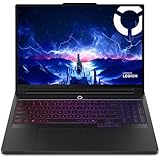
- Processor - Intel Ultra 9 275HX, 24C (8P + 16E) / 24T, P-core 2.7 / 5.4GHz, E-core 2.1 / 4.6GHz, 36MB
The GPU is detected but the application reports no accelerator
Check the driver, CUDA or framework version and whether the application supports the laptop GPU generation. On systems with integrated and discrete graphics, verify that the application is assigned to the discrete adapter.
The SSD fills unexpectedly
Locate model caches, duplicate downloads, checkpoints and output directories. Move large assets to a secondary drive only if the application supports that path, and preserve enough free space for temporary operations.
The laptop is too loud or short-lived on battery
High-performance local inference is a demanding, power-intensive workload. Use a lower performance mode for light tasks, reserve the discrete GPU for jobs that need it and plan serious sessions near an outlet.
Which laptop profile fits each type of buyer?
There is no single best configuration; the right profile depends on the largest workload you will actually run.
Recommended Free Tools
Local-AI beginner
Target at least 6–8 GB of VRAM, 32 GB of system RAM if the budget allows, and a fast SSD with room for several model files. Prioritize software compatibility and upgradeability over an expensive display.
Regular model developer
A 12–16 GB GPU, 32 GB or more of RAM and strong sustained cooling provide a more forgiving setup for models, IDEs, containers and datasets. Favor a chassis with documented power limits and accessible storage or memory.
Creative professional or heavy local workload
Start at 24 GB or more of VRAM when the application or model demands it, then verify operating-system, CUDA and storage requirements. Expect a larger, heavier laptop, higher fan noise and more frequent plugged-in use.
Mobile generalist
Choose the smallest discrete-GPU laptop that still meets your VRAM floor, but accept lower sustained power and less upgrade room. Battery life and weight may matter more than peak throughput when GPU sessions are occasional.
How often should I recheck laptop specifications?
GPU generations, drivers, prices and retail availability change quickly. The guidance and software requirements above were current on October 25, 2026; recheck the exact laptop and application documentation within 30 days of purchase or whenever a major GPU or software generation changes.
Keep a copy of the application version, driver version and model settings that worked. That record makes it easier to reproduce a setup after a driver update or when moving to a replacement laptop.
Frequently Asked Questions
Can I use an external GPU enclosure later if my laptop is too slow?
Only some laptops and operating systems support an external GPU enclosure, and the connection, driver stack and enclosure cost all affect the result. Treat external graphics as a compatibility question to verify for the exact laptop rather than as guaranteed upgrade capacity.
Will lowering the model’s precision solve a VRAM shortage?
Changing precision or using a smaller model can reduce memory use when the application supports it, but it may change quality, speed or feature support. If your target software publishes a hard VRAM minimum, software-side reductions may not remove that requirement.
Crashes, No Sound, or Screen Glitches?
Random freezes, missing sound and display glitches usually trace back to one bad driver. Find and replace yours safely.Free scan · under a minutePC Slower Than It Used to Be?
A free scan shows the junk files, broken settings and background clutter dragging Windows down - then fixes them in one click.Free scan · Windows 10 & 11Is a gaming-style laptop suitable for machine-learning work?
It can be, because gaming laptops often combine discrete GPUs with active cooling, but gaming branding does not specify VRAM, power limit or Linux and CUDA compatibility. Evaluate those technical details directly.
Should I buy the newest GPU generation for local AI?
Newer hardware may bring better performance or software support, but the useful choice is the configuration that meets your VRAM and application requirements at sustained power. Compare the exact laptop implementation and driver support instead of selecting by generation number alone.
Quick Recap
Product prices and availability are accurate as of the date/time indicated and are subject to change. Any price and availability information displayed on Amazon at the time of purchase will apply.

