Free tools Windows power users keep installed
One-click scans. No signup required.
Change Safari’s default search engine in the settings for your device: on a Mac, go to Safari > Settings > Search; on an iPhone, go to Settings > Search > Search Engine. On iPad, Apple documents two possible routes, depending on the interface available.
Change Safari’s search engine on a Mac
- Open Safari.
- In the menu bar, choose Safari > Settings.
- Click Search.
- For regular browsing, open the Search engine menu and choose an option. This setting controls searches entered in Safari’s Smart Search field. Apple’s Mac Safari guide describes this as the search engine Safari uses for regular web browsing.
Choose a separate engine for Private Browsing
In the same Search settings, use the separate Private Browsing search engine setting to choose what Safari uses in Private Browsing. This choice is independent of the regular-browsing setting. Apple documents this separate control for Mac; the cited iPhone and iPad instructions do not describe an equivalent mobile setting.

As an Amazon Associate I earn from qualifying purchases.
Change Safari’s search engine on an iPhone
- Open the iPhone’s Settings app.
- Tap Search, then tap Search Engine.
- Select an engine from the options shown, then tap Back.
These steps follow Apple’s iPhone instructions. In Japan, Apple documents a search-engine choice screen on iPhone; if you have already made that choice and want to change it, go to Settings > Apps > Safari, as described in Apple’s default-apps guide.
Do these 3 things before closing this tab:
1Fix the driver behind crashes, sound loss and screen glitches2Repair Windows errors before they cause bigger problems3Scan for outdated or missing drivers - takes under a minuteChange Safari’s search engine on an iPad
Apple documents more than one route. Try the one that appears on your iPad:
#1 Best Overall

- Magic Mouse is wireless and rechargeable, with an optimised foot design that lets it glide smoothly across your desk.
- The Multi-Touch surface allows you to perform simple gestures such as swiping between web pages and scrolling through documents.
- The rechargeable battery will power your Magic Mouse for about a month or more between charges.
- It’s ready to go straight out of the box and pairs automatically with your Mac, and it includes a woven USB-C Charge Cable that lets you pair and charge by connecting to a USB-C port on your Mac.
- Settings > Search > Search Engine, as shown in Apple’s iPhone and iPad instructions.
- Settings > Apps > Safari > Search Engine, as shown in Apple’s iPad Safari guide.
Tap Search Engine, select an option, then return to Settings.
Quick Recap
Best Value
Rank #4
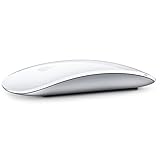
- "Bluetooth Wireless"
- "Multi-Touch Surface"
- "Laser Tracking"
- "Customizable Functionality"
- "Mac OS X 10.5.8+ Compatibility"
Rank #3

- Magic Mouse is wireless and rechargeable, with an optimized foot design that lets it glide smoothly across your desk.
- The Multi-Touch surface allows you to perform simple gestures such as swiping between web pages and scrolling through documents.
- The incredibly long-lasting internal battery will power your Magic Mouse for about a month or more between charges.
- It’s ready to go right out of the box and pairs automatically with your Mac, and it includes a woven USB-C to Lightning Cable that lets you pair and charge by connecting to a USB-C port on your Mac.
- System Requirements: Bluetooth-enabled Mac with OS X 10.11 or later , iPad with iPadOS 13.4 or later.
Rank #2

- Magic Mouse is wireless and rechargeable, with an optimised foot design that lets it glide smoothly across your desk.
- The Multi-Touch surface allows you to perform simple gestures such as swiping between web pages and scrolling through documents.
- The rechargeable battery will power your Magic Mouse for about a month or more between charges.
- It’s ready to go straight out of the box and pairs automatically with your Mac, and it includes a woven USB-C Charge Cable that lets you pair and charge by connecting to a USB-C port on your Mac.
What to check if the setting or label is missing
- Make sure you are changing Safari’s search setting, not the default browser app. The search-engine choice changes the service Safari uses for web searches; it does not replace Safari with another browser.
- On Mac, check whether you are adjusting regular browsing or Private Browsing; each has its own selection.
- On iPad, try the other Apple-documented Settings route. If neither matches, the labels may differ with your software version or region. Apple’s guides do not establish one interface path for every version and region.
- Choose from the engines actually displayed on your device. Apple’s instructions do not promise one universal list of available options across devices, software versions, and regions.
Product prices and availability are accurate as of the date/time indicated and are subject to change. Any price and availability information displayed on Amazon at the time of purchase will apply.