The Tool Desk
Outbyte PC Repair FREEClear out junk files and repair common Windows errorsFree Scan →Outbyte Driver Updater FREEScan for outdated or missing drivers - takes under a minuteDriver Scan →Some links on this page are affiliate links: if you buy through them we may earn a commission, at no extra cost to you.
Yes, a cheap home server can replace some subscriptions—but only if it handles a service you actually use and its full running cost is lower than the subscriptions you cancel. Start by listing the jobs you want it to do, such as streaming your own media, syncing files, or keeping backups. Then compare reusing a computer, buying a used office mini PC, and purchasing a low-power mini PC against the cost of storage, electricity, maintenance, and any remote-access services you still need.
A server can replace a function, not necessarily a commercial service’s catalog or convenience. The goal is to calculate your household’s break-even point before buying hardware.
As an Amazon Associate I earn from qualifying purchases.
What can a home server replace?
A home server is a computer that runs services for people on your home network or, if configured for remote access, while they are away. Common uses include streaming a personal media library, syncing and sharing files, and storing backups. It may let you stop paying for a particular service if it meets the same need—but it does not automatically replace every subscription.
For example, Jellyfin organizes and streams media that you supply; it does not provide a licensed streaming catalog or host other people’s media servers. Its project says the server and official clients are free to download, but you remain responsible for having the right to access the media you add. Jellyfin’s official site explains the software’s role and free-client policy.
Popular on Amazon

- TRUE PLUG-AND-PLAY HOME SERVER: Forget complex VPS setups or command lines. Simply connect power and Ethernet to start hosting immediately with zero technical skills required. This managed, all-in-one appliance is the easiest way to run blogs (compatible with WordPress), private applications, and bots directly from home using your own domain.
- NO MONTHLY SUBSCRIPTION FEES: Stop renting server space. Enjoy a one-time hardware purchase model with absolutely no recurring hosting fees for typical usage. The system includes a generous monthly traffic allowance that covers the needs of almost all personal and small business websites, allowing the device to pay for itself quickly.
- INSTANT ONE-CLICK APP LIBRARY: Instantly deploy over 50 curated open-source applications without hassle. The diverse ecosystem includes essential tools, compatible with WordPress, Ghost, Nextcloud (for private cloud storage), Joomla, and OpenClaw. Perfect for content management, e-commerce, private email, and business tools.
- INCLUDES FREE SSL & ENTERPRISE SECURITY: Get professional performance and safety without the extra costs. Seamlessly integrate your existing custom domain or utilize the included free subdomain. Your sites are automatically secured with free SSL certificates, built-in DDoS protection, and global CDN acceleration.
- TOTAL DATA PRIVACY & OWNERSHIP: Keep your digital assets secure on your own local hardware, not on third-party "big tech" servers. Designed for privacy-conscious individuals, creators, and small businesses seeking platform independence. Includes an intuitive web management portal for complete peace of mind.
For file syncing and sharing, Nextcloud offers software that runs on a server you control, with desktop and mobile synchronization clients described in its official user manual. Self-hosting shifts responsibility for availability, updates, and recovery to you. Whether either option can replace a paid service depends on the exact features you use and whether you are comfortable maintaining them.
What should you decide before buying hardware?
Write down the specific jobs you want the server to handle, then choose hardware around those jobs. A narrow first build—such as file syncing and a personal media library—is easier to size and maintain than a machine intended to do everything.
- List the subscriptions and functions you use. Note what you would actually cancel, not services you might someday replace. Separate media streaming, file storage, backup, and other jobs.
- Identify what can be self-hosted. Personal media streaming and file syncing are examples supported by Jellyfin and Nextcloud. Check whether the alternative provides the features you rely on; do not assume it has a commercial service’s catalog, hosted convenience, or support.
- Set a workload boundary. A basic file service differs from multiple simultaneous video transcodes or virtual machines. If you need demanding tasks, verify the exact hardware and software requirements rather than relying on a processor name or a generic stream-count promise.
- Choose a storage and backup plan. Estimate how much data needs to be online and how you will recover it if a drive fails. A second copy on another device or in another location matters for important data; a storage mirror or RAID arrangement is not, by itself, a separate backup.
- Price the complete setup and ongoing costs. Include memory, a boot drive, data drives, adapters, electricity, backups, and any services you keep. Then compare that total with the subscriptions you expect to cancel.
Which hardware is a sensible cheap starting point?
For a light household workload, compare a computer you already own, a used 1-liter office computer, and a low-power mini PC. A multi-bay NAS is more appropriate when you need several internal drives or a purpose-built storage arrangement. These are categories to evaluate, not tested product recommendations.
| Option | May suit you if… | Check before buying | Main trade-off |
|---|---|---|---|
| Repurposed computer | You already have a suitable machine and want to keep upfront spending low. | Its configuration, drive condition, storage connections, power draw, noise, and ability to run continuously. | Low purchase cost can be offset by higher electricity use, age, or limited expansion. |
| Used office mini PC | You want a compact starter system and can inspect the actual used configuration. | Included memory and storage, upgrade options, drive connections, condition, and power draw. | Used pricing varies, and a small case may limit storage expansion. |
| Low-power mini PC | Your workload is modest and you want a small, purpose-bought computer. | Required memory and boot storage, data-drive options, hardware acceleration needs, and measured power for the actual configuration. | Compact systems may need external storage or adapters, adding cost and complexity. |
| Multi-bay NAS | You need several internal drives or a storage-focused enclosure. | Drive count and type, included hardware, expansion, backup plan, noise, and power consumption with drives installed. | More bays and spinning disks can increase both purchase and ongoing electricity costs. |
Do not compare a mini PC’s sticker price with a fully configured server. Add the cost of anything needed to make it usable: RAM, a boot drive, data storage, cables or adapters, and a separate backup destination. A used system may be cheaper initially, but check drive health and replacement options. A larger system may offer more expansion, while a compact unit can be easier to place at home.
Media playback also has two different demands: direct playback and transcoding, where the server converts a stream for a client. Hardware acceleration can matter for transcoding, but no particular processor or simultaneous-stream count is established here. Confirm the demands of your devices, media formats, and intended workload before choosing a system.
Also popular on Amazon

- 12th Intel Alder Lake N95 Processor – The GMKtec G3 S Mini PC is powered by the 12th Gen Intel N95 processor with 4 cores, 4 threads, 6MB cache and a burst frequency up to 3.4GHz. Compared with N100/N5105/N5100/N5095, the N95 delivers up to 36% overall performance improvement. Perfect for routine tasks, office work, and home entertainment, this compact mini desktop is more convenient than traditional bulky PCs.
- 8GB RAM & 256GB SSD Storage – Pre-installed with 8GB DDR4 memory and a fast 256GB M.2 2242 SSD, the G3 S mini desktop offers quicker startup, smoother multitasking, and faster file transfers. Enjoy seamless performance whether you’re working on multiple applications, browsing, or streaming content.
- Rich Interfaces & Connectivity – The G3 S mini computer comes equipped with USB 3.2 (up to 10Gbps), dual HDMI 2.0 (4K@60Hz), and a 3.5mm audio jack. With support for WiFi 5, Bluetooth 5.0, and Gigabit Ethernet (RJ45 1000MbE), it connects easily with monitors, projectors, printers, office equipment, and other peripherals, making it versatile for both home and business use.
- Dual 4K Display Support – Featuring upgraded Intel UHD Graphics (up to 1000MHz), the G3 S supports 4K video playback and AV1 decoding for a smooth viewing experience. With dual HDMI outputs, you can connect two 4K@60Hz displays simultaneously, enabling efficient multitasking for work and entertainment.
- GMKTEC WARRANTY - GMKtec offers a 3-year limited warranty (1 year replacement + 2 years parts replacement) for each mini PC, starting from the date of the purchase effective on all sales starting Oct. 2026. All defects due to design and workmanship are covered. With a professional after sales team always ready to attend to your needs, you can simply relax and enjoy your mini PC
How much will a home server cost to run?
Use your own hardware price, measured or specified average power for the actual configuration, and local electricity rate. A useful monthly estimate is:
Monthly server cost = (hardware purchase cost ÷ planned months of use) + (average watts × 24 × 30 ÷ 1,000 × local electricity price per kWh) + monthly storage, backup, and service costs
The power term estimates electricity for a machine running continuously for 30 days. For a more useful result, measure the complete system if possible, including its drives and any attached storage; the computer’s advertised power figure alone may not represent the always-on setup. Drive consumption is a meaningful part of a storage server’s total, so adding spinning disks can raise operating costs. See the hardware comparisons and power discussion in the ServeTheHome hardware coverage and the power-consumption guide referenced in the hardware research, and check figures against your own setup and electricity rate.
This calculation treats the hardware purchase as spread across the months you expect to use it. It does not put a dollar value on setup, updates, troubleshooting, or recovery time. Add that value if your time is part of the decision. There is no universal household saving or payback period: the result changes with local electricity prices, hardware, storage, and which subscriptions you actually stop paying.
Break-even example—using your own numbers
Suppose your household identifies subscriptions it would genuinely cancel, with a combined monthly cost of S. Calculate the server’s monthly hardware allocation, electricity, storage, backup, and service costs as C. The monthly cash difference is S − C. If the result is positive, the server is cheaper on that simplified monthly basis; if it is zero or negative, it does not save money under those assumptions. Setup time, maintenance, service differences, and one-off replacement costs may change the decision.
Crashes, No Sound, or Screen Glitches?
Random freezes, missing sound and display glitches usually trace back to one bad driver. Find and replace yours safely.Free scan · under a minuteWindows Errors? Fix Them Before They Spread
Repair common Windows errors and clear accumulated junk for a smoother, more stable PC - no reinstall needed.Free scan · no reinstallAlso popular on Amazon
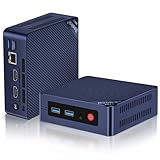
- 【Intel N100 Processor & Swift Performance】 This MINI S12 Pro mini PC is equipped with the upgraded Intel Alder Lake-N100 processor (4C/4T, up to 3.4GHz), delivering responsive and lag-free daily computing performance. It easily handles business office tasks, online video conferences, web browsing, and light creative work such as photo editing with outstanding efficiency.
- 【Swift DDR4 Memory & Massive NVMe Storage】 This Beelink mini PC is configured with 16GB DDR4 3200MHz memory, delivering instant system responsiveness with zero lag or stutter. The built-in 512GB M.2 2280 NVMe SSD enables ultra-fast boot-up and file transfer speeds, with expandable storage up to 4TB to accommodate your growing data and usage needs.
- 【4K UHD Graphics & Dual HDMI Display Output】 Powered by Intel UHD Graphics 750MHz with 24EUs, this Beelink N100 mini PC supports smooth 4K video playback, delivering stunning visual effects. It can also connect to a projector to build a private home theater for immersive entertainment. Dual HDMI ports enable dual-monitor simultaneous connection to greatly boost your workflow efficiency. Perfect for Zoom meetings, office work, web browsing and online streaming all at once.
- 【Full-Featured High-Speed Connectivity】 This Beelink S12 Pro N100 mini PC is equipped with four 10Gbps USB 3.2 Gen 2 ports for blazing-fast file transfers. It also integrates a 2.5G Ethernet port for lag-free streaming, plus dual-band Wi-Fi 6 and Bluetooth 5.2, delivering stable all-round wireless connectivity.
- 【Ultra-Compact & Whisper-Quiet Low-Noise Design】 Boasting an ultra-slim chassis measuring 4.52 x 4.04 x 1.54 inches, this N100 mini PC occupies minimal desktop space, perfect for home office and compact workspaces.Built with a low-noise fan and high-efficiency heatsink for superior CPU cooling, it runs at a near-silent 32dB, letting you work, study and relax without disturbance. It achieves 40% better heat dissipation for rock-solid stability and long-lasting reliable performance.
How do you install the software?
Install software that matches the job rather than trying to build a general-purpose system first. Jellyfin’s documentation covers installation routes including Linux distributions and Docker, setup, hardware acceleration, and backup and restore. Nextcloud’s manual describes its self-hosted server and synchronization clients.
- Prepare the machine and storage. Confirm that the system boots reliably, has enough memory and boot storage for the software you select, and can connect to the data drives you plan to use.
- Install the server software. Follow the relevant project’s official installation instructions for your operating system or deployment method. For Jellyfin, use the official documentation.
- Complete initial setup. Create the required account or administrator access and configure the service. Keep credentials private and use unique, strong passwords.
- Add files and test on your home network. For a media library, add media you are entitled to access. For file syncing, connect a client and confirm files appear where expected.
- Set up backups and recovery. Keep a separate copy of important files and understand how you would restore the service and its data before relying on it.
- Plan for ongoing care. You own the work of applying updates, checking availability, replacing failed storage, and recovering from mistakes.
Should you enable remote access?
No—not unless you need to use the service away from home. Jellyfin says local use does not require an internet connection, though fetching metadata can rely on external providers. Keeping the service on the local network avoids adding remote-access configuration when you do not need it.
If you do need remote use, treat it as a security and maintenance decision, not a checkbox. Jellyfin’s networking guidance describes VPN and reverse-proxy approaches, recommends HTTPS, and warns that direct port forwarding is not recommended. Follow current official instructions for the software and network setup you choose; do not expose a service publicly without understanding how you will secure and update it.
When is a home server likely to save money?
It is most plausible when you already have suitable hardware, need a self-hosted function that replaces a service you will truly cancel, and can keep storage and power costs modest. It is less likely to be a clear saving if you must buy multiple drives, need an elaborate setup, or continue paying for the original services because their catalogs or convenience remain important.
Do these 3 things before closing this tab:
1Fix the driver behind crashes, sound loss and screen glitches2Repair Windows errors before they cause bigger problems3Scan for outdated or missing drivers - takes under a minute- More favorable: existing or inexpensive hardware; a modest workload; a small number of drives; a realistic backup plan; and subscriptions you can cancel without losing something you still value.
- Less favorable: high electricity rates or power-hungry equipment; several always-on drives; expensive storage and backup requirements; remote access you are not prepared to secure; or a workload that requires more hardware than a starter system can support.
Make the decision with the full monthly estimate, not a hardware price alone. Software may cost nothing to download, but ownership still has costs in equipment, energy, storage, backup, and time.
Also popular on Amazon

- 【1-Year Worry-Free Warranty】Your satisfaction is our priority. Glorlin provides a 1-year warranty covering any hardware malfunctions. We support returns or exchanges to ensure a 100% worry-free shopping experience. Have a question? Reach out to us through our official after-sales email for a prompt solution.
- 【Reliable Performance with Ryzen 7 Processor】Powered by AMD Ryzen 7 8745HS (8 cores, 16 threads, up to 4.9GHz), this mini pc delivers stable performance for daily workloads. Suitable for office tasks, programming, and multitasking, it works well as a ryzen mini pc for both home and business use.
- 【Radeon 780M Graphics for Media and Light Gaming】Equipped with integrated Radeon 780M graphics, this mini gaming pc supports smooth 4K video playback and handles many popular games at adjusted settings. A practical mini computer for media, editing, and casual gaming.
- 【Mini PC 16GB RAM and Fast Storage】This mini pc 16gb ram configuration includes single 16GB DDR5 memory (4800MHz,3GB is assigned to VRAM by default) and a 1TB NVMe SSD, offering quick boot times and responsive system performance. Dual M.2 slots allow storage expansion up to 4TB for growing files and projects.
- 【Quad 4K Display Support for Productivity】The mini desktop computer supports up to four 4K displays via HDMI, DisplayPort, and dual USB-C ports. Ideal for multi-screen workflows such as coding, trading, or content creation with improved efficiency.
Frequently Asked Questions
Can Jellyfin replace Netflix or another streaming service?
Only if you are satisfied with a library of media you supply and are entitled to access. Jellyfin does not provide a commercial streaming catalog or host media for you.
Can I use a home server without an internet connection?
Jellyfin can serve media on a local network without internet access. Some optional functions, such as retrieving metadata from external providers, may still depend on an internet connection.
Do I need Linux to run a home server?
Not necessarily. Jellyfin’s official documentation lists installation options for Linux distributions and Docker, among other supported routes; choose an option that matches your hardware and maintenance comfort.
Recommended Free Tools
Is RAID a backup for a home server?
No. RAID or mirrored storage can help keep a system running through some drive failures, but it does not protect against every cause of data loss. Keep a separate copy of important files on another device or location.

