Some links on this page are affiliate links: if you buy through them we may earn a commission, at no extra cost to you.
The idea sounds intuitive: you want your Philips Hue lights to “notice” when someone moves and then react like a motion sensor. The catch is physical—Hue bulbs are excellent actuators (they emit light), but they don’t have the hardware to measure motion on their own.
What you can do is make your lighting behave exactly like motion-sensing lights by pairing Hue with real motion detection (PIR sensors, cameras, or other presence systems) and then wiring the triggers to Hue automations. This guide covers what’s possible, what isn’t, and several reliable setups you can implement.
As an Amazon Associate I earn from qualifying purchases.
Free tools Windows power users keep installed
One-click scans. No signup required.
Can Hue lights detect motion by themselves?
No. Philips Hue bulbs (including popular models like Hue A19 and Hue BR30) are designed to control illumination, not to sense distance, movement, or heat changes. Hue can dim, brighten, and change colors, but it cannot “read” your room for movement unless you add separate sensors or software-based motion detection.
If you’ve seen claims that Hue lights can detect motion, they’re usually referring to one of these patterns:
Popular on Amazon

- WHAT'S IN THE BOX: This starter kit includes one Hue Bridge Pro & four A19 E26 LED smart bulbs that produce cool-to-warm and full-color light; perfect for customizable lighting anywhere in your home.
- MORE CAPACITY: Migrate all your existing Hue devices to the new Bridge and add more with support for 150+ LED lights and 50+ accessories.
- HUE MotionAware: Program your LED light bulbs to switch on automatically when movement is detected; all you need are 3 Hue devices with no separate motion sensors required
- MORE FEATURES: Add a PHILIPS Bridge to unlock Hue Sync lighting, security integration, and capacity to store 500 scenes and more automations for convenience
- WHITE AND COLOR AMBIANCE: With tunable warm-to-cool white light and 16 million colors to choose from, find the perfect light for every mood with these smart light bulbs
- Dedicated sensors (like Philips Hue motion sensor) trigger lighting automations.
- Camera-based motion detection triggers lights via an automation engine.
- Third-party presence sensors (PIR, mmWave, radar) trigger Hue.
What Philips Hue can do today (official path)
Philips Hue already supports a straightforward approach: use Hue’s own motion sensor hardware and let the Hue ecosystem handle the logic. This is the lowest-maintenance option and usually the most reliable.
Use a Philips Hue motion sensor
Philips sells motion sensors designed to work with the Hue Bridge. Depending on region and packaging, you might see variants like Hue Motion Sensor (battery-powered, typically PIR-based). These are true motion detectors with an integrated PIR sensor and a built-in trigger for automations.
Pair it with Hue lighting automations
Once the motion sensor is paired, you can configure lighting behavior (turn on, brightness level, fade timing, and off delay) to match the way you want the space to “feel” like it’s being sensed.
DIY ways to make Hue lights act like motion sensors
If you want the result—lights reacting to motion—but you’re willing to build your own system, you can drive Hue from any motion event source. The “sensor” is whatever detects motion; Hue is the actuator.
Use Home Assistant + real motion detection (camera or PIR)
Home Assistant can integrate with a Hue Bridge and respond to motion events from cameras, PIR sensors, or other smart-home platforms. You then create automations that turn Hue lights on when motion is detected, and off after a delay.
Use Hue app rules triggered by other sensors (works when you already have motion)
If you already own motion sensors that integrate with HomeKit, Matter, Alexa, Google Home, or Hue-compatible ecosystems, you can often connect the motion event to Hue routines. In some homes, this gives you a near-direct “motion-to-lights” experience without heavy DIY.
The Tool Desk
Outbyte PC Repair FREERepair Windows errors before they cause bigger problemsFix Now →Outbyte Driver Updater FREEScan for outdated or missing drivers - takes under a minuteDriver Scan →Use a phone or computer camera for motion detection and drive Hue
Camera-based motion detection can be very effective in rooms where PIR sensors struggle (for example, near ceiling fans or in areas with moving shadows). The tradeoff is tuning to reduce false positives—especially with changing daylight or reflective surfaces.
Best-practice setups by home scenario
Different areas behave differently. Here are proven patterns that map well to common motion-light use cases.
Hallway with frequent footsteps
Use a PIR motion sensor (or a camera motion event if your hallway has tricky lighting). Set a short on-delay (e.g., 30–90 seconds) and avoid aggressive brightness changes at night.
Garage/workshop with irregular occupancy
Motion sensors can be spotty if you only move your hands or if the space is large. Consider mmWave presence sensors (if you have them) or camera motion detection, then use longer off delays so you don’t get “light cycling” while working.
Do these 3 things before closing this tab:
1Repair Windows errors before they cause bigger problems2Fix the driver behind crashes, sound loss and screen glitches3Clear out junk files and repair common Windows errorsStaircase safety lighting
Prioritize reliability. Use motion sensors mounted so the PIR “sees” movement across the path, then configure a gradual fade-out (not instant off) to feel natural and reduce glare.
Also popular on Amazon

- WHAT'S IN THE BOX: This starter kit includes one Hue Bridge Pro, a Hue tap dial smart switch for lights, and three A19 E26 LED smart bulbs that produce cool-to-warm and full-color light.
- MORE CAPACITY: Migrate all your existing Hue devices to the new Bridge and add more with support for 150+ lights and 50+ accessories.
- HUE MotionAware: Program your lights to switch on automatically when movement is detected; all you need are 3 Hue devices with no separate motion sensors required.
- MORE FEATURES: Add a Bridge to unlock Hue Sync lighting, security integration, and capacity to store 500 scenes and more automations for convenience
- WHITE AND COLOR AMBIANCE: With tunable warm-to-cool white light and 16 million colors to choose from, find the perfect light for every mood.
Outdoor walkway (weather and power considerations)
For outdoor areas, use weather-rated motion sensors where possible. If you use cameras, consider IR (night vision) and ensure your motion algorithm ignores passing headlights or pets.
Step-by-step: Home Assistant setup to trigger Hue from motion
This is the most flexible way to make Hue behave like motion-sensing lights without being limited to Hue’s own sensors.
Prerequisites
- Philips Hue Bridge connected to your network
- Home Assistant installed (commonly on a mini PC, Raspberry Pi, or virtual machine)
- Hue lights added to the Hue Bridge in the Philips Hue app
- A motion event source: either a PIR sensor integration or a camera motion detection entity
- Basic access to the Home Assistant UI (and optionally its YAML/automation editor)
Connect the Hue Bridge to Home Assistant
- Open Home Assistant.
- Go to Settings > Devices & services.
- Select Add Integration.
- Search for Philips Hue and choose it.
- Follow the prompts to connect to your Hue Bridge (Home Assistant will typically ask you to authorize against the Bridge).
- After pairing, confirm your Hue lights appear as entities.
Add a motion source (camera or PIR) and verify events
- Integrate your motion source first (example: add a camera integration such as Frigate, or add a PIR sensor via Zigbee/Z-Wave integration).
- In Home Assistant, verify you have an entity that changes state when motion occurs (commonly something like
binary_sensor.*_motion). - Go to Developer Tools > States and watch the entity update while you trigger motion.
Create an automation that turns lights on and then off
- In Home Assistant, go to Settings > Automations & Scenes.
- Select Create Automation.
- Choose Trigger as your motion entity turning on.
- Choose an Action to turn on the desired Hue lights.
- Set a brightness and color temperature (or color) that suits nighttime vs daytime.
- Add a second action: turn lights off after a delay (example: 60 seconds) unless motion is retriggered.
- Save and run the automation.
If you want the off delay to “extend” when motion continues, implement the off step as “wait for motion to stop” or use conditions/choose blocks. The best method depends on your motion entity type.
Quick wins for a faster PC:
Repair Windows errors before they cause bigger problemsFix Now →Fix the driver behind crashes, sound loss and screen glitchesFind Drivers →Clear out junk files and repair common Windows errorsFree Scan →Tune sensitivity and timing to avoid flicker
Most complaints about motion lights come from two issues: too-short off delays and noisy motion detection. Start with conservative settings (e.g., 60–120 seconds), then adjust based on how long people remain in the area.
For cameras, also watch for sunlight changes. A bright doorway can make motion detection “strobe” as exposure adapts.
Step-by-step: Philips Hue app automations (when you already have motion)
If you’re using Hue’s own sensor hardware, you can do most configuration inside the Philips Hue app without Home Assistant.
Create a motion-based scene
- Open the Philips Hue app.
- Go to Automations (wording can vary by app version).
- Select Motion and choose your Hue motion sensor.
- Create a new automation (sometimes called a routine or scene).
- Choose the lights it controls.
- Set what happens when motion is detected: brightness level, fade time, and preferred color/white mode.
Set schedules and fade timing
- Add a schedule so it only triggers at certain hours (for example, evening to early morning).
- Lower brightness at night to avoid glare. Many households prefer warm white at night (adjust to taste).
- Set the “turn off after” delay. Start around 60–90 seconds for hallways and staircases.
Test and adjust for daylight vs night
Test during the time of day you care about most. If your automation triggers too easily in daylight, reduce sensitivity at the sensor (if your sensor model supports it) or refine your scene logic.
What you cannot do (and common misconceptions)
It’s worth stating the hard limits, because they determine whether you’re building something stable—or chasing a dead end.
No, lights can’t “sense” motion with Hue alone
Hue bulbs can change their output, but they can’t detect changes in distance, body heat, or movement. Without additional sensing hardware or software, there’s nothing to trigger motion behavior.
Entertainment mode isn’t motion detection
Hue Entertainment (including setups that sync lights to on-screen content) reacts to media playback, not to physical motion in your room. It won’t detect you walking unless you’re using a separate motion-to-media workflow.
Philips Hue API limits
The Hue ecosystem can control bulbs via apps and integrations, but control isn’t sensing. Even when you use the Hue API through tools like curl or a Node-based dashboard, you still need motion events coming from somewhere else.
Also popular on Amazon
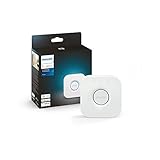
- WHAT’S IN THE BOX: Includes one Hue Bridge that unlocks the full potential of your Philips Hue system, including automations, smart control from anywhere in the world, and so much more
- SECURE AND STABLE CONNECTION: With Zigbee advanced technology, the bridge ensures a reliable connection that won't strain your Wi-Fi, Hue lights work when your Wi-Fi is down
- CONTROL LIGHTS FROM ANYWHERE: The Hue hub enables out-of-home control, control your lights with the Hue app anywhere you have an internet connection, with your home assistant
- ENJOY SMART LIGHTING FOR YOUR ENTIRE HOME, INDOORS AND OUT: Add up to 50 lights and accessories to your smart lighting system, a Hue Bridge is required to control Hue outdoor lights and accessories
- LEVEL UP YOUR MOVIES, MUSIC, AND GAMES WITH SURROUND LIGHTING: Make your lights dance, flash, dim and brighten along to your movies, TV shows, PC and music, the sync requires HDMI Sync Box
This is why successful “lights as motion sensors” setups always include an external trigger: PIR, camera detection, mmWave presence, or another platform’s sensor.
Independent reader supportYour contribution helps us test, update, and keep practical guides available for everyone.Troubleshooting when automations don’t trigger
When motion-based lighting fails, it’s rarely “mystical.” It’s usually one of a few predictable issues.
Hue Bridge connectivity issues
- Check Bridge status in the Hue app.
- Verify your network isn’t blocking local traffic (especially if Home Assistant runs in a separate VLAN).
- If automations are slow, restart the Bridge and then Home Assistant.
Home Assistant event mismatches
- Confirm your motion entity really changes to on when you expect it.
- Make sure you’re referencing the correct entity ID (a common mistake is copying an example entity name).
- Check automation conditions. A single time-of-day condition can silently prevent triggers.
Camera motion false positives
- Use zones/masks so motion detection only counts in areas you care about.
- Lower sensitivity if you see frequent triggers from shadows or moving plants.
- Consider using object detection (person vs car) if your stack supports it.
Lights turning off too early
- Increase the off delay (try 90–180 seconds for larger spaces).
- If motion continues, adjust logic so each new motion event extends the timer.
- Look for a second automation turning the lights off (conflicting routines are common).
Alternatives if you want true wall-mounted motion sensing
If your goal is “real motion sensing,” it’s almost always best to use dedicated sensors where the hardware can measure movement reliably, then use Hue only to control light output.
Use dedicated PIR sensors and keep Hue as the actuator
PIR sensors are cheap, robust, and battery-friendly. You’ll get better responsiveness than camera triggers in many indoor environments.
Outdated Drivers Are Slowing You Down
One free scan finds every outdated or missing driver and matches the right update for your exact hardware.Free scan · exact hardware matchPC Slower Than It Used to Be?
A free scan shows the junk files, broken settings and background clutter dragging Windows down - then fixes them in one click.Free scan · Windows 10 & 11Use HomeKit or Matter sensors (where supported)
If you’re in an Apple setup, HomeKit can integrate certain motion sensors and drive lights accordingly. Where it fits, this gives you an “it just works” experience on iPhone and iPad without running a more complex automation hub.
FAQs
Will Hue lights ever replace a motion sensor?
Not with Hue bulbs alone. True motion sensing requires hardware like PIR, radar/mmWave, ultrasonics, or a camera-based system with software running elsewhere.
What’s the most reliable way to make lights react to motion?
Use Philips Hue’s own motion sensor (with the Hue Bridge) or use a dedicated PIR sensor and drive Hue lighting via automations in the app or Home Assistant.
Can I do this without a Hue Bridge?
Most Hue automation and third-party integrations still require a Hue Bridge for full local control. Some limited setups may work through platform integrations, but for robust motion-triggered behavior, assume you’ll need the Bridge.
What’s actually slowing this PC down?
Pick the symptom - the matching free tool is one click away.
Do I need a camera for motion detection?
No. Cameras are optional. PIR sensors are usually the simplest choice indoors, while cameras help when PIR performance is poor or when you need person-level detection.
Why do my lights flicker or turn on randomly?
Usually it’s noisy motion detection (camera glare, shadows) or conflicting automations (multiple routines affecting the same lights). Add zones, increase delays, and check for overlapping triggers.
Bottom Line
Philips Hue lights can’t physically become motion sensors on their own. But they can absolutely act like motion-sensing lights when you connect them to real motion detection—Hue’s own motion sensors for the simplest path, or Home Assistant (plus PIR/camera events) for maximum flexibility.
If you tell me your room layout and what motion hardware you already have (Hue sensor, camera, or neither), I can recommend a setup that minimizes false triggers and gives you the behavior you’re after.

