The Tool Desk
Outbyte PC Repair FREEClear out junk files and repair common Windows errorsFree Scan →Outbyte Driver Updater FREEFix the driver behind crashes, sound loss and screen glitchesFind Drivers →Some links on this page are affiliate links: if you buy through them we may earn a commission, at no extra cost to you.
Apple Music changes can show up in ways that matter day-to-day: playback controls, library syncing, lyrics and visuals, offline downloads, and how discovery behaves. Because iOS 26 rollouts and Apple Music updates can vary by region, device model, and even app version, the most reliable approach is to verify what’s new in your build and then validate key workflows.
This guide gives you a solid, repeatable process to (1) confirm your iOS 26 version, (2) find Apple’s official release notes, and (3) run a practical checklist inside the Apple Music app—so you can document what changed and fix anything that breaks.
As an Amazon Associate I earn from qualifying purchases.
What iOS 26 Apple Music updates typically affect
Even without assuming specific headline features, Apple Music updates in major iOS releases generally cluster into a few predictable areas. When you check iOS 26, prioritize these surfaces first—because they’re where users notice differences most.
Playback and Now Playing behavior
This includes queue handling, controls in lock screen, and what happens when you switch devices mid-play. If you use AirPlay or headphones heavily, test these right away.
Popular on Amazon
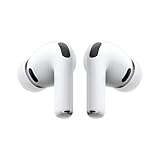
- WORLD’S BEST IN-EAR ACTIVE NOISE CANCELLATION — Removes up to 2x more unwanted noise than AirPods Pro 2* so you can stay fully immersed in the moment.*
- BREAKTHROUGH AUDIO PERFORMANCE — Experience breathtaking, three-dimensional audio with AirPods Pro 3. A new acoustic architecture delivers transformed bass, detailed clarity so you can hear every instrument, and stunningly vivid vocals.
- HEART RATE SENSING — Built-in heart rate sensing lets you track your heart rate and calories burned for up to 50 different workout types.* With iPhone, you will have access to the Move ring, step count, and the new Workout Buddy,* powered by Apple Intelligence.*
- LIVE TRANSLATION — Communicate across language barriers using Live Translation,* enabled by Apple Intelligence.*
- EXTENDED BATTERY LIFE — Get up to 8 hours of listening time with Active Noise Cancellation on a single charge. Or up to 10 hours in Transparency using the Hearing Aid feature.*
Lyrics, visuals, and metadata accuracy
Improvements here can be subtle but high-impact: line sync timing, correct artist/track matching, and how lyrics display in portrait vs landscape.
Library syncing and search reliability
Watch for changes in how your “Recently Added,” playlists, and saved music sync across iPhone, iPad, and Mac, and how search results rank.
Offline downloads and storage management
Offline behavior is a common source of “it feels different” reports—especially around resume points, download progress, and storage cleanup.
Discovery, recommendations, and radio/streams
These updates can adjust how For You or station mixes evolve. You won’t always get a visible toggle; the output just changes.
Prerequisites before you check what’s new
Before you start hunting for changes, make sure your environment is stable. That way, any differences you see are actually from iOS 26 (or Apple Music app updates), not from incomplete syncing or failed installs.
Verify your Apple Music subscription is active
Open Settings > Apple ID > Media & Purchases > View Account. Confirm Apple Music shows as active. If your status is billing-failed, features can appear missing.
Use Wi‑Fi and keep the phone charged
Sync and download features depend on connectivity. For repeatable testing, use Wi‑Fi when possible and plug in during the first post-update run.
Update Apple Music if a separate app update is available
Apple sometimes ships Apple Music fixes as app updates independent of iOS. After updating iOS, check the App Store for Apple Music updates so you’re testing the latest compatible app.
How to confirm the exact iOS 26 build on your iPhone or iPad
“iOS 26” is a range. To keep your findings accurate (especially if you’re reporting issues), capture your exact build number.
On iPhone or iPad
- Open Settings.
- Tap General.
- Tap About.
- Look for Software Version. Note the version string and the build number if shown.
If you share your setup with support, include the device model and this Software Version value. It speeds up diagnosis.
Quick wins for a faster PC:
Repair Windows errors before they cause bigger problemsFix Now →Scan for outdated or missing drivers - takes under a minuteDriver Scan →Where to find the official Apple Music changes for iOS 26
To avoid rumors, rely on official release notes and app update notes. Then validate inside the app—because Apple sometimes changes behavior without calling it a “new feature.”
Also popular on Amazon

- REBUILT FOR COMFORT — AirPods 4 have been redesigned for exceptional all-day comfort and greater stability. With a refined contour, shorter stem, and quick-press controls for music or calls.
- ACTIVE NOISE CANCELLATION — AirPods 4 with Active Noise Cancellation help reduce outside noise before it reaches your ears, so you can immerse yourself in what you’re listening to.*
- HEAR THE WORLD AROUND YOU — The powerful H2 chip comes to AirPods 4. Adaptive Audio seamlessly blends ANC and Transparency mode — which lets you comfortably hear and interact with the world around you exactly as it sounds — to provide the best listening experience in any environment.* And when you’re speaking with someone nearby, Conversation Awareness automatically lowers the volume of what’s playing.*
- IMPROVED SOUND AND CALL QUALITY — Voice Isolation improves the quality of calls in loud conditions. Using advanced computational audio, it reduces background noise while isolating and clarifying the sound of your voice for whomever you’re speaking to.*
- MAGICAL EXPERIENCE — Just say “Siri” or “Hey Siri” to play a song, make a call, or check your schedule.* And with Siri Interactions, now you can respond to Siri by simply nodding your head yes or shaking your head no.* Pair AirPods 4 by simply placing them near your device and tapping Connect on your screen.* Easily share a song or show between two sets of AirPods.* An optical in-ear sensor knows to play audio only when you’re wearing AirPods and pauses when you take them off. And you can track down your AirPods and Charging Case with the Find My app.*
Check Apple’s release notes for iOS 26
Apple typically publishes detailed notes per iOS update. Search your exact iOS 26 version string (from Settings > About) alongside “release notes” on Apple’s support site.
Check the App Store update notes for Apple Music
If Apple Music received an update, the App Store listing usually contains the most direct “what changed” bullets for that build.
Use Music app version info to correlate behavior
Apple doesn’t always expose app build details in a way end users can read quickly, but you can still correlate by noting whether Apple Music updated in the App Store right after your iOS update.
Apple Music settings to review after updating to iOS 26
Think of this as a “baseline checklist.” These settings are the most common reasons Apple Music behavior feels different after a major iOS update.
Media playback and cellular behavior
If you see more buffering or different download behavior, start with your playback settings.
- Open Settings.
- Tap Music.
- Review options related to cellular streaming/downloading (names can vary by iOS build).
Toggle only one change at a time so you can tell what affects the symptom you’re investigating.
Library sync and iCloud connectivity
Apple Music relies on iCloud for library and metadata. If your library looks incomplete, confirm your iCloud state.
Outdated Drivers Are Slowing You Down
One free scan finds every outdated or missing driver and matches the right update for your exact hardware.Free scan · exact hardware matchPC Slower Than It Used to Be?
A free scan shows the junk files, broken settings and background clutter dragging Windows down - then fixes them in one click.Free scan · Windows 10 & 11- Open Settings.
- Tap your Apple ID.
- Go to iCloud.
- Confirm you’re signed in and iCloud services are enabled as applicable.
If Apple Music seems “stuck,” try a full app relaunch and confirm network is stable.
Offline downloads: location and storage pressure
After iOS updates, storage behavior can change. Check downloads and free space.
- Open Apple Music.
- Go to Library.
- Open Downloaded Music (or similarly named area).
- Review download status and whether any playlists/albums are partially downloaded.
If you’re low on storage, downloads may pause or resume differently.
Accessibility and captions/lyrics presentation
If lyrics or on-screen text feels wrong, check whether display and accessibility settings changed on upgrade (especially after you restore settings from a backup).
Free tools Windows power users keep installed
One-click scans. No signup required.
Also popular on Amazon

- Active Noise Cancellation blocks outside noise, so you can immerse yourself in music
- Transparency mode for hearing and interacting with the world around you
- Spatial audio with dynamic head tracking places sound all around you
- Adaptive EQ automatically tunes music to your ears
- Three sizes of soft, tapered silicone tips for a customizable fit
- Open Settings.
- Tap Accessibility.
- Review display text size, motion settings, and any captions/closed-caption options.
What to test in Apple Music once you’re on iOS 26
Here’s a practical test suite. It’s designed to catch both obvious regressions and “small differences” that can still ruin your workflow.
Playback and control surfaces
Test core playback across at least two paths: inside the app and from a hardware control surface (lock screen, Control Center, or headphones).
- Start a track from Search.
- Use the lock screen controls (if available) to pause/resume.
- Open Control Center and confirm transport controls behave consistently.
If queue order changes unexpectedly, capture the exact track sequence and try the same action after restarting the Music app.
Queue and cross-device handoff (where applicable)
Where you have multiple Apple devices logged into the same Apple ID (and iCloud Music Library enabled), test “what happens when I switch.”
- Start playback on iPhone.
- Switch audio target via AirPlay or the output picker (if you use it).
- Confirm the queue and “Now Playing” context remain consistent.
Lyrics timing and readability
Pick one familiar song and compare how lyrics line sync feels. If it’s noticeably off, it can be content-specific; try a second track to confirm.
- Open a track with lyrics.
- Turn your iPhone orientation and check whether lyrics rendering changes.
- Skip forward/back slightly and observe whether the lyric position resyncs correctly.
Search and metadata correctness
Search regressions often show up as wrong versions, missing results, or sorting changes.
- Search for an artist you know has multiple releases.
- Open a popular album page and confirm track list accuracy.
- Search again for a specific track title and compare results to your memory.
Offline playback and resume points
Download a playlist or album you actually listen to. Then test offline playback after enabling Airplane Mode (if you want a strict test).
- Download a known playlist under Downloaded Music.
- Start playback.
- Lock the phone, then unlock and confirm playback resume.
- Optional: enable Airplane Mode and confirm playback still works.
Downloads that stall or fail
If a download won’t complete, don’t just wait. Use a deterministic approach.
What’s actually slowing this PC down?
Pick the symptom - the matching free tool is one click away.
- Check cellular/Wi‑Fi status.
- Toggle Wi‑Fi off and on once.
- Force quit Apple Music and reopen it.
- Retry the download for only one item (not the whole library).
Radio/stream behavior and personalization resets
Discovery and radio can feel “new” even when nothing is technically broken. Test whether your personalization persists.
- Open a station or radio-style feed you’ve used.
- Listen for at least 10–15 minutes.
- Switch to another station and come back to confirm it didn’t fully reset.
Common issues after upgrading to iOS 26 and what to try
Most “Apple Music is broken in iOS 26” reports fall into a handful of categories. Below are practical fixes in the order that tends to work best.
Problem: Apple Music won’t play or shows buffering indefinitely
Start with connectivity and then test app/session state.
Also popular on Amazon
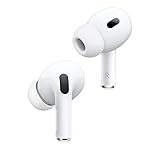
- This pre-owned product is not Apple certified, but has been professionally inspected, tested and cleaned by Amazon-qualified suppliers.
- Switch between Wi‑Fi and cellular (once) and try again.
- Toggle Airplane Mode on for 10 seconds, then off.
- Force quit Apple Music and relaunch.
- Restart your iPhone or iPad.
Problem: Your library is missing albums or playlists
This is usually iCloud sync or a temporary state after upgrade.
Recommended Free Tools
- Open Apple Music > Library and wait a few minutes for syncing to settle.
- Confirm iCloud is enabled for the services Apple Music depends on.
- Sign out of Apple ID and back in only if the library doesn’t recover after a reasonable wait (hours, not minutes).
Problem: Offline downloads won’t load
Offline failures are often storage-related or stuck downloads.
- Check device storage. Free up space if the device is near full.
- Delete one problematic downloaded item and re-download it.
- Keep the device on Wi‑Fi until the download completes.
Problem: Lyrics don’t sync or show incorrectly
Lyrics can vary by track metadata. Test multiple songs to confirm whether the issue is track-specific or system-wide.
- Try another track with lyrics.
- Restart Apple Music.
- If the problem persists only on one track, it may be a metadata/lyrics data issue rather than iOS.
Problem: AirPlay or headphone controls behave oddly
Bluetooth and AirPlay issues often look like “Apple Music changes,” but the cause is usually output routing state.
- Disconnect and reconnect the audio device once.
- Try switching output back to the iPhone speaker and then return to your device.
- If output menus don’t respond, restart iOS and test again.
Comparing Apple Music on iOS 26 vs your previous iOS version
If you want a clean comparison, do it in a controlled way. The goal is to isolate what changed, not to describe everything you notice.
Do these 3 things before closing this tab:
1Clear out junk files and repair common Windows errors2Scan for outdated or missing drivers - takes under a minute3Repair Windows errors before they cause bigger problemsBuild a “before/after” checklist
| Workflow | What to record on iOS 25 (or earlier) | What to check on iOS 26 |
|---|---|---|
| Search | Does the top result match your expectation? | Any sorting or missing results? |
| Lyrics | Line timing and readability | Sync accuracy after skips |
| Downloads | How fast downloads complete | Resume behavior and partial downloads |
| Playback controls | Lock screen pause/resume works | Queue ordering and transport response |
| Discovery | Station feel after 10 minutes | Does personalization reset? |
Keep the comparison fair
- Use the same playlists and the same output device for at least a couple tests.
- Verify that the Apple Music app version is updated after the iOS update.
- Record your iOS build number so others can reproduce your results.
Frequently asked questions
How do I see the exact Apple Music changes included with iOS 26?
Start with Apple’s iOS 26 release notes for your exact Software Version. Then confirm whether Apple Music had an App Store update and check its update notes. After that, validate by running the playback/search/lyrics/offline test suite above.
Why does Apple Music feel different even when nothing is new?
Major iOS updates can affect caching, syncing, and personalization timing. Even if UI elements stay the same, library order, recommendation ranking, and lyric rendering can change as the app re-indexes content after the upgrade.
Will updating to iOS 26 delete my downloaded music?
Usually, it shouldn’t. But if storage is tight or downloads are partially corrupted, you may see missing or stalled offline items. Check Downloaded Music and re-download the specific items that fail.
What should I do if lyrics are wrong for only one song?
Test at least one other track. If only one song is affected, it may be metadata/lyrics data rather than an iOS-wide bug. Still, force quit Apple Music and try again after a short wait; if it persists, that’s the best candidate to report with the track details.
Windows Errors? Fix Them Before They Spread
Repair common Windows errors and clear accumulated junk for a smoother, more stable PC - no reinstall needed.Free scan · no reinstallCrashes, No Sound, or Screen Glitches?
Random freezes, missing sound and display glitches usually trace back to one bad driver. Find and replace yours safely.Free scan · under a minuteHow can I report an iOS 26 Apple Music bug effectively?
Include your device model, iOS Software Version (Settings > General > About), whether Apple Music was updated from the App Store, and the exact steps that reproduce the issue. Screenshots or short screen recordings help—especially when queue or lyrics timing are involved.
Bottom Line
Apple Music changes in iOS 26 are real, but the best way to “find everything new” is to confirm your exact iOS build, read the official release notes, and then test the workflows that affect listening every day: playback controls, lyrics, search, offline downloads, and discovery behavior.
Use the checklist above as your repeatable baseline. When something feels off, you’ll know whether it’s a setting, a sync state, an output routing issue, or a track-specific data problem.

