Recommended Free Tools
Google Wallet on Android is rolling out a new place to manage security behavior: Verification settings. Depending on your device and account eligibility, you’ll see controls that affect how Google Wallet verifies you before certain actions or payment flows.
This is mainly about reducing fraud risk while keeping payments fast. If you’re the kind of user who toggles security options aggressively, this new screen is worth reviewing—especially before you make it harder (or easier) to pay.
As an Amazon Associate I earn from qualifying purchases.
Below is a practical, step-by-step guide to finding the setting, understanding what it generally controls, and fixing the most common rollout and troubleshooting issues.
What Google Wallet Verification settings are
Verification settings are Google Wallet’s in-app security controls that determine when and how verification is required during Wallet-related actions. In most cases, verification involves one or more of these signals: device security, biometric authentication, recent session checks, or risk-based prompts.
#1 Best Overall
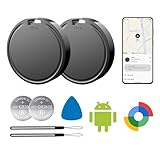
- 📱 Global Cloud Positioning – Works with both Google's Find Hub (Android Only,Not for GPS & ios)
- 📢 Loud Alert Sound – Built-in speaker with up to 85dB for quick locating
- 🔋 Far Superior Battery Life – Up to 2 years battery life on Android
- 💧 IP65 Waterproof – It provides protection against rainwaterand splashes
- 👮 Data Encryption – With the help of Google's technology, all location information is encrypted
On Android, the goal is consistent: keep legitimate payments friction-light while requiring stronger proof when something looks off—like unusual location patterns, a new device state, or repeated failed attempts.
Why this rollout matters
Even if you’ve never had issues with tap-to-pay, verification behavior can change what you experience day-to-day. The same payment method can feel “instant” for one user and “prompt-heavy” for another depending on the verification level and risk signals.
- Better account protection: fewer opportunities for unauthorized use when your device or account is in a risky state.
- More consistent prompts: the new screen helps you reason about why Wallet asks for confirmation.
- Fewer surprises: changing verification settings can affect checkout success rate and how often you’ll see biometric/pin prompts.
Prerequisites before you change anything
Before adjusting verification settings, make sure your setup won’t block authentication or payment flows.
Quick wins for a faster PC:
Clear out junk files and repair common Windows errorsFree Scan →Fix the driver behind crashes, sound loss and screen glitchesFind Drivers →- Android security is enabled: your device should have a lock screen (PIN, pattern, or password). Many verification prompts depend on it.
- Google Wallet is installed and updated: the feature typically appears only after a Wallet update.
- Biometrics availability: if you expect fingerprint or face unlock verification, confirm those are configured in Android security settings.
- Google Play services health: Wallet relies on Google Play services for authentication and risk checks.
How to find Verification settings on Android
The exact menu location can vary slightly by phone manufacturer and Wallet version. In most rollouts, you’ll find it inside Google Wallet’s Settings area.
- Open Google Wallet on your Android phone.
- Tap your profile icon or Settings (often a gear icon).
- Look for Verification settings (or a similarly named option that includes the words verification and settings).
- If you don’t see it, proceed to the troubleshooting section—your account might not be eligible yet.
What you can typically control
Google Wallet’s verification screens can differ by region and account. However, these controls usually fall into a few practical categories.
Rank #2

- 📱 Global Cloud Positioning – Works with both Google's Find Hub (Android Only,Not for GPS & ios)
- 📢 Loud Alert Sound – Built-in speaker with up to 85dB for quick locating
- 🔋 Far Superior Battery Life – Up to 2 years battery life on Android
- 💧 IP65 Waterproof – It provides protection against rainwaterand splashes
- 👮 Data Encryption – With the help of Google's technology, all location information is encrypted
Verification for payments
This generally determines when Wallet requires proof of user presence for payment actions. You may see options that range from “light verification” to “strong verification,” often influenced by payment type and risk.
Biometric and device-based verification
Some configurations tie verification to biometric readiness (fingerprint/face) or your device lock state. If biometrics aren’t configured, Wallet may fall back to a PIN/passcode prompt or more general confirmation.
Network and risk checks
Verification behavior may vary based on whether the device is on trusted networks, whether location signals look normal, or whether there have been repeated failures. In practice, you might see more verification when the system detects unusual patterns.
Backup options when verification fails
If a biometric scan fails or times out, Wallet may offer an alternate flow (for example, device PIN). If your device isn’t set up to unlock with a PIN/password, verification can become harder or payments can be blocked.
Step-by-step: Update and configure settings
Step 1: Update Google Wallet
- Open the Google Play Store.
- Search for Google Wallet.
- Tap Update (or install if it’s missing).
- After updating, restart the phone if the app UI doesn’t change.
Step 2: Open Verification settings
- Launch Google Wallet.
- Go to Settings.
- Find Verification settings.
- Open it and review the current choice before you change anything.
Step 3: Choose your preferred verification level
Pick the option that matches how you trade speed vs friction:
Rank #3
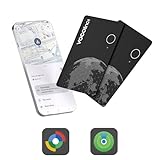
- 【Dual-System Compatibility】:This upgraded tracker seamlessly works with iOS (via the "Find My" app) and Android (via Google Find Hub). Due to system limitations, it can only be paired with one device at a time. Switching between iOS and Android is easy—just unpair the tracker from one device, reset it, and then reconnect it to another. (Note: It is not compatible with Huawei's HarmonyOS.)
- 【Find Nearby Items – Instant Ring】:Using Apple Find My on iOS or Google Find Hub on Android, you can quickly locate your items by triggering a loud ring (80-100 dB) from the built-in speaker. (Note: This tracker does not support UWB ultra-wideband.)
- 【Find Distant Items – Global Network Tracking】:The VOCOlinc Air Card Tag Pro utilizes the Google Find Hub or Apple Find My network, covering millions of compatible devices worldwide. Even if your item is out of Bluetooth range, you can still track it without any extra fees or subscriptions.
- 【Long Battery Life, Wireless Charging, and IP68 Waterproof】:With a single charge, the tracker provides up to 6 months of battery life. The VOCOlinc Air Card Tag Pro can be easily charged using any Qi-certified magnetic charger, making it convenient and reusable. It also has a low battery reminder that alerts you when it’s time to recharge. This tracker is built to last with an IP68 rating for water and dust resistance.
- 【Privacy Protection】:Your privacy is fully protected. The Google Find Hub and Apple Find My app networks use encrypted, anonymous connections, ensuring that the VOCOlinc tracker doesn’t store any location data or history.
- If you want fast checkout, select the least restrictive option available to you while still keeping device security enabled.
- If you share your phone, use a stricter setting so payments require stronger confirmation.
- If you frequently fail biometric scans (gloves, low light), a less biometric-dependent choice can reduce payment failures.
After you select a setting, watch for an immediate confirmation message or an app restart prompt.
PC Slower Than It Used to Be?
A free scan shows the junk files, broken settings and background clutter dragging Windows down - then fixes them in one click.Free scan · Windows 10 & 11Outdated Drivers Are Slowing You Down
One free scan finds every outdated or missing driver and matches the right update for your exact hardware.Free scan · exact hardware matchStep 4: Test with a safe payment attempt
Test at a low-stakes point: a quick tap in a small purchase, or a “zero balance” scenario if your bank offers it. The key is to confirm the verification flow you chose doesn’t block you at checkout.
Troubleshooting when Verification settings don’t appear
If you updated Wallet but still can’t see “Verification settings,” don’t assume the feature is broken. Rollouts often depend on eligibility and server-side flags.
1) Feature rollout hasn’t reached your account yet
Google typically rolls features out in phases. Some accounts see the setting days or weeks earlier than others, even with the same phone model.
- Wait 24–72 hours after updating Wallet.
- Check back in Wallet Settings again.
2) You’re on an older Google Wallet version
Wallet features are often tied to specific app versions. Confirm you’re fully updated in the Play Store.
Rank #4

- google search
- google map
- google plus
- youtube music
- youtube
- Go to Play Store → Google Wallet → confirm there’s no pending update.
- Force close the app and reopen.
3) App permissions or Play Services issues
Verification flows rely on system-level services. When those are misbehaving, the UI can still load but underlying prompts fail.
- On Android Settings, review permissions for Google Wallet.
- Update Google Play services via Play Store.
- Restart your phone and retry.
4) Region or device compatibility differences
Some Wallet security options appear only where tap-to-pay and identity checks are supported in the way the feature requires. Device capability (biometrics, secure hardware) can also influence what you see.
- Confirm tap-to-pay works on your device (use a card you’ve used before).
- Try again after any OS update.
Troubleshooting when verification changes cause issues
Once you change verification behavior, the most common problems are payment failures, extra prompts, or biometric timeouts. Use the steps below in order.
Payments keep failing
- Confirm your device lock is set (PIN/password). Without it, verification flows may lack the fallback they expect.
- Remove and re-add the affected payment method in Google Wallet.
- Check that the card isn’t temporarily suspended by your bank app.
Verification prompts are too frequent
- Return to Verification settings and choose a less restrictive option if available.
- Make sure your phone isn’t constantly rebooting or dropping secure session state (battery optimization can contribute).
Biometric prompts don’t work
- Go to Android Settings → Security → Biometrics and ensure fingerprint/face enrollment is complete.
- Verify that Wallet is allowed to access the biometric authentication prompt flow.
- If biometrics are unreliable, select a verification level that allows device PIN fallback.
Offline or flaky NFC behavior
Verification problems often get misattributed to verification settings when the real cause is NFC/radio stability.
- Check the payment terminal is working with contactless.
- Try again with NFC enabled and the screen on.
- Ensure your case/cover isn’t interfering with the NFC antenna area (a rare but real issue).
Alternatives: How to manage verification without the new screen
If your account doesn’t show Verification settings yet, you can still influence how verification behaves by tightening device security and account security.
Best Value

- 🥇【Dual-System Item Locator】Our wallet tracker natively compatible with both Google's "Find Hub" and Apple's "Find My" networks. It pairs quickly and directly without requiring additional apps. Leveraging Google and Apple's cloud networks, it eliminates the fear of loss.
- 🌍【Located at a Glance】 Whether your item is lost in the office, parking lot, park, mall, a friend's house, or farther away, you can quickly pinpoint its general area with our spotminders tracking card on Google/Apple Maps and navigate directly to retrieve it.
- 🔍️【Extended Bluetooth Range】Even if your lost item is over 330 feet away, our wallet tracker card's extended Bluetooth range combined with Google’s exclusive "Find Hub" distance prediction feature allows you to easily identify and locate your items.
- 📢【Ultra-High Decibel Ringtone Alert】Tearing the place apart but still can't find your item? Simply tap the "Play Sound" button on the Google or iOS app, and as long as our wallet tracking card is within Bluetooth range, it will emit a ringtone. With a volume exceeding 90 decibels, the sound remains clearly audible even when covered by obstacles.
- 🔋【Wireless Charging】This tracker was made with high-quality lithium battery raw materials and certified by multiple authoritative institutions, it undergoes rigorous pressure testing procedures to compatible with universal wireless chargers on the market for convenient plug-and-play charging. Single charge provides up to 6 months of battery life. We provide 2 years of 24/7 after-sales technical support, allowing you to rely on our product with confidence and no need to worry about failure or technical issues during use.
Use Android device security settings
- Open Android Settings → Security (or Security & privacy).
- Ensure Screen lock is set.
- Set up biometrics if you want biometric-first verification.
Use Google Account security controls
Keep your Google Account protected so Wallet’s risk signals stay calm. Review recent security activity and enable options like passkeys or stronger verification methods where available.
Update Google Wallet and tap-to-pay defaults
- Keep Wallet updated in the Play Store.
- In Wallet Settings, confirm your default contactless payment method is set correctly.
Comparison: Verification settings vs other Wallet controls
| Control | What it affects | Where it usually lives |
|---|---|---|
| Verification settings | How Wallet verifies you during payment/action flows | Google Wallet → Settings |
| Default card | Which payment method is used for contactless taps | Google Wallet → Wallet settings |
| Card management (add/remove) | Which cards are available and eligible in Wallet | Google Wallet → Cards |
| Device-level security | Availability of PIN/biometrics that verification relies on | Android Settings → Security |
Common mistakes to avoid
- Turning verification stricter without configuring biometrics: if fingerprint/face isn’t set, you can end up with slower or failing prompts.
- Changing settings and testing in the wrong moment: test when the terminal is ready and your device has a stable session (avoid repeated unlock attempts).
- Ignoring your bank’s status: Wallet changes won’t help if your card is temporarily blocked, expired, or needs re-authentication.
- Not updating Play services: Wallet UI might load, but authentication prompts can fail if system services are outdated.
FAQs
Is Verification settings required to use Google Wallet?
Usually, Wallet will still function with defaults. Verification settings mainly change how and when verification happens, rather than acting as a hard requirement to pay.
Why do I see more prompts after changing Verification settings?
More restrictive options typically require stronger confirmation during certain risk conditions. Also, if your device lock state changes frequently (battery saver, aggressive task killers), Wallet may prompt more.
What’s actually slowing this PC down?
Pick the symptom - the matching free tool is one click away.
My phone has a fingerprint, but verification still asks for a PIN—why?
This can happen if biometrics aren’t properly enrolled, if the device lock requires a passcode for certain flows, or if the new verification mode expects a fallback method.
Will this work on every Android phone?
No. Rollouts and availability can depend on device security capabilities, region support, and the version/eligibility of your Google Wallet app.
Should I make verification stricter if I lose my phone?
If your phone is lost, your priority is account and device security (remote lock, sign-out where appropriate). You can also revisit Verification settings after you regain control to match your preferred level of friction.
Bottom Line
Google Wallets Verification settings on Android gives you a clearer, more direct way to manage how verification behaves during Wallet actions. If you can’t see it yet, that’s normal—rollouts are phased by account and app version.
Free tools Windows power users keep installed
One-click scans. No signup required.
When the feature does appear, choose the balance that fits your routine, confirm your device security setup (screen lock and biometrics), and do a quick test so you don’t get stuck at the terminal.
Quick Recap
Product prices and availability are accurate as of the date/time indicated and are subject to change. Any price and availability information displayed on Amazon at the time of purchase will apply.




