Free tools Windows power users keep installed
One-click scans. No signup required.
Some links on this page are affiliate links: if you buy through them we may earn a commission, at no extra cost to you.
Google Store’s product layout change—showing Chromecast with Google TV next to Streamer—isn’t just cosmetic. It typically reflects how Google wants shoppers to compare streaming devices side-by-side before they buy.
If you’re deciding between these options (or you saw the new placement and wondered why), this guide breaks down what the pairing likely means for real-world shopping, how to choose accurately, and how to set up the device you pick without surprises.
As an Amazon Associate I earn from qualifying purchases.
Scope note: Device names and catalog listings can vary by country and retailer. Use the steps below to match what’s currently on your Google Store page.
What Changed on the Google Store
The Google Store now presents Chromecast with Google TV in the same browsing context as Streamer. In practice, that means they’re easier to compare on one screen, often with adjacent “buy” paths, similar accessory prompts, and shared checkout flows.
Popular on Amazon

- The Google TV Streamer (4K) delivers your favorite entertainment quickly, easily, and personalized to you[1,2]
- HDMI 2.1 cable required (sold separately)
- See movies and TV shows from all your services right from your home screen[2]; and find new things to watch with tailored recommendations for everyone in your home based on their interests and viewing habits
- If you find an interesting show or movie on your TV, mobile app, or Google search, you can easily add it to your watchlist, so it’s ready when you are[2]
- Up to 4K HDR with Dolby Vision delivers captivating, true-to-life detail[4]; and you can connect speakers that support Dolby Atmos for more immersive 3D sound
This kind of merchandising update usually comes from one of three drivers:
- Positioning: making it clearer which device is the right fit for different TV setups.
- Catalog cleanup: reducing confusion when multiple Google streaming products are active at once.
- Conversion optimization: placing the most comparable alternatives next to each other so buyers decide faster.
Why This Matters for Shoppers
When products are displayed next to each other, shoppers are more likely to compare features like performance tier, remote style, software experience, and connectivity. That’s good—but only if you check the actual specs behind the listing.
In real purchases, the common failure isn’t “the device is broken.” It’s “I bought the wrong one for my TV and habits.” This layout change is basically Google nudging you to avoid that.
Quick Decision Guide: Chromecast with Google TV vs Streamer
Use this fast filter to pick before you spend time comparing every line item.
Choose Chromecast with Google TV if you want a compact Google TV experience
It’s typically the go-to when you want a lightweight HDMI stick style streamer with the Google TV interface and a remote that’s built for daily use.
Choose Streamer if you want a more “set-top” oriented option
Streamer listings are often positioned for people who prefer a device form factor that feels more like a traditional box and may offer a slightly different bundle/remote experience depending on the current Google Store SKU.
Also popular on Amazon

- The Google TV Streamer (4K) delivers your favorite entertainment quickly, easily, and personalized to you[1,2]
- HDMI 2.1 cable required (sold separately)
- See movies and TV shows from all your services right from your home screen[2]; and find new things to watch with tailored recommendations for everyone in your home based on their interests and viewing habits
- If you find an interesting show or movie on your TV, mobile app, or Google search, you can easily add it to your watchlist, so it’s ready when you are[2]
- Up to 4K HDR with Dolby Vision delivers captivating, true-to-life detail[4]; and you can connect speakers that support Dolby Atmos for more immersive 3D sound
How to Choose the Right Device
The goal is to match the device to your TV, your Wi‑Fi environment, and your streaming habits. Start with your TV’s inputs and your home network stability.
Look for these spec and feature differences
| What to verify | Why it matters | Where to check |
|---|---|---|
| HDMI support | Prevents no-signal issues and picture instability | Device listing and your TV’s HDMI ports |
| Remote included (and control features) | Determines how you switch apps and control volume/TV | Google Store product box details |
| Wi‑Fi band support (2.4 GHz vs 5 GHz) | Impacts speed and reliability in crowded apartments | Connectivity section of the listing |
| Audio support | Stops “no sound” or lip-sync problems | Audio formats / TV+soundbar compatibility notes |
| Power requirements | A wrong adapter can cause boot loops or instability | In-box contents and charger requirements |
| Software experience (Google TV UI) | You want consistent navigation and app access | Listing description + supported apps |
Where to Find Them on Google Store
If the goal is to compare quickly, the page layout matters. Here’s how to locate both items consistently across devices.
On desktop browser
- Go to the Google Store in your region.
- Use the search bar and type
Chromecast with Google TV. - Open the listing and look for a “compare” style module or “related” items.
- From that module, navigate to
Streamer(the new side-by-side placement should make this step faster). - Open both listings in separate tabs to compare specs without losing your place.
On mobile browser
- Open Google Store on your phone.
- Search for
Chromecast with Google TVand open the product page. - Scroll to the “you may also like” or adjacent product rail where Streamer appears.
- Tap through to the Streamer listing and compare the in-box and connectivity sections.
Using search and filters
If the product rail changes by location or time, use direct search terms.
- Search for
Chromecast with Google TV. - Record the exact model wording (including bundle terms) shown on the page.
- Search for
Streamerand match the same bundle level when possible. - Compare the “What’s in the box” and “Connectivity” sections first, not the marketing bullets.
Buying Checklist Before You Tap Buy
Before you commit, verify a few items that commonly cause returns—even for people who already own a Chromecast-style device.
Quick wins for a faster PC:
Fix the driver behind crashes, sound loss and screen glitchesFind Drivers →Clear out junk files and repair common Windows errorsFree Scan →Scan for outdated or missing drivers - takes under a minuteDriver Scan →Confirm compatibility
- Make sure your TV has a free HDMI port (and that the HDMI port can support the device’s output mode).
- If you use a soundbar or AV receiver, verify the audio path is compatible with your setup.
- If your home Wi‑Fi is mostly 2.4 GHz, confirm the device supports it and supports stable operation there.
Check power, HDMI, and remote
- Look for “in the box” details: HDMI adapter/cable style, power adapter included or required, and remote model.
- If you share your HDMI port with another device (console, cable box, etc.), note whether the streamer adds thickness that could block a neighboring HDMI port.
- If the remote includes TV controls, confirm it supports your TV brand if listed.
Review warranty and return window
Retail terms vary by region, but the practical method is the same: check return eligibility and the warranty period displayed during checkout.
Setup Guide (What You’ll Do First)
Setup is usually fast, but doing it in the right order prevents rework. Plan for 10–20 minutes for the first run.
Also popular on Amazon

- Advanced 4K streaming - Elevate your entertainment with the next generation of our best-selling 4K stick, with improved streaming performance optimized for 4K TVs.
- The newest Fire TV experience (2026) – Our biggest update to Fire TV has a new, modern design that gets you to your entertainment fast. Browse dedicated content categories, pin more of your favorite apps, and get personalized recommendations from Alexa+. Spend less time scrolling, and more time watching.
- Cloud gaming, no console required – Stream Call of Duty: Black Ops 7, Hogwarts Legacy, Outer Worlds 2, Ninja Gaiden 4, and hundreds of games on your Fire TV Stick 4K Plus with Xbox Game Pass and Luna via cloud gaming. Xbox Game Pass subscription and compatible controller required. Each sold separately.
- Smarter picks with Alexa+ – Getting to what you love has never been easier. Press the voice remote button and talk naturally to find what to watch across your apps, manage your smart home, or dive into virtually any topic.
- Wi-Fi 6 support - Enjoy smooth 4K streaming, even when other devices are connected to your router.
Step 1: Connect hardware to your TV
- Plug the streamer into a free HDMI port on your TV.
- Connect power to the device using the included adapter or the power specs listed by Google.
- Switch the TV input to the correct HDMI source.
Step 2: Pair the remote and start setup
On first boot, you’ll see a setup flow on-screen. Pairing typically happens automatically; if it doesn’t, follow the “Press and hold” instructions that appear.
Step 3: Sign in to Google / Google TV
- Select your language and region.
- Choose your Wi‑Fi network and enter the password.
- Sign in with your Google account to restore apps and preferences.
Step 4: Pick your streaming services
Google TV will prompt you to add subscriptions and enable services like YouTube and others available in your region. Add only what you intend to use—less noise in the home screen.
What’s actually slowing this PC down?
Pick the symptom - the matching free tool is one click away.
Step 5: Update software
Before installing anything extra, run the system update from the settings menu if the device offers it. This reduces app issues caused by outdated firmware.
Troubleshooting When Setup Fails
If the placement change caused you to switch devices and something doesn’t work, use targeted fixes. Don’t guess—symptoms tell you where to look.
Device won’t connect to Wi‑Fi
- Confirm you’re entering the correct Wi‑Fi password (copy/paste if possible).
- Try switching to a different network temporarily (e.g., a phone hotspot) to isolate router issues.
- On your router, ensure Wi‑Fi is enabled for both 2.4 GHz and 5 GHz networks if your home uses separate names.
- Reboot the router, then reboot the streamer and retry the setup prompt.
Remote won’t pair or won’t respond
- Replace the remote batteries with fresh ones.
- Remove obstructions between the remote and device (especially if the device is behind a TV stand).
- In settings, re-run remote pairing if the option exists.
- Restart the streamer from the device menu and try pairing again.
No signal on the TV (HDMI issues)
- Switch the TV to the correct HDMI input again (some TVs label inputs differently).
- Try a different HDMI port.
- If you’re using an HDMI extender, remove it temporarily.
- Power cycle in this order: unplug the device, wait 10 seconds, plug it back in, then switch the TV input.
Apps won’t download or won’t play content
- Confirm your account is signed in and the device date/time is correct (automatic sync).
- Update the system software.
- Restart the device and re-open the affected app.
- If only one app fails, check whether the service is available in your region.
Audio is out of sync or missing
- Confirm the TV audio output is set to the correct mode (TV speakers vs soundbar/receiver).
- Reboot the soundbar/receiver and then the streamer.
- In audio settings, disable unsupported surround formats if your system doesn’t handle them properly.
- Test by playing a known YouTube video and another streaming app to compare behavior.
Common Mistakes Buyers Make
- Buying based on appearance alone: the Google Store placement makes comparison easier, but you still need to match specs to your TV.
- Ignoring HDMI port spacing: some setups block neighboring ports if the adapter/connector is bulky.
- Assuming Wi‑Fi is fine: if your 2.4 GHz network is congested, performance drops even when the device connects.
- Skipping system updates: outdated firmware can cause remote, streaming, and playback glitches.
FAQs
Is Chromecast with Google TV actually the same as Streamer?
No. They’re different product listings on Google Store. Their exact capabilities can vary by SKU and region, so confirm the connectivity, remote, and audio details on the current listings you’re viewing.
Why does Google show these products next to each other?
Merchandising placement typically signals easier comparison and faster decision-making for shoppers. It also reduces confusion when multiple Google TV-capable options are active in the store.
Also popular on Amazon
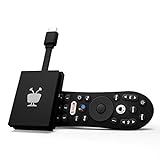
- No More App-Switching. Forget learning to navigate a new screen with every app. TiVo Stream 4K enables one centralized place for searching, browsing, and creating watch lists across all your apps..DC Input Range 5V/1.0A. Power Consumption : Maximum 5 W
- Recommendations Across All of Your Apps: Get rid of the walls between what you watch. TiVo recommends your next favorite shows and movies based on what you love, not where they live.
- Say it and watch it. The power of voice control makes it easy to find shows. Integrated Google Assistant allows you to launch apps, dim the lights and more.
- One place for all your favorite streaming apps. TiVo Stream 4K includes Netflix, Prime Video, Disney+, Peacock plus many more, so you can get to your shows fast.
- TiVo Stream 4K is one of Time Magazine’s “2020 Best Inventions, Special Mention” and PCMag hails it as “an excellent media streamer for TV lovers.” Operating Temperature 0˚C - 40˚C
Will I need a separate Google account for each device?
You can use one Google account across devices. Profiles and app activity usually sync, but you can manage which users are signed in for household members depending on your setup.
Can I use these devices without a cable box?
Yes. Both are designed for app-based streaming. If you only watch services like Netflix, Prime Video, or YouTube, you don’t need a traditional cable box.
What should I do if the device connects but the home screen is blank?
First, restart the device. If it persists, check for system updates and sign out/in to the Google account. If you’re still stuck, try a different Wi‑Fi network to rule out routing or DNS filtering.
Bottom Line
The Google Store now placing Chromecast with Google TV next to Streamer is a shopper-friendly change that encourages direct comparison. Use that convenience to verify HDMI support, connectivity, remote features, and in-box contents before you buy.
Crashes, No Sound, or Screen Glitches?
Random freezes, missing sound and display glitches usually trace back to one bad driver. Find and replace yours safely.Free scan · under a minuteWindows Errors? Fix Them Before They Spread
Repair common Windows errors and clear accumulated junk for a smoother, more stable PC - no reinstall needed.Free scan · no reinstallOnce you’ve selected the right device, setup is straightforward: connect to HDMI, join Wi‑Fi, sign in to Google, add streaming services, and run an update. If anything breaks, troubleshoot by symptom—Wi‑Fi, remote, HDMI, app playback, then audio.

