What’s actually slowing this PC down?
Pick the symptom - the matching free tool is one click away.
Some links on this page are affiliate links: if you buy through them we may earn a commission, at no extra cost to you.
The Google Home app now fully supports scheduling for older Nest thermostats, which removes one of the biggest practical gaps people hit during the migration from the legacy Nest experience. If you’ve been using your thermostat mostly for manual temperature changes, this update makes “set it and forget it” work from your phone again.
This guide walks through what the scheduling support means, which older models it applies to, and how to get schedules showing and applying reliably. You’ll also find troubleshooting steps for the most common failure points—sync, modes, and overrides.
As an Amazon Associate I earn from qualifying purchases.
What changed in the Google Home app
Historically, some older Nest thermostat models had limited or inconsistent scheduling controls in the Google Home app. With this update, Google Home scheduling is supported end-to-end—meaning you can create schedules, verify them in the app, and have them apply to the thermostat without needing to fall back to older interfaces.
Practically, you should expect the same core behaviors you’re used to on newer Nest devices: scheduling by day of week, multiple time blocks per day, and temperature targets that follow your plan.
Popular on Amazon
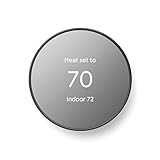
- ENERGY STAR certified smart thermostat for home that helps you save energy and stay comfortable.Connectivity : Wi-Fi - 802.11b/g/n 2.4 GHz, 802.11a/n 5 GHz Wi-Fi., Wireless interconnect : Bluetooth Low Energy Please refer to the product description section below for all applicable legal disclaimers.Product note: You can also check your system’s compatibility before purchasing a Nest thermostat with our online Nest Compatibility Checker on the Google Nest support page
- The Nest Thermostat is designed to work without a C wire in most homes, but for some systems, including heating only, cooling only, zone controlled, and heat pump systems, you’ll need a C wire or other compatible power accessory
- Nest Thermostat turns itself down when you leave, so you don’t waste energy heating or cooling an empty home. Lock feature: No
- Programmable thermostat that lets you create an energy efficient schedule in the Google Home app on your Android or iPhone
- Remote control lets family members change the thermostat temperature from anywhere on a phone, laptop, or tablet[1]
Which older Nest thermostats should work
Google Home scheduling support is intended for older Nest thermostat hardware that’s already integrated with your Google/Nest account. In most home setups, this includes models that still show up as a thermostat device inside Google Home.
Common examples people run into when searching for this feature include:
Recommended Free Tools
- Nest Thermostat E
- Nest Thermostat (2nd gen) / older Learning Thermostat generations, depending on region and account/device compatibility
If your thermostat device appears in Google Home, that’s the most reliable indicator you can attempt scheduling from the app. If scheduling options still don’t appear after updating (covered below), the issue is usually account linking, thermostat firmware state, or an app/device compatibility mismatch.
Prerequisites before you try scheduling
Before you change anything, confirm the basics. Scheduling won’t behave correctly if the thermostat is offline, tied to the wrong Google account, or hasn’t completed its sync.
- Thermostat is added in Google Home: You can see it as a device and view its current status.
- Correct account: The thermostat and Google Home are using the same Google account (especially important after account switches).
- App updated: Install the latest Google Home app available on your phone’s app store.
- Thermostat online: After you open Google Home, the thermostat should show an up-to-date reading/status rather than being stuck “offline”.
Update and verify prerequisites on your phone
Scheduling support is tied to the Google Home app and how it communicates with your thermostat. Updating first avoids a frustrating loop where the thermostat is capable, but the app still shows a limited UI.
Android checklist
- Open Google Play Store.
- Search for Google Home.
- Tap Update (or Install if needed).
- Open Google Home and confirm your thermostat device loads without errors.
iPhone and iPad checklist
- Open App Store.
- Search for Google Home.
- Tap Update (or Install if needed).
- Open Google Home and check that the thermostat device status refreshes.
Enable and use scheduling in the Google Home app
The exact menu labels can vary slightly by thermostat model, but the scheduling workflow is consistent: open your thermostat in Google Home, find the scheduling controls, create time blocks, and confirm the plan.
Windows Errors? Fix Them Before They Spread
Repair common Windows errors and clear accumulated junk for a smoother, more stable PC - no reinstall needed.Free scan · no reinstallOutdated Drivers Are Slowing You Down
One free scan finds every outdated or missing driver and matches the right update for your exact hardware.Free scan · exact hardware matchAlso popular on Amazon

- Frosted, low-glare display blends with décor while keeping temps readable at a glance.
- App & voice control: adjust temp, set schedules, and view Energy History in the Nest app; works with Alexa & Google Assistant.
- Save energy with Eco Temperatures and Home/Away Assist; ENERGY STAR certified for efficiency.
- Wide compatibility: most 24V HVAC systems including gas, electric, forced air, heat pump, and radiant (check compatibility).
- Easy DIY install; includes Nest Thermostat E (T4000ES), optional trim plate, mounting hardware; clean white finish.
Android (Google Home app)
- Open Google Home.
- Tap your thermostat device tile.
- Look for Schedule (or Schedules) in the thermostat controls.
- Select Edit or Create schedule.
- Choose the day (e.g., Weekdays or a specific day) and add time blocks with target temperatures.
- Repeat for additional days/time ranges as needed.
- Tap Save, then leave the thermostat screen open for a few seconds to confirm the app reflects the new plan.
iPhone and iPad (Google Home app)
- Open Google Home.
- Tap your thermostat device tile.
- Select Schedule (or similarly named scheduling control).
- Tap Edit or Create.
- Set time blocks and temperatures for each day grouping.
- Tap Save.
- Return to the thermostat overview and verify the schedule indicator/summary updates.
Common reasons scheduling doesn’t show up
If your thermostat device is listed in Google Home but scheduling options are missing or limited, the cause is usually one of these.
- Old app build: The Google Home app isn’t fully updated for the scheduling UI.
- Thermostat is offline: Some controls won’t fully render until the device can sync.
- Wrong account: The thermostat is added under a different Google account than the one running Google Home.
- Device role mismatch: The thermostat may be present but not recognized for scheduling due to account/linking state.
- Pending thermostat firmware update: If the thermostat hasn’t completed an update cycle, the app may temporarily show reduced controls.
Troubleshooting when schedules won’t apply
Sometimes scheduling appears in the app, but temperature changes don’t follow the plan. These steps focus on sync, modes, and feature overrides—three frequent culprits.
Thermostat not syncing
- Open Google Home and check whether the thermostat status shows recent activity.
- Toggle the thermostat mode (for example, switch from Heat to Off and back) to force a command.
- On your phone, pull down to refresh the device view (Android) or swipe/return to the thermostat tile (iOS).
- If it’s still stale, restart the thermostat using its physical interface (if available) and wait 2–5 minutes for reconnection.
Schedule looks right but temps don’t change
- Confirm the schedule is marked Active (some thermostats support multiple schedules).
- Check setpoints: Make sure you didn’t accidentally enter values like 55°F where you expected 68°F.
- Verify the system mode is correct: if the thermostat is in Heat but the schedule targets a cooling scenario, you may see little change.
- Test with a short window: edit the schedule so the next time block triggers within 15–30 minutes, then observe the response.
Wrong thermostat mode (Heat/Cool/Off)
Schedules generally target temperatures, but the thermostat still needs a compatible HVAC mode. If the thermostat is set to Off, or if the active system doesn’t match the heating/cooling intent, you’ll think the schedule failed.
Open the thermostat in Google Home and confirm the mode before blaming scheduling.
Auto-schedule or energy features overriding your plan
Some Nest configurations can reduce manual scheduling impact through learning, “Eco” behaviors, or energy-oriented logic. If your scheduled temps don’t stick, review feature settings on the thermostat page in Google Home and temporarily disable the most “hands-off” behaviors to test.
For the most reliable validation, try a schedule that sets a clear change for the next 30–60 minutes.
Also popular on Amazon

- ENERGY STAR certified smart thermostat for home that helps you save energy and stay comfortable.Product note: You can also check your system’s compatibility before purchasing a Nest thermostat with our online Nest Compatibility Checker on the Google Nest support page.Connectivity Protocol : Wi-Fi.Connectivity Protocol : Wi-Fi
- The Nest Thermostat is designed to work without a C wire in most homes, but for some systems, including heating only, cooling only, zone controlled, and heat pump systems, you’ll need a C wire or other compatible power accessory. Lock feature: No
- Nest Thermostat turns itself down when you leave, so you don’t waste energy heating or cooling an empty home; easily program an energy efficient schedule in the Google home app on your Android or iPhone
- Remote control lets family members change the thermostat temperature from anywhere on a phone, laptop, or tablet[1]
- Savings Finder looks for more ways your thermostat can help you save, and suggests tweaks to your schedule in the app; check with your energy provider to learn more about rebates and more ways to save on a Nest thermostat
Advanced fixes if the app still won’t support it
If scheduling is missing entirely, or it never applies even after the standard sync checks, use these higher-impact steps.
Re-authenticate and re-add the thermostat
- In Google Home, open Settings for the thermostat.
- Look for the option to Remove device.
- Add it back using Add > Set up device > Works with Google (wording can vary) and ensure you sign into the same Nest/Google account that owns the thermostat.
- Wait for the thermostat to show online status before attempting scheduling again.
Power-cycle and router checks
- Power-cycle the thermostat if your model allows a quick reboot from the device UI.
- Reboot your router if other smart devices on the same Wi-Fi are also flaky.
- Check whether your Wi-Fi uses a captive portal (common on guest networks). If the thermostat can’t fully authenticate, scheduling updates may not sync.
Firmware and compatibility checks
Older thermostats can require at least one successful firmware update cycle before all Google Home features appear consistently. In the thermostat device settings inside Google Home, look for any firmware/device info screen and wait for the thermostat to finish update steps if prompted.
Quick wins for a faster PC:
Scan for outdated or missing drivers - takes under a minuteDriver Scan →Repair Windows errors before they cause bigger problemsFix Now →Scheduling specifics: how many time blocks you can set
Most Nest thermostat scheduling supports up to 6 time periods per day. This matches common “Home/Away/Sleep” patterns without forcing you into a rigid morning/evening-only workflow.
If your app interface shows fewer blocks or only one schedule type, that’s usually a compatibility or device capability issue—another reason to run the prerequisites and troubleshooting steps above.
Independent reader supportYour contribution helps us test, update, and keep practical guides available for everyone.Comparisons: Google Home app scheduling vs. older thermostat controls
| Method | Where you control it | Best for | Gotchas |
|---|---|---|---|
| Google Home app scheduling | iPhone, iPad, Android | Editing schedules remotely and quickly validating changes | Requires sync; offline devices may show delayed updates |
| Thermostat built-in schedule controls | Thermostat screen | Setting a stable plan when the phone app is unavailable | Remote edits can overwrite local changes if you later sync from the app |
If you previously relied on thermostat-only scheduling, the biggest operational change is simply workflow: you’ll now be able to edit and test changes from Google Home with the same cadence you use for the rest of your smart home.
FAQs
Do I need to use the old Nest app for scheduling?
No. With the updated Google Home scheduling support, your goal should be completing scheduling from Google Home. If you still see the old Nest app mentioned in menus, follow the Google Home prompts first, then re-test scheduling in Google Home after updates.
Also popular on Amazon

- ENERGY STAR certified smart thermostat for home that helps you save energy and stay comfortable.Control the temperature with your voice using smart home devices that work with Google Assistant or Alexa[3]Nest Renew makes it simple to support clean energy right from home; it works with your Nest Thermostat[5] to help you automatically prioritize your usage[6] to times when energy is cleaner or less expensive.Product note: You can also check your system’s compatibility before purchasing a Nest thermostat with our online Nest Compatibility Checker on the Google Nest support page
- The Nest Thermostat is designed to work without a C wire in most homes, but for some systems, including heating only, cooling only, zone controlled, and heat pump systems, you’ll need a C wire or other compatible power accessory. You can control your Nest Thermostat manually when there's no internet connection.
- Nest Thermostat turns itself down when you leave, so you don’t waste energy heating or cooling an empty home
- Programmable thermostat that lets you create an energy efficient schedule in the Google Home app on your Android or iPhone
- Remote control lets family members change the thermostat temperature from anywhere on a phone, laptop, or tablet[1]. | Control the temperature with your voice using smart home devices that work with Google Assistant or Alexa[3].
Will schedules work when my thermostat is on cellular or away from home?
Scheduling itself runs on the thermostat once it receives the updated plan. As long as your thermostat is online long enough to sync your changes, your home doesn’t need your phone nearby later.
Why does my schedule revert after I change it?
Reverts usually happen due to (1) multiple schedules where the “active” one differs, (2) thermostat learning/energy features overriding manual targets, or (3) a delayed sync that overwrites the latest app state. Try a short next-time-block test and verify the active schedule indicator.
Can I set different temperatures for weekdays vs weekends?
Yes, most Nest scheduling UIs support grouping like weekdays and weekends. If you see only single-day options, check whether your app is fully updated and whether the thermostat is online while you edit.
What if I still don’t see the Schedule option?
Confirm your app is updated and your thermostat is online. Then re-check account linking (same Google account) and consider removing and re-adding the thermostat device in Google Home.
Free tools Windows power users keep installed
One-click scans. No signup required.
Bottom Line
The Google Home app’s expanded scheduling support for older Nest thermostats is the practical upgrade people actually notice: you can finally manage temperature schedules from your phone again without odd limitations or workarounds.
If schedules don’t appear or won’t apply, don’t jump straight to a reset. Update the Google Home app, verify account/device pairing, ensure the thermostat is online, and test with a 15–30 minute schedule change to confirm syncing.

