Free tools Windows power users keep installed
One-click scans. No signup required.
Some links on this page are affiliate links: if you buy through them we may earn a commission, at no extra cost to you.
Google Calendar showing up in the Chrome New Tab Page is a Workspace-friendly change: it puts today’s schedule, upcoming events, and meeting context closer to where you already start work. For many teams, that means fewer context switches and faster “what’s next?” checks.
This guide covers what the feature is, what you need for it to work with Google Workspace, how users can enable it, and what admins should verify in the Google Admin console. You’ll also get practical troubleshooting steps when the tile doesn’t appear.
As an Amazon Associate I earn from qualifying purchases.
What Google Calendar on the Chrome New Tab Page means for Workspace
When enabled, Chrome’s New Tab Page can surface Google Calendar information tied to your Google Account. In a Workspace environment, that typically means your managed account’s calendar events and status can appear as part of the New Tab experience (often as a tile, panel, or calendar card depending on your Chrome build and UI rollout).
From a workflow standpoint, it’s designed for quick glances: you open a new tab, you see the next meeting(s), and you can jump into Calendar when needed—without hunting for the tab you had open earlier.
Popular on Amazon

- Intel Celeron N4120: 4 Cores & Threads, 1.1GHz Base Clock, Up to 2.6GHz Boost Clock, 4MB Cache, Intel UHD Graphics 600. The perfect combination of performance, power consumption, and value helps your device handle multitasking smoothly and reliably with four processing cores to divide up the work.
Prerequisites and what you need before enabling it
Before you spend time troubleshooting, confirm these basics. Most “it’s not showing” cases come down to permissions, account pairing, rollout, or policy.
Account and browser requirements
- Google Workspace account (managed Gmail-style identity), signed into Chrome.
- Chrome is installed and up to date. Feature rollouts can vary by Chrome version and channel (Stable, Beta, Extended Stable).
- Signed-in browser state: you’re actively signed into Chrome with the same Workspace account that owns the calendar you expect to see.
Calendar readiness
- The Google Calendar you expect is enabled and visible in Google Calendar settings.
- Your events are in the calendars that are typically shown to you (primary calendar, or calendars explicitly included for the view you’re using).
- Time zone and account locale are set correctly so today’s events appear in the right window.
Rollout and UI variability
Google features commonly roll out in waves. Even if you’re eligible, you may not see it immediately, especially across different device types and browser versions. If you don’t see the tile today, confirm you’re on a recent Chrome build before concluding there’s a policy problem.
Do these 3 things before closing this tab:
1Fix the driver behind crashes, sound loss and screen glitches2Repair Windows errors before they cause bigger problems3Scan for outdated or missing drivers - takes under a minuteUser guide: turn on Google Calendar tiles in Chrome New Tab
User control usually depends on two things: Chrome personalization settings and your account sign-in status. Because labels can vary slightly across Chrome versions, treat the steps below as the checklist, not a single exact screenshot.
Step 1: Confirm you’re signed into Chrome with your Workspace account
- Open Chrome.
- Click Profile (top-right) and confirm the signed-in account is your Workspace email.
- If multiple accounts are present, remove the mismatch (log out and log back in as the correct Workspace user) so Calendar data aligns with your New Tab panel.
Step 2: Check personalization or New Tab content settings
- Open a New Tab page.
- Look for Customize, Settings, or similar options on the New Tab UI.
- Enable any setting that allows showing calendar/agenda content on the New Tab Page.
Step 3: Verify you’re using the “regular” New Tab page experience
- In Chrome, go to Settings.
- Find the section for On startup and New tab page behavior.
- Make sure New Tab isn’t being replaced with a custom URL, a pinned app page, or a restricted corporate landing page that doesn’t include Calendar tiles.
Step 4: Force a refresh and test
- Close all New Tab pages.
- Open a fresh New Tab.
- If it still doesn’t appear, restart Chrome and try again. For some rollouts, it takes a short sync window.
Workspace admin guide: configure access and policy
If you’re responsible for Google Workspace, your first job is to identify whether policy is enabling or blocking the New Tab content features. Admin control varies by Chrome management setup, so you’ll likely be dealing with Chrome policies plus privacy/sync configuration.
Also popular on Amazon

- Storage: 16GB Flash Memory
- OS: Chrome OS
- Screen Size: 11.6"
Google Admin console settings to check
- Chrome Management: confirm your device/user OU is receiving the expected Chrome policies.
- Sync and signed-in services: ensure Chrome sign-in and account sync aren’t restricted in a way that prevents calendar context from appearing.
- Content and personalization controls: check any policies that disable personalized New Tab content, background data, or connected experiences.
- Third-party data access restrictions and cookies settings that could indirectly affect how the New Tab panel loads personalized modules.
Because policy names and availability differ across Workspace tiers and Chrome versions, the safest approach is to search your admin policy set for terms like New Tab, personalization, connected experiences, or calendar.
Privacy, permissions, and data boundaries
This feature is designed to display information you already have access to through Google Calendar in your Workspace account. It doesn’t require you to “grant” Calendar access the way an app might request permissions on mobile, but it does depend on your account being properly signed in and on your organization allowing the relevant Chrome personalization modules.
Outdated Drivers Are Slowing You Down
One free scan finds every outdated or missing driver and matches the right update for your exact hardware.Free scan · exact hardware matchWindows Errors? Fix Them Before They Spread
Repair common Windows errors and clear accumulated junk for a smoother, more stable PC - no reinstall needed.Free scan · no reinstallTypical privacy considerations to keep in mind:
- Event visibility respects Calendar sharing: you only see what your account can view in Google Calendar.
- Managed policy can override user-level behavior: if an admin disables personalization or connected experiences, the tile may not render even if you personally have the right preferences.
- Shared computers matter: if multiple people sign into the same Chrome profile, the New Tab panel can reflect whichever account is currently signed in.
Troubleshooting when the tile doesn’t show
If the Google Calendar tile doesn’t appear on the Chrome New Tab Page, don’t guess. Use a short sequence of checks that isolates whether it’s an account issue, a policy issue, or a rollout/version issue.
Common causes
- Not signed into the correct Workspace account in Chrome.
- New Tab customization disabled or replaced with a different page experience.
- Chrome policy restrictions applied to managed users/devices.
- Calendar not included (the events exist, but the calendar isn’t set to be shown where the tile pulls data).
- Time zone mismatch causing “nothing upcoming” in the expected time window.
- Rollout delay: eligible user, but feature not activated yet for your exact browser build.
Fixes to try in order
- Confirm Chrome version: open chrome://settings/help and ensure Chrome is current. If you’re on an older build, update and retry.
- Re-check the signed-in profile: sign out of Chrome and sign back in with the correct Workspace account.
- Reset New Tab behavior: verify you haven’t pinned a custom New Tab URL. Open Settings and ensure the New Tab page isn’t overridden.
- Check Calendar visibility: open Google Calendar in the browser and confirm today’s events are visible for the same account that’s signed into Chrome.
- Test incognito: open an Incognito window and see whether the panel appears. If it works in a normal window but not incognito, it points to session/personalization constraints.
- Clear site data for Google domains: clear cookies/site data for relevant Google sites, then reload Chrome and sign in again. (Avoid wiping everything if you’re troubleshooting a managed environment; do it carefully.)
- Contact your admin if you’re on a managed device. If policy disables personalization, user-side toggles won’t fix it.
Common mistakes that prevent the feature from working
- Expecting the tile for the wrong calendar: you might be looking at the primary calendar in Google Calendar, but your events are on a different calendar that isn’t shown.
- Leaving multiple Chrome accounts signed in: the panel may pull from a different account than you think.
- Using a custom New Tab override: enterprise landing pages or browser customizations can remove the standard module area.
- Changing time zone settings without updating: if your account time zone differs from your device locale, “today” can look empty.
- Assuming it’s instant across devices: rollouts often vary by channel (Stable vs Beta) and device class.
How this compares to other Calendar entry points
Even when the tile appears, it’s worth knowing what it can and can’t do compared to opening Google Calendar directly.
Also popular on Amazon
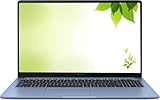
- Intel Processor Up to 2.80GHz, 4GB DDR4, 128GB Storage
- 15" FHD IPS Display, Intel UHD Graphics
- 1x USB Type C, 1 x USB Type A, 1x Headphone/Microphone Combo Jack, HDMI
- Super Fast WiFi and Bluetooth, Integrated Webcam
- Chrome OS, AC Charger Included, Pastel Blue
Google Calendar tab vs Chrome New Tab
| Method | Best for | Limitations |
|---|---|---|
| Chrome New Tab Page Calendar tile | Quick glance at next meetings and schedule context | Limited detail vs the full Calendar interface |
| Google Calendar in the browser | Editing, creating events, managing availability | Extra step to open/locate the Calendar tab |
| Google Calendar mobile apps | Push notifications and on-the-go updates | Not tied to your desktop Chrome workflow |
Edge cases: shared devices, multiple accounts, and time zones
Workspace environments often introduce edge cases that aren’t obvious in a single-user test.
Shared computers
If a device is shared, the active Chrome profile determines what the New Tab panel shows. Make sure shared-device procedures (session logout, kiosk policies, or profile switching rules) are aligned with how your org expects calendar data to appear.
Multiple accounts in Chrome
It’s common for employees to sign into personal and Workspace accounts. When the Chrome New Tab panel has to choose a source, the tile might display the wrong account’s schedule. The safest fix is to reduce account overlap in the browser profile you use for work.
Time zones and “nothing upcoming”
If you’re traveling or the account time zone changes, a tile that expects events in a certain “today” window may appear empty. Validate by checking the same day view inside Google Calendar and comparing it to the tile’s time window.
Also popular on Amazon

- THE BETTER WAY TO LAPTOP – Imagine a Chromebook that’s as flexible as your day: thin and lightweight with built-in Google apps and stress-free security.
- TAKE HITS KEEP MOVING – Sleek, light, and built to last- the Chromebook 2-in-1 is just 0.69” thick and 3.3lbs. Enjoy long-lasting battery life, fast charging, and military-grade durability for nonstop productivity wherever life takes you.
- PERFORMANCE THAT MATCHES YOUR HUSTLE – Fuel your ideas with an Intel Core processor and 128GB storage. Boot up in under 10 seconds to start the day powerfully efficient.
- FLEX YOUR CREATIVITY ANYWHERE, ANYTIME – Create, work, or unwind your way with a versatile 2-in-1 design. Flip easily between laptop, tent, and tablet modes with a responsive touchscreen built for flexibility.
- BRILLIANT VIEWS AND IMMERSIVE AUDIO – See, hear, and create with awesome clarity. The WUXGA display brings rich detail to your work and play, while audio tuned by Waves MaxxAudio provides immersive, balanced sound.
FAQs about Google Calendar on Chrome New Tab Page for Workspace
Do I need to install anything to see Google Calendar on the Chrome New Tab Page?
Usually, no. This is typically a Chrome UI feature tied to your signed-in account and Workspace policies. If it’s not showing, it’s more often a sign-in/policy/rollout issue than a missing install.
Why can’t I see the tile even though I’m using Google Workspace?
Common causes include not being signed into the correct Workspace account, a managed Chrome policy disabling personalization/connected experiences, or the feature not yet being rolled out to your specific Chrome build.
Will this show details from shared calendars my admin granted me?
It should respect Google Calendar permissions for your account. If you have access to events on a shared calendar, you’ll generally see what your account is allowed to view.
Can admins force the feature on for all users?
Admins can usually enforce or disable personalization-related Chrome behaviors through policy. Whether you can explicitly force this exact calendar tile depends on the specific policy set available in your Chrome management environment and the feature’s rollout state.
Also popular on Amazon
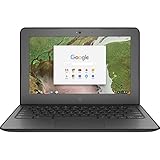
- Storage: 16 GB Flash Memory
- OS: Chrome OS
- Screen Size: 11.6"
Does this work on every device (Windows, macOS, Linux, Chromebooks)?
Chrome-based features roll out with device and channel differences. If your desktop doesn’t show it, try checking Chrome version and, on managed fleets, confirm the same policies apply to your device group.
Bottom Line
Google Calendar on the Chrome New Tab Page for Workspace is a practical “start-of-day” workflow improvement, but it depends on correct sign-in, Calendar visibility, and (in managed environments) Chrome policies. If you don’t see it, prioritize version and account alignment first, then check admin policy constraints.
For admins, treat it like any other managed UI module: confirm your Chrome management rules around personalization and connected experiences, then validate in the same browser channel and version your users actually run.

