Some links on this page are affiliate links: if you buy through them we may earn a commission, at no extra cost to you.
A PS5 Media Remote that suddenly stops working is usually fixable, but it depends on what “not working” means. Sometimes it’s dead batteries, sometimes it’s pairing lost, and sometimes a PS5 setting (or HDMI-CEC behavior) blocks media controls.
This guide walks you through the most reliable 2024 fixes in the order that typically resolves the issue fastest. You’ll get exact PS5 menu paths, what to check first, and what to do when the usual steps don’t help.
As an Amazon Associate I earn from qualifying purchases.
Recommended Free Tools
Quick Checks Before You Change Settings
Before you do anything advanced, verify the basics. A surprising number of issues are caused by power, pairing distance, or a simple setup mismatch.
- Distance and line of sight: Test within 1–2 meters of the PS5 and aim toward the console. (The remote uses Bluetooth for most functions, but reflections/obstructions can still reduce responsiveness.)
- LED behavior: If your remote has a light indicator, check whether it responds when you press buttons.
- Remove interference: Temporarily move the PS5 away from devices that can cause wireless interference (USB hubs with lots of peripherals, dense Wi‑Fi routers, etc.).
- Test with a different button: Try Power, PS shortcut functions, and dedicated media keys (Play/Pause, Volume). If only one group fails, the cause is different than a fully dead remote.
5 Proven Solutions to Fix PS5 Media Remote Not Working (2024)
Use these in order. Each solution targets a different failure mode: battery power, pairing state, system responsiveness, settings/CEC, and finally a deeper reset.
Popular on Amazon
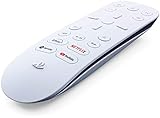
- Media playback controls - Quickly navigate media with built-in play/pause, fast forward and fast reverse buttons.
- Seamless console compatibility - Power on your PS5 console and navigate its menus directly with the remote for ultimate convenience.
- TV settings - Adjust the volume and power settings of compatible TVs with the built-in IR transmitter. PS5 system software update may be required.
1) Replace the Batteries (or Re-seat Them Correctly)
If the remote is “barely alive” or only reacts intermittently, fresh batteries are the fastest fix. Even if buttons still click, low voltage can prevent reliable Bluetooth communication.
- Open the battery compartment on the remote.
- Remove both cells and re-seat them with the correct polarity markings (+/−).
- Install new batteries of the same type (commonly AA or AAA depending on your remote model).
- Close the compartment firmly and press a media key while facing the PS5.
Gotcha: If your remote uses rechargeable cells, they can work, but inconsistent output under load can cause “random no response.” Fresh alkaline cells often eliminate that quickly.
Free tools Windows power users keep installed
One-click scans. No signup required.
2) Confirm the Remote Is Paired to Your PS5
Pairing issues are common after power outages, console reboots, or accessory removal. Re-pairing restores Bluetooth control and ensures the PS5 recognizes the remote.
- Turn on your PS5.
- Go to Settings > Accessories > Bluetooth Accessories.
- Look for Media Remote (wording can vary slightly by system software).
- If it’s listed but not working, select it and choose the option to Remove or Forget.
- Restart the pairing process: press the remote’s pairing button (if your model has one) or follow on-screen pairing prompts.
- After pairing, test the remote immediately on the PS5 home screen.
Gotcha: Don’t pair the remote to another device while troubleshooting. Keep it paired only to the PS5 until the issue is resolved.
3) Power-Cycle Your PS5 and Re-test the Remote
When the PS5’s accessory Bluetooth stack gets stuck, a true power-cycle usually fixes it. Regular restart sometimes isn’t enough.
- Turn the PS5 on.
- Hold the power button on the console until it beeps and fully powers down.
- Unplug the power cable from the back of the PS5.
- Wait 60 seconds.
- Plug the power cable back in.
- Turn on the PS5 and test the media remote again within 1–2 meters.
If the remote works after power cycling, the issue is likely software/connection state—not a hardware failure.
Outdated Drivers Are Slowing You Down
One free scan finds every outdated or missing driver and matches the right update for your exact hardware.Free scan · exact hardware matchWindows Errors? Fix Them Before They Spread
Repair common Windows errors and clear accumulated junk for a smoother, more stable PC - no reinstall needed.Free scan · no reinstallAlso popular on Amazon

- Media playback controls - Quickly navigate media with built-in play/pause, fast forward and fast reverse buttons.
- Seamless console compatibility - Power on your PS5 console and navigate its menus directly with the remote for ultimate convenience.
- TV settings - Adjust the volume and power settings of compatible TVs with the built-in IR transmitter. PS5 system software update may be required.
4) Check PS5 Media Remote Settings and HDMI-CEC Behavior
Some PS5 media features depend on HDMI-CEC and TV/AV receiver behavior. If your TV controls work but media buttons don’t, settings/CEC interaction may be the culprit.
- On the PS5, go to Settings > System > HDMI.
- Check Enable HDMI Device Link (and related HDMI-CEC items if present).
- If you’re using a soundbar/AV receiver, try temporarily connecting the PS5 directly to the TV (or disable the receiver’s CEC passthrough) to isolate the problem.
- Test the remote on the PS5 home screen after you adjust HDMI settings.
- Then test inside one streaming app (for example, YouTube) to confirm media buttons behave as expected.
Gotcha: TV brands handle CEC differently. If your TV has CEC settings like “Anynet+ / Bravia Sync / Simplink / EasyLink,” set them to a compatible mode or test with CEC disabled to confirm whether it’s causing the conflict.
5) Reset the Remote / Remove and Re-add the Accessory (Hard Fix)
If pairing resets didn’t work and the remote is still unresponsive, you may need to fully remove the accessory and re-add it, then re-test in a clean system state.
- Go to Settings > Accessories > Bluetooth Accessories.
- Select the Media Remote and choose Remove.
- Restart the PS5 (full power-cycle is best).
- Re-add/pair the remote again from the same Bluetooth Accessories menu.
- If your remote model includes a reset pinhole/button, press it using a paperclip while following any LED/pairing behavior described by the manual.
- After re-pairing, test basic controls first: Play/Pause and Volume (if supported by your setup).
Gotcha: Don’t rush multiple remove/pair cycles in under a minute. Give the PS5 time to fully detect the accessory after each change.
Do these 3 things before closing this tab:
1Clear out junk files and repair common Windows errors2Fix the driver behind crashes, sound loss and screen glitches3Repair Windows errors before they cause bigger problemsTroubleshooting by Symptom
Use this to cut time. The “fix” differs depending on which parts of the remote work.
| Symptom | Most Likely Cause | What to Try First |
|---|---|---|
| No buttons respond at all | Batteries, pairing lost, or stuck PS5 Bluetooth state | Solution 1 (replace batteries) + Solution 3 (power-cycle) |
| Remote works in some menus, not media/apps | HDMI-CEC or app-specific input handling | Solution 4 (HDMI settings/CEC) + test in YouTube |
| Only volume or TV controls fail | TV/receiver IR pairing or HDMI Device Link behavior | Check TV/receiver CEC settings + PS5 HDMI Device Link |
| Buttons trigger delays | Low battery, distance, interference | Fresh batteries + test within 1–2 meters |
| Paired, but still not recognized | Stale accessory state | Solution 5 (remove/re-add + reset) |
When It Works in Menus but Not in Apps
This pattern usually means the PS5 recognizes the remote, but the app you’re using isn’t mapping media keys the way you expect. Streaming services sometimes handle transport controls differently depending on content type.
Also popular on Amazon

- UNLIKE OTHER GENERIC CASES THAT offer low quality materials and mediocre shock protection, the elago Media Remote case is made with a THICK LAYER OF PREMIUM SILICONE that PROTECTS your remote from drops and other mishaps from daily use.
- MINIMALISTIC DESIGN THAT offers GREAT PROTECTION. The case covers the sides and back of the Media Remote allowing for FULL ACCESS to all functions of the remote while offering PROTECTION from dirt, oils and drops from daily use!
- PREMIUM SILICONE WAS USED TO create this awesome product so that it can help protect your remote and any surface it rests on. Silicone PREVENTS SCRATCHES and provides GREAT GRIP making it the ideal material for a remote case!
- PERFECT GIFT FOR any PS5 user! Great for BIRTHDAY PRESENTS for loved ones and gifts during the holiday season – ESPECIALLY CHRISTMAS FOR STOCKING STUFFERS!
- elago is a DESIGN COMPANY FIRST AND FOREMOST. Our motto is SIMPLE SOPHISTICATION because we create products that are USEFUL AND AWESOME! WE ALWAYS CREATE products that WE OURSELVES USE, so we know YOU WILL LOVE IT!
- Test with YouTube first because it’s a common reference app for media button behavior.
- Close the app completely and relaunch it.
- Try another app (for example, Netflix) to confirm whether the problem is app-specific.
- If the remote only controls transport in one app, the cause may be app integration rather than the remote hardware.
Edge Cases That Cause “Dead Remote” Symptoms
These aren’t the usual causes, but they do show up in real troubleshooting.
- Wrong remote mode: Some media remotes have mode switching between TV/receiver controls and PS5 control. If your model supports it, switch to the PS5 mode.
- Metal surfaces and distance: A remote that works in direct line of sight may fail when aimed through a cabinet or across thick furniture.
- Multiple accessories: If you have several Bluetooth accessories paired (especially older ones), the remote may fight for focus. Remove unused Bluetooth accessories temporarily and test again.
- HDMI port routing: If you use HDMI ARC/eARC or an optical-to-AV receiver chain, CEC behavior can change. Test direct connection to isolate.
What to Try If Your Remote Still Won’t Work
If all five proven solutions fail, you’re down to two paths: a deeper PS5 update/state issue or remote hardware failure.
- Check for PS5 system updates: On the PS5, go to Settings > System > System Software > System Software Update.
- Update the TV firmware (if needed): CEC/remote behavior issues sometimes get fixed via TV firmware updates.
- Test with a different remote (if available): If you can borrow another PS5 Media Remote, you’ll instantly confirm whether the PS5 is fine.
- Test the remote with another PS5: If the remote still fails on a second console, it’s likely hardware.
If it’s hardware, contact Sony support or replace the accessory through your retailer’s warranty/return process.
PS5 Media Remote Alternatives and Compatibility Notes
If you need media control right now while troubleshooting, you have options.
- DualSense controller: The controller can navigate menus and many apps even when media keys are unavailable.
- TV remote: If HDMI-CEC and Device Link are enabled, the TV remote may control playback/volume depending on your setup.
- App controls: Most streaming apps provide on-screen transport controls when the remote’s media keys aren’t working.
Compatibility note: Remote functionality varies by TV, soundbar, and app. If your setup uses an AV receiver, always test by bypassing it to isolate CEC behavior.
Independent reader supportYour contribution helps us test, update, and keep practical guides available for everyone.FAQs
Why does my PS5 Media Remote work for a few minutes, then stop?
The most common cause is weak batteries. Replace them with fresh cells and test again within 1–2 meters. If it still happens, pairing state may be unstable—remove and re-add it in Settings > Accessories > Bluetooth Accessories.
Quick wins for a faster PC:
Fix the driver behind crashes, sound loss and screen glitchesFind Drivers →Repair Windows errors before they cause bigger problemsFix Now →Also popular on Amazon

- Lightweight soft rubber sleeve with textured design at the backside for anti-slip.
- Snug fit, each hole is cut out according to the button for easy to press.
- Soft rubber sleeve to fully protect remote, lightweight, shockproof, anti-batteries fly out.
- Sleeve replacement made for Sony PS5 Game Console Media Remote control.
- Package Included: PS5 Remote Silicone Cover x 1, Lanyard x 1 (Note: PS5 remote control is not included in the package).
Does the PS5 Media Remote need Bluetooth to work?
Most PS5 control features use Bluetooth pairing. If the remote is unpaired or batteries are low, PS5 inputs typically fail first. HDMI-CEC affects how some TV/receiver-related controls behave, but it doesn’t replace core PS5 remote pairing.
Can HDMI-CEC settings break the remote?
Yes. HDMI Device Link and CEC can cause conflicts between PS5 commands and TV/receiver behavior. Disabling HDMI-CEC temporarily or adjusting Device Link in Settings > System > HDMI helps confirm whether CEC is involved.
What if my remote pairs, but buttons still don’t do anything?
Try a full power-cycle (unplug for 60 seconds). Then remove the remote from Bluetooth Accessories and re-add it. If it still fails, the remote may be defective.
How do I know the remote has enough battery power?
There’s no universal battery % display for every remote. Reliable response after inserting fresh batteries is the practical test. If inputs become delayed or intermittent, replace the batteries.
Bottom Line
For PS5 Media Remote not working, start with batteries and pairing, then use a true PS5 power-cycle. After that, check HDMI-CEC/Device Link behavior, and finish with a hard remove/re-add reset when needed.
If none of the fixes restore control, test the remote on another PS5 (or test another remote on your PS5). That will quickly confirm whether you’re dealing with a settings problem or a hardware fault.

