Free tools Windows power users keep installed
One-click scans. No signup required.
Some links on this page are affiliate links: if you buy through them we may earn a commission, at no extra cost to you.
Fitbit can detect irregular heart rhythms and show AFib-related alerts on supported devices. When you share those findings with your clinician, you reduce the guesswork and make it easier to decide whether you need follow-up testing or treatment changes.
This guide focuses on practical ways to share AFib data from Fitbit to your doctor: sharing directly in the app when the option exists, exporting records for your appointment, and packaging a clean summary your clinic can actually use.
As an Amazon Associate I earn from qualifying purchases.
Outdated Drivers Are Slowing You Down
One free scan finds every outdated or missing driver and matches the right update for your exact hardware.Free scan · exact hardware matchPC Slower Than It Used to Be?
A free scan shows the junk files, broken settings and background clutter dragging Windows down - then fixes them in one click.Free scan · Windows 10 & 11Why AFib data sharing matters
AFib can be intermittent, which means your symptoms (and even the rhythm itself) may not appear during a routine visit. Sharing timestamped alerts, rhythm summaries, and context like activity, heart rate trends, and symptoms helps your clinician correlate episodes with your day-to-day life.
When your doctor has usable records, they can move faster on decisions like ordering a patch monitor, adjusting medications, or determining whether your episodes are frequent enough to warrant specific management.
Popular on Amazon

- COMPLETE ALL-IN-ONE-BUNDLE: Includes Fitbit Charge 6 Black/Obsidian, rapid USB charger, and a premium microfiber cleaning cloth, – everything you need to start tracking in style.
What Fitbit AFib data you can share
What you can share depends on your device model and what Fitbit recorded at the time of each alert. In most cases, you’ll be able to provide a record of AFib-related notifications plus the time they occurred.
- AFib/irregular rhythm alerts with dates and timestamps (often including guidance like duration or whether the rhythm was detected during a measurement window)
- Heart rate context around the alert time (e.g., your typical rates and trends)
- ECG-related details if your Fitbit model supports ECG and you have saved ECG readings/plots
- Activity context such as steps, workouts, or time of day you were active
If you’re unsure what you’ll see, open your Fitbit app and check the heart-related screens (for example, the heart rhythm or ECG areas). Then plan your sharing method based on what’s available there.
Before you start: prerequisites and privacy checks
Before you export anything, do two quick checks: confirm you’re signed in correctly and verify what data your Fitbit account is allowed to share with connected services.
Verify the Fitbit account and app access
- Open the Fitbit app on your phone.
- Confirm you’re signed into the correct account (look for the account profile icon and email shown).
- Confirm the device is paired (Settings > your device name should show as connected).
Check privacy settings for connected sharing
- In the Fitbit app, go to your Profile.
- Open Settings and review any options related to sharing, data export, or connected apps.
- If you use iPhone or iPad, also ensure any iOS health permissions (Health app integrations) match what you intend to share.
You don’t want to accidentally share unnecessary details (like location) while trying to provide rhythm evidence. If your clinic prefers only AFib items, aim for screenshots/reports for those moments instead of a full raw export.
Method 1: Share from the Fitbit app (when available)
Some Fitbit views allow you to share an individual alert or related record. If you see a Share option on an AFib episode, it’s often the fastest and cleanest method for a clinician.
Step-by-step (try this first)
- Open the Fitbit app.
- Go to the heart area (commonly found under your dashboard widgets or a Heart-type tab).
- Find Heart Rhythm / irregular rhythm / AFib history.
- Tap an AFib-related alert episode.
- Look for a Share button (or a share icon).
- If sharing is available, send it to yourself (email) or to your clinic through the method your doctor supports (email, patient portal upload, or clinic email).
If there’s no Share button, don’t force it. Use Method 2 (export) or Method 3 (a doctor-ready summary) instead.
Do these 3 things before closing this tab:
1Scan for outdated or missing drivers - takes under a minute2Clear out junk files and repair common Windows errors3Fix the driver behind crashes, sound loss and screen glitchesMethod 2: Export your Fitbit data for your doctor
If your clinic needs files rather than screenshots, exporting your Fitbit data is the most reliable approach. You can share either Fitbit’s exported files or use Google Takeout for a complete dataset download.
Use Fitbit data export (web)
Fitbit supports data export options through the web account tools. This is the cleanest path when you want a more structured export without handling raw API-style files.
- On a computer, sign in to your Fitbit account via the Fitbit website.
- Find account settings related to data or export your data.
- Start the export and download the resulting files to your computer.
- Upload the relevant files to your clinic or email them via your patient portal workflow.
Because the exact wording can vary by account region and Fitbit UI updates, if you don’t see an “Export” button immediately, search within Settings for terms like data or download.
Also popular on Amazon
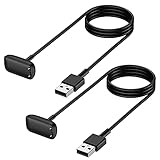
- Mixblu replacement charging cables are specially designed for Charge 6, Charge 5 and Luxe only.
- According to customer voice and market research, we continuously optimize the magnetic attraction strength, and the upgraded version can provide a strong and stable connection after testing.
- Passed thousands of qualified tests, it can provide a fast charging speed and stable charging status.
- Made of ABS plastic and TPE cable, lightweight, stable and durable, giving you a good charging experience.
- 3.3ft long charging cord provides you convenient use and the flexibility you need.
Use Google Takeout (CSV/JSON files)
Google Takeout is useful when you want the broadest set of Fitbit data in a single downloadable package. It may contain AFib-related records alongside other heart and activity data.
The Tool Desk
Outbyte Driver Updater FREEFix the driver behind crashes, sound loss and screen glitchesFind Drivers →Outbyte PC Repair FREERepair Windows errors before they cause bigger problemsFix Now →- Go to Google Takeout and sign into the Google account connected to Fitbit.
- Select Fitbit.
- Choose the file format options provided (commonly zipped archives, with CSV/JSON content).
- Submit the request and wait for the export build.
- Download the archive, extract it, and identify the heart rhythm/ECG-related folders/files.
When sharing with your doctor, include only the relevant files if your clinic prefers minimal attachments. If they can’t find what they need, share a simple summary (Method 3) alongside the raw export.
Method 3: Create a doctor-ready summary you can attach
Even if you export data, clinics often prefer a one-page summary with the “what happened, when, and how you felt” story. Fitbit alerts can be hard to interpret from raw files, so your job is to translate the timeline.
What to capture for each AFib episode
- Date and time of the AFib-related alert (use the app’s displayed timestamp)
- Duration or measurement window (whatever Fitbit shows for that episode)
- Symptoms you noticed (palpitations, dizziness, shortness of breath, chest discomfort)
- Context (at rest, during exercise, after caffeine/alcohol, during stress)
- Heart rate notes around the episode if shown (or “baseline unknown” if not)
If you can access ECG visuals for that episode, add a screenshot of the ECG view or the saved ECG plot.
How to format it for a clinic
Use a consistent template so your clinician can scan quickly. A simple table works well for both cardiology and primary care.
Quick wins for a faster PC:
Clear out junk files and repair common Windows errorsFree Scan →Fix the driver behind crashes, sound loss and screen glitchesFind Drivers →| Episode # | Date/Time | Fitbit AFib alert details | Symptoms (Y/N + brief) | Context |
|---|---|---|---|---|
| 1 | 2026-05-02 14:35 | Irregular rhythm/AFib notification (as shown) | Palpitations, mild lightheadedness | At rest, after coffee |
| 2 | 2026-05-05 19:10 | Repeat alert (as shown) | Shortness of breath | Walking, dinner nearby |
Then add a short paragraph at the end: when symptoms started, any known triggers, and whether the alert frequency is increasing or decreasing.
Method 4: If you have ECG-capable Fitbit hardware
If your Fitbit model supports ECG and you have recorded ECG readings during or near suspected AFib episodes, sharing those readings can be especially valuable. ECG plots provide waveform detail your clinician may use to corroborate rhythm events.
Capture the right ECG evidence
- Open the Fitbit app and go to the ECG/heart rhythm history.
- For each AFib-adjacent episode, check for an ECG reading close to the alert time.
- Use the app’s built-in options to share/export the ECG view if provided.
- If no direct share/export exists for ECG plots, capture a high-quality screenshot and include it in your summary document.
When you screenshot, make sure the date/time and any “measurement” metadata are visible. Cropping those details removes the value for clinical review.
Common problems and troubleshooting
Sharing Fitbit AFib data usually fails for a few predictable reasons: missing alerts, incompatible file types, or account permissions. Here are targeted fixes.
Also popular on Amazon
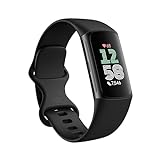
- Fitbit Charge 6 tracks key metrics from calories and Active Zone Minutes to Daily Readiness and sleep; move more with 40+ exercise modes, built-in GPS, all-day activity tracking, 24/7 heart rate, automatic exercising tracking, and more[1]
- See your heart rate in real time: Just link your Charge 6 to compatible exercise machines, like treadmills, ellipticals, and more[2]; and stay connected with YouTube Music controls[3]
- Tune into your body: Track your response to stress with a stress management score; learn about the quality of your sleep with a personalized nightly Sleep Score; and wake up more naturally with the Smart Wake alarm
- Run your routine with Google essentials: Find your way seamlessly during runs or rides with turn-by-turn directions from Google Maps on Fitbit Charge 6; and when you need a snack break on the go, just tap to pay with Google Wallet[1,4]
- Unlock more with Google Health Premium: With a premium membership, get personalized coaching that’s built with Gemini and adapts to your life[7]; get a 3-month trial at no cost to you[5] (Google Health Premium subscription sold separately)
Problem: You can’t find AFib alerts in the app
- Check your device eligibility: AFib detection and ECG support vary by Fitbit model and region.
- Confirm the correct account: multi-account households are the most common culprit.
- Verify sync: force a sync (open Fitbit app while the phone is near the tracker) and re-check heart history.
Problem: Export downloads but files won’t open or are confusing
- Expect ZIP archives: many exports arrive as compressed folders; extract before sending.
- Use a text-capable viewer: CSV files can open in Excel/Numbers/Google Sheets; JSON may need a viewer or conversion.
- Pair raw export with a summary: the clinician can’t interpret everything, so your table (Method 3) should point them to the exact episodes.
Problem: Your clinic says they can’t use the files
- Switch to screenshots: share app screenshots with clearly visible timestamps and alert labels.
- Upload only the AFib-relevant pages: don’t send the entire dataset if the portal rejects large uploads.
- Ask for preferred format: many clinics accept PDF images and reject raw CSV/JSON.
Problem: You’re worried about data privacy
- Share minimally: export/screenshot only the AFib episodes and ECG readings you’re using for clinical review.
- Remove identifiers when allowed: if the portal doesn’t require them, avoid including other personal pages (like account profile screens) in screenshots.
Common mistakes to avoid
- Sending screenshots without context: a screenshot that doesn’t show the timestamp makes it hard to match the episode to symptoms or medications.
- Sharing everything: full exports can be huge and may violate a clinic’s file-size or privacy policies.
- Waiting until the last minute: exports can take time (especially via Takeout), so request them days before your appointment.
- Assuming data proves AFib: Fitbit signals are screening/notification data; your clinician decides on diagnosis and testing.
Alternatives if your clinician can’t use the files you have
Not every clinic has a workflow for wearable exports. If they can’t open Fitbit files, use a hybrid approach: a clinician-friendly summary table plus screenshots of the episodes.
- Bring the AFib episode timeline as a PDF (created from your table).
- Attach only 3–10 of the most relevant episodes (recent and symptom-matched).
- Bring your medication list and symptom log in the same document so the clinician can correlate quickly.
This approach often works even when the clinic can’t parse ECG waveform files or CSV exports.
FAQs
Will my doctor automatically see my Fitbit data?
Usually not. Most clinics won’t automatically receive wearable data unless there’s a specific integration or you share it manually through the portal, email, or in an upload. Plan to send the records yourself.
What if I don’t have an option to share an AFib episode in the app?
Use export methods (Fitbit web export or Google Takeout) or create your own timeline summary using screenshots and your symptoms. For many clinicians, a well-formatted episode table is the most practical input.
How far back should I share AFib data?
If you’re able, share a window that covers a trend rather than a single event—often 30–90 days. If your symptoms started recently or episodes are infrequent, include the earliest onset you have plus the most recent alerts.
Can I share AFib data without sharing other health information?
Yes. Screenshots and episode-only summaries limit what’s included. Full exports may contain more than AFib records, so choose minimal artifacts your clinic can use.
Is Fitbit AFib detection a diagnosis?
No. Fitbit notifications are meant to help you spot possible irregular rhythms and prompt follow-up. Your clinician may confirm AFib with clinical-grade ECG, patch monitoring, or other testing.
Bottom Line
Sharing AFib data from Fitbit works best when you combine the right proof (episode timestamps and any ECG visuals you have) with a clean, doctor-ready summary. Start with in-app sharing if it’s available, otherwise export Fitbit data and supplement it with a timeline table.
What’s actually slowing this PC down?
Pick the symptom - the matching free tool is one click away.
Do it a few days before your appointment, share only what’s relevant, and make it easy for your clinician to match episodes to symptoms and treatment decisions.

