Some links on this page are affiliate links: if you buy through them we may earn a commission, at no extra cost to you.
Reports around WD Black SN850X NVMe drives have raised concern among users who rely on them for boot drives, game libraries, creative workloads, and high-speed storage. The issues being discussed vary widely, from intermittent disconnects and sudden slowdowns to drives disappearing from BIOS or producing errors under load, which makes it difficult to separate an isolated setup problem from a potentially failing drive.
Because NVMe behavior can be influenced by firmware, motherboard BIOS versions, PCIe settings, thermals, power management, and operating system drivers, the safest approach is to treat early warning signs seriously without jumping straight to replacement. A drive that drops offline once, triggers SMART warnings, or behaves inconsistently should be backed up and checked before further stress testing.
As an Amazon Associate I earn from qualifying purchases.
This discussion focuses on the practical steps users can take to evaluate an SN850X: identifying symptoms, checking firmware and platform compatibility, protecting data, ruling out configuration problems, and deciding when warranty service or replacement is the better option.
What Users Are Reporting About WD SN850X Drives
Reports around WD Black SN850X NVMe drives are not all describing the same failure, which makes the discussion more complicated than a simple “good” or “bad” drive verdict. Some users describe stable long-term operation, while others report sudden instability after a new build, a motherboard BIOS update, a Windows update, or a firmware change. The most concerning accounts involve drives disappearing from the BIOS or operating system, repeated boot failures, unexpected read/write errors, or a system that becomes unstable only when the SN850X is installed as the primary boot drive.
Popular on Amazon

- This product has been replaced by our latest generation. Please search for the SANDISK Optimus GX PRO 850X NVMe SSD
- TRANFORM YOUR PC: Insane speeds up to 7,300MB/s (1TB - 4TB models) deliver top-tier performance with ridiculously short load times for your gaming PC or workstation — for the elite experience you’ve been waiting for.
- MORE ROOM FOR MORE GAMES: Capacities up to 8TB built with SANDISK TLC 3D NAND, means you get to keep more games at the ready — and get into the action even faster.
A common pattern in user reports is intermittent detection. The drive may appear normally after a cold boot, vanish after sleep or restart, then reappear after a full power cycle. In other cases, the system may hang at POST, pause for an unusually long time during boot, or show the NVMe device inconsistently in UEFI storage menus. These symptoms can look like a dead SSD, but they can also be caused by PCIe link negotiation problems, motherboard firmware behavior, slot sharing with other devices, or power-state handling between the drive and platform.
Another group of reports centers on performance drops, stuttering, or system freezes under load. Users may notice long pauses while copying large files, installing games, compiling software, or loading assets from the drive. Some describe Windows Event Viewer entries related to disk resets, controller errors, WHEA warnings, or storage timeouts. These warnings do not automatically prove the NAND or controller is failing, but they are serious enough that the drive should be treated as at-risk until backups and diagnostics are completed.
What’s actually slowing this PC down?
Pick the symptom - the matching free tool is one click away.
There are also accounts involving data corruption or file-system repair prompts, although these appear less frequently than detection and stability complaints. Affected users may see applications fail to launch, game files repeatedly need verification, Windows requests a disk scan, or the system enters recovery after a crash. Because NVMe problems can escalate quickly from occasional errors to an unreadable boot drive, any recurring storage-related warning should be handled conservatively rather than dismissed as a one-off glitch.
Reported situations that deserve attention
- The drive disappears from BIOS, Windows Disk Management, Linux tools, or the boot device list.
- Boot behavior changes, including slow POST, boot loops, blue screens, or recovery prompts.
- Errors appear in logs, such as disk resets, NVMe controller warnings, WHEA entries, or I/O timeouts.
- Problems occur after a platform change, including a BIOS update, CPU upgrade, new motherboard, or moving the SSD to another M.2 slot.
- Heavy workloads trigger freezes, especially large file transfers, game installs, benchmarks, or sustained writes.
It is worth separating broad online concern from confirmed hardware failure. The SN850X is a high-performance PCIe 4.0 drive used across many desktops, laptops, workstations, and consoles, so even a relatively small percentage of problem cases can produce a visible number of posts. At the same time, repeated reports of disappearing drives or controller resets should not be ignored. If a system shows these symptoms, the safest assumption is that the data is more than identifying the perfect cause immediately.
Readers evaluating their own drive should look for patterns: whether the issue happens only in one M.2 slot, only with PCIe Gen4 enabled, only after sleep, only under heat, or only with a specific motherboard BIOS. A single crash may not indicate an affected drive, but recurring detection problems, unexplained storage errors, or worsening instability are strong signals to stop stress testing, back up critical files, record the symptoms, and begin a structured troubleshooting process before the drive becomes harder to access.
Common Symptoms and Failure Patterns to Watch For
Reported WD Black SN850X problems do not always begin with an obvious drive failure. In many cases, the first signs are intermittent: a system that was previously stable starts freezing during game loads, large file transfers, sleep resume, or Windows startup. Because NVMe drives sit close to the CPU, chipset, GPU, and power-management stack, these symptoms can be mistaken for RAM instability, a bad overclock, GPU driver issues, or a motherboard BIOS problem.
Do these 3 things before closing this tab:
1Fix the driver behind crashes, sound loss and screen glitches2Clear out junk files and repair common Windows errors3Scan for outdated or missing drivers - takes under a minuteOne of the more concerning patterns is sudden disappearance of the SN850X from the operating system or BIOS/UEFI. A user may see the drive normally at boot, then find that it vanishes after a crash, warm restart, or wake from sleep. Sometimes a full power-off restores detection temporarily. If the drive repeatedly drops out under load or after idle states, treat it as a data-safety warning rather than a minor nuisance.
Warning signs commonly associated with unstable NVMe behavior
- Random system freezes or hard locks: the mouse stops moving, audio may loop, and the machine requires a forced shutdown.
- Blue screen errors: crashes involving storage-related stop codes, WHEA errors, or unexpected store exceptions can point toward NVMe, PCIe, firmware, or platform issues.
- Drive disappears after reboot: the SN850X may be missing from Windows Disk Management, Device Manager, or the motherboard’s NVMe list until AC power is removed.
- Very slow performance spikes: benchmarks or real transfers may drop sharply, pause for seconds, or show inconsistent latency rather than normal thermal throttling behavior.
- Installation and update failures: Windows installs, game patches, decompression tasks, or large application updates may fail repeatedly on the same drive.
- File system corruption: recurring CHKDSK repairs, unreadable folders, missing files, or applications reporting damaged data should be treated seriously.
Failure patterns also vary depending on whether the SN850X is being used as a boot drive, game drive, or high-write workload drive. A boot-drive issue tends to show up as startup repair loops, long black screens before login, or crashes shortly after reaching the desktop. A secondary game or project drive may appear healthy until a large asset stream, shader compilation, video cache, or archive extraction triggers stalls. This difference can make the problem seem application-specific when the underlying issue is storage instability.
Temperature should be checked, but it should not be used as the only . The SN850X is a high-performance PCIe 4.0 SSD and can run hot without adequate airflow or a proper heatsink, especially under a GPU backplate. Normal thermal throttling usually causes reduced speed, not repeated disconnects, boot failures, or corruption. If temperatures are high, improving cooling is worthwhile, but persistent drive disappearance or SMART warnings after cooling improvements calls for deeper investigation.
Health indicators that deserve immediate attention
| Indicator | What it may suggest |
|---|---|
| Critical warning flags in SMART data | The drive firmware has detected a condition that may affect reliability. |
| Increasing media or data integrity errors | The NAND, controller, or PCIe link may be experiencing serious problems. |
| Unsafe shutdown count rising unexpectedly | System resets, power loss, or drive dropouts may be interrupting writes. |
| Repeated event viewer disk or stornvme errors | Windows is seeing storage timeouts, resets, or communication failures. |
A single crash is not proof that the SSD is defective, but a repeated pattern should change how you respond. If the drive has vanished more than once, produced storage-related errors, or caused file corruption, stop using it for irreplaceable data until backups are verified. Continued testing without a backup can turn a recoverable warning stage into a permanent data-loss event.
Firmware, BIOS, and Platform Compatibility Factors
When an SN850X behaves unpredictably, the drive itself is only one part of the equation. NVMe stability depends on the SSD firmware, motherboard BIOS or UEFI, chipset drivers, PCIe link negotiation, power management, and sometimes the specific M.2 slot being used. A system that freezes during gaming, drops the drive after sleep, or fails to detect it on cold boot may be exposing a compatibility problem rather than an immediate NAND or controller failure.
Start by checking the SN850X firmware revision with Western Digital Dashboard in Windows or through your motherboard’s storage information screen if available. WD has released firmware updates for different SN850X capacities and variants, and an outdated firmware build can contribute to detection, performance, or power-state problems. Apply firmware updates only after backing up data and ensuring the system is on stable power. Avoid updating firmware while the drive is already throwing frequent disconnects, file-system errors, or blue screens unless you have a verified backup, because an interrupted update can make recovery more difficult.
Also popular on Amazon
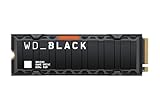
- This product has been replaced by our latest generation. Please search for the SANDISK Optimus GX PRO 850X NVMe SSD
- TRANFORM YOUR PC: Insane speeds up to 7,300MB/s (1TB - 4TB models) deliver top-tier performance with ridiculously short load times for your gaming PC or workstation — for the elite experience you’ve been waiting for.
Motherboard firmware matters just as much. Many AM4, AM5, Intel 600/700-series, and workstation boards have received BIOS updates that improve NVMe initialization, PCIe Gen4 compatibility, ASPM behavior, and resume-from-sleep reliability. If the drive disappears in BIOS, appears intermittently, or is only detected after a restart, compare your current BIOS version with the board vendor’s release s. Look for mentions of NVMe compatibility, PCIe stability, AGESA updates on AMD boards, Intel Management Engine updates, or storage initialization fixes.
Platform areas to review
- PCIe generation setting: If the board allows manual configuration, testing the M.2 slot at PCIe Gen3 instead of Gen4 can help identify link instability. This is a diagnostic step, not an ideal long-term performance setting.
- M.2 slot selection: Some slots connect directly to the CPU while others run through the chipset. Moving the drive to another slot can reveal a board routing, lane-sharing, or chipset issue.
- Chipset and storage drivers: Install current AMD chipset drivers or Intel chipset/ME components from the motherboard vendor or platform vendor. Avoid stacking unnecessary third-party storage utilities.
- Power management: Aggressive PCIe power saving, modern standby, or sleep-state behavior can trigger dropouts on some systems. Testing with PCIe Link State Power Management disabled in Windows can help isolate this.
- Thermal conditions: Firmware may throttle an overheated drive, but extreme heat can also appear as stutter, timeout errors, or disappearing storage under load. Confirm the heatsink, thermal pad contact, and airflow.
Compatibility symptoms are often repeatable under certain conditions. For example, a drive that vanishes only after waking from sleep points toward firmware, BIOS, or power-state handling. A drive that fails only in one M.2 slot may implicate motherboard lane sharing or slot signal quality. A drive that produces SMART media errors, corrupted files, or read failures across mulle systems is more likely to be failing hardware and should be treated as unsafe for important data.
Outdated Drivers Are Slowing You Down
One free scan finds every outdated or missing driver and matches the right update for your exact hardware.Free scan · exact hardware matchPC Slower Than It Used to Be?
A free scan shows the junk files, broken settings and background clutter dragging Windows down - then fixes them in one click.Free scan · Windows 10 & 11Before changing settings, document the current state: drive firmware version, BIOS version, motherboard model, operating system build, M.2 slot used, and any recent hardware changes. This makes it easier to compare results after each update and is also useful if you need to contact WD support or the motherboard manufacturer. Update one layer at a time where possible, then retest with the same workload that triggered the issue, such as large file copies, game loading, benchmark loops, sleep and resume, or repeated cold boots.
Data Backup and Drive Health Checks to Perform Immediately
If a WD Black SN850X is showing disconnects, boot failures, sudden slowdowns, file corruption, or intermittent detection in BIOS, treat the drive as potentially unstable until proven otherwise. The first priority is not benchmarking, firmware flashing, or stress testing; it is protecting the data. NVMe drives can deteriorate quickly once errors begin appearing, and repeated power cycles or heavy writes may make recovery harder if the controller, NAND, or firmware state worsens.
Start by copying irreplaceable files to a separate physical device, such as an external SSD, another internal drive, a NAS, or a trusted cloud backup service. Do not rely on another partition on the same SN850X, because partition separation does not protect against drive-level failure. If the system still boots, prioritize documents, photos, project files, game saves stored outside cloud sync, virtual machines, email archives, and license keys. For a boot drive, consider making a full disk image after critical files are copied, but avoid long imaging jobs if the drive is repeatedly dropping offline.
Health checks to run before deeper troubleshooting
- Check SMART data: Use Western Digital Dashboard, CrystalDiskInfo, smartctl, HWiNFO, or your motherboard vendor’s storage tools to review temperature, power-on hours, unsafe shutdowns, media errors, error log entries, and available spare.
- Look for NVMe error logs: Repeated controller errors, I/O timeouts, PCIe bus resets, or namespace errors are more concerning than a single generic warning.
- Review Windows Event Viewer: Under System logs, look for entries from stornvme, disk, nvme, WHEA-Logger, or unexpected storage resets around the time freezes or crashes occurred.
- Check firmware version: Compare the installed firmware against the latest version offered in Western Digital Dashboard. Record the current version before updating.
- Monitor temperatures: SN850X drives can run hot under sustained load. Confirm whether the controller is spiking into thermal throttle ranges, especially in motherboard slots under a GPU or without a heatsink.
When checking drive health, be careful not to overinterpret a “Good” SMART status. Many NVMe drives report a normal overall health value until a failure becomes severe, and some intermittent issues are tied to firmware behavior, PCIe link instability, motherboard BIOS interactions, or power-management states rather than exhausted NAND. A clean SMART screen is reassuring, but it does not override real symptoms such as disappearing from BIOS, blue screens during storage access, or recurring event log errors.
The Tool Desk
Outbyte Driver Updater FREEScan for outdated or missing drivers - takes under a minuteDriver Scan →Outbyte PC Repair FREERepair Windows errors before they cause bigger problemsFix Now →A practical approach is to document the issue while the system is still accessible. Save screenshots of SMART data, firmware version, temperatures, Windows reliability history, and relevant event logs. the motherboard model, BIOS version, CPU platform, M.2 slot used, whether a riser or adapter is involved, and whether the drive is running as a boot disk or secondary disk. This information helps distinguish a failing SN850X from a platform compatibility issue and may also speed up a warranty claim if replacement becomes necessary.
Avoid running destructive tests, repeated full-drive write benchmarks, or unnecessary secure erase operations until backups are complete. If the drive is already dropping offline, switch to a lighter recovery strategy: copy the most valuable folders first, copy in smaller batches, and stop if the system begins freezing or the drive vanishes. For business-critical or legally sensitive data, power the machine down and consult a professional recovery service rather than continuing to experiment. Once the data is safe, firmware updates, BIOS changes, slot changes, and replacement testing can be performed with far less risk.
Troubleshooting Steps Before Assuming Hardware Failure
Before treating a WD Black SN850X as a failed SSD, isolate the drive from the rest of the system as much as possible. Random disconnects, boot failures, stutters, or disappearing volumes can be caused by the NVMe drive itself, but they can also come from a marginal M.2 slot, outdated motherboard firmware, PCIe link instability, overheating, power-management behavior, or storage driver conflicts. The safest approach is to troubleshoot in a way that does not place more stress on the data: back up first if the drive is still readable, then test one variable at a time.
Start with the physical installation. Shut the system down fully, switch off the power supply, and reseat the SN850X in its M.2 slot. Make sure the drive is inserted at the correct angle, fully seated in the connector, and secured without bending the PCB. If the motherboard uses an integrated heatsink, confirm that any plastic film has been removed from the thermal pad and that the pad is making contact with the controller and NAND area. A drive that runs hot may throttle, vanish under load, or trigger errors during large file transfers, game installs, or benchmark runs.
Checks to perform before replacing the drive
- Test another M.2 slot: Move the SN850X to a different motherboard slot, preferably one wired directly to the CPU if available. Some chipset-connected slots share lanes with SATA ports, Wi-Fi modules, or PCIe devices and may behave differently.
- Update the motherboard BIOS or UEFI: NVMe compatibility fixes are often included in firmware updates, especially on newer AMD and Intel platforms. After updating, load optimized defaults and reapply only the settings you actually need.
- Check the drive firmware: Use Western Digital Dashboard to verify whether a newer SN850X firmware is available. Do not start a firmware update until important data has been backed up and the system is stable enough to complete the process.
- Review PCIe settings: If the system is unstable at PCIe Gen4 speeds, temporarily force the M.2 slot to Gen3 in BIOS. A stable drive at Gen3 but not Gen4 may indicate signal integrity, motherboard, riser, or slot-related issues rather than immediate NAND failure.
- Remove overclocks and undervolts: CPU, RAM, Infinity Fabric, base clock, and voltage tuning can cause storage errors that look like SSD failure. Test with stock settings, including standard memory profiles if EXPO or XMP is suspect.
Driver and operating-system behavior should also be considered. On Windows, compare behavior using the default Microsoft NVMe driver and any vendor storage drivers supplied by the motherboard platform. Check Event Viewer for recurring disk, storahci, stornvme, WHEA, or controller reset messages around the time the drive disappears or freezes. On Linux, review dmesg or journal logs for NVMe reset, timeout, or I/O error entries. A pattern of controller resets under load is more concerning than a single warning after a crash or forced shutdown.
If possible, test the SN850X in another known-good PC or in a high-quality USB4/Thunderbolt NVMe enclosure that supports the drive properly. This can help separate drive behavior from motherboard behavior, although external enclosures are not perfect substitutes for direct PCIe testing. Avoid repeated destructive benchmarks, full-drive writes, or stress tests if the drive is producing read errors, disappearing frequently, or showing worsening SMART health. At that stage, prioritize cloning or file recovery over diagnosis.
Also popular on Amazon

- This product has been replaced by our latest generation. Please search for the SANDISK Optimus GX PRO 850X NVMe SSD
- TRANFORM YOUR PC: Insane speeds up to 7,300MB/s (1TB - 4TB models) deliver top-tier performance with ridiculously short load times for your gaming PC or workstation — for the elite experience you’ve been waiting for.
- MORE ROOM FOR MORE GAMES: Capacities up to 8TB built with SANDISK TLC 3D NAND, means you get to keep more games at the ready — and get into the action even faster.
After these checks, the situation becomes clearer. If the SN850X fails across mulle slots or systems, shows increasing media errors, repeatedly drops offline during light workloads, or cannot complete diagnostics in Western Digital Dashboard, hardware failure becomes much more likely. If the drive stabilizes after a BIOS update, firmware update, slot change, cooling improvement, or PCIe speed adjustment, continue monitoring temperatures, SMART attributes, and event logs for several days before trusting it with irreplaceable data again.
Independent reader supportYour contribution helps us test, update, and keep practical guides available for everyone.Warranty, RMA, and Replacement Considerations
If a WD Black SN850X continues to disappear from BIOS/UEFI, drops out under load, reports recurring NVMe errors, or shows rapidly increasing media/data integrity warnings after firmware, BIOS, cooling, and slot-related checks, it is time to treat replacement as a realistic option. Intermittent NVMe faults can be difficult to prove because the drive may pass a short diagnostic immediately after a reboot, so the goal is to document the pattern before the issue escalates into data loss.
WD Black SN850X drives are typically sold with a limited warranty, but the exact coverage depends on region, seller, model, and purchase date. Check the serial number on Western Digital’s support site and compare it with your invoice or receipt. If the drive was purchased as part of a prebuilt PC, laptop, bundle, or marketplace listing, the warranty path may differ: the system builder, retailer, or marketplace seller may need to handle the claim instead of Western Digital directly.
Information to gather before opening an RMA
- Proof of purchase: invoice, order confirmation, or receipt showing date, seller, and model.
- Drive identifiers: model number, serial number, capacity, and firmware version from WD Dashboard, BIOS, or another NVMe tool.
- Health evidence: SMART/NVMe logs, error counters, screenshots from WD Dashboard, and any diagnostic results.
- Failure pattern: when the drive disappears, whether it happens during gaming, file transfers, sleep/resume, cold boot, or sustained writes.
- Platform details: motherboard or laptop model, BIOS version, CPU/chipset, operating system, PCIe slot used, and whether a heatsink is installed.
Before sending a drive away, assume you will not get the same unit back and that any remaining data may be erased. Complete a full backup or clone while the drive is still readable, then verify the backup on another device. If the SN850X is no longer stable enough for a full clone, prioritize irreplaceable files first and avoid repeated heavy stress tests that may worsen the condition. For sensitive data, use encryption beforehand where possible; if the drive is failing and cannot be securely erased, review WD’s RMA terms and decide whether the privacy risk is acceptable.
Replacement is more compelling when the same symptoms follow the drive across mulle M.2 slots or another compatible system, while other NVMe drives work normally in the original slot. It is also more compelling when firmware is current, temperatures are controlled, the drive is seated correctly, and the motherboard BIOS is updated, yet the drive still vanishes or produces persistent controller or media errors. On the other hand, if failures only occur in one slot, after sleep states, with a specific PCIe Gen4 setting, or after a recent BIOS update, platform compatibility may still be part of the problem.
When choosing a replacement, consider whether you need another SN850X or a different model entirely. If the system is used for work, production, or a boot volume where downtime is costly, replacing the suspect drive proactively may be wiser than waiting for a definitive failure. After installing the replacement, update firmware, confirm PCIe link speed, monitor temperatures, and keep a verified backup routine in place. Even high-end NVMe drives can fail without much warning, so the safest response to repeated warning signs is to preserve data first and debate warranty details second.
Recommended Free Tools
Frequently Asked Questions
How do I know if my WD Black SN850X is starting to fail?
Watch for repeated drive disconnects, disappearing from BIOS or Windows, sudden read/write slowdowns, freezing during large transfers, boot failures, or SMART warnings in WD Dashboard or another monitoring tool. A single crash does not prove the SSD is bad, but recurring detection problems or increasing error counts should be treated seriously. Back up data immediately before running more tests.
Should I update the firmware on my SN850X?
Yes, if WD Dashboard shows a newer firmware version for your exact drive model, updating is usually one of the first steps to try. Firmware updates can improve stability, compatibility, and power-management behavior, especially on certain motherboard platforms. Back up the drive before updating firmware, because any firmware flash carries some risk if the system crashes or loses power during the process.
Can motherboard BIOS settings cause SN850X problems that look like drive failure?
Yes, some issues can come from BIOS firmware, PCIe link negotiation, power-saving states, or slot sharing with GPUs and other NVMe devices. Update your motherboard BIOS, confirm the drive is running in a supported M.2 slot, and test with default BIOS settings before assuming the SSD itself is defective. If available, try the drive in another M.2 slot or another system to separate a platform problem from a drive problem.
What should I do first if my SN850X disappears from Windows or BIOS?
Do not keep rebooting repeatedly without a backup plan, especially if the drive reappears intermittently. Power the system fully off, reseat the SSD, check the heatsink and thermal pad contact, then boot and copy critical files if the drive is detected. After your data is safe, check SMART health, firmware version, motherboard BIOS version, temperatures, and Windows Event Viewer storage errors.
Free tools Windows power users keep installed
One-click scans. No signup required.
When should I request an RMA or replacement for an SN850X?
Consider warranty service if the drive repeatedly vanishes across mulle systems, shows SMART critical warnings, fails WD’s diagnostic tests, or continues to corrupt files after firmware and BIOS updates. Before submitting an RMA, collect the serial number, purchase proof, firmware version, diagnostic screenshots, and a clear description of the failure pattern. Securely back up or erase data if possible, because replacement processing usually does not preserve your files.
Bottom Line
The WD Black SN850X is still a fast, capable NVMe drive, but reports of instability, disappearing drives, boot issues, or data errors should not be ignored. If you notice warning signs, back up your data first, then check firmware, motherboard BIOS, PCIe settings, temperatures, and SSD health before assuming the drive has failed.
If problems continue after updates and basic troubleshooting, treat the drive as suspect and pursue warranty support or replacement rather than risking files. The safest next step is to verify your backups today and monitor the drive closely before small glitches become data loss.

