What’s actually slowing this PC down?
Pick the symptom - the matching free tool is one click away.
Some links on this page are affiliate links: if you buy through them we may earn a commission, at no extra cost to you.
An accounts receivable aging report helps you see which customer invoices are current, which are overdue, and where collection follow-up should happen first. By organizing unpaid invoices into aging buckets such as current, 1–30 days, 31–60 days, 61–90 days, and over 90 days, you can quickly understand cash flow risk and prioritize outreach.
Excel is a practical tool for building and maintaining this report because it allows you to calculate invoice age, group balances by overdue period, summarize totals by customer, and update the schedule as payments are received. With the right data fields and formulas, the report becomes a reliable working document for finance teams, small business owners, and anyone responsible for tracking receivables.
As an Amazon Associate I earn from qualifying purchases.
Prepare Your Accounts Receivable Data
Start by building a clean invoice-level worksheet. Each row should represent one customer invoice, credit memo, unapplied payment, or adjustment that affects accounts receivable. Avoid summarizing mulle invoices into one line at this stage, because the aging report needs the original invoice date, due date, and remaining balance to place each item in the correct aging bucket.
Create a structured table in Excel with consistent column headers. At a minimum, include the fields needed to identify the customer, calculate the age of the receivable, and confirm the amount still outstanding. If you export data from accounting software, paste it into Excel as values first, then review the columns before adding formulas.
Popular on Amazon
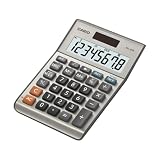
- LARGE EIGHT-DIGIT DISPLAY – Clear and easy-to-read 8-digit display, perfect for everyday calculations and ensuring accurate results in home or office settings.
- TAX & CURRENCY EXCHANGE FUNCTIONS – Effortlessly handle tax calculations and convert home currency to other currencies for easy financial management.
- GENERAL PURPOSE CALCULATOR – Ideal for a wide range of applications, from basic math to business and personal use, with memory keys for quick storage and recall.
- USER-FRIENDLY KEYBOARD – Easy-to-use layout, featuring square root, percent calculation, and simple functions that make it perfect for everyday tasks.
- COMPACT & PORTABLE DESIGN – Space-saving design that fits easily on any desk or in a briefcase, making it ideal for both home and office use.
| Field | Purpose |
|---|---|
| Customer Name | Groups open balances by customer for collections and review. |
| Customer ID | Prevents confusion when customers have similar names. |
| Invoice Number | Identifies the specific receivable being aged. |
| Invoice Date | Shows when the invoice was issued. |
| Due Date | Used to calculate how many days the invoice is past due. |
| Original Invoice Amount | Shows the full invoice value before payments or credits. |
| Payments and Credits | Captures amounts already applied against the invoice. |
| Outstanding Balance | Represents the amount still collectible. |
| Payment Terms | Helps validate whether the due date is correct. |
| Account Manager or Collector | Assigns responsibility for follow-up. |
Convert the data range into an Excel Table by selecting the range and using Insert > Table. This makes the report easier to maintain because formulas, filters, and formatting automatically expand when new invoices are added. Give the table a clear name such as AR_Data so formulas and PivotTables are easier to read later.
Before creating aging formulas, clean the source data carefully. Make sure invoice dates and due dates are stored as real Excel dates, not text. Confirm that amounts are formatted as numbers, remove duplicate invoice rows, and check that payments or credits are not being counted twice. Open invoices should generally have an outstanding balance greater than zero, while fully paid invoices should either be excluded from the aging schedule or shown separately for reconciliation.
Free tools Windows power users keep installed
One-click scans. No signup required.
- Use one currency format: If your business invoices in multiple currencies, add a currency column and decide whether the aging report will show original currency, reporting currency, or both.
- Keep credits visible: Credit memos and unapplied payments can reduce customer balances, so include them with negative amounts or in a separate section for review.
- Set a report date: Add a single “as of” date near the top of the worksheet, such as month-end or today’s date. This date will drive the aging calculations.
- Reconcile totals: Compare the total outstanding balance in Excel to the accounts receivable control account or open invoices report from your accounting system.
Once the invoice data is complete and reconciled, freeze the header row, apply filters, and sort by customer name and due date. This gives you a reliable base for calculating invoice age, assigning aging buckets, and building a that highlights overdue balances and collection priorities.
Set Up Aging Buckets in Excel
Aging buckets are the date ranges used to group open invoices by how long they have been outstanding. In an accounts receivable aging report, these buckets make it easy to see which balances are current, which are slightly overdue, and which require immediate collection follow-up. A common structure is Current, 1-30 days, 31-60 days, 61-90 days, and Over 90 days, but you can adjust the ranges to match your company’s credit terms and reporting practices.
Before adding formulas, reserve a section of your worksheet for the aging bucket labels. If your invoice data starts in row 1 with headers, you might add new columns to the right of your existing fields. For example, after columns such as Customer Name, Invoice Number, Invoice Date, Due Date, Invoice Amount, Payments Applied, and Outstanding Balance, add columns for Invoice Age, Aging Category, and the individual bucket amounts. This setup keeps the source invoice details and the aging calculations together in one clean table.
Common aging bucket structure
| Bucket Name | Days Outstanding | Typical Use |
|---|---|---|
| Current | Not yet due or 0 days overdue | Invoices still within payment terms |
| 1-30 Days | 1 to 30 days overdue | Recent overdue invoices for early follow-up |
| 31-60 Days | 31 to 60 days overdue | Balances that may need stronger collection action |
| 61-90 Days | 61 to 90 days overdue | Higher-risk balances requiring close review |
| Over 90 Days | More than 90 days overdue | Seriously past-due invoices and possible write-off review |
To make the aging report consistent, decide whether your buckets will be based on the invoice date or the due date. Most collection reports use the due date because it reflects the customer’s agreed payment terms. For example, an invoice issued 40 days ago with net 30 terms is only 10 days overdue, so it belongs in the 1-30 day bucket, not the 31-60 day bucket. Using the due date gives a more accurate view of collection priorities.
Quick wins for a faster PC:
Clear out junk files and repair common Windows errorsFree Scan →Fix the driver behind crashes, sound loss and screen glitchesFind Drivers →You should also choose an as-of date for the report. This is the date Excel will use to calculate the age of each invoice. You can use today’s date, but for month-end reporting it is better to enter a fixed as-of date in a separate cell, such as B1. Label cell A1 as “As-of Date” and enter the reporting date in B1. This allows you to recreate the same aging report later without the numbers changing automatically each day.
Recommended worksheet layout
- As-of Date: Place the report date in a clearly labeled cell at the top of the sheet.
- Invoice Detail Columns: Keep customer, invoice, date, amount, payment, and balance fields together.
- Calculation Columns: Add fields for days overdue and aging category.
- Bucket Amount Columns: Add one column for each aging bucket if you plan to total balances by category.
After the bucket structure is in place, convert your invoice range into an Excel Table by selecting the data and using Insert > Table. A table makes formulas easier to copy down, keeps headers visible, and expands automatically when new invoices are added. Use clear column names such as Days Overdue, Current, 1-30, 31-60, 61-90, and Over 90. With the buckets defined and the layout organized, the next step is to calculate invoice age and outstanding balances so each open invoice can be assigned to the correct aging category.
Also popular on Amazon

- EXTRA-LARGE DISPLAY AND FAST PRINTER: An extra-large fluorescent display keeps calculations easy to view, paired with a fast, reliable 2.0 lines-per-second ink printer for clear physical records.
- AC POWER AND ONE-TOUCH CHANGE: Plugs into any standard AC outlet for steady, battery-free operation, and a one-touch change calculation function instantly displays and prints the change owed.
- COST, SELL AND MARGIN CALCULATION: Dedicated cost, sell, and margin calculations pair with tax calculation features to handle a variety of financial scenarios.
- FOUR-KEY INDEPENDENT MEMORY: Includes dedicated keys for Memory Plus, Memory Minus, Memory Total / Clear Memory, and Memory Subtotal / Recall Memory to assist with complex tracking of calculations.
- TRUSTED BY WORKPLACES FOR DECADES: Sharp has been a dependable name in office calculation for generations — practical tools built around the way people actually work.
Calculate Invoice Age and Outstanding Balances
After your invoice data and aging bucket structure are in place, calculate two core values for each invoice: the invoice age and the outstanding balance. These fields drive the rest of the aging report because they determine whether an invoice is current, slightly overdue, seriously overdue, or already a collection priority. Use one row per invoice, and make sure each row includes the invoice date, due date if available, original invoice amount, payments received, credits or adjustments, and a report date.
The report date should be a single cell that all formulas reference, rather than typing today’s date into every row. For example, place the report date in cell B1 and label it clearly as As of Date. You can enter a fixed month-end date, such as 1/31/2026, when preparing a period-end report, or use =TODAY() for a live report that updates automatically. For accounting close and audit support, a fixed date is usually better because it preserves the exact aging schedule used for review.
Calculate invoice age
Invoice age is commonly calculated as the number of days between the report date and the invoice date. If your invoice date is in column C and your report date is in $B$1, enter this formula in the first invoice row:
=$B$1-C2
Copy the formula down the column for all invoices. The absolute reference to $B$1 keeps the report date fixed as the formula moves down each row. Format the result as a number with no decimals. If an invoice is dated after the report date, the formula will return a negative number, which usually indicates a data entry issue, a future-dated invoice, or a report date that needs to be corrected.
Some companies age receivables by due date instead of invoice date. In that case, calculate days past due by subtracting the due date from the report date. If the due date is in column D, use:
=$B$1-D2
This method focuses the report on collection timing because invoices are not treated as overdue until the payment terms have expired. For example, an invoice issued 20 days ago with net 30 terms would still be current when aging by due date, but it would appear 20 days old when aging by invoice date.
Calculate outstanding balances
The outstanding balance should show only the amount still unpaid as of the report date. If the original invoice amount is in column E, payments received are in column F, and credits or adjustments are in column G, use this formula:
=E2-F2-G2
Copy the formula down the balance column. Review the results for zero, negative, and unusually large balances. A zero balance means the invoice has been fully paid and can usually be excluded from the aging report. A negative balance may indicate an overpayment, unapplied credit, duplicate payment, or adjustment posted to the wrong invoice. These items should be investigated before the report is distributed to management or the collections team.
Also popular on Amazon

- Profit margin calculation
- Quick and easy tax calculation
- Square root, sign change, and memory keys
- Attractive metallic design
- 12 digits
| Field | Example Formula | Purpose |
|---|---|---|
| Invoice Age | =$B$1-C2 | Measures days since invoice date |
| Days Past Due | =$B$1-D2 | Measures days overdue based on payment terms |
| Outstanding Balance | =E2-F2-G2 | Shows the unpaid amount remaining |
Before moving on to aging category formulas, filter the outstanding balance column to show amounts greater than zero. This keeps the aging report focused on open receivables and prevents paid invoices from inflating customer totals. Also confirm that payments and credits are recorded as positive numbers if your balance formula subtracts them. Consistent signs are essential for accurate totals in the final AR aging schedule.
Use Formulas to Assign Invoices to Aging Categories
After you have calculated each invoice’s age and outstanding balance, the next step is to place every unpaid invoice into the correct aging bucket. This makes the report easier to summarize because each invoice balance will appear under only one category, such as Current, 1-30 Days, 31-60 Days, 61-90 Days, or Over 90 Days. In Excel, this can be done with either separate bucket columns or a single aging category column.
Recommended Free Tools
A common layout is to keep one row per invoice and add several aging bucket columns to the right of your core accounts receivable data. For example, assume the outstanding balance is in column H and invoice age is in column I. The aging bucket columns could begin in column J. Each formula tests the invoice age and returns the balance only when the invoice belongs in that bucket; otherwise, it returns zero.
| Aging Bucket | Example Formula |
|---|---|
| Current | =IF(I2<=0,H2,0) |
| 1-30 Days | =IF(AND(I2>0,I2<=30),H2,0) |
| 31-60 Days | =IF(AND(I2>30,I2<=60),H2,0) |
| 61-90 Days | =IF(AND(I2>60,I2<=90),H2,0) |
| Over 90 Days | =IF(I2>90,H2,0) |
Enter the formulas in the first invoice row, then copy them down for all open invoices. If your data is formatted as an Excel Table, the formulas will fill automatically as new rows are added. You can also use structured references, which are easier to read. For example, the 1-30 Days formula in a table might be written as =IF(AND([@[Invoice Age]]>0,[@[Invoice Age]]<=30),[@[Outstanding Balance]],0). This reduces the chance of referencing the wrong column when the report grows.
If you prefer a more compact report, use one column named Aging Category instead of separate bucket amount columns. This approach labels each invoice with its category, which is useful when creating PivotTables or filtering collection lists. With invoice age in I2, the formula can be written as =IFS(I2<=0,"Current",I2<=30,"1-30 Days",I2<=60,"31-60 Days",I2<=90,"61-90 Days",I2>90,"Over 90 Days"). For older Excel versions that do not support IFS, use a nested IF formula such as =IF(I2<=0,"Current",IF(I2<=30,"1-30 Days",IF(I2<=60,"31-60 Days",IF(I2<=90,"61-90 Days","Over 90 Days")))).
Before moving on to the report, check that each invoice is assigned to only one bucket and that the total of all bucket columns equals the total outstanding balance. A quick control formula can compare the row balance to the sum of the bucket values, such as =H2-SUM(J2:N2). The result should be zero for every invoice. Any nonzero result usually points to a missing formula, a negative balance, an incorrect invoice age, or a bucket range that overlaps or leaves a gap.
Do these 3 things before closing this tab:
1Fix the driver behind crashes, sound loss and screen glitches2Clear out junk files and repair common Windows errors3Scan for outdated or missing drivers - takes under a minuteCreate a Summary Aging Report
After each invoice has an outstanding balance and an aging category, build a report that rolls the invoice-level detail into customer totals and aging bucket totals. This gives reviewers a clear view of how much is current, how much is overdue, and which customers need collection follow-up. The summary should be separate from the raw invoice table so the detail remains intact while the report can be filtered, refreshed, printed, or shared with the collections team.
A typical accounts receivable aging includes one row per customer and one column for each aging bucket. Common columns are Customer Name, Current, 1-30 Days, 31-60 Days, 61-90 Days, Over 90 Days, and Total Outstanding. If your company tracks account owners, regions, customer groups, or payment terms, include those fields as additional columns so the report can be reviewed by responsibility or segment.
Also popular on Amazon

- 8-digit LCD provides sharp, brightly lit output for effortless viewing
- 6 functions including addition, subtraction, multiplication, division, percentage, square root, and more
- User-friendly buttons that are comfortable, durable, and well marked for easy use by all ages, including kids
- Designed to sit flat on a desk, countertop, or table for convenient access
Build the summary with a PivotTable
The fastest way to create the is with a PivotTable based on your invoice data table. Select any cell in the invoice table, choose Insert > PivotTable, and place the PivotTable on a new worksheet named something like AR Aging Summary. Add Customer Name to the Rows area, add Aging Category to the Columns area, and add Outstanding Balance to the Values area. Make sure the value field is summarized by Sum, not Count.
Arrange the aging category columns in the same order used by your reporting process: Current, 1-30, 31-60, 61-90, and Over 90. If Excel sorts the buckets alphabetically, manually drag the columns into the correct order. Then turn on row and column grand totals so each customer has a total outstanding balance and each aging bucket has a total across all customers. This layout allows you to quickly see both customer-level exposure and company-wide overdue balances.
Alternative summary with SUMIFS
If you prefer a formula-based report, create a customer list in the first column and place the aging buckets across the top row. Then use SUMIFS to pull balances from the invoice table. For example, the cell at the intersection of a customer and the 31-60 bucket can sum outstanding balances where the customer matches the row label and the aging category matches the column header. This approach works well when you need a fixed report format for monthly close files or management reporting.
| Report Column | Purpose |
|---|---|
| Customer Name | Groups all open invoices by customer for review and follow-up. |
| Current | Shows invoices not yet due based on invoice date or due date rules. |
| Overdue Buckets | Separates past-due balances into collection priority ranges. |
| Total Outstanding | Shows the full open receivable balance for each customer. |
Once the is built, check that the grand total agrees to the total outstanding balance in the invoice detail. If the totals do not match, look for blank aging categories, negative balances, invoices marked as paid, or inconsistent customer names. A reliable summary aging report should tie back to the detail schedule before it is used for collections, cash forecasting, or management review.
Independent reader supportYour contribution helps us test, update, and keep practical guides available for everyone.Format and Review the Report for Collections
Once the aging calculations and totals are in place, format the report so collection priorities are easy to see at a glance. A good accounts receivable aging report should make it clear which customers owe money, how much is overdue, how old the balances are, and which invoices need immediate follow-up. Before sharing the report with management or the collections team, clean up the layout, apply consistent number formatting, and review the data for accuracy.
Apply clear formatting to the aging schedule
Start by formatting currency columns such as invoice amount, payments received, outstanding balance, and aging bucket totals with the same currency format and two decimal places. Date fields should use a consistent date format, such as MM/DD/YYYY or DD-MMM-YYYY, depending on your company standard. Freeze the header row so users can scroll through customer balances without losing track of column names, and apply filters to fields such as customer name, invoice number, due date, aging category, and collector.
Crashes, No Sound, or Screen Glitches?
Random freezes, missing sound and display glitches usually trace back to one bad driver. Find and replace yours safely.Free scan · under a minutePC Slower Than It Used to Be?
A free scan shows the junk files, broken settings and background clutter dragging Windows down - then fixes them in one click.Free scan · Windows 10 & 11- Bold the header row and use a fill color to separate headings from invoice data.
- Right-align currency values so balances are easier to compare down the column.
- Use borders sparingly around summary totals and subtotals to avoid visual clutter.
- Freeze panes at the top row and, if useful, the customer name column.
- Turn on filters to quickly isolate overdue invoices, specific customers, or large balances.
Use conditional formatting to highlight collection priorities
Conditional formatting can help the collections team identify high-risk receivables quickly. For example, apply a light yellow fill to invoices in the 31-60 days bucket, orange to 61-90 days, and red to Over 90 days. You can also highlight outstanding balances above a certain threshold, such as invoices greater than $5,000 or customers with total overdue balances above $25,000. This makes the report more actionable than a plain spreadsheet of numbers.
| Condition | Suggested Format | Collection Use |
|---|---|---|
| Current balance | No fill or light gray | Monitor for upcoming due dates |
| 31-60 days past due | Yellow fill | Send reminder or follow-up email |
| 61-90 days past due | Orange fill | Escalate calls and confirm payment date |
| Over 90 days past due | Red fill with bold text | Review for credit hold, dispute, or write-off risk |
After formatting, review the report for common data issues. Check for invoices with negative balances, missing due dates, blank customer names, duplicate invoice numbers, and payments that have not been applied. Compare the total outstanding balance in the aging report to the accounts receivable balance in the general ledger or accounting system. If the totals do not match, investigate timing differences, unapplied credits, excluded customers, or formula errors before using the report for collections.
Also popular on Amazon

- Computer Keys Design:Super comfortable touch feel
- Large LCD Display:12 digits make it more useful for large calculations
- Dual Power: it's powered by one AA battery and solar panel. Kindly note the package contain one AA battery. The solar only can serve as auxiliary power. Highly recommended to put an AA battery for a clearer display.
- Product Size: 7.2 x 6.2 x 1.8 in.
- Exquisite Appearance:Champaign gold color panel and metal overlay, perfect for office daily uses
Use the final report to guide follow-up activity. Sort by the oldest aging bucket first, then by outstanding balance, so the largest and oldest invoices appear at the top. Add columns for collection status, last contact date, promised payment date, and comments if the report will be used as a working collections file. Keep these s separate from the source invoice data when possible, especially if the aging report is refreshed regularly from an accounting export.
Save a dated copy of the reviewed report at the end of each reporting period, such as month-end or week-end. This creates a historical record of receivables, supports cash flow review, and helps track whether overdue balances are improving over time. A well-formatted AR aging report is not just a spreadsheet; it is a practical collections tool for prioritizing follow-up, reducing overdue balances, and keeping customer accounts accurate.
The Tool Desk
Outbyte PC Repair FREERepair Windows errors before they cause bigger problemsFix Now →Outbyte Driver Updater FREEFix the driver behind crashes, sound loss and screen glitchesFind Drivers →Frequently Asked Questions
What date should I use to calculate invoice age in an AR aging report?
Use the invoice due date if your goal is to track overdue invoices for collections. Use the invoice date if your company ages receivables based on how long the invoice has been open. Be consistent across the report, and clearly label the column as either “Days Past Due” or “Invoice Age.”
How do I handle partial payments in an Excel aging report?
Track the original invoice amount, total payments received, credits applied, and remaining balance in separate columns. The aging buckets should be based on the outstanding balance, not the original invoice amount. This prevents partially paid invoices from overstating your receivables.
What aging buckets should I use for accounts receivable?
The most common buckets are Current, 1–30, 31–60, 61–90, and Over 90 days past due. Some businesses add 91–120 and Over 120 buckets if they have longer collection cycles or need more detail on older balances. Match the buckets to how your team reviews risk and prioritizes follow-up.
How often should I update an accounts receivable aging report?
Update the report at least weekly if you actively manage collections. For month-end reporting, refresh it after all invoices, payments, credit memos, and adjustments have been posted. A stale aging report can cause your team to chase invoices that have already been paid or miss balances that recently became overdue.
Can I create an AR aging summary without a PivotTable?
Yes, you can use SUMIFS formulas to total outstanding balances by customer and aging bucket. For example, each bucket column can sum balances where the customer matches and the days overdue fall within that bucket’s range. A PivotTable is faster for quick analysis, but formulas give you more control over the final report layout.
Bottom Line
An accounts receivable aging report in Excel gives you a clear, organized view of outstanding invoices, overdue balances, and collection priorities. With the right data fields, aging bucket formulas, summaries, and formatting, you can turn a basic invoice list into a practical AR tracking tool.
Review and update the report regularly so it reflects current payments, new invoices, and changing due dates. Your next step is to build the template, test the aging calculations, and use the results to follow up on overdue accounts before cash flow becomes a problem.

