Quick wins for a faster PC:
Fix the driver behind crashes, sound loss and screen glitchesFind Drivers →Repair Windows errors before they cause bigger problemsFix Now →If your Chromecast with Google TV (HD) remote can’t turn your TV on or off, the most likely cause is HDMI-CEC not being enabled (or not supported) on the television. On many setups, the Chromecast remote can only control TV power through CEC—there’s no separate IR blaster path for this model.
This guide walks you through the exact Google TV setup flow, then forces the issue from the TV side (the part that usually blocks power control). If you’ve tried changing settings already, the troubleshooting section is designed to help you isolate the real bottleneck quickly.
As an Amazon Associate I earn from qualifying purchases.
What it usually means when Chromecast can’t turn the TV on/off
Chromecast with Google TV (HD) relies on HDMI-CEC for power commands. If the TV’s HDMI-CEC feature is disabled, misconfigured, or the Chromecast is connected to an HDMI port that doesn’t support it, power control won’t work—even though volume or navigation might.
Typical symptoms include:
- The TV stays off when you press Power on the Chromecast remote.
- The TV turns on when Chromecast starts, but the remote won’t power it off.
- Power control works with one HDMI port but not another.
- Nothing happens from power commands, while other functions may still respond.
Prerequisites (hardware + settings you must confirm)
Before you change anything, confirm these basics. They remove most guesswork.
#1 Best Overall

- 【Compatibility】Voice replacement for white Google-Chromecast-Remote, for Chromecast with Google TV Remote, for Google TV HD/4K Streaming Stick, for Google TV Streamer (4K). Only for Snow Chromecast Google!!
- 【Incompatible Devices】NOT Compatible with Google Chromecast lst Gen, NOT for Google Chromecast 2nd Gen, NOT for Google Chromecast 3rd Gen, NOT for Chromecast Ultra, NOT for Chromecast Audio
- 【Easy to Pair】Pair your new remote ①Press the pairing button on your device; ②Press and hold the"Back" and "Home" buttons simultaneously for 10 seconds until the LED on your new remote starts flashing
- 【Voice Control】Pressing the voice button on the remote, you can use voice to search for specific shows, or by mood, genre, actress, and more. Talk to Google and say, "What should I watch?" And use the remote to control the volume switch inputs, play music, and get answers on-screen
- 【Preferred Features】The replacement remote for Google Chromecast TV has 2 shortcut buttons for popular streaming channels,and needs to install new 2*AAA batteries to use(batteries are NOT included in package)
Confirm your Chromecast model and remote type
Make sure you’re using Chromecast with Google TV (HD) and its standard remote (the one paired through Google TV). HDMI-CEC behavior differs across devices and TV brands.
Understand HDMI-CEC naming differences
HDMI-CEC is commonly renamed by TV manufacturers. Look for settings labeled like:
- Samsung: Anynet+
- Sony: Bravia Sync / BRAVIA Sync
- LG: Simplink / SIMPLINK
- Philips: EasyLink
- Panasonic: VIERA Link
- TCL/Hisense/Vizio: often appears as CEC, HDMI-CEC, or similar
Check you’re on the right HDMI input
Chromecast must be on an HDMI port that actually supports CEC. Some TVs only enable CEC on specific HDMI inputs (often labeled ARC/eARC or HDMI 1).
Set up TV power control in Chromecast with Google TV (HD)
Start with the Chromecast-side configuration. This doesn’t replace enabling HDMI-CEC on the TV, but it ensures the remote is told how to control your TV.
- On your Chromecast with Google TV (HD), open Settings.
- Go to Remotes & Accessories.
- Select Set up remote for TV power.
- Choose your TV brand from the list (Samsung, LG, Sony, TCL, etc.).
- Follow the on-screen prompts to test the power command.
- If it fails, repeat the setup using a different code (if the UI offers multiple options).
- After it succeeds, test the Power button from the Chromecast remote.
If you don’t see a Set up remote for TV power option, confirm you’re signed in normally on the device and the Chromecast is fully updated. Some UI wording can vary slightly by software version and region.
Enable HDMI-CEC on your TV (the most common fix)
Now make the TV willing to accept power commands over HDMI-CEC. Without this, the Chromecast remote can’t reliably send power on/off.
Find the right HDMI-CEC setting on your TV
Common locations are under Settings > System or External Devices or Connections.
Rank #2

- 【Compatibility】Replacement for white Google-Chromecast-Remote, for Snow Chromecast with Google TV HD/4K & Google TV Streamer 4K.
- 【Voice Search】Pressing the voice button on the remote, not only can you use voice search to find your favourite entertainment, but you can also use voice to control the volume, switch inputs, play music, and get answers on-screen
- 【EASY TO PAIR】Pair your new remote in just two steps: ①. Press the pairing button on your device; ②. Press and hold the Back and Home buttons simultaneously for 10 seconds until the LED on your new remote starts flashing
- 【BATTERIES COMPATIBLE】Insert 2 * AAA batteries. (Package not included batteries)
- 【FEATURES】32ft Range, 0.2s Response, 120K+ Clicks Tested. Features Anti-Slip Dot Design & Multi-Angle Control for Stable Operation.
- Enable HDMI-CEC (or the brand equivalent like Anynet+, Bravia Sync, Simplink, EasyLink).
- Enable related options if present, such as Device control, TV auto power on, or Auto wake.
- Save changes (some TVs apply immediately; others require exiting settings).
Turn on CEC for the correct HDMI port
If your TV has per-port CEC behavior, switch Chromecast to the HDMI port that’s known for HDMI-CEC/ARC support. Many users get the fix just by moving from, say, HDMI 2 to HDMI 1 (ARC).
Check the HDMI connection that Chromecast is using
CEC is sensitive to the full HDMI path—especially if a receiver, switch, soundbar, or extender is in the chain.
Try a different HDMI port
Unplug Chromecast, move it to another HDMI input on the TV, then plug it back in. Test power control again right after.
Avoid HDMI extenders/switches during testing
HDMI extenders and many HDMI switches can drop or break CEC signals. For troubleshooting, connect Chromecast directly to the TV’s HDMI port.
Crashes, No Sound, or Screen Glitches?
Random freezes, missing sound and display glitches usually trace back to one bad driver. Find and replace yours safely.Free scan · under a minuteWindows Errors? Fix Them Before They Spread
Repair common Windows errors and clear accumulated junk for a smoother, more stable PC - no reinstall needed.Free scan · no reinstallIf you use a soundbar or AVR
If Chromecast is connected through an AV receiver (AVR) or soundbar, CEC must work across that entire chain. Some devices strip or mis-handle CEC. If direct-to-TV works but through the audio device doesn’t, the receiver/soundbar settings are the real problem.
Power-cycle and retest (fastest sanity check)
CEC problems often clear after a full power reset on the TV and Chromecast.
- Turn off the TV using its power button.
- Unplug the TV’s power for 30 seconds.
- Unplug the Chromecast from power (or remove it from the HDMI port and power it off via USB), then wait 30 seconds.
- Plug the TV back in and turn it on.
- Plug Chromecast back in, then wait until it boots to the Google TV home screen.
- Try the Chromecast remote Power button.
If power control now works, you likely had a stale HDMI-CEC handshake.
Rank #3

- 【COMPATIBILITY】 Voice Remote Replacement for Google TV Streamer 4K Remote, for Chromecast with Google TV Remote(4K/HD).
- 【VOICE INTERACTION】Control your entertainment hands-free with Google Chromecast Remote—powered by voice interaction. Just speak to search shows, adjust volume, or launch apps instantly.
- 【QUICK PAIR】Quick 2-Step Pairing①Press the button on the back of your Google device ②Hold "Back" + "Home" on the remote for 10 seconds until the LED flashes.
- 【SHORTCUT KEYS】Upgrade your streaming experience with replacement remote featuring dedicated YouTube and Netflx buttons.
- 【RAPID RESPONSE】26 feet long-distance remote control, 0.2 seconds fast response, 50,000 times presses for durability, requires 2 * AAA batteries. (Batteries not included in package)
Common causes and targeted troubleshooting
Use these in order. Each step targets a frequent real-world failure mode.
The Tool Desk
Outbyte PC Repair FREERepair Windows errors before they cause bigger problemsFix Now →Outbyte Driver Updater FREEScan for outdated or missing drivers - takes under a minuteDriver Scan →CEC enabled on the TV, but not on the right input
Symptoms: setup changes on the Chromecast don’t matter, and power control never triggers.
- Move Chromecast to another HDMI port (prefer the port marked ARC/eARC).
- Re-check the TV’s CEC setting for that input if your TV offers per-port control.
CEC setting conflicts with “Auto Standby” / “Eco” modes
Some TVs have power-saving features that interfere with external device wake/power-off behavior.
- Disable aggressive power saving temporarily (if the TV has options like Fast Start, Eco Mode, Auto Standby).
- Test power control again.
HDMI-CEC is enabled, but “Device control” is off
Many brands split CEC into multiple toggles: one for CEC, another for controlling devices.
- Enable both HDMI-CEC and Device control / Remote control / System audio control (wording varies).
Receiver/soundbar breaks CEC pass-through
If Chromecast is connected to a soundbar/AVR, it must pass CEC signals to the TV.
Recommended Free Tools
- For testing, connect Chromecast directly to the TV.
- If direct works, update firmware on the soundbar/AVR and enable CEC/BRAVIA Sync/Anynet+ equivalent there too.
- Try turning off any “CEC control” on the AVR temporarily, then re-enable.
Wrong remote setup or outdated Chromecast software
Even when CEC is correct, the Chromecast’s TV-power setup can be wrong.
- Re-run Settings > Remotes & Accessories > Set up remote for TV power.
- Update Chromecast: Settings > System > About > System update.
HDMI-CEC toggled, but power-off still fails
It’s common for wake/auto-on to work while power-off doesn’t. Many TVs treat power-off commands differently.
Rank #4
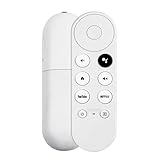
- 【Voice-Enabled Remote】Equipped with built-in voice functionality, this remote lets you quickly find favorite content with simple voice commands. Just press the microphone button to search shows by title, mood, genre, or actor—even ask "What should I watch?" You can also control volume, switch inputs, play music, and get on-screen answers via voice.
- 【Easy Pairing】Pair your remote in two steps: ① Press the pairing button on your device. ② When "Start Pairing" shows on screen, press and hold the Back and Home buttons until the remote’s LED flashes, then release—your remote is ready to use. If pairing fails, repeat steps or add via TV’s "Remote & Accessories" > "Add a new remote."
- 【Wide Compatibility】This voice remote works seamlessly with white Chromecast Snow devices, Compatible with Google Chromecast TV, Compatible with Google TV HD, including models G9N9N, GA01920-US, GA01409-US, GA01919-US, GA01923-US, GA02463-US, and GA02464-US. Note: Package includes remote and user manual only—Chromecast/devices not included.
- 【Durable Build】Crafted with durable ABS material and an upgraded chip, this Chromecast 4K Snow replacement remote matches the original’s functionality and performance. It offers a comfortable grip, stable signal, and requires 2xAAA batteries (not included).
- 【Important Notice】This remote works *only* with Chromecast devices with built-in TV—not Compatible with Google TV streamers, nor TCL/Hisense/ONN TVs. Only one remote can pair at a time. Includes voice remote only (Chromecast device and AAA batteries not included).
- Check for a setting like Auto Power Off or Standby Sync (brand wording varies).
- Try disabling “Energy saving” and retest power-off.
- Test with direct connection and no AVR/soundbar.
Chromecast is on a TV HDMI port that doesn’t support CEC
Some TVs disable CEC on “PC” or “Game” labeled modes/ports.
- Try a different HDMI port not associated with PC mode.
- After switching, reboot the TV and Chromecast once.
Dirty or loose connection
Less common, but HDMI handshake issues can break CEC entirely.
What’s actually slowing this PC down?
Pick the symptom - the matching free tool is one click away.
- Unplug and re-seat the HDMI cable on both ends.
- Try a different HDMI cable (especially if you’re using a long extension).
When HDMI-CEC won’t work: alternatives that still get you close
If your TV simply doesn’t support HDMI-CEC, or the brand implementation is broken with Chromecast, you still have options—just not true TV power control from the Chromecast remote.
Use TV auto power-on (if your TV supports it)
Some TVs can wake when an HDMI device starts even if full power-off syncing fails. Keep CEC enabled and test whether waking works when Chromecast boots.
Use an external universal remote for TV power
A universal IR remote can typically control TV power directly, independent of HDMI-CEC. Pair your remote to the TV, then use Chromecast’s remote for media control.
Use home automation triggers (where available)
If you already use platforms like Google Home with compatible smart plugs or IR blasters, you can automate TV power. This is more setup, but it’s reliable when CEC is the weak link.
Do these 3 things before closing this tab:
1Repair Windows errors before they cause bigger problems2Scan for outdated or missing drivers - takes under a minute3Clear out junk files and repair common Windows errorsPower the Chromecast through HDMI-CEC-friendly paths
Some setups work better if Chromecast power is stable and the HDMI path is direct. Avoid unusual power hubs while troubleshooting.
Best Value

- Voice search function:Press the for Google Assistant button on the remote to use your audible to find your favorite content, control volume, switch inputs, play music, and get answers, quickly search thousands of popular channels, and play entertainment by voice.
- Sensing Distance: Excellent response between the new G9N9N remote control and the TV with an optimal distance of 5 meters. Maximum length is 10 meters.
- High quality:The G9N9N Replacement telecontrol Control is made of high quality ABS with no odor, lightweight and ergonomic design makes it very comfortable with soft and very responsive buttons. Combining the functionality and performance of the original remote control, with all the basic buttons and functions you can easily control your for Google Chromecast 4K Snow with a stable signal and comfortable grip.
- Easy pairing:Press the Chromecast button to turn on pairing mode and notify you via the TV screen. Next press and hold the BACK and HOME buttons at the same time until the light on the remote starts blinking, release the buttons when the light comes on and the remote pairing is complete.
- Applicable models:G9N9N Replacement telecontrol for Chromecast (for Google TV), Chromecast for Google TV, for GA01409-US, GA01920-US, GA01923-US, GA01919-US, GA02463-Us, GA02464-US requires Chromecast (for Google TV).
Advanced troubleshooting (logs of what to try when nothing changes)
If you’ve already enabled CEC on the TV and re-ran Chromecast remote setup, use this checklist to isolate the failure.
| Goal | What to try | Expected result |
|---|---|---|
| Isolate TV vs. Chromecast settings | Connect Chromecast directly to TV (no soundbar/AVR), then power-test | Power control improves or becomes consistent |
| Isolate HDMI handshake issues | Try a different HDMI cable and a different HDMI port (prefer ARC/eARC) | CEC starts working on one of the ports |
| Isolate AVR/soundbar CEC | Update AVR/soundbar firmware; enable its CEC/BRAVIA Sync/Anynet+ equivalent | CEC works again through audio device |
| Isolate stale state | Power-cycle TV + Chromecast (unplug both for ~30 seconds) | Power commands start responding |
| Isolate Chromecast pairing | Re-run Set up remote for TV power | Power test succeeds |
If you’re comfortable experimenting, do one change at a time. CEC issues can be non-linear—changing multiple variables at once makes it impossible to tell what fixed it.
Frequently asked questions
Why does my Chromecast turn the TV on but not off?
Many TVs handle wake and standby differently. HDMI-CEC “auto wake” is often more reliable than “power off” syncing, and some TVs require additional toggles for standby synchronization.
Does Chromecast with Google TV (HD) use IR to control my TV power?
No—TV power control is expected to work through HDMI-CEC (via the HDMI connection). If CEC is disabled or unsupported, you may need an external universal remote or automation solution.
My TV doesn’t show an HDMI-CEC setting. What should I do?
Look for alternatives like Anynet+, Bravia Sync, Simplink, or EasyLink. If none exist, your TV may not support CEC. In that case, use a universal remote or home automation instead of relying on Chromecast power control.
What if setup says it’s configured, but power still doesn’t work?
Re-check HDMI-CEC on the TV, switch HDMI ports (ARC/eARC is often best), then power-cycle TV and Chromecast. Also test direct connection without a soundbar/AVR.
Will enabling CEC affect other devices (PlayStation, Xbox, set-top box)?
It can. CEC can create unexpected interactions between multiple HDMI devices. If other devices start acting strangely, disable CEC on the specific device that misbehaves (or adjust its CEC toggles) while keeping Chromecast’s behavior working.
Bottom Line
If Chromecast with Google TV (HD) can’t use TV power, the fix is almost always on the TV side: enable the correct HDMI-CEC option, make sure it’s active for the HDMI port you’re using, then re-run the Chromecast remote setup.
When CEC isn’t supported or your audio chain breaks pass-through, direct-to-TV testing plus a port/cable change usually reveals the real cause. If it still won’t work, a universal remote or automation gives you reliable TV power without fighting HDMI-CEC quirks.
Quick Recap
Product prices and availability are accurate as of the date/time indicated and are subject to change. Any price and availability information displayed on Amazon at the time of purchase will apply.




