Some links on this page are affiliate links: if you buy through them we may earn a commission, at no extra cost to you.
Short answer: the Logitech MX Brio is the strongest all-round choice for most remote workers, the OBSBOT Tiny 3 is the best option if you move while presenting, and the Anker PowerConf C200 is the sensible budget upgrade from a laptop camera. Choose the Elgato Facecam MK.2 for a fixed 1080p60 image or the Razer Kiyo V2 Pro when low-light performance and 4K60 matter more than price. A 4K webcam does not guarantee a 4K call: mainstream conferencing services can limit or compress webcam video, so lighting, framing and audio often matter more than the headline resolution.
Our five picks at a glance
The right webcam depends on how you appear on camera, not just on the largest number in the specification sheet. The table below separates the five recommendations by the problem each one solves. Prices are included only where the cited 2026 coverage reported them; current street prices and stock can change.
As an Amazon Associate I earn from qualifying purchases.
| Webcam | Best for | Published video modes or sensor detail | Tracking | Microphone | Price reported in the cited coverage |
|---|---|---|---|---|---|
| Logitech MX Brio | Best all-around premium webcam | 4K at 30 fps or 1080p at 60 fps; autofocus; multiple fields of view | Not stated | Not stated | Not stated |
| OBSBOT Tiny 3 | Presenters who move, teach or demonstrate | 4K PTZ webcam | AI tracking with motorized pan, tilt and zoom | Not stated | $349 / £299, pricing reported by Tom’s Guide in 2026 |
| Elgato Facecam MK.2 | Fixed desk setup needing 1080p60 | Uncompressed 1080p at 60 fps; HDR | Not stated | No built-in microphone | Not stated |
| Razer Kiyo V2 Pro | Low light and demanding 4K60 use | 4K at 60 fps; 8.3MP Sony STARVIS 2 sensor | Not stated | No built-in microphone | $299 / £279 launch pricing, reported by Tom’s Guide in 2026 |
| Anker PowerConf C200 | Affordable step up from a laptop camera | Not stated in the cited coverage | Not stated | Not stated | Not stated |
Which webcam should you buy?
Choose Logitech MX Brio for one camera that can do meetings and recording
The MX Brio is the safest recommendation when your work alternates between ordinary calls and higher-quality recording. The cited 2026 comparisons from iTechGuides and Tom’s Hardware describe a flexible 4K30/1080p60 webcam with autofocus, several field-of-view choices and support for conferencing applications. That combination lets you use a wider view for a presentation or a tighter view for a head-and-shoulders call without changing cameras.
Its practical advantage is flexibility rather than a promise that every meeting will appear in 4K. You can record locally in 4K30, switch to 1080p60 when motion looks more natural, or select the mode your meeting service accepts. Autofocus is useful if you hold documents or products up to the camera, although a fixed desk position means you may not need to change focus often.
Popular on Amazon

- HD lighting adjustment and autofocus: The Logitech webcam automatically fine-tunes lighting for bright, sharp images even in low light. A reliable addition to office supplies, it’s a great webcam for streaming and an ideal webcam for laptop use
- Full HD 1080p video calling and recording at 30 fps. You'll make a strong impression with this webcam for PC that features crisp, clearly detailed, and vibrantly colored video
- Advanced capture software: Easily create and share video content with this Logitech camera that is suitable for use as a desktop computer camera or webcam for monitor
- Full HD Webcam: The Logitech C920 Web Camera is a 1080p webcam
- This Logitech camera for computer comes with a 3-month XSplit VCam license and no privacy shutter. XSplit VCam lets you remove, replace and blur your background without a green screen
The available data does not establish a microphone specification, privacy-shutter specification, sensor size or USB bandwidth requirement for the MX Brio. Check those details on the current product page before ordering, particularly if you intend to rely on the camera for audio or connect it through a hub. Treat its multiple fields of view as a framing feature, not as proof that the lens can replace a dedicated wide-angle room camera.
Choose OBSBOT Tiny 3 if you move while presenting
Creative Bloq describes the Tiny 3 as a 4K pan-tilt-zoom webcam with AI tracking. Its motorized pan, tilt and zoom can keep a presenter framed while they move, teach or demonstrate. That makes it fundamentally different from a conventional fixed webcam: the camera can change its view instead of forcing you to remain inside a small box.
Tracking is most valuable when movement is part of your communication. A trainer walking between a whiteboard and a desk, a teacher demonstrating equipment, or a presenter standing several steps from the computer can stay visible without repeatedly stopping to reposition the camera. If you sit in one chair for every call, the motors and tracking system add complexity you may never use.
Tom’s Guide reported 2026 pricing of $349 / £299. That is a premium purchase, so decide whether automatic framing saves enough effort to justify it. The cited material does not state the Tiny 3’s microphone, privacy shutter, field-of-view range, autofocus behavior or USB requirement. Confirm those items, plus the tracking controls available in its software, before purchase.
Choose Elgato Facecam MK.2 for a fixed, clean 1080p60 image
The Facecam MK.2 targets people who value a consistent image and creator controls over built-in convenience. iTechGuides and Tom’s Guide list uncompressed 1080p at 60 fps, HDR and software controls. Uncompressed output can preserve detail within the camera’s supported format, while 60 fps makes hand gestures and other movement look smoother than a 30-fps feed.
This camera has no built-in microphone. Plan on a headset, USB microphone or another audio source from the beginning; otherwise you may end up buying a second device after the camera arrives. Separating audio and video can improve sound quality, but it also creates another input to select and test in your meeting application.
What’s actually slowing this PC down?
Pick the symptom - the matching free tool is one click away.
The Facecam MK.2 is a particularly sensible fit for a desk-bound caller who can control lighting and framing. It is less suitable if you need a camera to follow you around a room or if you want one device with integrated audio. The supplied coverage does not establish its sensor size, exact field-of-view options, privacy-shutter design, autofocus behavior, USB requirement or current price.
Also popular on Amazon

- 【Full HD 1080P Webcam】Powered by a 1080p FHD two-MP CMOS, the NexiGo N60 Webcam produces exceptionally sharp and clear videos at resolutions up to 1920 x 1080 with 30fps. The 3.6mm glass lens provides a crisp image at fixed distances and is optimized between 19.6 inches to 13 feet, making it ideal for almost any indoor use.
- 【Wide Compatibility】Works with USB 2.0/3.0, no additional drivers required. Ready to use in approximately one minute or less on any compatible device. Compatible with Mac OS X 10.7 and higher / Windows 7, 8, 10 & 11 / Android 4.0 or higher / Linux 2.6.24 / Chrome OS 29.0.1547 / Ubuntu Version 10.04 or above. Not compatible with XBOX/PS4/PS5.
- 【Built-in Noise-Cancelling Microphone】The built-in noise-canceling microphone reduces ambient noise to enhance the sound quality of your video. Great for Zoom / Facetime / Video Calling / OBS / Twitch / Facebook / YouTube / Conferencing / Gaming / Streaming / Recording / Online School.
- 【USB Webcam with Privacy Protection Cover】The privacy cover blocks the lens when the webcam is not in use. It's perfect to help provide security and peace of mind to anyone, from individuals to large companies. 【Note:】Please contact our support for firmware update if you have noticed any audio delays.
- 【Wide Compatibility】Works with USB 2.0/3.0, no additional drivers required. Ready to use in approximately one minute or less on any compatible device. Compatible with Mac OS X 10.7 and higher / Windows 7, 10 & 11, Pro / Android 4.0 or higher / Linux 2.6.24 / Chrome OS 29.0.1547 / Ubuntu Version 10.04 or above. Not compatible with XBOX/PS4/PS5.
Choose Razer Kiyo V2 Pro for low light and 4K60
Windows Central describes the Kiyo V2 Pro as delivering “ultra-sharp, fluid video with reduced motion blur using an 8.3MP Sony STARVIS 2 sensor.” Tom’s Guide also reports 4K output at 60 fps. Those specifications make it the most ambitious choice here for creators and demanding video calls where fine detail and fast motion matter.
The STARVIS 2 sensor is the reason this model is highlighted for low-light use, but a sensor cannot eliminate the effect of a dark room. Lens aperture, subject distance and the light falling on your face still determine how clean the image looks. A modest desk light aimed toward you can improve any webcam, including a premium one.
The Kiyo V2 Pro has no built-in microphone, so budget for separate audio. Tom’s Guide reported launch pricing of $299 / £279 in 2026. That price is for the launch context cited, not a guarantee of today’s retail price. Verify the current price and whether your computer can sustain the required USB bandwidth before expecting 4K60.
Choose Anker PowerConf C200 for an inexpensive laptop-camera upgrade
Tom’s Guide positions the PowerConf C200 as a low-cost way to improve on a laptop’s integrated camera when you do not need premium 4K or tracking features. Its appeal is straightforward: add a dedicated webcam to an existing setup without paying for capabilities you will not use.
This is the right category of purchase for a student, occasional caller or home worker whose laptop image is the obvious weak link. It is not the choice to make if your work depends on motorized framing, 4K recording, or the specific 60-fps and HDR modes listed for other picks. The cited coverage does not state the C200’s resolution, frame-rate modes, sensor, low-light performance, autofocus, field of view, microphone, privacy shutter, software controls, USB requirement or current price, so check the live specification before ordering.
What matters in a conferencing webcam
Resolution: 4K is useful, but not automatically visible in a call
A 4K sensor gives a camera more pixels to work with. That can help when you crop a recording, produce a close-up from a wider shot, or want extra detail in locally recorded video. It does not mean Zoom, Microsoft Teams or Google Meet will send a 4K webcam stream to every participant. Tom’s Hardware states that “none of” those services supported 4K webcam video in the comparison context it cited.
For a normal meeting, a well-lit 1080p image can look better than a poorly lit 4K image. The service may resize the feed, compress it to fit network conditions, or use a mode selected by the application. Buy 4K for recording flexibility, cropping and future use; do not buy it solely because you expect a routine call to display four times the detail.
Quick wins for a faster PC:
Fix the driver behind crashes, sound loss and screen glitchesFind Drivers →Clear out junk files and repair common Windows errorsFree Scan →Also popular on Amazon

- 4K Ultra HD Video Webcam:See every detail with crystal-clear 4K resolution. Experience incredibly sharp and lifelike video quality that makes you look professional on every call, ensuring you're always seen in the best light.
- Wide 80° Field of View & Full 360° Flexibility:Fit everyone into the frame with the 80° wide-angle lens. Easily adjust your view with 180° tilt and 360° swivel rotation. Mount it securely on your monitor, desk, or tripod for the perfect angle every time.
- True Plug-and-Play Simplicity: No drivers, no fuss. Just connect the webcam to your computer via USB and you're ready to join calls in seconds. It offers seamless compatibility with all major platforms like Zoom, Teams, and Skype.
- Complete Privacy with a Physical Sliding Lens Cover: Worried about privacy? We've got you covered—literally. A built-in sliding lens cover physically blocks the camera when not in use, ensuring your private life stays private.
- Built-in Mic & Automatic Light Correction: Communicate clearly with the built-in noise-reducing microphone. The camera also intelligently adjusts the video brightness to make you look your best, even in poor lighting conditions.
Frame rate: choose 30 or 60 fps for the way you move
The MX Brio is described as supporting 4K30 and 1080p60. The Facecam MK.2 is listed at uncompressed 1080p60, and the Kiyo V2 Pro at 4K60. A 60-fps mode can make gestures, typing demonstrations and quick movement look more fluid, while 30 fps is often sufficient for a seated head-and-shoulders conversation and can reduce bandwidth and processing demands.
Do not assume that a camera’s maximum frame rate is the rate your meeting service will use. The application, USB connection and available light can all constrain the selected mode. If your primary use is video conferencing, choose the highest mode that your computer and service can sustain reliably rather than selecting a headline number that causes dropped frames.
Sensor and lighting determine low-light quality
Low-light performance depends on sensor size, lens aperture and the amount and direction of room lighting. The Kiyo V2 Pro’s 8.3MP Sony STARVIS 2 sensor is why it is highlighted for dim rooms, but even that camera benefits from a light placed in front of you. A bright window behind your head can make your face appear dark; moving the light or turning toward the window often helps more than changing software settings.
- Put the main light in front of your face, slightly above eye level.
- Avoid placing the brightest lamp directly behind you.
- Use a small desk light before increasing digital brightness, which can amplify noise.
- Check the image at the time of day you normally take calls; a setup that works at noon may fail after sunset.
Autofocus and field of view affect framing
Autofocus is explicitly listed for the MX Brio. It can keep your face or an object sharp when the distance changes. A fixed camera aimed at one seated position may be easier to manage with a stable focus, while demonstrations and document sharing benefit from the ability to refocus.
Recommended Free Tools
A wider field of view includes more of a room or a second person but also shows more background and can make your face appear smaller. A tighter view concentrates attention on you. The MX Brio is described as offering multiple field-of-view options; the other models’ exact field-of-view ranges are not established in the cited material. Select the narrowest view that includes the people and objects you actually need to show.
Tracking is a workflow feature, not a picture-quality rating
The Tiny 3’s AI tracking and motorized pan, tilt and zoom solve a movement problem. They do not automatically make a fixed desk call sharper or better lit. Tracking is worth paying for when you teach, present standing up, move between work areas or need to keep both hands free. It is unnecessary complexity for a caller who stays seated.
Before relying on tracking in a client presentation, test how it reacts when another person enters the frame, when you turn sideways, and when you hold an object near your face. The supplied coverage confirms the Tiny 3’s tracking capability but does not specify every behavior or software setting.
Also popular on Amazon
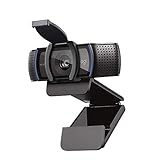
- Make a strong impression in your video conference calls with Logitech webcam with microphone that features a diagonal, fixed 78° field of view to perfectly frame you and your space—plus full HD at 1080p/30fps or 720p/30fps
- Two microphones on this computer camera for desktop capture more realistic sound from a broader range of angles—so your voice comes through sounding natural and clear in conference calls
- Easily create, record, and customize settings with our Capture app. A suite of features on this Logitech web cam lets you fully edit and customize your stream
- Logitech camera for computer has a full HD five-element glass lens and autofocus to capture razor-sharp, clear images in consistent high definition during conference calls. A convenient cover on this 1080p webcam protects the lens—and your privacy
- Logitech RightLight 2 technology in this live streaming camera adjusts to your lighting conditions, producing bright, contrasted images, even if you’re in a dim setting
Audio can matter more than another step of video resolution
Viewers tolerate a slightly softer image more easily than unintelligible speech. The Facecam MK.2 and Kiyo V2 Pro have no built-in microphone, so they require a headset or separate microphone. That can be an advantage if you already own a good microphone, because the audio source can sit close to your mouth and avoid camera-mounted noise. It is a disadvantage if you expect a single cable and no additional setup.
Free tools Windows power users keep installed
One-click scans. No signup required.
The supplied material does not establish microphone specifications for the MX Brio, Tiny 3 or PowerConf C200. Do not infer microphone quality or even microphone inclusion from a product’s price or video resolution. Confirm the specification and test the selected input in your conferencing application before an important call.
Privacy shutters and software controls deserve a check
A physical privacy shutter provides a visible way to block the lens when the camera is not in use. The available data does not state which of these five models include one, so verify the current hardware description rather than assuming every webcam has it.
Software controls can include framing, exposure, HDR, focus and color adjustments, but the cited material confirms creator controls specifically for the Facecam MK.2 and multiple fields of view for the MX Brio. Check which controls work across your operating system and conferencing apps. A setting available in a camera utility may not be exposed inside every meeting service.
Detailed comparison by buying criterion
| Criterion | MX Brio | OBSBOT Tiny 3 | Facecam MK.2 | Kiyo V2 Pro | PowerConf C200 |
|---|---|---|---|---|---|
| Resolution and frame rate stated in the cited material | 4K30 and 1080p60 | 4K; frame-rate detail not stated | Uncompressed 1080p60 | 4K60 | Not stated |
| Sensor or low-light detail | Not stated | Not stated | Not stated | 8.3MP Sony STARVIS 2 sensor; highlighted for low light | Not stated |
| Autofocus | Yes, according to the cited comparisons | Not stated | Not stated | Not stated | Not stated |
| Tracking or motorized movement | Not stated | AI tracking with motorized pan, tilt and zoom | Not stated | Not stated | Not stated |
| Field of view | Multiple options | Range not stated | Range not stated | Range not stated | Range not stated |
| Built-in microphone | Not stated | Not stated | No | No | Not stated |
| Privacy shutter | Not stated | Not stated | Not stated | Not stated | Not stated |
| Software controls | Conferencing-app support; other controls not stated | Tracking controls not fully stated | Creator controls and HDR | Not stated | Not stated |
| USB requirement | Not stated | Not stated | Not stated | Not stated | Not stated |
| Price evidence | Not stated | $349 / £299, Tom’s Guide 2026 | Not stated | $299 / £279 launch pricing, Tom’s Guide 2026 | Not stated |
How to choose for your actual meeting pattern
For seated one-to-one calls
Start with a fixed camera and prioritize lighting, focus and audio. The Facecam MK.2 is the clearest fit when you want 1080p60, HDR and creator controls and already have a microphone. The MX Brio is better if you also record in 4K, need autofocus or want to change the field of view. The PowerConf C200 is the value-oriented route when a laptop camera is the main problem and premium modes are unnecessary.
Do these 3 things before closing this tab:
1Scan for outdated or missing drivers - takes under a minute2Repair Windows errors before they cause bigger problems3Fix the driver behind crashes, sound loss and screen glitchesFor teaching, demonstrations and standing presentations
Choose the Tiny 3 first because its defining feature is AI tracking with motorized pan, tilt and zoom. Position it so the area in which you move is visible, then test tracking before a live session. If you normally remain at a desk, a fixed camera may produce a simpler and more predictable workflow.
For dim rooms or fast-moving subjects
The Kiyo V2 Pro is the specialist pick because the cited review highlights its 8.3MP Sony STARVIS 2 sensor, 4K60 output and reduced motion blur. Improve the room light before judging any webcam, and remember that its lack of a built-in microphone means a separate audio device.
Also popular on Amazon
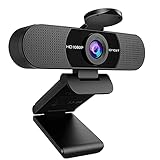
- Full HD 1080P Webcam with Cover for Video Calls - EMEET computer webcam provides design and Optimization for professional video streaming. Realistic 1920 x 1080p video, 5-layer anti-glare lens, providing smooth video. The fixed focal length makes the object in the focal length range of 11.8-118.1 inches, so as to provide a clearer image. The C960 usb webcam has a cover and can be removed automatically to meet your needs for protection. It is a great choice for home office.
- Built-in 2 Noise Reduction Mics - EMEET webcam with microphone for desktop is 2 built-in omnidirectional noise reduction microphones, picking up your voice and filtering out background noise to create an excellent radio effect.EMEET computer webcam enables you to enjoy crystal clear voice for communication. (When installing the web camera, remember to select EMEET C960 usb webcam as the default device for the microphones)
- Low Dependence on Light Condition - Automatic low-light correction technology is applied in EMEET HD webcam 1080p so that the streaming webcam could capture the image in dim light. EMEET C960 camera for computer also has low-light boost, color boost and adjust exposure so you look your best, even in dim and harsh lighting. Imagine you are working in front of a sunny window. Is it convenient for no need to draw the curtains first when a video call comes in to get a normal exposure picture?
- Plug-and-play & 90 Degrees Wide View - No driver required. EMEET C960 pc webcam can be used without drivers to realize plug and play for saving your trouble. The convenient foldable design of web camera allows you to take it anywhere, and the USB cord is long enough for any task. The 90° wide-angle lens of USB camera can accommodate more participants. In video calls, there is no need to frequently adjust the direction of the web cam to show people in different positions.
- High Compatibility & Multi Application - C960 webcam for laptop is compatible with Windows 10/11, MacOS10.14 or later, Linux, Android TV 7.0 or later. The compatibility of the streaming camera is super wide for major software like Zoom, Teams, Facetime, Google Meet, YouTube and more. Whether this web camera is used for online studying/ teaching, home office, conference, meeting or video calling, the web camera is perfectly suitable for you as a tripod-ready universal clip. (Tips: Incompatible with Windows Hello functions)
For recording clips as well as meetings
The MX Brio offers the broadest stated combination of 4K30, 1080p60, autofocus and multiple fields of view. The Kiyo V2 Pro is the stronger choice if 4K60 is specifically important and your computer, connection and lighting can support it. The Facecam MK.2 remains attractive for a controlled 1080p60 production setup with external audio.
Setup checklist before your first important call
- Mount the webcam at eye level and center it horizontally. Raise a laptop or monitor if the lens points up at your face.
- Choose a field of view that includes only the people or objects you need. A wider frame is not automatically more professional.
- Put a light in front of you and check for bright windows or lamps behind your head.
- Connect a separate headset or microphone for the Facecam MK.2 or Kiyo V2 Pro. For every other model, confirm whether the camera’s microphone is available before the meeting.
- In the conferencing application’s video settings, select the intended webcam and preview the image. Check that the application is not using the laptop’s internal camera.
- Select a resolution and frame rate your application and USB connection can sustain. Test the mode locally before attempting 4K or 60 fps in a live call.
- Make a short recording or test call. Look for dropped frames, focus hunting, clipped highlights, background noise and lip-sync problems.
- Keep a fallback: the laptop camera and microphone, or a second USB port, can save a meeting if a driver, hub or cable fails.
4K, USB bandwidth and conferencing limits
Maximum resolution and frame rate require more data and processing than a basic 1080p30 call. The available data does not give USB requirements for any of the five webcams, so check the current manufacturer’s specification for the exact port, cable and operating-system support. Avoid assuming that a USB hub, adapter or front-panel port will deliver the same bandwidth as a direct connection.
Test the precise combination you intend to use: webcam, cable, port, camera software and meeting application. If 4K preview stutters or the application falls back to a lower mode, use 1080p rather than accepting a choppy image. A stable 1080p stream is more useful to participants than a nominal 4K setting that drops frames.
Also separate local recording from the meeting feed. A camera can capture 4K to your computer while a conferencing service sends a compressed or lower-resolution stream. That is a normal limitation of the service, not evidence that the camera is defective.
Common problems and practical fixes
The image is dark or noisy
- Move the main light in front of your face instead of behind you.
- Add a desk light before increasing software brightness.
- Reduce the field of view if it includes a large, dark room and makes exposure difficult.
- If low-light work is unavoidable, consider the Kiyo V2 Pro for its cited STARVIS 2 sensor, while still improving the room lighting.
The camera looks sharp but the call is not 4K
That can be expected. Tom’s Hardware’s cited comparison says Zoom, Microsoft Teams and Google Meet did not support 4K webcam video in that context. Use 4K for local recording or cropping, and select a dependable mode for the meeting service.
People can see you but cannot hear you
Check the meeting application’s audio input separately from its camera selection. The Facecam MK.2 and Kiyo V2 Pro do not have built-in microphones, so select the headset or standalone microphone you connected. For the MX Brio, Tiny 3 and PowerConf C200, verify the current specification and the operating system’s input list rather than assuming the camera supplies audio.
The Tool Desk
Outbyte Driver Updater FREEScan for outdated or missing drivers - takes under a minuteDriver Scan →Outbyte PC Repair FREERepair Windows errors before they cause bigger problemsFix Now →The presenter leaves the frame
A fixed webcam cannot follow movement. The Tiny 3 is the pick in this list designed for that situation, with AI tracking and motorized pan, tilt and zoom. If you already own a fixed camera, move it farther back, widen the framing or remain inside the marked area; those changes are simpler but do not provide automatic tracking.
4K60 is unavailable or unstable
Check the USB path, cable, application mode and computer load. The Kiyo V2 Pro is described as supporting 4K60, but the supplied material does not state the required USB specification. If the connection cannot sustain the mode, use 1080p60 or another stable option instead of troubleshooting a setting your hardware path cannot deliver.
Bottom-line recommendations
- Best overall: Logitech MX Brio for its stated combination of 4K30, 1080p60, autofocus, multiple fields of view and conferencing-app support.
- Best for moving presenters: OBSBOT Tiny 3, because AI tracking and motorized pan, tilt and zoom address a problem fixed webcams cannot.
- Best fixed 1080p60 image: Elgato Facecam MK.2, provided you already have or plan to buy a separate microphone.
- Best low-light and 4K60 specialist: Razer Kiyo V2 Pro, with its 8.3MP Sony STARVIS 2 sensor and stated 4K60 mode, again requiring separate audio.
- Best budget upgrade: Anker PowerConf C200 when the goal is simply to improve on a laptop camera without paying for premium 4K or tracking features.
Whichever model you choose, spend a few minutes on front lighting, eye-level placement, audio selection and a test call. Those steps determine how much of the webcam’s specification your meeting participants will actually experience.

