Streamlabs Highlighter
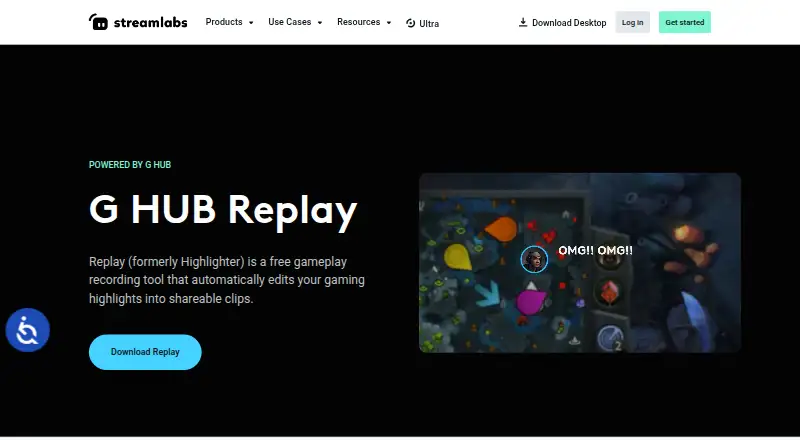
What Streamlabs Highlighter is
Streamlabs Highlighter is a gameplay clip tool included with Streamlabs Desktop. It detects gameplay highlights automatically, then provides clip editing and export so users can prepare selected moments for sharing or keeping. Its feature set also includes instant replay, multi-mode recording and GPU encoding, bringing capture and clip preparation into the same desktop offering.
The Free plan costs nothing and includes automated gameplay highlight detection, clip editing and export. Highlighter is listed for macOS and Windows, with supported operating systems of macOS 12+ and Windows 10+. Since it is built into Streamlabs Desktop, it is presented as part of that software rather than a separate service. The listed capabilities are aimed at desktop gameplay capture: replay supports retrieving moments during play, while automated detection can identify highlights for further editing. Users can then export the clips from the tool. The listed plan provides these core highlight features at no charge.
Who it suits
Streamlabs Highlighter suits desktop gamers who want automatic gameplay highlight detection and a way to edit and export clips. It is relevant to users on macOS 12+ or Windows 10+ who use Streamlabs Desktop.
What it does well
- Automatically detects gameplay highlights.
- Includes instant replay.
- Supports multi-mode recording.
- GPU encoding is available.
- Free plan includes clip editing and export.
What to know first
- It is built into Streamlabs Desktop.
- Supported systems are limited to Windows 10+ and macOS 12+.
Plans
| Plan | Billed and limits | Price |
|---|---|---|
| Free | Built into Streamlabs Desktop · Automated gameplay highlight detection · Clip editing and export | Free |
| Replay (formerly Streamlabs Highlighter) | Free to use · No price or usage limits stated on the opened product page | Free |
As streamlabs.com lists them, read 20 Sept 2026. The maker's own page has the final word.
Getting started
- Visit https://streamlabs.com/highlighter.
- Use a Windows 10+ or macOS 12+ system.
- Use Streamlabs Desktop, which includes Highlighter.
- Use automated gameplay highlight detection, then edit and export clips.
Streamlabs Highlighter, now called G HUB Replay, is a clip-capture and editing feature built into Streamlabs Desktop for streamers who want important gameplay moments found automatically. It suits players of supported competitive games who also want manual recording and quick sharing. Its no-cost access is compelling, but platform wording matters: the product is presented for Windows and macOS while the Replay guide currently limits Replay support to Windows.
Overview
Replay captures, edits and shares highlights from streams or gameplay. Auto Record can begin capturing when a compatible game launches, while a machine-learning system looks for in-game events and identifies likely highlights. That combination is useful for players who do not want to watch hours of footage for every kill or victory, but automatic detection is tied to supported games and event types rather than being a universal editor.
The feature lives inside Streamlabs Desktop rather than being presented as a separate service. First-time Auto Record setup asks for a Recorder Extension, an extra installation step before gameplay capture. In-app tutorials and a “Talk to a human” option provide a path to support when setup or recording needs attention.
Key features
Automatic and manual capture
Automatic recording can start with a compatible game, and machine learning can base clips on events such as kills or eliminations, deaths, victories and defeats. The product page names Fortnite, League of Legends and Counter-Strike 2 among supported games. This is most useful to competitive players in that supported set; others should expect to rely more on manual capture.
Manual recording covers a specific window, audio and video, and can also import existing clips. Multi-mode recording and instant replay give creators options beyond automated moments, including saving a recent sequence or controlling exactly what enters the project. GPU encoding is supported, which is relevant to users who want recording handled through compatible graphics hardware.
Editing and export
The editor can trim and reorder clips, add transitions and music, and include intros and outros. It is suited to assembling a short highlight package rather than replacing a full production workflow. Finished clips can go to a computer, YouTube or Discord, or to a phone through a QR code, covering common publishing and sharing routes without requiring a separate transfer step.
Pricing
| Plan | Price | Includes |
|---|---|---|
| Free | free | Built into Streamlabs Desktop, automated gameplay highlight detection, clip editing and export |
| Replay (formerly Streamlabs Highlighter) | free | Free to use; no price or usage limits stated on the opened product page |
There is no free trial because access is free. Neither plan introduces a paid tier, seat charge or stated quota, so an individual streamer can start without a subscription commitment. The practical qualification is compatibility: automatic detection depends on supported games, and Replay’s current guide says Windows only.
Platforms
The supported-platform listing names Windows 10+ and macOS 12+. However, the Replay guide says Replay is currently supported only on Windows operating systems. Windows users therefore have the clearest fit for the Replay workflow; macOS users should not assume that every Replay capability, particularly the guide-covered feature, is available.
Who it's for
Choose it for a Windows streamer using a supported game who wants automatic event-based clips, instant replay, editing and direct export without paying. It also fits creators who occasionally need precise window, audio or video recording or want to import clips into the same editor.
Look elsewhere if you need Linux support, a platform-agnostic replay tool, or dependable automatic detection for games outside the supported list. Mac users should verify that the specific Replay functions they need are supported before adopting it.
Pros and cons
- Pros: Automatic detection can surface kills, deaths, victories and defeats, reducing manual scrubbing for supported games.
- Pros: Trim, reorder, transitions, music, intros and outros provide a complete short-clip workflow.
- Pros: Instant replay, multi-mode recording, GPU encoding and manual window/audio/video capture cover different recording needs.
- Pros: Export to a computer, YouTube, Discord or a phone by QR code makes sharing flexible.
- Cons: Automatic highlights depend on compatible games and listed event types, so it is not a universal detector.
- Cons: Replay is currently Windows-only according to its guide, despite the broader Windows and macOS platform listing.
- Cons: Auto Record requires installing a Recorder Extension during first-time setup.
Alternatives
For a broader recording category, see Game recording software; for a streaming-focused shortlist, see Live Streaming Software. Live TV streaming services are a different category for watching television rather than capturing gameplay.
OBS Studio is the stronger alternative when Linux support, commercial use, no watermarks and no usage limitations matter; it is free on Linux, macOS and Windows. Pick SteelSeries Moments for a Windows-only free option. Outplayed suits users who want freemium hosting, with its Core plan offering three months of Outplayed.tv hosting and Premium adding unlimited hosting, ad removal, layout customization and enhanced fullscreen mode.
NVIDIA ShadowPlay is appropriate for Windows users with a supported GPU and the required GeForce 551.52 driver or later. Medal is the choice when mobile apps and cloud-focused Premium features such as unlimited cloud storage, removable watermarks and auto-generated subtitles justify its $9.99 a month subscription. Razer Game Clips offers free cloud storage on Windows but requires Razer Cortex and a Razer ID.
Segra is a free, open-source Linux and Windows option with replay buffer and clip editing. Captail is a free Windows x64 early public preview released under GPL open source.
Verdict
Streamlabs Highlighter is a strong fit for Windows streamers in supported games who want automatic event detection combined with editing and fast sharing at no cost. Its main reason to choose it is the integrated workflow from gameplay trigger to export. Look elsewhere if you need Linux, assured macOS Replay support, or automatic detection beyond the supported games and events.
Verdict
Choose Streamlabs Highlighter if you want automatic gameplay highlight detection, replay and clip editing in Streamlabs Desktop at no charge. It is limited to the listed Windows and macOS operating systems and is not presented as a separate service.
Questions
Is Streamlabs Highlighter free?
Yes. Its Free plan costs nothing.
What does the Free plan include?
It includes automated gameplay highlight detection, clip editing and export, and Highlighter is built into Streamlabs Desktop.
Which operating systems are supported?
Windows 10+ and macOS 12+ are listed as supported.
What recording features are listed?
The listed features include instant replay, multi-mode recording and GPU encoding.
Is Highlighter a separate service?
It is described as built into Streamlabs Desktop.
Facts from Streamlabs Highlighter's own pages
- Automatic clip detection
- A machine learning algorithm locates highlights based on in-game events. · streamlabs.com, 9 Oct 2026
- Automatic recording
- Auto Record can capture highlights when a compatible game launches. · streamlabs.com, 9 Oct 2026
- Editing
- Users can trim and reorder clips, add transitions and music, and include intros and outros. · streamlabs.com, 9 Oct 2026
- Export destinations
- Users can export clips to their computer, YouTube, or Discord, or send them to a phone using a QR code. · streamlabs.com, 9 Oct 2026
- Free plan
- Yes · streamlabs.com, 20 Sept 2026
- GPU encoding
- Yes · streamlabs.com, 20 Sept 2026
- Instant replay
- Yes · streamlabs.com, 20 Sept 2026
- Manual recording
- Users can record specific windows, audio, and video, or import existing clips. · streamlabs.com, 9 Oct 2026
- Platform requirement
- The Replay guide says Replay is currently supported only on Windows operating systems. · streamlabs.com, 9 Oct 2026
- Product rename
- Streamlabs Highlighter is now called G HUB Replay. · streamlabs.com, 9 Oct 2026
- Recorder extension
- The guide says first-time Auto Record setup prompts users to install a Recorder Extension to record gameplay. · streamlabs.com, 9 Oct 2026
- Recording modes
- multi-mode · streamlabs.com, 20 Sept 2026
- Support
- The guide offers in-app tutorials with a “Talk to a human” option and customer support contact. · streamlabs.com, 9 Oct 2026
- Supported game events
- Automated clips can be based on events such as kills or eliminations, deaths, victories, and defeats. · streamlabs.com, 9 Oct 2026
- Supported games
- The product page lists supported games for machine learning powered highlighting, including Fortnite, League of Legends, and Counter-Strike 2. · streamlabs.com, 9 Oct 2026
- Supported platforms
- Windows 10+, macOS 12+ · streamlabs.com, 20 Sept 2026
- What it does
- Replay lets streamers capture, edit, and share highlight clips from streams or gameplay. · streamlabs.com, 9 Oct 2026
Where Streamlabs Highlighter stands on Freedom251
- Twitch Tools#3 of 15
- Game recording software#9 of 31
- Live TV streaming services#74 of 169
- Live streaming software#74 of 134
- Live Streaming Software#77 of 137