Freedom251 › Menu Bar Customization Software
Cornice
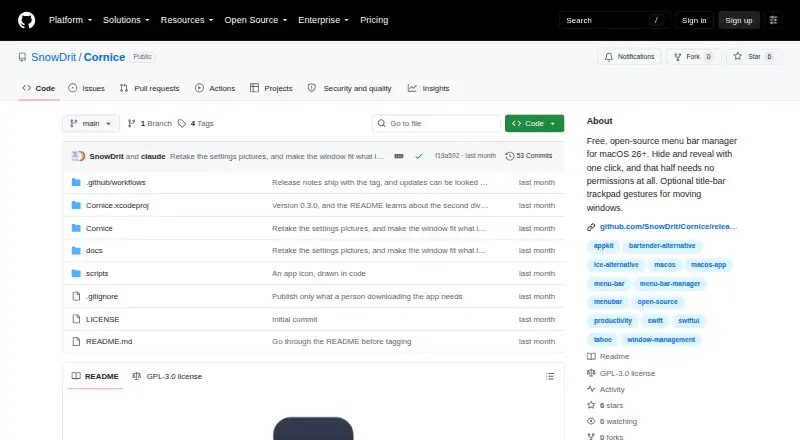
What Cornice is
Cornice is a free, open-source menu bar manager for macOS that hides and reveals menu bar items using a divider you position yourself. Clicking the divider reveals the items to its left; an optional second divider keeps another zone hidden. It does not move other applications’ icons automatically, so placing the divider is a manual step. You can adjust its thickness and height, choose among five chevron styles, and set keyboard shortcuts and auto-hide behavior. Optional two-finger trackpad gestures on a window title bar can resize or reposition windows, or send them to the Dock. Hiding and revealing items requires no permissions, but enabling those gestures requires Accessibility access. Cornice supports sixteen interface languages, switchable without restarting, and is distributed under the GPL-3.0 license. The listed plan is free for macOS 26 (Tahoe) or later on Apple Silicon. Builds are signed for development but not notarised, so the first launch requires manually opening the app through macOS’s warning.
Who it suits
Cornice suits macOS users who want to hide menu bar items while keeping control over where the divider sits. It may also suit users who want optional window gestures and configurable shortcuts.
What it does well
- Optional second divider keeps a zone hidden.
- Five chevron styles and adjustable divider dimensions.
- Sixteen interface languages, switchable without restarting.
- Hiding and revealing requires no permissions.
What to know first
- Users must place the divider by hand.
- Requires macOS 26 or later and Apple Silicon.
- First launch requires manually opening through a macOS warning.
- Gesture users must grant Accessibility access again after updates.
Limits
The free plan is for macOS 26 (Tahoe) or later on Apple Silicon. Menu bar icons are not moved automatically, and users place the divider by hand.
Plans
| Plan | Billed and limits | Price |
|---|---|---|
| Cornice | Free · macOS 26 (Tahoe) or later · Apple Silicon · no paid tier stated | Free |
As github.com lists them, read 14 Oct 2026. The maker's own page has the final word.
Getting started
- Open the Cornice project website on GitHub.
- Use a Mac with macOS 26 (Tahoe) or later and Apple Silicon.
- Install and open Cornice, then manually approve the first launch through macOS’s warning.
- Position the divider where you want menu bar items hidden.
- Optionally configure divider appearance, shortcuts, and auto-hide behavior.
- Enable optional window gestures and grant Accessibility permission if you want to use them.
Cornice is a macOS menu bar manager built around dividers that control which icons remain visible. It is best suited to people who prefer to arrange the menu bar themselves and want a free, open-source tool. Its manual approach keeps the core job simple, but it will not organize icons automatically.
Overview
Place a divider in the menu bar to choose which items hide; click it to reveal them. An optional second divider marks a zone that stays hidden even when the rest is revealed. This gives users some control over what appears without requiring Cornice to rearrange other apps’ icons.
Hiding and revealing require no permissions. Cornice requests Accessibility access only if you turn on its optional window gestures. The app says it makes one anonymous request to GitHub when you check for releases or enable launch checks, and no other network requests.
Key features
- Divider customization: Adjust thickness and height, and choose from five chevron styles. These options let you tune the divider’s appearance, though they do not change the manual workflow.
- Shortcuts and auto-hide: Keyboard shortcuts and auto-hide behavior provide alternatives to clicking the divider each time.
- Window gestures: Optional two-finger trackpad gestures on a window title bar can resize or reposition windows, or send them to the Dock. That adds a separate window-management function, but it requires Accessibility permission.
- Sixteen languages: Switch the interface language without restarting, a useful convenience for multilingual users.
Cornice is distributed under the GPL-3.0 license. Its builds are signed for development but not notarised, so macOS requires you to open the app manually through its warning the first time. If you enable window gestures, an update means granting Accessibility permission again because builds are ad-hoc signed.
Pricing
Cornice is free: its plan is free, with no free trial. The plan requires macOS 26 (Tahoe) or later and Apple Silicon. Hide menu items and keyboard shortcuts are included. Rearranging, grouping, and adding custom menu items are not supported, so Cornice is a poor fit if you want the app to structure or extend your menu bar for you.
Platforms
Cornice is for macOS only, and the Cornice plan requires macOS 26 (Tahoe) or later on Apple Silicon. The first-launch warning and renewed Accessibility approval after gesture-enabled updates are practical setup considerations, particularly if you rely on those gestures.
Who it's for
Cornice suits Mac users who want a no-cost way to hide selected menu bar items, are comfortable placing a divider by hand, and value optional shortcuts or a permanently hidden zone. It is less suitable for anyone who needs automatic icon rearrangement, Windows or Linux support, Intel compatibility, or a notarised first-launch experience.
Pros and cons
- Pro: The core hide-and-reveal controls need no permissions, keeping the basic menu bar task separate from Accessibility access.
- Pro: A second divider can preserve a zone that stays hidden, while shortcuts and auto-hide offer more than one way to control visibility.
- Pro: The free, GPL-3.0 project supports sixteen switchable interface languages.
- Con: Users must place the divider themselves; Cornice does not move icons belonging to other applications.
- Con: The stated plan requires macOS 26 or later and Apple Silicon, excluding older macOS versions and Intel Macs.
- Con: macOS shows a warning on first launch, and gesture users must regrant Accessibility access after updates.
Alternatives
If Cornice’s manual divider approach is not the right fit, compare menu bar customization software for other options. Among the listed alternatives, GreatBar is another free macOS choice, with a stated requirement of macOS 14.0 or later; it may suit Macs that cannot run Cornice’s macOS 26 plan.
Hidden Bar is a free macOS alternative described as open source, with support extending to macOS 13 Ventura and older macOS releases. iBar-Menubar is a freemium macOS option with a free download and in-app purchases, so consider it if you prefer that model.
Ice 2 is another free, open-source macOS app. JellyBar is free and targets macOS 15 Sequoia and later on Apple Silicon. Octobar has a free tier capped at five active modules and a one-time 4.99 USD Pro plan with unlimited active modules and submenu groups; choose it if those module features matter more than Cornice’s divider-based approach.
Overhang is free for macOS 14 Sonoma or later and is a universal binary for Apple silicon and Intel. Pelmet is free and open source but requires macOS 27, making it an option only for users on that newer system.
Verdict
Choose Cornice if you want a free, open-source way to hide menu bar items manually, with a second always-hidden zone and optional shortcuts. Its permission-light core is a clear advantage; look elsewhere if you need automatic icon rearrangement, Intel support, or a first launch without the macOS warning.
Verdict
Cornice offers manual control over which menu bar items stay visible, with optional customization and window gestures. Its platform requirement and first-launch warning are worth considering before installation.
Questions
How much does Cornice cost?
Cornice is free: free.
Which Macs can run Cornice?
The plan requires macOS 26 (Tahoe) or later on Apple Silicon.
Is Cornice open source?
Yes. The project is distributed under the GPL-3.0 license.
Does Cornice need Accessibility permission?
Hiding and revealing menu bar items do not require permission. Optional window gestures require Accessibility permission.
Does Cornice rearrange menu bar icons?
No. It does not automatically move other applications’ icons; users position the divider manually.
What network requests does Cornice make?
Cornice says it makes one anonymous request to GitHub when checking for releases or when launch checks are enabled, and no other network requests.
Facts from Cornice's own pages
- Always-hidden zone
- A second divider can keep a selected zone hidden even while the normal hidden group is revealed. · github.com, 14 Oct 2026
- API and SDKs
- The published README documents a native Xcode project but does not describe a public API, SDK, plugin interface, or integration connectors. · github.com, 14 Oct 2026
- Appearance controls
- Divider thickness and height are adjustable, with five chevron styles. · github.com, 14 Oct 2026
- Auto-hide
- Cornice can hide the group automatically when the pointer leaves the menu bar. · github.com, 14 Oct 2026
- Build process
- Developers clone the repository, open Cornice.xcodeproj, set their signing team, and build without App Sandbox. · github.com, 14 Oct 2026
- Customization
- Users can adjust divider thickness and height, choose among five chevron styles, and set keyboard shortcuts and auto-hide behavior. · github.com, 7 Oct 2026
- Gesture permission
- Window gestures require Accessibility permission and are disabled by default. · github.com, 14 Oct 2026
- Gesture update caveat
- After an update, users who enabled gestures must grant Accessibility permission again because builds are ad-hoc signed. · github.com, 7 Oct 2026
- Hide and reveal
- A chevron hides the menu-bar group to its left and reveals it again when clicked. · github.com, 14 Oct 2026
- Independent alternative positioning
- AlternativeTo includes Cornice among Mac alternatives to Bartender. · alternativeto.net, 14 Oct 2026
- Independent category
- AlternativeTo places Cornice in its Menu Bar Manager category for Mac. · alternativeto.net, 14 Oct 2026
- Independent description
- AlternativeTo describes Cornice as hiding and revealing menu-bar items with one click and offering optional title-bar gestures. · alternativeto.net, 14 Oct 2026
- Independent listing
- AlternativeTo lists Cornice as a free GPL-3.0 Mac menu-bar manager and shows one like. · alternativeto.net, 14 Oct 2026
- Independent project metadata
- GitHub’s menu-bar-manager topic lists SnowDrit/Cornice as a Swift repository updated August 14, 2026. · github.com, 14 Oct 2026
- Independent topic tags
- GitHub topic metadata tags Cornice with macOS, Swift, AppKit, SwiftUI, Tahoe, window-management, and open-source. · github.com, 14 Oct 2026
- Installation
- Installation is by opening Cornice.dmg and dragging the app into Applications. · github.com, 14 Oct 2026
- Installation caveat
- Builds are signed for development but not notarised, so macOS requires users to open the app manually through its warning the first time. · github.com, 7 Oct 2026
- Keyboard shortcuts
- Users can assign shortcuts for normal hiding, the always-hidden zone, and auto-hide. · github.com, 14 Oct 2026
- Languages
- The interface supports sixteen languages and switches language without restarting. · github.com, 14 Oct 2026
- Latest release
- GitHub lists Cornice v1.0.1 as the latest release, published on October 7, 2026. · github.com, 14 Oct 2026
- Launch at login
- The app includes an option to open automatically at login. · github.com, 14 Oct 2026
- Licence
- The project is licensed under GPL-3.0. · github.com, 14 Oct 2026
- License
- The project is distributed under the GPL-3.0 license. · github.com, 7 Oct 2026
- Limitations
- Cornice does not automatically move other applications' menu bar icons and requires users to place the divider by hand. · github.com, 7 Oct 2026
Where Cornice stands on Freedom251
- Menu Bar Customization Software#1 of 25