PC Slower Than It Used to Be?
A free scan shows the junk files, broken settings and background clutter dragging Windows down - then fixes them in one click.Free scan · Windows 10 & 11Outdated Drivers Are Slowing You Down
One free scan finds every outdated or missing driver and matches the right update for your exact hardware.Free scan · exact hardware matchSome links on this page are affiliate links: if you buy through them we may earn a commission, at no extra cost to you.
Apple TV on Android TV can be oddly fragile when HDR is involved. The symptoms are usually either sudden app crashes (often right after launch or when an HDR title starts) or display issues like washed-out colors, incorrect contrast, or a black screen.
This guide focuses on what actually matters on Android TV: the app version and cache state, the Android display pipeline (resolution, HDR handshake, color format), HDMI/receiver compatibility, and streaming/network stability. Follow the fixes in order, and you’ll have a clear path to isolate the cause.
As an Amazon Associate I earn from qualifying purchases.
Scope: This is for the Apple TV app experience on Android TV devices (Google TV included) from devices like NVIDIA Shield TV, Xiaomi/Hisense/Philips TVs, Chromecast with Google TV (where available), and Android TV set-top boxes.
What’s happening: crashes and HDR problems on Android TV
On Android TV, HDR playback is a multi-party handshake between your TV, HDMI link, optional AVR/soundbar, and the playback app. If the Apple TV app requests an HDR format that the TV/chain can’t confirm reliably, you can get playback failures—sometimes severe enough to crash the app.
Popular on Amazon

- The Google TV Streamer (4K) delivers your favorite entertainment quickly, easily, and personalized to you[1,2]
- HDMI 2.1 cable required (sold separately)
- See movies and TV shows from all your services right from your home screen[2]; and find new things to watch with tailored recommendations for everyone in your home based on their interests and viewing habits
- If you find an interesting show or movie on your TV, mobile app, or Google search, you can easily add it to your watchlist, so it’s ready when you are[2]
- Up to 4K HDR with Dolby Vision delivers captivating, true-to-life detail[4]; and you can connect speakers that support Dolby Atmos for more immersive 3D sound
Crashes can also stem from stale app data, outdated Google Play Services, codec-decoding differences, or network interruptions that hit a fragile code path. The pattern matters: launch-time crashes are usually app state or compatibility; HDR-only failures point strongly to display/HDR negotiation.
Before you change anything: prerequisites and quick checks
Get these facts first—your fixes will be faster.
- Device model and OS: Example format: NVIDIA Shield TV Pro (2019), Android TV 11; Google TV device with Android 12; etc.
- Apple TV app version: Android TV usually shows this in the app info page.
- TV HDR capability: Check the TV spec for HDR10, HDR10+, Dolby Vision (if supported), and whether it supports HLG.
- HDMI chain: Direct to TV, or through an AVR/soundbar/HDMI switch? Intermediate devices are a common culprit.
- Pattern: Does it crash only on HDR titles, or also on SDR?
Then do a quick sanity test: play one known SDR title (or any normal YouTube playback) and confirm the Android TV screen is otherwise stable.
What’s actually slowing this PC down?
Pick the symptom - the matching free tool is one click away.
Fix 1: Update everything (Apple TV app, Android TV OS, Google Play Services)
Most stability issues come down to mismatched builds. Update first so you’re not debugging an already-fixed bug.
Update the Apple TV app
On Android TV:
- Open Google Play Store.
- Search for Apple TV.
- If Update appears, select it.
- After updating, restart the device once.
Update Google TV / Android TV system components
Then update the OS and system apps.
- Go to Settings > System > About.
- Select System update (wording varies).
- Install any pending updates.
- Update Google Play services and Android System WebView if those appear for your device via Play Store.
If your device is stuck on an older OS build that never receives patches, HDR handshake bugs can persist for months. That’s not your fault—but it changes what “full resolution” looks like (workarounds may be necessary).
Fix 2: Rebuild the Apple TV app’s state (cache, storage, restart)
A surprising number of “crash on open” cases are old cached data or a corrupted playback state.
- Go to Settings > Apps.
- Select Apple TV.
- Open Storage & cache.
- Select Clear cache first.
- If that doesn’t help, select Clear storage (you may need to sign in again).
- Restart the Android TV device.
After the restart, test one SDR title first. Then test the same HDR title that used to fail.
Fix 3: Fix HDR and display pipeline settings
HDR problems are usually negotiation failures: the app requests HDR, the TV/HDMI chain confirms incorrectly (or inconsistently), and playback glitches—or the app ends. Your job is to make the negotiation deterministic.
Verify TV supports the HDR format your model advertises
Look at the TV’s HDR modes:
- HDR10: Most common.
- HDR10+: Some models only.
- Dolby Vision: If your TV has it, ensure you know whether Apple TV content is presented in Dolby Vision or HDR10.
If your TV claims HDR10 but your settings or picture modes disable HDR processing, the result can look like “HDR is on but broken.”
Check Android TV display settings (HDR toggle, resolution, color format)
The exact menu names vary, but you’re looking for three settings: resolution, HDR mode, and color format (or “deep color”).
Also popular on Amazon

- The Google TV Streamer (4K) delivers your favorite entertainment quickly, easily, and personalized to you[1,2]
- HDMI 2.1 cable required (sold separately)
- See movies and TV shows from all your services right from your home screen[2]; and find new things to watch with tailored recommendations for everyone in your home based on their interests and viewing habits
- If you find an interesting show or movie on your TV, mobile app, or Google search, you can easily add it to your watchlist, so it’s ready when you are[2]
- Up to 4K HDR with Dolby Vision delivers captivating, true-to-life detail[4]; and you can connect speakers that support Dolby Atmos for more immersive 3D sound
- Open Settings > Display & Sound.
- Select Display (or Screen).
- Set Resolution to Auto or your TV’s native (commonly 3840×2160).
- Find an HDR option and toggle it Off, then test; if Off fixes crashes, turn it On again and try the “direct-to-TV” HDMI approach later.
- If you see Color format, set it to YCbCr (often the most compatible) rather than RGB Full, especially through AVRs.
Test after each change. You want to keep the set of variables small.
Power-cycle the HDMI chain and TV picture mode
HDMI handshake issues are real—especially after changing refresh rates or enabling/disabling HDR.
- Turn off the Android TV device.
- Turn off the TV.
- Unplug both from power for 30 seconds.
- If you use a soundbar/AVR, power-cycle that too.
- Turn on the TV first, then the Android TV device.
Also switch to a known-stable picture mode (like Standard or Cinema) to reduce tone-mapping surprises when HDR turns on.
Fix 4: Control playback features that trigger crashes
Some users report crashes tied to specific playback behaviors: auto-play, “enhanced” video processing, or switching between qualities mid-stream.
Disable “enhanced” playback options and test
In the Apple TV app:
- Open the Apple TV app.
- Go to Settings.
- Turn off any options that modify video output (wording varies by app build, such as “Auto” quality, “Improve video,” or “Match content settings”).
- Restart the app and test the failing HDR title.
If you don’t see such toggles in your build, focus on Android TV display settings (Fix 3) and app cache reset (Fix 2).
Free tools Windows power users keep installed
One-click scans. No signup required.
Try different streams: SDR vs HDR titles
Pick two titles:
- One known SDR title that should play reliably.
- One known HDR title that previously crashed or showed incorrect colors.
If SDR is stable and HDR fails, you’re almost certainly dealing with HDR negotiation or decode support—not a general app crash.
Fix 5: Reduce decoding/format mismatches
Even when HDR “works,” the wrong color space or an AVR that can’t reliably pass HDR metadata can destabilize playback.
Switch “HDMI deep color” / 4K modes (TV and receiver)
On many TVs/AVRs, you can choose HDMI mode per port (e.g., HDMI UHD color).
- Check the TV HDMI port you use for an option like HDMI UHD Color, Enhanced format, or Deep Color.
- Enable the highest mode that’s labeled compatible with HDR.
- If you have a receiver/AVR, check its HDMI setting for HDR or enhanced formats.
- Use a certified High Speed HDMI cable (or better). If you’re using an older cable, HDR metadata may fail to pass correctly.
Remove intermediate devices (soundbar/AVR) from the HDMI path
This is one of the highest-signal tests.
- Connect the Android TV device directly to the TV.
- Disable audio passthrough temporarily if you have that option (or just use TV speakers for the test).
- Try the same HDR title.
If HDR stabilizes when direct-to-TV, the AVR/soundbar HDMI pipeline is the likely bottleneck. You can then reintroduce the AVR with correct HDR settings on that device.
The Tool Desk
Outbyte PC Repair FREERepair Windows errors before they cause bigger problemsFix Now →Outbyte Driver Updater FREEFix the driver behind crashes, sound loss and screen glitchesFind Drivers →Also popular on Amazon

- Advanced 4K streaming - Elevate your entertainment with the next generation of our best-selling 4K stick, with improved streaming performance optimized for 4K TVs.
- The newest Fire TV experience (2026) – Our biggest update to Fire TV has a new, modern design that gets you to your entertainment fast. Browse dedicated content categories, pin more of your favorite apps, and get personalized recommendations from Alexa+. Spend less time scrolling, and more time watching.
- Cloud gaming, no console required – Stream Call of Duty: Black Ops 7, Hogwarts Legacy, Outer Worlds 2, Ninja Gaiden 4, and hundreds of games on your Fire TV Stick 4K Select with Xbox Game Pass and Luna via cloud gaming. Xbox Game Pass subscription and compatible controller required. Each sold separately.
- Smarter picks with Alexa+ – Getting to what you love has never been easier. Press the voice remote button and talk naturally to find what to watch across your apps, manage your smart home, or dive into virtually any topic.
- Wi-Fi 6 support - Enjoy smooth 4K streaming, even when other devices are connected to your router.
Fix 6: Check network stability (crash-on-start can be streaming failures)
Some “crash” events are actually fatal playback errors caused by unstable connections. If the app fails to buffer repeatedly, it may exit.
Test on Ethernet vs Wi‑Fi
- If possible, use Ethernet on the Android TV device.
- Test the failing HDR title again.
- If Ethernet fixes it, focus on Wi‑Fi signal quality, router band steering, and interference.
DNS and VPN pitfalls
- Disable any VPN you’re using on the Android TV device.
- If you changed DNS settings, revert to the default.
- Try a router restart (unplug for 30 seconds) and test again.
HDR streams often have higher bandwidth headroom. A borderline connection can fail faster when the app requests better quality.
Fix 7: Work around known Android TV app compatibility issues
When a crash correlates with a specific OS build, there’s often no “setting” fix. You need to isolate compatibility.
Test with a fresh user profile / sideload-free install
If your device supports multiple user profiles, test under a different profile. Also avoid mixing app builds from unofficial sources; use the Play Store version to ensure the right libraries are present.
Recommended Free Tools
Verify Google account sign-in stability
Sign-in loops or token issues can cause repeated reloads that look like crashes.
- In Apple TV app, sign out and sign back in.
- If the app keeps re-authenticating, update system time sync and check Date & time set to Automatic.
Factory reset as last resort (what to do before it)
Only do this if you’ve ruled out cache reset and direct-to-TV HDMI. Before resetting, write down:
- Your Wi‑Fi network name and password
- Any sound settings on your AVR/TV
- Whether you need to reinstall the Apple TV app from Play Store
After reset, update immediately and retest HDR before installing extra apps.
Troubleshooting playbook: what to try based on symptoms
Use this to move quickly instead of repeating the whole list.
Crash immediately after opening Apple TV
- Update Apple TV app and restart the device.
- Clear cache; if needed, clear storage for the Apple TV app.
- Check for OS updates (Settings > System > About > System update).
- Test with direct-to-TV HDMI only (temporarily).
- Disable VPN and avoid custom DNS.
Crash only when opening HDR titles
- Turn HDR off in Android TV display settings and test the same title.
- Power-cycle TV + Android TV device (and AVR if present).
- Connect Android TV directly to the TV (bypass AVR) and test again.
- Adjust HDMI color format to YCbCr if available.
- Confirm the HDMI port’s UHD/Deep Color setting is enabled.
Black screen or washed-out colors when HDR is on
- Switch Apple TV app video output settings if present (disable any “match HDR” or “auto” processing).
- Change TV picture mode to Standard/Cinema.
- Toggle Android TV HDR setting Off/On.
- Switch HDMI cable (or port) and ensure the TV HDR-capable mode is enabled.
- Bypass AVR/soundbar to isolate HDMI metadata handling.
Audio crackles, then app closes
- Test TV speakers (disable audio passthrough to AVR) to isolate audio codec issues.
- Update AVR firmware if applicable.
- Try changing HDMI refresh rate/resolution to a stable value (often 4K 60Hz or Auto).
- If only Apple TV crashes, clear app storage and retest.
What logs and details to collect so support can actually help
Support works better when you provide reproducible specifics.
Also popular on Amazon
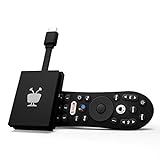
- No More App-Switching. Forget learning to navigate a new screen with every app. TiVo Stream 4K enables one centralized place for searching, browsing, and creating watch lists across all your apps..DC Input Range 5V/1.0A. Power Consumption : Maximum 5 W
- Recommendations Across All of Your Apps: Get rid of the walls between what you watch. TiVo recommends your next favorite shows and movies based on what you love, not where they live.
- Say it and watch it. The power of voice control makes it easy to find shows. Integrated Google Assistant allows you to launch apps, dim the lights and more.
- One place for all your favorite streaming apps. TiVo Stream 4K includes Netflix, Prime Video, Disney+, Peacock plus many more, so you can get to your shows fast.
- TiVo Stream 4K is one of Time Magazine’s “2020 Best Inventions, Special Mention” and PCMag hails it as “an excellent media streamer for TV lovers.” Operating Temperature 0˚C - 40˚C
- Device: brand/model and Android TV version (e.g., Android 11, Google TV build year).
- Apple TV app version: from Play Store or app info.
- TV model: plus HDR format support (HDR10/HDR10+/Dolby Vision).
- HDMI path: direct vs through AVR/soundbar; AVR model if relevant.
- Exact symptom: crash-on-launch, crash-on-HDR start, black screen, wrong colors.
- Time stamps: when the crash happens and whether it happens every time.
If you can capture a screenshot of the HDR failure state (e.g., a briefly visible error), include it when contacting support.
Alternatives if Apple TV on Android TV won’t behave
If you need reliability right now, don’t get stuck on the same device while you wait for patches.
Use AirPlay-compatible or cast alternatives (when available)
Depending on your setup, you may be able to route playback from an Apple device via AirPlay (if your TV/box supports it). This avoids the Android TV app’s HDR path entirely.
Do these 3 things before closing this tab:
1Repair Windows errors before they cause bigger problems2Scan for outdated or missing drivers - takes under a minute3Clear out junk files and repair common Windows errorsUse a different Apple TV client device
- Apple TV box (tvOS) for the most consistent Apple TV experience.
- iPhone or iPad streaming plus AirPlay.
- MacBook streaming with the right output method.
You can still keep Android TV for other apps, but treat Apple TV playback as “use the device that honors HDR metadata correctly” until the Android TV app issue is resolved.
Common mistakes that keep the problem alive
- Changing multiple settings at once (HDR toggle, resolution, color format), then not knowing what fixed it.
- Testing with a different title than the one that crashes (content encoding can differ).
- Leaving the AVR in the HDMI path during your diagnosis, then assuming the app is at fault.
- Using an older HDMI cable that worked for SDR but fails with HDR metadata.
- Skipping OS updates because the app “seems current” in the Play Store.
FAQs
Why does Apple TV crash only on HDR titles on my Android TV?
Most often it’s HDR negotiation or decode pipeline mismatch between the Apple TV app, Android TV OS, and your HDMI chain (TV + AVR/soundbar). Direct-to-TV testing and toggling HDR in Android display settings usually confirm it.
What HDMI settings should I check for HDR reliability?
Enable the TV port’s UHD/Enhanced format (or Deep Color). If using an AVR, make sure HDR passthrough and enhanced HDMI modes are enabled there too. If available, prefer YCbCr color format and try bypassing the AVR to validate.
Will clearing Apple TV app storage delete my purchases?
No. Clearing storage resets local app data and sign-in state. Your library and purchases are tied to your Apple ID; you’ll just need to sign in again.
Quick wins for a faster PC:
Clear out junk files and repair common Windows errorsFree Scan →Fix the driver behind crashes, sound loss and screen glitchesFind Drivers →Repair Windows errors before they cause bigger problemsFix Now →Does Ethernet always fix crashes?
No. Ethernet helps when crashes are tied to buffering or network instability. If crashes happen only on HDR titles, focus first on HDMI/HDR settings and device compatibility.
Should I disable HDR to avoid crashes?
If disabling HDR stops crashes, it’s a valid workaround while you troubleshoot. For a lasting fix, try direct HDMI, correct UHD/Deep Color settings, update everything, and test HDR after each change.
Bottom Line
When Apple TV on Android TV crashes and HDR looks wrong, treat it like a handshake problem first. Update the app and OS, clear the Apple TV app cache/storage, then isolate HDR negotiation by toggling HDR settings and testing direct-to-TV HDMI.
If the crash only happens through an AVR/soundbar or only with specific HDR titles, you’ve got a strong culprit. Use the playbook above to narrow it down quickly—and if you need reliable viewing today, switch to a more stable Apple TV client device while the Android TV side gets patched.

