Windows Errors? Fix Them Before They Spread
Repair common Windows errors and clear accumulated junk for a smoother, more stable PC - no reinstall needed.Free scan · no reinstallOutdated Drivers Are Slowing You Down
One free scan finds every outdated or missing driver and matches the right update for your exact hardware.Free scan · exact hardware matchSome links on this page are affiliate links: if you buy through them we may earn a commission, at no extra cost to you.
Apple TV on Android TV is usually stable, but when it’s plagued by crashes and HDR glitches, the root cause is often a mismatch between the app’s playback pipeline and your Android TV HDMI/display handshake. That can happen due to app bugs, outdated system components, HDMI/AV receiver negotiation problems, or an HDR setting that’s technically “on” but not compatible with the content format being played.
This guide treats crashes and HDR separately—then connects them, because the fixes that stop the crash loop often also improve HDR reliability. Follow the checklist in order and you’ll isolate what’s actually breaking: the app, the device, the network path, or the TV/receiver configuration.
As an Amazon Associate I earn from qualifying purchases.
Why Apple TV on Android TV crashes and mis-handles HDR
Crashes typically come from one of three places: an outdated player stack on Android TV, a broken cache/data state in the Apple TV app, or an unstable streaming session caused by network buffering, DNS filtering, or VPN interference.
HDR issues usually come from handshake and conversion problems: Android TV (and your TV/AV receiver) agree on an output format incorrectly, HDR metadata doesn’t match what the display expects, or the playback chain triggers tone mapping/fallback in a way that leads to black screens, washed colors, or sudden SDR switching.
Popular on Amazon

- The Google TV Streamer (4K) delivers your favorite entertainment quickly, easily, and personalized to you[1,2]
- HDMI 2.1 cable required (sold separately)
- See movies and TV shows from all your services right from your home screen[2]; and find new things to watch with tailored recommendations for everyone in your home based on their interests and viewing habits
- If you find an interesting show or movie on your TV, mobile app, or Google search, you can easily add it to your watchlist, so it’s ready when you are[2]
- Up to 4K HDR with Dolby Vision delivers captivating, true-to-life detail[4]; and you can connect speakers that support Dolby Atmos for more immersive 3D sound
What you need before troubleshooting
Gather a few details now so you don’t lose time later:
- Your Android TV device model (example: NVIDIA SHIELD TV Pro, Chromecast with Google TV, Sony/Hisense built-in Android TV).
- Android TV version (Settings > About > Android TV OS version).
- TV brand/model and whether you use an AV receiver/soundbar over HDMI.
- Whether you see the issue only on Apple TV+ titles, or also when opening the app’s menus.
- Your current display settings (HDMI format, HDR mode, Match content, picture mode).
If you can, note the exact crash moment (app launch, starting a title, resuming from pause, or switching episodes). That timing is often the quickest clue.
Quick wins for a faster PC:
Repair Windows errors before they cause bigger problemsFix Now →Scan for outdated or missing drivers - takes under a minuteDriver Scan →Clear out junk files and repair common Windows errorsFree Scan →Quick triage: stop the crash loop first
If Apple TV crashes immediately on launch or within seconds, prioritize stabilization before you spend time on HDR tuning.
- Restart Android TV (Settings > System > Restart) and reboot your TV.
- Try Apple TV with a different network (switch Wi‑Fi off/on, or use Ethernet if available).
- Test one short title and one long title. Note whether crashes happen at playback start only.
If the app stays stable but HDR looks wrong, skip to the HDR sections and adjust display handshake settings first.
Fixes for app crashes on Android TV
Update everything (app, Android TV system, and Google Play services)
Crashes often correlate with partially updated system components. Start with the Apple TV app and then verify system dependencies.
- Open the Google Play Store on Android TV.
- Search for Apple TV and update it (you may need to open the listing and tap Update).
- In Play Store, check for updates to Google Play services and Android System WebView if shown.
- On the TV, go to Settings > System > About > System update and install any pending updates.
On Android TV, being “mostly updated” can still leave the media stack mismatched—so take any available updates even if they seem unrelated.
Recommended Free Tools
Clear cache vs. clear data (and why it matters)
Cache clears are safe and often fix playback session problems. Clear data resets app state (you may need to sign in again and re-download preferences).
- Settings > Apps > See all apps.
- Select Apple TV.
- Tap Storage & cache.
- Choose Clear cache first, then test.
- If it still crashes, choose Clear data and test again.
Do not jump straight to Clear data unless the crash is persistent, because it increases downtime and can re-trigger downloads.
Reboot correctly and power-cycle your TV + receiver
HDMI handshake issues can crash the video pipeline when the app changes playback modes (especially HDR). A normal restart may not reset the HDMI negotiation.
- Turn off the Android TV device.
- Turn off the TV and any AV receiver/soundbar connected by HDMI.
- Wait 60 seconds (this clears HDMI state).
- Power on in this order: receiver/soundbar (if present) > TV > Android TV device.
After reboot, launch Apple TV and play one title to confirm stability before you troubleshoot HDR visuals.
Also popular on Amazon

- The Google TV Streamer (4K) delivers your favorite entertainment quickly, easily, and personalized to you[1,2]
- HDMI 2.1 cable required (sold separately)
- See movies and TV shows from all your services right from your home screen[2]; and find new things to watch with tailored recommendations for everyone in your home based on their interests and viewing habits
- If you find an interesting show or movie on your TV, mobile app, or Google search, you can easily add it to your watchlist, so it’s ready when you are[2]
- Up to 4K HDR with Dolby Vision delivers captivating, true-to-life detail[4]; and you can connect speakers that support Dolby Atmos for more immersive 3D sound
Reduce background interference
Third-party apps or aggressive background tasks can cause instability during playback.
- Close other streaming apps (YouTube, Netflix, etc.).
- Temporarily disable VPNs, ad blockers, or “network acceleration” apps if you use them.
- Restart again if you disabled major network features.
Even if the crash is “random,” reducing background activity often makes the symptom reproducible for diagnosis.
Check storage and SD card quirks
Low internal storage can break media caching and trigger repeated failures.
- Check available storage on your Android TV device.
- If you use an SD card (less common on Android TV boxes), move the Apple TV app back to internal storage if your launcher supports it.
- Clear other large apps you don’t need temporarily (or free at least 1–2 GB).
If the crash starts after you installed something new or updated storage settings, this is the first place to look.
Swap networks and test DNS/VPN behavior
Streaming crashes can happen when segments stall or the app repeatedly re-requests manifests.
- Try Ethernet if available.
- Switch Wi‑Fi networks (even a phone hotspot is enough for a test).
- If you use DNS filtering, set DNS back to automatic or test a different DNS provider.
- Disable VPN/proxy and retest.
If Apple TV stops crashing on a different network, you’ve identified the streaming path—not the display pipeline.
Deauthorize and re-login to the Apple ID (only if needed)
Account/session problems can present as playback failures or repeated app restarts. Try this after cache/data clears and network tests.
- On Android TV, open Apple TV app.
- Go to Settings (within Apple TV) and sign out of your Apple ID.
- Restart the device.
- Sign back in and test again.
If you suspect account authorization limits, check Apple’s account devices list from a browser and remove/refresh devices if needed.
What’s actually slowing this PC down?
Pick the symptom - the matching free tool is one click away.
Force stop and reinstall the Apple TV app
When cache/data doesn’t help, a fresh install can reset corrupted media components.
- Settings > Apps > Apple TV.
- Tap Force stop.
- Uninstall Apple TV.
- Reboot Android TV.
- Reinstall Apple TV from Google Play Store.
- Test playback immediately after install, before changing other settings.
Install-time stability is a good clue: if the crash disappears temporarily, you likely had a bad cached state.
Also popular on Amazon

- Advanced 4K streaming - Elevate your entertainment with the next generation of our best-selling 4K stick, with improved streaming performance optimized for 4K TVs.
- The newest Fire TV experience (2026) – Our biggest update to Fire TV has a new, modern design that gets you to your entertainment fast. Browse dedicated content categories, pin more of your favorite apps, and get personalized recommendations from Alexa+. Spend less time scrolling, and more time watching.
- Cloud gaming, no console required – Stream Call of Duty: Black Ops 7, Hogwarts Legacy, Outer Worlds 2, Ninja Gaiden 4, and hundreds of games on your Fire TV Stick 4K Select with Xbox Game Pass and Luna via cloud gaming. Xbox Game Pass subscription and compatible controller required. Each sold separately.
- Smarter picks with Alexa+ – Getting to what you love has never been easier. Press the voice remote button and talk naturally to find what to watch across your apps, manage your smart home, or dive into virtually any topic.
- Wi-Fi 6 support - Enjoy smooth 4K streaming, even when other devices are connected to your router.
HDR issues: common symptoms and what they usually mean
HDR problems usually show up in a handful of repeatable ways:
| Symptom | What it often indicates | First fix to try |
|---|---|---|
| HDR titles play, but colors look washed out | Wrong HDR mode mapping or TV picture processing conflict | Disable HDR “enhancements” and reset picture mode |
| Black screen for a few seconds, then SDR fallback | HDMI handshake mismatch at playback start | Power-cycle TV/receiver and change HDMI format settings |
| Colors are too dim or highlights clip hard | Tone mapping mismatch between device and TV | Try enabling/disabling “Match content” or tone mapping options |
| App crashes when switching an episode with HDR | Playback pipeline fails when switching HDR metadata | Stabilize crashes first; then adjust HDR output settings |
If your app crashes specifically when an HDR title starts, treat it as a handshake and player stability issue, not just a “display” problem.
Android TV display settings that directly affect HDR
These settings vary slightly by vendor skin, but Android TV names are usually consistent.
Match content / HDMI format / HDR tone mapping
On many Android TV devices, HDR reliability improves when you make output behavior predictable.
- Open Settings > Display & sound.
- Find a setting like Match content (or Adaptive brightness / Dynamic range control).
- Test both modes if available: enable Match content for proper format switching, or disable it if your TV/receiver struggles with handshake changes.
- If you see a setting for HDR tone mapping, set it to default/Auto and retest.
Because TV/receiver firmware differs, the “correct” choice is often the one that makes your HDR handshakes consistent across multiple launches of the same title.
Confirm HDMI mode (4K, 60 Hz, and HDR pass-through)
Wrong HDMI format settings can produce HDR metadata negotiation failures.
The Tool Desk
Outbyte Driver Updater FREEScan for outdated or missing drivers - takes under a minuteDriver Scan →Outbyte PC Repair FREERepair Windows errors before they cause bigger problemsFix Now →- In Settings > Display & sound, open Resolution.
- Set to 4K if your TV supports it.
- Set Refresh rate to the highest common rate your setup supports (often 60 Hz).
- If there’s a setting for HDMI enhancement, CEC, or “enhanced format,” enable it if recommended by the manufacturer.
When HDR breaks, it’s frequently tied to the HDMI link changing during playback. Stabilizing resolution/refresh reduces those changes.
Check your TV picture mode and enhanced settings
Some TV picture modes apply extra processing that can conflict with HDR metadata handling.
- On the TV, set Picture Mode to something simple like Standard or Movie.
- Temporarily disable features like Dynamic contrast, Motion interpolation (if it’s extreme), and “HDR tone mapping” overrides if your TV offers them.
- After you confirm correct HDR, you can re-enable features one at a time.
If HDR visuals suddenly look correct after disabling a processing toggle, keep that setting for Apple TV playback.
Router and streaming-path causes of HDR failures
HDR isn’t purely a display setting—it depends on the playback session selecting the correct variant and metadata. If the network is unstable, the app may fall back to a different stream profile (or repeatedly restart playback).
Also popular on Amazon
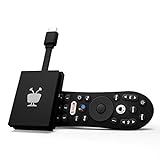
- No More App-Switching. Forget learning to navigate a new screen with every app. TiVo Stream 4K enables one centralized place for searching, browsing, and creating watch lists across all your apps..DC Input Range 5V/1.0A. Power Consumption : Maximum 5 W
- Recommendations Across All of Your Apps: Get rid of the walls between what you watch. TiVo recommends your next favorite shows and movies based on what you love, not where they live.
- Say it and watch it. The power of voice control makes it easy to find shows. Integrated Google Assistant allows you to launch apps, dim the lights and more.
- One place for all your favorite streaming apps. TiVo Stream 4K includes Netflix, Prime Video, Disney+, Peacock plus many more, so you can get to your shows fast.
- TiVo Stream 4K is one of Time Magazine’s “2020 Best Inventions, Special Mention” and PCMag hails it as “an excellent media streamer for TV lovers.” Operating Temperature 0˚C - 40˚C
- Try Ethernet or a stronger Wi‑Fi band (5 GHz instead of 2.4 GHz).
- Disable VPN/proxy for the Apple TV app test.
- Reduce concurrent downloads/streams in the household.
- If you use custom DNS (Pi-hole, AdGuard Home), test with DNS set to Automatic.
In a lot of “HDR looks wrong” cases, the display is fine—the stream is not staying on the expected HDR profile.
Device-specific workarounds
Built-in Android TV vs. external streaming boxes (NVIDIA SHIELD, Chromecast with Google TV, Xiaomi/Hisense boxes)
Built-in Android TV can have fewer moving parts, but vendor HDMI firmware can still be quirky. External boxes can be more consistent, especially if their Android TV version is newer.
- If you use an external box, update its system software before changing Apple TV settings.
- Test the same Apple TV+ HDR title on two different devices (your TV’s built-in Android TV and your box, if possible).
- If HDR is stable on one device and not the other, the issue is likely the HDMI/display handshake on the failing device or its version of Android TV.
AV receivers and soundbars (HDMI eARC/ARC pitfalls)
HDMI eARC/ARC setups can confuse the HDR handshake, especially when the receiver is doing format negotiation while the TV also applies its own HDR logic.
- Connect the Android TV device directly to an HDMI port on the TV (temporarily) and test Apple TV.
- If direct-to-TV fixes HDR, reconnect to the receiver and change receiver settings: set HDMI mode to Enhanced (if available) and enable/disable eARC one at a time.
- Make sure the receiver firmware is up to date.
If you can’t test direct-to-TV, try switching HDMI input ports on the TV and ensure the port supports HDR and 4K at the required refresh rate.
Do these 3 things before closing this tab:
1Clear out junk files and repair common Windows errors2Scan for outdated or missing drivers - takes under a minute3Repair Windows errors before they cause bigger problemsPanel or firmware problems on the TV side
TV firmware updates sometimes fix HDR metadata parsing issues that no app-side change can resolve.
- Check the TV’s firmware update screen in Settings.
- Install any HDR-related updates.
- After updating, re-check Android TV Display & sound settings because defaults can shift.
If your TV’s HDR bugs correlate with only one input/device, the port firmware path is a common culprit.
When Apple TV crashes only on specific titles
If crashes happen only for particular series or movies, you might be hitting a problematic encoding variant, a regional catalog edge case, or a temporary streaming metadata failure.
- Try a different episode of the same show.
- Try a completely different show (ideally one that’s known to be HDR).
- Switch from 4K output to 1080p temporarily (Display & sound > Resolution) and test—if crashes stop, it’s likely a video-profile or HDR pipeline mismatch.
- Try a different playback method (play from the title page vs. resuming from Continue Watching).
If only one title is affected across devices, the fastest option is often a temporary workaround like using the web player on another screen while you wait for an app update.
Free tools Windows power users keep installed
One-click scans. No signup required.
Alternative ways to watch Apple TV+ while you fix the app
Even if your long-term goal is a stable Apple TV app experience, you can keep watching.
- Use a browser on a computer or tablet and watch Apple TV+ via the Apple TV web experience.
- Cast from iPhone or iPad to your TV (ensure your casting app and your TV support the correct playback mode).
- If you have a MacBook or iMac, use the browser and cast or use AirPlay when available for your setup.
These options don’t fix Android TV HDR settings, but they prevent downtime while you isolate the root cause.
Also popular on Amazon

- Enjoy nextlevel streaming at an affordable price with the onn Google TV 4K Pro Streaming Devicewith Gemini This powerhouse streaming device delivers uncompromising performance and stunning visualstransforming your TV into a premium entertainment hub
- Immerse yourself in vivid colorssharp contrastand cinematic quality with stunning 4K Ultra HD and Dolby Vision
- Experience theaterqualitymultidimensional sound with immersive Dolby Atmos Audio
- Powerful performance with 3GB of RAMis 50% more than the 4K Plus modelfor super smooth app performancefast navigationand seamless multitasking
- Enjoy incredibly smoothbufferfree streaming and gaming with blazingfast WiFi 6 Connectivity or use the optional Ethernet Port for the feastestreliable connectivity
Common mistakes that keep HDR and crash issues alive
- Only restarting the Android TV device while leaving the HDMI chain (TV/receiver) untouched.
- Changing multiple HDR-related toggles at once, then not knowing which one worked.
- Testing HDR using the wrong port (some ports on TVs support 4K HDR while others don’t).
- Ignoring cache/data corruption and jumping straight to reinstall without clearing cache first.
- Assuming the app itself is the only cause—even stable apps can fail when handshake/stream selection breaks.
Troubleshooting checklist (printable order of operations)
Use this order to minimize backtracking. Stop when you fix it and keep a note of what changed.
- Update Apple TV app (Google Play Store).
- Update Android TV system and Google Play services if prompted.
- Clear Apple TV cache; test.
- If still crashing, clear Apple TV data; test.
- Power-cycle TV + receiver + Android TV (60-second off window).
- Swap network (Wi‑Fi vs. Ethernet vs. hotspot). Disable VPN/proxy.
- Stabilize crashes first; then focus on HDR settings.
- In Settings > Display & sound, confirm 4K resolution and appropriate refresh rate.
- Test Match content: enable one way, retest, then disable and retest if needed.
- Temporarily disable TV picture enhancements that alter HDR processing.
- If you use a receiver, test direct-to-TV as a handshake diagnostic.
- Reinstall Apple TV app only if the above fails.
If you reach the end and nothing works, you’ve narrowed the problem to a likely compatibility gap between your Android TV version, your TV/receiver firmware, and the Apple TV app’s media pipeline.
FAQs
Why does Apple TV crash only when HDR starts?
That pattern usually points to an HDMI handshake or HDR metadata switching failure. Stabilize crashes first (cache/data, updates, power-cycle), then adjust Match content and HDMI format/refresh rate.
Should I disable Match content for better HDR?
Sometimes. If your TV/receiver can’t handle dynamic HDR switching reliably, disabling Match content can reduce handshake changes and stop washed-out or black-screen behavior.
Does clearing Apple TV data delete my downloads or sign-in?
On Android TV, Clear data typically resets app state and may require re-signing in. It’s still often worth doing after a cache-only attempt fails.
Can network buffering cause HDR to look wrong?
Yes. If the app can’t sustain the expected HDR stream profile, it may fall back to another variant. Testing Ethernet vs. Wi‑Fi and disabling VPN/proxy helps confirm this quickly.
Do these 3 things before closing this tab:
1Clear out junk files and repair common Windows errors2Fix the driver behind crashes, sound loss and screen glitches3Repair Windows errors before they cause bigger problemsIs it an Apple TV app problem or a TV problem?
It can be either. The quickest way to separate them is testing the same title on another Android TV device (or on a different HDMI path, like direct-to-TV vs. through a receiver).
Bottom Line
Crashes and HDR failures on Apple TV for Android TV are rarely “mystical.” Treat them like a system handshake and session stability problem: update, reset app state, stabilize the network path, then make HDR output predictable by tuning Android TV display settings and your HDMI chain.
When in doubt, change one variable at a time—especially Match content, HDMI format/refresh rate, and receiver eARC behavior—until your Apple TV playback is stable and HDR visuals remain consistent across titles.

