Some links on this page are affiliate links: if you buy through them we may earn a commission, at no extra cost to you.
Apple Music now supports moving playlists to and from YouTube Music, removing a long-standing headache for people who split listening across ecosystems. The practical result: you can migrate whole playlists without rebuilding them track-by-track.
There’s one catch—Spotify is still not part of the same transfer path. This guide shows the supported Apple Music ↔ YouTube Music workflow, what to expect during matching, and what to do when things don’t import cleanly.
As an Amazon Associate I earn from qualifying purchases.
What’s actually slowing this PC down?
Pick the symptom - the matching free tool is one click away.
What’s changing: Apple Music playlist transfers now include YouTube Music
Recent updates added a direct playlist transfer capability between Apple Music and YouTube Music. Instead of copying URLs or using third-party scrapers, you use the built-in transfer flow inside the Apple/YouTube Music experience to map songs and recreate your playlists.
Functionally, you’re looking at two directions: importing Apple Music playlists into YouTube Music, and importing YouTube Music playlists back into Apple Music. The transfer uses track matching to recreate playlist contents on the destination service.
Popular on Amazon
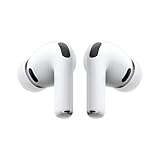
- WORLD’S BEST IN-EAR ACTIVE NOISE CANCELLATION — Removes up to 2x more unwanted noise than AirPods Pro 2* so you can stay fully immersed in the moment.*
- BREAKTHROUGH AUDIO PERFORMANCE — Experience breathtaking, three-dimensional audio with AirPods Pro 3. A new acoustic architecture delivers transformed bass, detailed clarity so you can hear every instrument, and stunningly vivid vocals.
- HEART RATE SENSING — Built-in heart rate sensing lets you track your heart rate and calories burned for up to 50 different workout types.* With iPhone, you will have access to the Move ring, step count, and the new Workout Buddy,* powered by Apple Intelligence.*
- LIVE TRANSLATION — Communicate across language barriers using Live Translation,* enabled by Apple Intelligence.*
- EXTENDED BATTERY LIFE — Get up to 8 hours of listening time with Active Noise Cancellation on a single charge. Or up to 10 hours in Transparency using the Hearing Aid feature.*
Why Spotify isn’t included (yet)
Even though Apple Music can exchange playlist data with some services, Spotify isn’t available in this specific transfer pathway. That’s usually due to a mix of licensing constraints, API/partner agreements, and how each provider supports third-party playlist import/export.
So while Apple Music ↔ YouTube Music is supported now, you should not expect the same one-click experience for Spotify. If you need Spotify, you’ll typically have to use alternative migration methods (covered later) or do a different two-step process.
Prerequisites before you start
Before you hit transfer, confirm the basics so you don’t waste time troubleshooting later.
Accounts
- You need an Apple ID with Apple Music enabled.
- You need a Google account with YouTube Music access.
- Both accounts should be signed in on the device (or web) where you initiate transfer.
Update your apps
Playlist transfer features are tied to app versions. On iPhone/iPad, update Apple Music via the App Store and YouTube Music via the App Store/Play Store (as applicable) before attempting a transfer.
- On iPhone/iPad: ensure iOS/iPadOS is updated to a current version supported by Apple Music and YouTube Music.
- On desktop/web: use a modern browser (Chrome 122+, Safari 17+, or Firefox 123+ are good baselines) with cookies enabled.
Stable connection
Transfers can involve matching and multiple network calls. Use Wi‑Fi or a stable cellular connection, and avoid switching networks mid-transfer.
How to transfer playlists from Apple Music to YouTube Music
This is the workflow most people try first: move an Apple Music playlist so it appears in YouTube Music with the closest matching tracks.
Windows Errors? Fix Them Before They Spread
Repair common Windows errors and clear accumulated junk for a smoother, more stable PC - no reinstall needed.Free scan · no reinstallOutdated Drivers Are Slowing You Down
One free scan finds every outdated or missing driver and matches the right update for your exact hardware.Free scan · exact hardware matchOn iPhone or iPad (iOS/iPadOS)
Use the Apple Music and YouTube Music transfer prompt flow that appears when both services are available on your device.
Also popular on Amazon
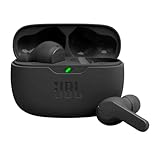
- JBL Deep Bass Sound: Get the most from your mixes with high-quality audio from secure, reliable earbuds with 8mm drivers featuring JBL Deep Bass Sound.
- Comfortable fit: The ergonomic, stick-closed design of the JBL Vibe Beam fits so comfortably you may forget you're wearing them. The closed design excludes external sounds, enhancing the bass performance.
- Up to 32 (8h + 24h) total hours of battery life with speed charging: With 8 hours of battery life in the earbuds and 24 in the case, the JBL Vibe Beam provide all-day audio. And when you need more power, you can speed charge an extra two hours in just 10 minutes.
- Stay aware of your surrounding: Go anywhere and hear everything with Smart Ambient technology. When you need to pause for a quick chat, TalkThru lets you instantly hear yourself and those around you without taking out your earbuds. Or use Ambient Aware to keep the music playing while remaining aware of your surroundings.
- Hands-free calls with VoiceAware: When you're making hands-free stereo calls on the go, VoiceAware lets you balance how much of your own voice you hear while talking with others.
- Open Apple Music on your iPhone or iPad.
- Go to Library > Playlists.
- Open the playlist you want to move.
- Tap the Share icon (often a square with an arrow) or the More option (three dots), depending on your iOS version.
- Select Transfer to YouTube Music (wording can vary slightly).
- Confirm you’re signed in to the correct YouTube Music account.
- Choose the destination playlist behavior (create a new playlist or add to an existing one, if shown).
- Tap Transfer and keep the app open until you see a success message.
On the web (if your flow appears in browser)
If you’re using a browser-based flow, you’ll typically authorize access and then confirm which playlist(s) to import.
- Sign in to Apple Music and open your playlist list.
- Start the transfer action for the playlist you want to move.
- When prompted, sign in/authorize the Google account tied to YouTube Music.
- Confirm the destination playlist name and whether to overwrite/create a new playlist.
- Wait for completion and verify the resulting playlist inside YouTube Music.
How to transfer playlists from YouTube Music to Apple Music
The reverse direction works the same way conceptually: the destination service rebuilds the playlist using matched tracks.
On iPhone or iPad
- Open YouTube Music.
- Go to Library > Playlists and open the playlist you want to transfer.
- Tap Share or More (three dots).
- Select Transfer to Apple Music.
- Confirm you’re signed into the correct Apple ID with Apple Music.
- Choose whether to create a new Apple Music playlist or append to an existing one.
- Tap Transfer and keep the app open until the import completes.
On desktop/web
- Open YouTube Music in your browser and locate the playlist.
- Start the transfer option and authorize Apple Music when prompted.
- Select the destination behavior (new vs. append) and confirm the import.
What gets transferred (and what usually doesn’t)
Playlist transfer is primarily about songs and order, not social data. The details matter because you may notice differences after import.
Track matching behavior
The importer doesn’t just copy IDs. It matches each track from the source to the closest track on the destination catalog. This is why some tracks may be missing or replaced by a similar version.
- Live versions may match to studio versions (or vice versa).
- Remasters may match to the original album track.
- Regional licensing can change which tracks are available on the destination service.
Play counts, ratings, and metadata
In most cases, playlist “content” transfers (track list + basic playlist name). Other metadata usually doesn’t. Examples include:
- Your likes inside the source service
- Play counts
- Personal ratings/reviews
- Some artwork customizations
Explicit labels and regional availability
If an imported track isn’t available in your region on the destination service, it may not appear. Similarly, explicit content flags can vary by catalog metadata.
Troubleshooting when transfers fail
If the transfer option doesn’t show up or the import stops partway through, don’t panic. Most failures are account/permission, version, or catalog matching issues.
Recommended Free Tools
Also popular on Amazon
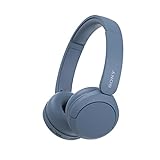
- LONG BATTERY LIFE: With up to 50-hour battery life and quick charging, you’ll have enough power for multi-day road trips and long festival weekends.(USB Type-C Cable included)
- HIGH QUALITY SOUND: Great sound quality customizable to your music preference with EQ Custom on the Sony | Headphones Connect App.
- LIGHT & COMFORTABLE: The lightweight build and swivel earcups gently slip on and off, while the adjustable headband, cushion and soft ear pads give you all-day comfort.
- CRYSTAL CLEAR CALLS: A built-in microphone provides you with hands-free calling. No need to even take your phone from your pocket.
- MULTIPOINT CONNECTION: Quickly switch between two devices at once.
Permissions and account linking
First verify you authorized the right accounts.
- Check that you’re signed into the same Apple ID on iPhone/iPad and the same Google account that owns the YouTube Music library.
- If you recently changed passwords, sign out and back in to both apps.
App version and platform checks
Transfers are feature-gated. If your app is behind, you might not see the transfer option at all.
- Update Apple Music and YouTube Music from the App Store.
- Confirm iOS/iPadOS is on a recent version compatible with current releases.
Stuck transfers and partial imports
If the transfer starts but doesn’t finish:
- Check your connection and avoid switching networks.
- Close the app fully (swipe away), reopen, and try the transfer again.
- Look for a partially created destination playlist—if it exists, you may only need to re-run the action for missing items.
When re-running, choose “create new playlist” if the first attempt created a bad or incomplete list. That prevents duplicates.
Track mismatch problems
Matching issues are common for deep cuts, obscure releases, and songs with multiple versions.
- If the playlist shows fewer tracks than expected, compare the missing songs one by one.
- Search the missing track in the destination service; if an official match exists, re-add it manually.
- For live/remix versions, pick the exact version that appears in search results before transferring again.
Best practices for a clean migration
A little prep makes transfers cleaner and reduces post-import cleanup.
The Tool Desk
Outbyte Driver Updater FREEScan for outdated or missing drivers - takes under a minuteDriver Scan →Outbyte PC Repair FREERepair Windows errors before they cause bigger problemsFix Now →- Transfer one playlist at a time. Large mega-lists can take longer and make it harder to identify where issues occur.
- Use consistent naming. If you care about order and identity, keep the playlist names recognizable.
- Do a verification pass. After the transfer completes, open the destination playlist and scroll through the first 20–30 tracks.
- Keep the source playlist unchanged. If you edit the source while a transfer is running, you can end up with unexpected differences.
Alternatives if you need Spotify moves
Because Spotify isn’t included in the same Apple Music ↔ YouTube Music transfer flow, you’ll need another approach if Spotify is your final destination.
Two-step: Apple Music ↔ YouTube Music, then export to Spotify
If you can tolerate a multi-stage workflow, you can transfer Apple Music → YouTube Music using the supported feature, then use a playlist-to-Spotify method based on track matching (typically through a separate tool or manual search).
This won’t be as “native” as the direct Apple Music ↔ YouTube Music transfer, but it’s often the quickest path when you want at least the content list populated.
Also popular on Amazon
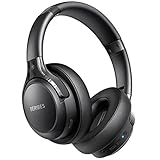
- 120 Hours Playtime: Low power consumption technology applied, BERIBES bluetooth headphones with built-in 1000mAh battery can continually play more than 120 hours, standby more than 1050 hours after one fully charge. By included 3.5mm audio cable, the wireless headphones over ear can be easily switched to wired mode when powers off. No power shortage problem anymore.
- Optional 6 Music Modes: Adopted most advanced dual 40mm dynamic sound unit and 6 EQ modes, BERIBES updated headphones wireless bluetooth black were born for audiophiles. Simply switch the headphone between balanced sound, extra powerful bass and mid treble enhancement modes. No matter you prefer rock, Jazz, Rhythm & Blues or classic music, BERIBES has always been committed to providing our customers with good sound quality as the focal point of our engineering.
- All Day Comfort: Made by premium materials, 0.38lb BERIBES over the ear headphones wireless bluetooth for work are the most lightweight headphones in the market. Adjustable headband makes it easy to fit all sizes heads without pains. Softer and more comfortable memory protein earmuffs protect your ears in long term using.
- Latest Bluetooth 6.0 and Microphone: Carrying latest Bluetooth 6.0 chip, after booting, 1-3 seconds to quickly pair bluetooth. Beribes bluetooth headphones with microphone has faster and more stable transmitter range up to 33ft. Two smart devices can be connected to Beribes over-ear headphones at the same time, makes you able to pick up a call from your phones when watching movie on your pad without switching.
- Packaging Component: Package include a Foldable Deep Bass Headphone, 3.5MM Audio Cable, Type-c Charging Cable and User Manual.
Manual rebuild for the smallest playlists
For short playlists (for example, under 25 tracks), manual recreation can be faster than troubleshooting import/export tools.
Third-party playlist transfer tools (use carefully)
Some third-party services can map playlists between platforms, but they vary in accuracy and privacy. Only use tools you trust, and avoid entering credentials into sketchy websites.
Common mistakes to avoid
- Assuming order always matches perfectly. Track matching can change the mapping of specific versions, which can shift order.
- Forgetting to update apps. If you can’t find the transfer option, version mismatch is the first thing to check.
- Using multiple Apple IDs or Google accounts. Signed-in confusion is the #1 cause of “nothing happens” transfers.
- Re-running transfers without checking duplicates. If the destination already contains the playlist, append vs create matters.
FAQ
Does Apple Music transfer playlists to YouTube Music automatically for all my libraries?
No. You initiate a transfer for specific playlists. You still need to choose the playlist and confirm the destination behavior.
Will my playlist artwork transfer too?
Often, the playlist name transfers reliably, while artwork may not. If artwork is critical, you may need to set it manually on the destination service.
Why are some songs missing after the transfer?
Missing tracks usually come from catalog differences, licensing restrictions, or version mismatches. Search the missing titles directly on the destination service and add the closest match.
Free tools Windows power users keep installed
One-click scans. No signup required.
Can I transfer playlists between Apple Music and YouTube Music without iPhone?
Depending on what’s enabled for your account and app versions, you may see browser-based options as well. If you don’t, the iPhone/iPad workflow typically offers the most consistent access.
Can I transfer playlists to Spotify using the same feature?
Not with the new Apple Music ↔ YouTube Music transfer capability. Spotify is still not supported in that pathway, so you’ll need alternative migration methods.
Final Thoughts
Apple Music’s new playlist transfer to and from YouTube Music is a meaningful improvement—especially if you maintain multiple libraries or want a single home for long-running playlists. For most listeners, the process is fast: initiate from Apple Music (or YouTube Music), authorize the account, and verify the imported playlist afterward.
Just plan for catalog matching differences, keep app versions current, and don’t expect Spotify to work through the same native transfer flow. If Spotify is your end goal, use a separate workaround or accept a two-step migration.
Quick wins for a faster PC:
Repair Windows errors before they cause bigger problemsFix Now →Fix the driver behind crashes, sound loss and screen glitchesFind Drivers →Clear out junk files and repair common Windows errorsFree Scan →
