Quick wins for a faster PC:
Scan for outdated or missing drivers - takes under a minuteDriver Scan →Repair Windows errors before they cause bigger problemsFix Now →Some links on this page are affiliate links: if you buy through them we may earn a commission, at no extra cost to you.
Android Auto is getting more “real-world” controls—so it’s no surprise that a garage door opener app is showing up. The big shift is that you don’t just get a notification; you can often control your door from the vehicle UI through Android Auto, using a companion app on your phone.
This guide focuses on how these integrations typically work, what you need before you attempt setup, and how to fix the most common issues when the garage control doesn’t appear or won’t respond. Even if your specific opener brand differs, the workflow and failure modes are usually the same.
As an Amazon Associate I earn from qualifying purchases.
Free tools Windows power users keep installed
One-click scans. No signup required.
What an Android Auto garage door opener app is (and how it works)
An Android Auto garage door opener app is a companion app that connects your garage system to your phone, then surfaces specific actions in Android Auto’s interface. Your vehicle acts like a display/controller; the actual “brains” and network connection generally live in the phone (and, of course, your garage opener’s own hub or cloud service).
Typical architecture
- Garage side: A compatible opener, controller, or hub (often cloud-connected) that can open/close the door and report status.
- Phone side: The garage door opener app (installed on your Android phone) handles authentication, door commands, and status syncing.
- Android Auto side: Android Auto queries the app and shows approved controls in the vehicle UI while you’re driving (subject to safety restrictions).
What you can usually control
Most integrations focus on a small set of actions to match driving-safety rules. Common controls include open, close, and sometimes “stop” (if the garage controller supports it). Some apps also show status (open/closed) and push notifications.
Popular on Amazon
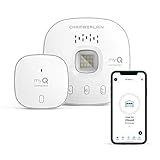
- “Did I shut the garage” No more worrying.
- Open or close your garage from anywhere. Simply download the free myQ app for iPhone or Android and get connected with your very own Smart Garage
- Works with Amazon Key In-Garage Delivery—an exclusive Prime member benefit that protects your Amazon packages.
- Give access to family or friends while on the go
- Never worry if the garage is closed at night by setting a close schedule
Prerequisites: hardware, accounts, and connectivity
Before you install or pair anything, verify the basics. If one prerequisite is missing, Android Auto may hide the control or the app may fail to send commands.
1) Compatible garage system
You typically need a garage opener that can be controlled via a companion app—either directly or through a hub (for example, a smart garage controller that supports app-based control). If your opener is older and only has a remote, you’ll likely need a retrofit controller.
The Tool Desk
Outbyte Driver Updater FREEScan for outdated or missing drivers - takes under a minuteDriver Scan →Outbyte PC Repair FREEClear out junk files and repair common Windows errorsFree Scan →2) The matching phone app
Install the official garage door opener app provided by the brand (or the hub manufacturer). Generic “garage” apps rarely work unless they specifically support your hardware and API.
3) Android Auto setup on your phone
- Android Auto installed and updated on your phone.
- Your phone supports Android Auto (check compatibility via Google’s Android Auto listing).
- Bluetooth and Wi‑Fi permissions are enabled as needed by the app and Android Auto.
4) Permissions that can block the integration
Many Android Auto companion apps require specific runtime permissions and background behavior. If you deny them, the dashboard control may never appear.
- Location (often used for connectivity/billing regions and certain device discovery flows; some apps use it for nearby device pairing).
- Notifications (for open/close status alerts).
- Background data / battery optimization exceptions (common for always-available control).
Step-by-step setup on Android phone
Use this checklist order. It prevents the most common “it works in the phone app but not in Android Auto” failures.
Step 1: Confirm your garage door works in the phone app
- Open the garage door opener app on your Android phone.
- Sign in to your account (or complete pairing with your hub/opener).
- Tap Open and Close once each.
- Verify you get a status update (open/closed) and no error banner.
If this fails, Android Auto won’t be able to fix it. The issue is almost always account pairing, hub connectivity, or permissions.
Step 2: Update Android Auto and the garage app
- Update the Android Auto app from the Play Store.
- Update your garage door opener app to the latest version.
Android Auto integrations are tightly coupled to specific app versions because the controls must map to a supported Android Auto surface.
Step 3: Grant required permissions
- Go to Settings > Apps > [Garage App].
- Tap Permissions and enable anything the app requests (commonly Notifications; sometimes Location).
- Go to Battery or Battery usage and check for Battery optimization settings.
- For reliability, set the garage app to Don’t optimize (wording varies by device) if you see frequent disconnects.
Step 4: Disable “restricted” background behavior (only if needed)
If your phone aggressively kills background processes, Android Auto may show the control but actions may fail. Temporarily remove restrictions:
Also popular on Amazon
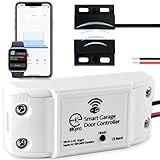
- 🧠 SMARTEN YOUR GARAGE: Universal adapter connects to existing openers & connects to WiFi to allow monitoring and control from your mobile device or voice assistant.
- 🔈 WORKS WITH ALEXA, GOOGLE HOME, IPHONE, SIRI, ANDROID: Use any device including voice assistants, like Alexa, Ok Google, Siri, or even on smart watches.
- 🏡❓👍 WORKS ON MOST OPENERS** (adapter maybe required): Not sure if your openers compatible? It likely is! If it isn't we now have an adapter that expands compatibility - contact us for an adapter 📩 **Sorry RYOBI, the eKyro opener doesn't work with you 😞
- 🏠🏠 WORKS TOGETHER: Multiple eKyro Openers can be paired together if you have more than 1 Garage Door Opener!** **Each Door will need its own eKyro Smart Garage Door Controller
- 💰 NO FEES**: All features come without monthly fees attached including Alexa, Google Assistant (OK Google), Siri, Scheduling, Automatic Door Closing and the ability to open/close the door or monitor anywhere your phone has service! **Additional alerts like SMS messages or phone calls may cost extra, but are not needed for device functions
- Turn off “Restricted battery” for the garage app.
- Ensure the app isn’t blocked under Data usage or Background data.
Step 5: Pair Android Auto correctly (cable and/or wireless)
- Connect your phone to your car using USB (for wired Android Auto) or enable wireless pairing if your car supports it.
- When prompted, approve Android Auto’s permissions prompts on both the phone and car display.
- Wait for Android Auto to fully load the home screen.
Step-by-step setup inside the car (Android Auto UI / permissions)
Once the phone is connected and the app is functional, the remaining work is making sure the Android Auto interface surfaces the new controls.
Step 1: Open the Android Auto app drawer
- On the car display, open the Android Auto launcher (often a home grid or app drawer).
- Look for the garage opener app icon (or a device category entry).
If you don’t see it, don’t assume it’s unsupported. Sometimes it appears only after the car completes the first full handshake after updates.
Step 2: Launch the garage app inside Android Auto
- Tap the garage app icon.
- Accept any Android Auto in-app prompts (account sign-in confirmation, notification permissions, or safety warnings).
- Test Open from the car screen once parked.
Step 3: Confirm status refresh
After issuing an open/close command, wait for the app’s status indicator to update. Some systems refresh only after confirmation from the hub or a cloud callback; the UI may show a short “pending” state.
Step-by-step setup on vehicles with Android Automotive OS (if applicable)
Some cars don’t use a phone-only Android Auto display; they run Android Automotive OS (AAOS) and can have apps installed directly on the car. In those cases, the garage control experience may differ slightly.
Platform: Android Automotive OS
If your car has a built-in app store and supports adding the garage opener app directly, you’ll usually still need to sign into the same account used on your phone.
- Open the car’s Apps or App Store screen.
- Search for your garage opener app by exact brand name.
- Install and open the app.
- Sign in and connect the same garage hub/devices.
- Test open/close while parked.
Security and safety: controlling doors from the dashboard
Garage control is inherently sensitive. A good integration should minimize accidental activation and prevent broad misuse, especially while driving.
What’s actually slowing this PC down?
Pick the symptom - the matching free tool is one click away.
Expect driving-safety restrictions
Many Android Auto surfaces limit what can be changed while the vehicle is moving. You may see:
- Fewer controls than the phone app (often just open/close/stop).
- Confirmation prompts or hold-to-confirm behaviors.
- Disabled pairing/config screens while driving.
Reduce risk with these practices
- Use strong account security: Enable two-factor authentication (2FA) on your garage app account if offered.
- Review shared access: If multiple household members have access, confirm they’re on trusted devices.
- Check voice command settings: If your system supports voice, make sure it can’t accidentally trigger doors due to misrecognition.
- Don’t overshare: Avoid adding unknown users to shared garage access.
Supported control options: open, close, stop, status, and notifications
Different garage brands implement different features. Your Android Auto app may include some but not all controls depending on what the garage hub supports.
Also popular on Amazon

- SINGLE DOOR SMART CONTROL KIT: This kit is designed to upgrade one garage door opener with everything you need for smart control. Simple, streamlined setup for one door.
- CONTROL & MONITOR FROM ANYWHERE: Open, close, and quickly check your garage door status from anywhere using your smartphone. Compatible with iOS, and Android.
- DELIVERS PEACE OF MIND: Get notified if you door is open late at night or open for a long time.
- WORKS WITH ALEXA, RING, AND MORE: Works with smart home systems and products you already own including most security systems.
- WORKS WITH AMAZON KEY: Prime customers can have their packages securely delivered in the garage.
Open / close
These are the most common commands. Expect a short “command sent” period while the hub confirms the new state.
Status and door state
Some apps show “Open,” “Closed,” or “In motion.” If status seems stale, it often means the hub isn’t reporting updates reliably to the cloud.
Recommended Free Tools
Notifications
Look for push notifications like “Garage door opened” or “Garage door closed.” If notifications don’t work, Android Auto control might still work, but you’ll lose the safety feedback loop.
Troubleshooting when it won’t show up or won’t control
When the garage door opener app doesn’t appear in Android Auto, or buttons do nothing, you need to test in layers: garage app → network/auth → Android Auto handshake → permissions → background restrictions.
Problem: The garage app doesn’t appear in Android Auto
- Verify the phone app is signed in: Open the garage app directly on your phone and confirm it shows your devices.
- Update both apps: Android Auto + the garage app.
- Restart the handshake: Disconnect USB/wifi, close Android Auto on the phone, then reconnect and wait 1–2 minutes.
- Check permissions: In the garage app settings, confirm Notifications and any requested runtime permissions are enabled.
Problem: It appears, but Open/Close doesn’t work
- Test from the phone app: If open/close fails on the phone, the garage hub or internet path is broken.
- Check mobile data/Wi‑Fi: Some setups require the hub to reach the internet; others require the phone to reach the hub. Toggle Wi‑Fi on/off on the phone to test quickly.
- Disable battery restrictions: Move the garage app out of aggressive battery optimization so it can receive state updates.
- Clear Android Auto cache: In Settings > Apps > Android Auto, try clearing cache (not data) and reconnect.
Problem: Status updates are wrong or delayed
- Check the hub’s connectivity: If the hub loses internet, Android Auto may show old status.
- Allow background activity: Re-check battery optimization and background data for the garage app.
- Refresh in the app: Some integrations require pulling down to refresh device state.
Problem: Commands work only when the car is connected
This can happen if the integration expects an active Android Auto session for command routing. Fix by ensuring the phone app can control the garage when the phone is not connected to the car, then retest Android Auto after updates.
Problem: Voice control triggers the wrong door (multi-door setups)
If you have multiple garage doors, confirm the correct device is selected in the Android Auto garage UI. Some apps cache the last used device; a mismatch can occur after reinstall or device pairing resets.
Outdated Drivers Are Slowing You Down
One free scan finds every outdated or missing driver and matches the right update for your exact hardware.Free scan · exact hardware matchWindows Errors? Fix Them Before They Spread
Repair common Windows errors and clear accumulated junk for a smoother, more stable PC - no reinstall needed.Free scan · no reinstallCommon mistakes that break the integration
- Relying on the remote only: If your garage isn’t connected to a smart controller/hub, there’s nothing for Android Auto to control.
- Using a non-official app: Third-party “garage opener” apps often can’t authenticate your specific brand’s backend.
- Ignoring battery optimization prompts: If the phone kills the garage app in the background, Android Auto may show controls but fail to deliver commands.
- Switching accounts: Signing into a different account in the phone app than the one Android Auto expects will lead to “missing device” symptoms.
- Not testing after updates: UI integrations can change. After upgrading Android Auto or the garage app, reconnect once so the system can resync supported controls.
Alternatives if your car or garage setup isn’t compatible
If the Android Auto garage control doesn’t show up for your exact configuration, you still have workable options.
Use the phone app with hands-free calling or assistant
Many garages work perfectly from the phone app even if the Android Auto surface isn’t available. If your driving setup allows it, use voice features supported by your phone (not the car) while keeping eyes on the road.
Also popular on Amazon

- ULTRA-QUIET OPERATION: The Genie QuietLift Connect is an ultra-quiet garage door opener that is ideal for garages attached to living spaces.
- SMART GARAGE SYSTEM COMPATIBLE WITH ALEXA & GOOGLE ASSISTANT: The Integrated Aladdin Connect technology allows you to monitor, open and close your garage door from anywhere with your smartphone. New features allow you to operate the door with voice control using the Aladdin Connect custom skill for Alexa or Google Assistant
- EASY TO INSTALL: This smart garage features a strong 5-piece rail system snaps together for easy installation. It’s lightweight with no added hardware needed. Plus, pre-programmed remotes are ready to use out of the box to eliminate additional steps.
- ¾ HPC POWER: The DC motor will smoothly and quietly lift a sectional garage door up to 7’ tall, up to 500 lbs. (or 8’ tall with additional extension kit - sold separately). Plus, the steel-reinforced belt drive system adds strength, durability & value.
- GARAGE DOOR ACCESSORIES: This smart garage door opener comes with built-in Aladdin Connect, two pre-programmed 3-button remotes, a wireless keypad, and a multi-function wall console.
Use a home automation bridge
If your garage controller supports automation (for example, via a supported home platform), you might integrate garage state and controls through that ecosystem on a compatible dashboard. Availability varies by brand and car.
Retrofit a controller designed for app control
If you only have a basic opener with no smart integration, the fastest path is usually adding a reputable garage controller/hub that supports cloud control and status feedback. Once the garage is smart, Android Auto-style integrations become possible.
Do these 3 things before closing this tab:
1Fix the driver behind crashes, sound loss and screen glitches2Clear out junk files and repair common Windows errors3Scan for outdated or missing drivers - takes under a minuteFAQ
Does Android Auto let me open the garage while driving?
It depends on the app and safety rules. Many integrations restrict certain actions or require confirmations while driving. For safety, always test while parked first.
Why can I open from my phone app but not from Android Auto?
Usually it’s permissions, background restrictions, or authentication sync issues. Confirm the phone app works, then check Android Auto permissions and battery optimization settings for the garage app.
Will it work with wireless Android Auto?
Most integrations work equally well over wired or wireless, but wireless sessions can be more sensitive to connectivity drops. If it fails, try a wired session to isolate the problem.
What if my garage door status is always delayed?
A delayed status usually means the hub isn’t reliably reporting state (internet instability, power cycle, or a connectivity outage). Check hub connectivity and make sure the garage app isn’t restricted from background operation.
Is this feature limited to Android phones only?
Android Auto integration is designed for Android-based vehicle projections. If you have an iPhone, you generally won’t get an Android Auto surface—alternatives would be using the phone’s native controls or a different in-car app ecosystem where supported.
Bottom Line
An Android Auto garage door opener app is a practical step toward controlling everyday home access from the driver’s seat, but it’s still a phone-and-hub system underneath. If your garage works in the official phone app, you’re usually 80% of the way there—then it’s mostly permissions, updates, and background reliability.
Set it up while parked, test open/close and status, and if Android Auto won’t show controls or won’t send commands, troubleshoot in the order of garage app first, then permissions and Android Auto handshake.

