Some links on this page are affiliate links: if you buy through them we may earn a commission, at no extra cost to you.
A keyboard that works in Windows but not in BIOS is usually a firmware-handshake problem: the BIOS may not be initializing your keyboard interface (USB legacy support), the keyboard may need a different power/port path, or the BIOS settings/firmware may be stuck.
This guide gives you seven concrete fixes for keyboard not working in BIOS, written to work across common motherboard and laptop setups, including the pitfalls that only show up during early boot.
As an Amazon Associate I earn from qualifying purchases.
Do these 3 things before closing this tab:
1Repair Windows errors before they cause bigger problems2Scan for outdated or missing drivers - takes under a minute3Clear out junk files and repair common Windows errorsIf you can’t reach BIOS reliably, follow the order below. Several steps are designed to avoid getting you stuck in a boot loop where you can’t change settings.
Why a Keyboard Can Stop Working in BIOS
BIOS/UEFI runs before your operating system loads. During that phase, the firmware expects “early input” support—especially for USB devices. If the BIOS doesn’t enable the right compatibility mode, it may ignore your keyboard entirely.
Popular on Amazon

- KEYBOARD: The keyboard works for Windows with hot keys that enable easy access to Media, My Computer, Mute, Volume up/down, and Calculator
- EASY SETUP: Experience simple installation with the USB wired connection
- VERSATILE COMPATIBILITY: This keyboard is designed to work with multiple Windows versions, including Vista, 7, 8, 10 offering broad compatibility across devices.
- SLEEK DESIGN: The elegant black color of the wired keyboard complements your tech and decor, adding a stylish and cohesive look to any setup without sacrificing function.
- FULL-SIZED CONVENIENCE: The standard QWERTY layout of this keyboard set offers a familiar typing experience, ideal for both professional tasks and personal use.
Common causes include:
- USB legacy support is disabled (the BIOS won’t initialize USB keyboards).
- Fast Boot / Quick Boot is enabled (BIOS may skip keyboard initialization).
- Wrong port type is used (some front-panel ports or USB 3.x hubs can fail at boot).
- Bad handshake with certain keyboards (wireless dongles, USB hubs, or certain gaming keyboards).
- BIOS settings corruption (or after an update, a failed profile).
- Outdated or buggy BIOS firmware that fails to detect certain devices.
Before You Start: Quick Checks That Save Time
Do these in under a minute. They prevent chasing BIOS options when the issue is physical or power-related.
- Remove USB hubs and extensions. Plug the keyboard directly into the motherboard/laptop USB port.
- Try a wired keyboard if you’re using wireless (dongles often don’t initialize in BIOS).
- Unplug the keyboard after a full shutdown (not just restart) and reseat it.
- Check for keyboard power: Num Lock / Caps Lock LEDs should react when you press keys (outside BIOS too).
7 Ways to Fix Keyboard Not Working in BIOS (Updated 2024)
These methods cover the full range: hardware-side resets, BIOS setting changes, and firmware updates. Apply them in order.
What’s actually slowing this PC down?
Pick the symptom - the matching free tool is one click away.
1) Reseat the USB Keyboard and Switch Ports
Start simple: unplug the keyboard, then plug it back in while the system is fully shut down (power off, not just reboot). If you have multiple USB ports, switch to a different one.
If your keyboard has multiple modes (for example, Bluetooth + 2.4 GHz), use the mode that matches the dongle you’re plugging in.
2) Use a Different Keyboard or Cable
Test with a known-good keyboard that’s either wired USB or a basic USB keyboard (not a wireless gaming keyboard). If the second keyboard works in BIOS, your original keyboard’s firmware may not support early USB initialization.
Also popular on Amazon

- All-day Comfort: The design of this standard keyboard creates a comfortable typing experience thanks to the deep-profile keys and full-size standard layout with F-keys and number pad
- Easy to Set-up and Use: Set-up couldn't be easier, you simply plug in this corded keyboard via USB on your desktop or laptop and start using right away without any software installation
- Compatibility: This full-size keyboard is compatible with Windows 7, 8, 10 or later, plus it's a reliable and durable partner for your desk at home, or at work
- Spill-proof: This durable keyboard features a spill-resistant design (1), anti-fade keys and sturdy tilt legs with adjustable height, meaning this keyboard is built to last
- Plastic parts in K120 include 51% certified post-consumer recycled plastic*
If you only have a keyboard with a detachable cable, swap the cable too—some “charge-only” cables will power a device but won’t transmit key presses.
The Tool Desk
Outbyte Driver Updater FREEFix the driver behind crashes, sound loss and screen glitchesFind Drivers →Outbyte PC Repair FREERepair Windows errors before they cause bigger problemsFix Now →3) Plug Into the Right USB Ports (Legacy/Black Ports/Front vs Back)
Many BIOSes initialize USB ports differently. In practice, motherboards often work best with rear motherboard USB ports (especially non-hub, directly connected ones). Front-panel USB ports can fail during early boot because of internal hubs/controllers.
If you see a difference between USB 2.0 and USB 3.0 ports, prefer the port labeled as USB 2.0, or any port color-coded for “legacy” usage on your board.
4) Enable Legacy USB Support and Related BIOS Options
If your keyboard works in Windows but not during the BIOS screen, the BIOS may have compatibility mode disabled. Look for settings such as:
- Legacy USB Support (Enabled/Disabled)
- USB Keyboard Support
- CSM / Compatibility Support Module (on some platforms)
- USB Input Devices (wording varies by vendor)
Because you may not be able to navigate BIOS at all, you’ll often reach this setting only after trying the port and keyboard swaps above.
Also popular on Amazon

- Durable and Reliable: This USB keyboard features a curved space bar, spill-resistant design (2), durable keys that can withstand 10 million keystrokes, and sturdy, adjustable tilt legs
- Comfortable, Familiar Typing: You’ll enjoy a comfortable and familiar typing experience thanks to the deep-profile keys and standard layout with full-size F-keys and number pad
- Full-size Sculpted Mouse: The high-definition optical USB mouse puts comfort and control in your hands with smooth, accurate tracking and an ambidextrous shape that feels good hour after hour
- Simple Set-Up: Simply plug the keyboard and mouse into the USB ports on your desktop, laptop, or netbook and you're ready to work; compatible with Windows 7, 8, 10 or later
- Clear and Convenient: The bold, bright white and long-lasting characters make the keys on this PC or laptop keyboard easy to read and extra durable
Practical target: set Legacy USB Support to Enabled, save changes, then reboot and test immediately.
5) Turn Off Fast Boot and Similar Startup Shortcuts
Fast Boot features aim to reduce boot time, but they can skip device initialization—meaning your keyboard never becomes available to the BIOS UI.
Look for options like:
- Fast Boot (Enabled/Disabled)
- Quick Boot
- Ultra Fast Boot (vendor-specific)
Set Fast Boot to Disabled. Then save and reboot. If you regain BIOS access, you can later re-test and re-enable one setting at a time.
6) Clear CMOS / Reset BIOS to Defaults
If settings got changed (or a BIOS update corrupted your configuration), resetting to defaults often restores basic USB keyboard initialization.
Recommended Free Tools
Two common approaches:
- Physical CMOS reset on desktop motherboards: use the CMOS Clear jumper or press the button if your board includes one.
- BIOS menu reset if you can access BIOS: choose Load Optimized Defaults or Restore Defaults.
For physical resets, power off the system, unplug AC power, wait ~1–5 minutes, perform the CMOS reset, and then boot. Exact wait time varies by motherboard design, but the goal is to discharge capacitors.
Also popular on Amazon

- Cheap Full-sized usb Keyboard: Offers 104 keys.Affordable, corded keyboard featuring slim design and full numeric keypad,Rii RK907 usb wired computer keyboard is super easy to use
- Responsive Low-Profile Chiclet Keys,advanced tactile keys for quiet, comfortable typing,our USB keyboard is plug and play, no software needed. Just plug in the USB cord and it will be ready for use
- Adjustable tilt legs for added comfort,Compatible with all desktops, notebooks, and PCs using Windows.Rii Keyboard provides a convenient keyboard solution for everyday home or office computing uses
- Rii usb wired computer keyboard, it works instantly with any USB devices, no driver needed, no need to worry about interference that breaks your connection, no charging or battery consumption
- Compatible with desktops and laptops with Windows 10, Windows 8, 7, Vista, XP, Mac OS and etc.Contact Rii for any instructions/replacement,we will help you solve any problem asap
7) Update the BIOS Firmware (From a Working System)
If none of the above fixes restore keyboard input in BIOS, the problem may be a BIOS compatibility bug. A BIOS update can resolve early USB detection issues—especially with newer keyboards and newer USB controller behavior.
General safe workflow:
- On a working PC, download the BIOS update for your exact motherboard/laptop model from the manufacturer.
- Use the manufacturer’s recommended method (commonly a USB thumb drive, formatted in a specific way like FAT32).
- Follow the vendor’s instructions exactly for “BIOS Flashback,” “Q-Flash,” or “EZ Flash,” including power and USB device guidance.
Power matters: don’t update during storms or unstable power. If you have a desktop, connect to an uninterruptible power supply (UPS) if possible.
Once updated, clear CMOS again if the vendor recommends it, then retest keyboard input in BIOS.
Quick wins for a faster PC:
Clear out junk files and repair common Windows errorsFree Scan →Fix the driver behind crashes, sound loss and screen glitchesFind Drivers →Common BIOS Keyboard Symptoms and What to Try
Use this quick table to map symptoms to the most likely fix.
| Symptom | Likely Cause | Most Effective Fixes |
|---|---|---|
| Keyboard LEDs don’t turn on at BIOS boot | Port not initialized / wrong USB generation | Reseat ports, use rear USB 2.0 ports, avoid hubs (Methods 1 & 3) |
| Keyboard works in Windows but not in BIOS UI | Legacy USB support disabled | Enable Legacy USB Support, disable Fast Boot (Methods 4 & 5) |
| Wireless keyboard never responds in BIOS | Dongle/driver not available during pre-OS | Use wired keyboard for BIOS, try different device (Methods 2 & 3) |
| Keyboard works sometimes, fails after reboot | Fast Boot / quick startup timing | Disable Fast Boot, fully power cycle (Methods 5 & pre-checks) |
| After BIOS update, keyboard input stops | Settings corruption or incompatible configuration | Clear CMOS, then enable Legacy USB, update again if needed (Methods 6 & 4) |
Comparing Fixes: When Each Method Usually Works
Here’s a practical way to choose without guessing.
Also popular on Amazon
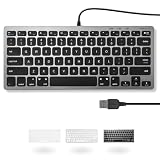
- A VERSATILE COMPACT KEYBOARD: Our computer keyboard will be an essential addition to your workstation as it will boost productivity, save space, and look great on any desk. Also, its size is great for on the go!
- EASY SETUP: Begin typing in the matter of seconds! Our mini keyboard is true plug and play, so if your computer or laptop has a USB port you are all set. A 4'7" cable gives you enough length to comfortably connect to your computer or laptop.
- COMPATIBLE WITH MAC & WINDOWS: Regardless of what operating system you use, it will work great as a mac wired keyboard or PC keyboard.
- ONE TOUCH SHORTCUT KEYS: With 13 shortcut keys like (cut/copy/paste/iTunes/etc.) for Mac and multimedia hotkeys for Windows, you will be able to effortlessly control your typing experience with the USB keyboard.
- PURCHASE WITH CONFIDENCE: At Macally we stand behind our products and are here to help when you need us. We are confident you will be satisfied with our compact keyboard as it is backed with up to 2 years of warranty and LIFETIME tech support.
- Most common quick wins: switching ports (especially rear USB), reseating, and trying a wired/basic keyboard.
- If BIOS settings are reachable: enable Legacy USB Support and disable Fast Boot.
- If BIOS settings are unreachable: clear CMOS to restore defaults, then repeat the port + settings checks.
- If everything fails across keyboards/ports: update BIOS firmware using the vendor’s method.
FAQs About Keyboard Not Working in BIOS
Can a keyboard that works in Windows fail in BIOS?
Yes. BIOS runs before Windows loads USB drivers and input services. Some keyboards (especially wireless or gaming models with specific initialization) require settings like Legacy USB Support to function pre-OS.
Why does my keyboard only work after Windows starts?
That usually indicates the BIOS didn’t initialize the USB keyboard interface during boot, or Fast Boot skipped early initialization. Disabling Fast Boot and enabling Legacy USB Support typically resolves it.
What if I can’t enter BIOS at all to change settings?
Use the hardware-first approach: try a wired keyboard, switch to rear USB 2.0 ports, then clear CMOS. Once BIOS access returns, change Legacy USB Support and Fast Boot.
Is USB 3.0/USB-C a problem for BIOS keyboards?
It can be. Some systems don’t initialize USB 3.x controllers early enough for certain devices. If possible, test a USB 2.0 port (or the port that your motherboard documentation marks as “for BIOS/legacy use”).
Should I update the BIOS if my keyboard still won’t work after resets?
It’s a strong next step if you’ve tried multiple keyboards and ports and you’ve reset BIOS defaults. BIOS updates can fix device detection bugs, but follow the manufacturer’s flashing instructions exactly to avoid bricking.
Bottom Line
When your keyboard isn’t working in BIOS, you’re usually dealing with pre-OS USB initialization—fixable by switching ports/keyboards and adjusting BIOS options like Legacy USB Support and Fast Boot. If settings are stuck or corrupted, clear CMOS first.
If the problem persists, update the BIOS firmware using the vendor’s recommended flashing method and then retest. In most cases, you’ll regain BIOS control without needing any specialized tools.

