For a straightforward prerecorded YouTube stream built from video files or a playlist, Wirecast Studio appears sufficient. Telestream lists media addition, playlists, YouTube streaming, and standard MP4/MOV recording for both Studio and Pro. Pro is worth considering when you need its additional production and recording tools—not simply because you want to play a prepared video on YouTube.
What both editions can do for prerecorded YouTube streaming
Telestream’s comparison lists adding video media and playlists in both editions, and includes YouTube among the built-in streaming destinations for both. That makes Studio a reasonable starting point for an operator who assembles prepared clips, adds titles or transitions, and sends one program feed to YouTube. These are documented feature listings, not the result of a hands-on stream test. Telestream’s Wirecast comparison is the source for the edition differences.


As an Amazon Associate I earn from qualifying purchases.
Both editions also list standard record-to-disk output in MP4/MOV. This is a local recording of the program; it is separate from sending the program feed to YouTube. The comparison lists these shared features for both editions. Telestream’s feature comparison
What’s actually slowing this PC down?
Pick the symptom - the matching free tool is one click away.
What Pro adds over Studio
| Capability | Studio | Pro | When the difference matters |
|---|---|---|---|
| Video media and playlists | Listed | Listed | Both support the basic prepared-video workflow. |
| YouTube destination | Listed | Listed | Both list YouTube as a built-in streaming destination. |
| Standard local recording | MP4/MOV listed | MP4/MOV listed | Both list a standard program recording to disk. |
| ISO recording | Not listed in Telestream’s comparison | Listed | Useful when you need isolated source or shot recordings for later editing. |
| Multitrack audio recording | Not listed in Telestream’s comparison | Listed | Useful when separate audio tracks are part of your post-production workflow. |
| Multiview slots | 1–4 | 1–17 | Pro offers more room to monitor sources in a larger production. |
| Rendezvous guests | 2 | 7 | Pro is better suited to a production that needs more remote guests. |
| Additional output options | Fewer listed | Includes options such as secondary display and NDI/program-feed functions | Relevant when your production needs those specific output paths, rather than only one YouTube program feed. |
The figures and feature labels in this table come from Telestream’s comparison; they describe listed capabilities, not a guarantee that every workflow is supported by every license or system configuration. For the guide’s description of Wirecast functions, see the Wirecast 16 User Guide for Windows.
Which edition should you choose?
Choose Studio for a simple file-based YouTube program
- You are playing prepared video clips or a playlist.
- You need titles or transitions and one program output to YouTube.
- A standard MP4/MOV recording of the program is enough; you do not need isolated source recordings or separate audio tracks.
- The current license and your computer support the output you intend to use.
On these requirements, the comparison does not show a reason to buy Pro just to gain playlist support or YouTube as a destination: both appear in the listed feature set.
Choose Pro when a listed Pro-only tool solves a real need
- You need ISO recordings of individual sources or shots for editing.
- You need multitrack audio recordings.
- Your monitoring setup needs more than Studio’s listed 1–4 multiview slots.
- You need more than two Rendezvous guests or require one of Pro’s additional output options.
If none of those distinctions affects your production, the documented feature comparison points to Studio as the more proportionate choice. Review the Wirecast product page and comparison before purchase to confirm the current product and license details.
Rank #2
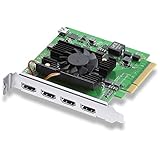
- Quad HDMI Connections: Equipped with four HDMI 2.0b connections allowing for simultaneous capture of multiple HDMI sources (8, 10, 12-bit RGB 4:4:4 in all modes up to 4Kp30 DCI and 8, 10-bit YUV 4:2:2 in all modes.
- PCIe Interface: Utilizes a high-speed PCIe interface for reliable data transfer and low-latency performance. PCI Express 8 lane generation 3 required, compatible with 8 and 16 lane PCI Express slots on Mac OS, Windows and Linux.
- Wide Format Support: Compatible with a range of SD, HD, and 4K video standards. Supports Deep Color and HDR. Supports Rec. 601, Rec. 709, Rec. 2020 color spaces. Supports 8 channels of embedded 24-bit 48 kHz audio.
- Software Compatibility: Works seamlessly with Blackmagic Design’s Media Express software, as well as other major applications such as Wirecast, vMix, OBS, and more.
- Copy Protection: HDMI inputs are unable to capture from copy protected HDMI sources.
Displayed prices and what to verify
Telestream’s comparison page displays $599 for Studio and $799 for Pro, and says first-year Insider Access is included, with renewal displayed at $119 per year. The comparison page’s search crawl is several years old, and it does not establish that these figures remain the current checkout prices or terms. Treat them as figures displayed on that page, not a current quote; check Telestream’s checkout and license terms before deciding. Telestream’s comparison page
Compare the price difference with your actual need for Pro’s additional features. If your workflow only needs file playback, playlists, and a YouTube program feed, the listed shared features are the central point—not an assumed advantage from a higher edition.
Rank #3
Check your computer and upload connection
Wirecast’s technical specifications give minimum and recommended operating-system and hardware configurations. Telestream warns that minimum hardware may be insufficient for 1080p-or-higher or 60 fps workflows. Check the live specification page against your computer, selected resolution, and frame rate rather than assuming the minimum will handle a demanding output. Wirecast Technical Specifications
Telestream recommends upload capacity of at least twice the selected video bitrate. For example, if your selected video bitrate is 6 Mbps, use that recommendation to plan for at least 12 Mbps of upload capacity, before allowing for other traffic or additional outgoing streams. This is a recommendation, not a guarantee of uninterrupted streaming. Wirecast Technical Specifications
- Check the bitrate you plan to send, not just your internet plan’s advertised download speed.
- Leave headroom for other devices and network activity; a shared connection can vary while you are live.
- If sending multiple outgoing streams, account for the combined upload demand.
- Confirm that your computer can handle the chosen resolution and frame rate; Telestream specifically cautions about minimum configurations at 1080p+ and 60 fps.
YouTube eligibility and prerecorded-content policy are separate questions
Wirecast listing YouTube as a destination does not establish that a particular YouTube account is eligible to go live, or that a prerecorded broadcast complies with YouTube’s policies. Check YouTube’s current guidance and account status before scheduling or starting a broadcast. YouTube’s encoder help explains the general encoder workflow, but does not by itself settle every eligibility or policy question for prerecorded live streams: Create a YouTube live stream with an encoder.
Likewise, having permission to use a video is not the same as being guaranteed monetization or policy approval. Use content you have the rights to broadcast, and review YouTube’s current copyright and channel policies for the specific material and channel.
Best Value
When a cloud service is a better fit for continuous playback
Wirecast is a production application running on your computer. If your goal is specifically to keep uploaded videos looping on YouTube around the clock without leaving a computer running, StreamNeo is an alternative built for that workflow. It streams to YouTube only and plays uploaded videos rather than broadcasting a live camera.
Or let it run in the cloud
- Upload a recording or build a playlist.
- Add your YouTube stream key once.
- Go live; StreamNeo loops the video from the cloud.
Your computer and home connection do not need to stay on. Each slot supports any uploaded quality up to 4K 60fps at one flat price per slot, with no re-encode or quality tiers, and automatic recovery if YouTube drops the stream. The first day is free with no card, one free day per account. Monthly billing is $9.99 per month. See StreamNeo for details, or start the free day.
Quick Recap
Product prices and availability are accurate as of the date/time indicated and are subject to change. Any price and availability information displayed on Amazon at the time of purchase will apply.




