Quick wins for a faster PC:
Repair Windows errors before they cause bigger problemsFix Now →Fix the driver behind crashes, sound loss and screen glitchesFind Drivers →Clear out junk files and repair common Windows errorsFree Scan →Windows Task Scheduler can start work on a schedule or in response to events, run it under a chosen security context, and be managed through a graphical console, schtasks.exe, or PowerShell. That makes it far more than a simple alarm clock for programs. The awkward part is that its graphical interface is only one way in—and Microsoft documents functional alternatives, not a comparative usability verdict. The interface criticism is best understood as an editorial judgment about the friction of configuring and managing tasks, rather than a measured finding about usability.
What Task Scheduler can actually do
A scheduled task brings together three distinct decisions: what starts it, what it does, and which security context it uses. Microsoft describes task definitions in terms of triggers, actions, and a principal; the definition can also include author-supplied information.
As an Amazon Associate I earn from qualifying purchases.
- Trigger: the condition or time that starts the task.
- Action: the work the task performs.
- Principal: the account or security context under which it runs.
Thinking about those separately is useful when a task behaves unexpectedly. A trigger can fire correctly while the action fails, or the action can be valid but lack the permissions available to the selected account. The task’s schedule alone does not determine whether it can successfully do its work.
Triggers can be calendar-based or event-based
Triggers can start a task at scheduled times or in response to events such as system startup, a user logging on, or the computer becoming idle. A task can have multiple triggers, so one definition can cover more than one starting condition rather than requiring a separate task for every occasion.
#1 Best Overall

- ✓ BLUE BACKLIGHT & 18 ON/OFF PROGRAMS: BN-LINK digital timer switch features a blue backlight, ensuring easy visibility and programming. Set up to 18 On/Off programs and 7-day scheduling options, you have the flexibility to tailor your lighting. Whether it's for lights, fans, you can set intervals as short as one minute and choose individual days or preset combination days, providing unparalleled customization and convenience.
- ✓ FULL CONTROL & BACKUP BATTERY: Take charge of your home lighting effortlessly with the BN-LINK 7-Day Programmable Light Switch Timer. DST Mode makes seasonal time adjustments quick and easy with one-touch control, eliminating the need to reset your schedules.Easily shift between AUTO (timed on/off) and MANUAL (manual on/off) modes by pressing and holding on the door. Plus, enjoy peace of mind with its built-in rechargeable battery, ensuring your settings remain intact during power outages.
- ✓ PROTECT HOME & SAVE ENERGY: Activate automatic timer light switch's "Random" vacation mode to create the illusion of occupancy and deter potential intruders while you're away. Scheduled programming allows this wall timer switches to automatically turn lights on/off according to your schedule, perfect for managing porch lights, entryway lights, hallway lights, garage lights, patio lights, ceiling fans, and more while saving time, energy, and daily effort.
- ✓ SINGLE-POLE & 3-WAY COMPATIBLE: Designed for both single-pole and 3-way setups, This light switch timer indoor gives you flexible installation options for different home wiring needs. BN-LINK 3 way timer switch for lights lets you control the same light from two locations, ideal for stairways, hallways, garages, large rooms, and entryways. Compatible with SPDT switches. Wall plate included.
- ✓ NEUTRAL WIRE REQUIRED:Neutral Wire Must Required When Installation.This digital light timer switch is ETL listed and rigorously controlled for quality and safety. Conforms to UL Std.60730-1, 60730-2-7. Rating: 15A/1875W, 10A/1250W Tungsten, 10A/1250W Ballast, 1/2HP, 125VAC, 60Hz. Operating temp.: -15°C (5°F) to 50°C (122°F). Storage temp.: -20°C (-4°F) to 60°C (140°F).
Microsoft’s Task Triggers documentation, last updated August 23, 2019, specifies a maximum of 48 triggers per task. That is a product limit, not a recommendation about how many triggers a task should use.
Actions define the work
An action describes what Task Scheduler should do after a trigger fires. Keeping the trigger and action conceptually separate makes automation easier to reason about: the trigger answers “when?”, while the action answers “what?”. The selected principal then answers “under whose security context?”.
Rank #2

- SunSmart technology – Built-in function adjusts sunrise and sunset settings throughout the year to accommodate varying daylight times for your region
- Weekly programming – Create up to seven ON/OFF programs throughout the week to support varied schedules, and a random security feature alters settings by up to 30 minutes to create a lived-in appearance
- Switch upgrade – Replace single-pole or three-way switches equipped with a neutral wire to control LED, CFL, incandescent and halogen bulbs, and other permanently installed fixtures
- Daylight saving time – Optional setting accommodates clock changes in areas that observe daylight saving time without reprogramming your light timer
Why the interface can feel like a bottleneck
Task Scheduler’s capabilities are broader than the experience of navigating a graphical console. When setting up a task, the user must account for its triggers, actions, and security context; when managing tasks at scale, repeating configuration or changing many tasks can make a point-and-click workflow feel cumbersome. Those are practical reasons the interface may seem to hold the feature back, but Microsoft’s cited documentation does not assess the GUI’s age, discoverability, or ease of use.
There is an important distinction between functional parity and interface quality. Microsoft says that schtasks.exe performs the same operations as Scheduled Tasks in Control Panel. That establishes an alternative way to perform task-management operations; it does not mean the command line looks like the GUI, is equally easy to learn, or offers a better experience for every user.
Rank #3

- ✓ VERSATILE & CUSTOMIZABLE: BN-LINK digital timer switch sets up to 18 On/Off programs and 7-day scheduling options, you have the flexibility to tailor your lighting. Whether it's for lights, fans, you can set intervals as short as one minute and choose individual days or preset combination days, providing unparalleled customization and convenience.
- ✓ FULL CONTROL & BACKUP BATTERY: Take charge of your home lighting effortlessly with the BN-LINK 7-Day Programmable Light Switch Timer. DST Mode makes seasonal time adjustments quick and easy with one-touch control, eliminating the need to reset your schedules.Easily shift between AUTO (timed on/off) and MANUAL (manual on/off) modes by pressing and holding on the door. Plus, enjoy peace of mind with its built-in rechargeable battery, ensuring your settings remain intact during power outages.
- ✓ PROTECT HOME & SAVE ENERGY: Activate automatic timer light switch's "Random" vacation mode to create the illusion of occupancy and deter potential intruders while you're away. Scheduled programming allows this wall timer switches to automatically turn lights on/off according to your schedule, perfect for managing porch lights, entryway lights, hallway lights, garage lights, patio lights, ceiling fans, and more while saving time, energy, and daily effort.
- ✓ SINGLE-POLE & 3-WAY COMPATIBLE: Designed for both single-pole and 3-way setups, This light switch timer indoor gives you flexible installation options for different home wiring needs. BN-LINK 3 way timer switch for lights lets you control the same light from two locations, ideal for stairways, hallways, garages, large rooms, and entryways. Compatible with SPDT switches. Wall plate included.
- ✓ NEUTRAL WIRE REQUIRED:Compatible with SPDT and Neutral Wire Must Required When Installation.This digital light timer switch is ETL listed and rigorously controlled for quality and safety. Conforms to UL Std.60730-1, 60730-2-7. Rating: 15A/1875W, 10A/1250W Tungsten, 10A/1250W Ballast, 1/2HP, 125VAC, 60Hz.
Choose the management route that fits the job
| Route | Best fit | Trade-off |
|---|---|---|
| Graphical console | Exploring existing tasks or configuring one interactively. | Offers visual discovery, but repeated or bulk work can involve repetitive navigation. |
schtasks.exe |
Repeatable operations from a command line, including creating, querying, changing, running, or ending tasks. | Precise task names and command syntax replace visual discovery; it is not automatically easier for beginners. |
| PowerShell ScheduledTasks cmdlets | Building task configuration into scripts or administrative workflows. | Task creation and registration are separate steps, so constructing a definition alone does not put it into service. |
The comparison reflects the documented capabilities of these tools, not a published Microsoft usability study. For the command-line route, Microsoft lists schtasks.exe as applicable to Windows 10 and Windows 11 and documents operations to create, query, change, run, and end tasks. Its reference also covers recurring calendar schedules, event-style options, output formats, and remote-computer parameters.
Manage tasks with schtasks.exe
schtasks.exe is a command-line alternative for managing scheduled tasks. Microsoft documents the /create, /query, /change, /run, and /end operations. Use it when the same operation needs to be repeated or incorporated into command-line administration; expect to supply exact syntax and task names rather than relying on the GUI to reveal options visually.
Rank #4
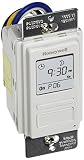
- Country of Origin: CHINA
- The Package Length of the product is 6.6 inches
- The Package Width of the product is 7.87 inches
- The Package Height of the product is 12.19 inches
Permissions still matter. Microsoft says administrative membership is required to schedule, view, and change all tasks on a local computer. A task also needs suitable permissions in its execution context to carry out its action. A command that can create or start a task does not, by itself, grant that task additional rights.
Crashes, No Sound, or Screen Glitches?
Random freezes, missing sound and display glitches usually trace back to one bad driver. Find and replace yours safely.Free scan · under a minuteWindows Errors? Fix Them Before They Spread
Repair common Windows errors and clear accumulated junk for a smoother, more stable PC - no reinstall needed.Free scan · no reinstallBuild and register tasks with PowerShell
PowerShell separates defining a task from registering it. New-ScheduledTask constructs a task definition; it does not automatically register that task with the Task Scheduler service. Register-ScheduledTask performs the registration step.
Best Value

- Save time, money and energy by scheduling your indoor or outdoor lighting and appliances - ideal for ceiling lights, ceiling fans, exhaust fans, patio lights, and more.
- Features 4 programmable On/Off buttons and 2 On/Off override buttons for when you need to use the connected light/fan outside of your selected scheduled times.
- Blue LED indicator lights next to each button show which buttons/programs are currently active or selected. Compatible with LED, CFL, Incandescent and Halogen bulbs as well as dimmable LED and dimmable CFL bulbs.
- Replace your existing light switch - (NEUTRAL WIRE IS REQUIRED – WALL PLATE NOT INCLUDED) Screw terminal installation provides improved space efficiency when replacing existing switches compared to flying leads
- Backup battery maintains your settings in the event of a power outage. Electrical Ratings: 120VAC 60 Hz, 15A General/Resistive, 1200W Tungsten, 1200VA Ballast, ½ HP, UL Listed.
- Construct the definition. Use
New-ScheduledTaskto create the task definition, including the relevant configuration such as its action, trigger, principal, and settings. - Register the task. Use
Register-ScheduledTaskto register the definition with the service.
This two-step model is useful when task configuration belongs in a script or repeatable administrative process. It also explains a common point of confusion: creating an object that describes a task is not the same thing as registering an active scheduled task.
What the interface criticism does—and does not—mean
Task Scheduler’s GUI is not the whole product. Microsoft documents several management routes, including the GUI, schtasks.exe, PowerShell, and Task Scheduler APIs. Those options make the underlying feature flexible, particularly for scripted or repeatable administration. They do not establish that the GUI is objectively outdated or that another route is universally easier.
A practical choice depends on the work: use visual navigation when discovering or configuring tasks interactively; use schtasks.exe for documented command-line operations; and use the ScheduledTasks PowerShell cmdlets when configuration should be represented in a script. In every case, treat the trigger, action, and security context as separate parts of the task.
Recommended Free Tools
Quick Recap
Product prices and availability are accurate as of the date/time indicated and are subject to change. Any price and availability information displayed on Amazon at the time of purchase will apply.




