If your iPhone Action button opens an unexpected feature, it is usually running the action currently selected in Settings > Action Button. Check that assignment, choose the intended action and any required option, then press and hold the button to test it.
Why the Action button opens the wrong feature
The Action button runs the function assigned to it; it does not determine which feature you meant to open. On supported iPhone models, it replaces the Ring/Silent switch. Apple’s current guide describes Silent Mode as the default, but the available actions vary by device and some features have additional system or regional requirements. Apple’s Action button guide lists options including Focus, Camera, Visual Intelligence, Flashlight, Voice Memo, Recognize Music, Translate, Magnifier, Controls, Shortcut, Accessibility and No Action.
As an Amazon Associate I earn from qualifying purchases.
The documented gesture is a press and hold. A quick tap may not trigger the assigned action. If the button consistently opens the same unwanted feature, first check its assignment rather than assuming there is a software fault.
Crashes, No Sound, or Screen Glitches?
Random freezes, missing sound and display glitches usually trace back to one bad driver. Find and replace yours safely.Free scan · under a minutePC Slower Than It Used to Be?
A free scan shows the junk files, broken settings and background clutter dragging Windows down - then fixes them in one click.Free scan · Windows 10 & 11Change the assigned action
- Open Settings > Action Button.
- Check the label beneath the selected action. If it is not what you want, swipe through the available actions and select the intended one.
- If the chosen action offers an option beneath it, open that option and select the specific feature or setting you want.
- Press and hold the Action button to test the assignment. Apple describes the gesture this way: “To perform the action assigned to the Action button, press and hold the Action button.”
Some action types require an extra selection: Controls needs a particular control, Shortcut needs a shortcut, and Accessibility needs a specific feature. Apple says these actions do nothing if that required option is not selected.
#1 Best Overall

- Camera Control Button Coverage: TAURI's New phone case incorporates a built-in, highly responsive camera control button that seamlessly integrates with the original button functionalities. The ergonomic design allows for smooth, effortless actions—Click, Press, Swipe in one go—for quick and precise adjustments
- Super Magnetic Attraction: TAURI for iPhone 16 Case is embedded with 38 N52 magnets, boasting a magnetic attraction strength of up to 18N. Compared to the official magnetic case, its magnetic strength is increased by more than 50%. Moreover, it is compatible with all magnetic accessories and third-party Qi-certified wireless chargers, ensuring faster and easier charging. Let you enjoy a smarter and more effortless living experience
- 360° Full Protection: This TAURI for iPhone 16 case comes with high-quality 9H tempered glass screen protectors, effectively preventing scratches and cracks. The ultra-thin design ensures sensitive touch, making you feel as nothing on screen
- Military-grade Protection: The Clear for iPhone 16 Case is drop-tested and certified, featuring four built-in corner airbags to absorb impact, protecting your phone from accidental drops, bumps, and scratches
- Slim Design & Comfortable Grip: The Case for iPhone 16 is designed to be slim and lightweight, making it easy to carry and use with one hand. The processed TPU frame provides a delicate touch and a non-slip grip for added comfort
Choose a shortcut
For a shortcut, use Settings > Action Button > Shortcut > Choose a Shortcut, then select the shortcut you want the button to run. Apple’s Shortcut instructions cover this setup.
If the button does not respond or works intermittently
A button that fails to respond, works only sometimes or seems physically blocked is a different problem from one that reliably launches the wrong assigned action. Apple recommends removing a case or protective film that might obstruct the button and checking for debris. If the button is damaged or remains intermittent, follow Apple’s button troubleshooting guidance and arrange service if needed. These checks address possible physical obstruction or damage; they do not establish a software cause.
Rank #2
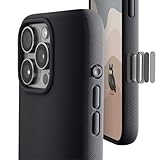
- ✔️ Rounded Action Button ▶ Easily find the action button when it's in your pocket, in the dark, or when you're running. No more wrong presses on the buttons when you are not looking.
- ✔️Built-in Camera Control Button ▶ Covered camera control button protects against scratches and drops. Swipes, clicks, light-presses, and double light-presses work seamlessly with the device.
- ✔️ Tactile and Clicky Buttons ▶ We at tineeOWL believe that button quality is the most important aspect of a good quality case. We hate mushy and stiff buttons too!
- ✔️ Grippy ▶ Grip dots at the sides add extra grip. A good balance of grip without picking up lint when you pull it out of your pockets.
- ✔️ Textured ▶ Stone textured case looks great and feels great. Say goodbye to smudges, and fingerprints.
Check model and feature availability
If the action you want is absent from Settings, availability may depend on the iPhone model or, for some features, system or regional requirements. Apple’s iPhone button overview explains which models have an Action button. If changing the assignment does not resolve the mismatch, note your iPhone model, iOS version, selected action and what happens when you press and hold; those details help narrow down the specific case.
The Tool Desk
Outbyte PC Repair FREERepair Windows errors before they cause bigger problemsFix Now →Outbyte Driver Updater FREEScan for outdated or missing drivers - takes under a minuteDriver Scan →Quick Recap
Rank #4

- ✔️ Rounded Action Button ▶ Easily find the action button when it's in your pocket, in the dark, or when you're running. No more wrong presses on the buttons when you are not looking.
- ✔️ Masterfully Crafted Brushed Aluminum Buttons ▶ Upgraded with premium aluminum buttons featuring a refined brushed finish—crisp, clicky, and highly tactile for confident presses that feel as good as they look.
- ✔️ Textured ▶ Stone textured that looks as good as it feels. Say goodbye to smudges, and fingerprints.
- ✔️ Precise Fit ▶ Redesigned for a clean, secure fit that hugs your iPhone comfortably, with improved side coverage for a seamless, premium look in hand.
- ✔️ Curvy Bumpers and Rounded Edges ▶ Engineered to match the natural curve of your hand, giving you more comfort, better grip, and a smoother feel.
Rank #3
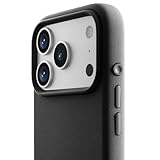
- ✔️ Rounded Action Button ▶ Easily find the action button when it's in your pocket, in the dark, or when you're running. No more wrong presses on the buttons when you are not looking.
- ✔️ Masterfully Crafted Brushed Aluminum Buttons ▶ Upgraded with premium aluminum buttons featuring a refined brushed finish—crisp, clicky, and highly tactile for confident presses that feel as good as they look.
- ✔️ Textured ▶ Stone textured that looks as good as it feels. Say goodbye to smudges, and fingerprints.
- ✔️ Precise Fit ▶ Redesigned for a clean, secure fit that hugs your iPhone comfortably, with improved side coverage for a seamless, premium look in hand.
- ✔️ Curvy Bumpers and Rounded Edges ▶ Engineered to match the natural curve of your hand, giving you more comfort, better grip, and a smoother feel.
Product prices and availability are accurate as of the date/time indicated and are subject to change. Any price and availability information displayed on Amazon at the time of purchase will apply.




