Free tools Windows power users keep installed
One-click scans. No signup required.
The safest SSD performance settings are conservative: keep TRIM enabled, leave unallocated or unused capacity for the controller, install manufacturer firmware updates, control temperature, and retain write-cache and power-management defaults unless you understand their risks. These measures help sustained speed and endurance without relying on a universal percentage or a risky tweak.
Over-provisioning can help a drive that receives heavy, sustained writes, but the appropriate amount depends on the SSD model and workload. Volatile write cache can reduce latency while increasing the consequences of sudden power loss. Treat those two options as engineering trade-offs, not automatic speed boosts.
As an Amazon Associate I earn from qualifying purchases.
The settings that are safe for most SSDs
SSD performance is controlled by the flash controller, firmware, available spare blocks, temperature and the operating system’s power policy. The best general-purpose configuration is to let the drive and operating system perform their normal maintenance instead of forcing maximum performance at all times.
Recommended Free Tools
| Setting or practice | Performance effect | Endurance or safety effect | Recommended default |
|---|---|---|---|
| TRIM | Helps the controller identify blocks that no longer contain valid files, supporting garbage collection and consistent write performance. | Reduces unnecessary internal work; it is not the same as traditional defragmentation. | Enabled |
| Unused capacity | Gives the controller more room for garbage collection and wear leveling. | Can improve endurance, especially during sustained writes. | Keep free space; add vendor-supported over-provisioning for write-heavy workloads. |
| Firmware | Manufacturer updates may improve performance and compatibility. | Use a backup and the manufacturer’s update procedure before flashing. | Current, manufacturer-approved firmware |
| Temperature | Lower operating temperatures reduce the chance of thermal throttling during long transfers. | Intel warns that extreme temperatures over time can reduce lifespan. | Use the motherboard or compatible M.2 heatsink when sustained workloads throttle. |
| Write cache | A volatile cache lets the operating system continue while the SSD queues writes. | A sudden power failure during a write can lose data or, in some cases, the drive. | Leave the safe system default unless power-loss protection is appropriate. |
| Power states | Active states minimize latency; deeper low-power states reduce energy use but add wake latency. | Balanced policies avoid unnecessary heat and battery drain. | Balanced or operating-system default |
Keep TRIM enabled instead of defragmenting an SSD
TRIM tells an SSD which logical blocks no longer hold live file data. The controller can then reclaim those blocks during garbage collection instead of treating stale data as valid. That housekeeping helps the drive maintain write performance as it fills and rewrites flash.
#1 Best Overall

- 【FIT For M.2 2280 SSD】Compatible with Single-sided and Double-sided NVMe M.2 SSD. Works with Desktop PC and Workstations. Universal fit for standard 2280 form factor SSD
- 【Fast Heat Dissipation】Our Product Utilizes Aluminum Fin-type Heatsink with High-performance Thermal Silicone Pads, This Efficient Design Ensures That Your M.2 SSD Maintains A Safe Temperature, Thereby Preventing Performance Throttling
- 【High-quality Thermal Conductive Silicone Pad】Atdcoek M.2 SSD Heatsink Use of Thermally Conductive Silicone Pad with A Thermal Conductivity of 2.0 W/mK, Easy to Clean Without Damaging the SSD
- 【Easy To Install】The SSD Heatsink is Ssecured with Two Silicone Elastic Bands, Allowing for Tool-free Installation - no Screws Required. Simply Place the Heat Dissipation Silicone Pad and Press Firmly to Ensure Close Contact
- 【Value 5-pack Set】This Kit Includes 5 Aluminum Fin-type Heatsink, 5 High-performance Thermal Silicone Pads, 10 silicone rubber band, 1 Extra Cross-head Screwdriver, and 5 Pack M2 Screw Kit
Samsung and SanDisk document TRIM support as an SSD maintenance practice. Samsung also warns that frequent traditional defragmentation reduces SSD lifespan. Defragmentation moves large numbers of files to optimize a magnetic hard disk; those extra writes are unnecessary for an SSD and consume program/erase cycles.
Check TRIM in Windows
- Open Command Prompt as an administrator.
- Run
fsutil behavior query DisableDeleteNotify. - For the Windows storage stack, a value of
0means delete notifications (TRIM) are enabled; a value of1means they are disabled. - If TRIM is disabled, review storage or optimization policies before changing it, then recheck the result after enabling the operating-system setting.
Windows’ Optimize Drives utility should be allowed to identify an SSD and issue its solid-state optimization rather than applying a traditional defrag pass. If a third-party utility offers a manual defragmentation command for an SSD, do not schedule it as routine maintenance.
Leave capacity free and use over-provisioning deliberately
An SSD needs spare flash blocks to move data, consolidate partially used pages, replace worn cells and perform wear leveling. User-visible free space and formal over-provisioning both provide room for that work, although they are not identical: free space can later be consumed by files, while over-provisioning reserves a permanent portion for the controller.
Do these 3 things before closing this tab:
1Repair Windows errors before they cause bigger problems2Scan for outdated or missing drivers - takes under a minute3Clear out junk files and repair common Windows errorsRank #2
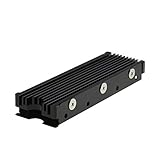
- 【Designed for M.2 SSD】-The heat sink is specially designed for M.2 2280mm SSD, which is very suitable for desktop computers/Playstation 5, etc.
- 【Double-sided cooling】- Aluminum alloy-Groove design, greatly increase the heat dissipation area, with 10°C - 30°C cooling effect (Varies depending on the environments), cool your M.2 SSD to a safe temp to avoid overheating and throttling, improving the performance of your computer.
- 【Easy to Install and Operate】 - With double-sided clip design, 6 adjustable height screws, suitable for M.2 SSD of various heights, stable installation, better protection of your M.2 SSD.
- 【Unique Nano Thermal Pad】- Advancing Gene thermal pad is made from Nano Silicon Grease Material, with good thermal conductivity ability. Soft enough and good ductility, compatible with uneven surfaces of the M.2 SSD. Low viscosity, with no damage to the SSD warranty label.
- 【Fine Workmanship】- Main body material: Aluminum alloy, silver plating (Helps eliminate static electricity), anodic oxidation surface treatment. Dimensions: 3 x 0.95 x 0.4in., net weight: 1oz., minimum installation height requirement: 12mm.
Samsung Semiconductor describes over-provisioning as allocating a specific, permanent amount of free space and identifies it as a method for improving SSD performance and endurance. Samsung and HPE report benefits for sustained write workloads when the controller has more spare flash capacity.
How to apply it without guessing a percentage
- Back up important data before changing partitions or running a vendor utility.
- Check the SSD manufacturer’s utility for an over-provisioning control. The label, location and supported range vary by model.
- If the utility requires unallocated space, shrink the data partition using the operating system’s disk-management tool and leave the resulting space unallocated. Do not create a new volume in that reserved area.
- For a write-heavy server, scratch disk or video-workflow drive, follow the manufacturer’s workload guidance rather than applying a generic rule.
- Recheck available capacity after major data migrations; a drive that was once spacious can become nearly full and lose the benefit of spare blocks.
No authoritative source establishes one universal percentage that is safe for every SSD. A fixed 20 percent rule, for example, should not be presented as a guarantee of a particular speed or lifespan. The right reserve depends on the flash type, controller, factory spare area and write pattern.
Update firmware, then monitor health
Firmware controls flash translation, garbage collection, error correction, thermal behavior and compatibility. SanDisk states that firmware can improve performance and pairs updates with health monitoring. A firmware release may be specific to one model or capacity, so use the manufacturer’s utility and exact model identification rather than a generic updater.
Rank #3

- High-Performance Cooling with Integrated Heatpipe: Advanced aluminum heatsink with built-in heatpipe ensures efficient heat dissipation, keeping your M.2 NVMe SSD cool even under heavy workloads.
- Maintains Maximum Read and Write Speed: Prevents thermal throttling by lowering SSD temperatures, allowing your drive to maintain top performance for longer periods.
- Compatible with Single and Double-Sided M.2 2280 Drives: Designed to fit both single-sided and double-sided M.2 2280 modules, offering flexible compatibility with a wide range of NVMe SSDs.
- Premium Black Aluminum Design: Sleek matte black finish delivers a clean, high-quality look that perfectly matches modern PC builds while providing excellent thermal conductivity.
- Easy Installation and Secure Fit: Simple mounting system allows quick, hassle-free setup on your M.2 slot for reliable cooling and long-term durability.
Safe firmware-update procedure
- Identify the SSD model, capacity and current firmware revision in the operating system or the manufacturer’s utility.
- Read the release notes and confirm that the update applies to that exact model and connection type.
- Make a verified backup of important files. A firmware operation can fail if power or communication is interrupted.
- Close applications, suspend heavy transfers and connect a laptop to AC power or a desktop to a stable power source.
- Run the manufacturer’s update tool, reboot when instructed and confirm the new revision afterward.
- Check SMART health indicators and temperature after the reboot; keep the backup until the system has operated normally.
Vendor utilities can also expose TRIM status, SMART data and, on supported models, over-provisioning. Features differ by model, so a missing control is not evidence that the SSD is malfunctioning.
What’s actually slowing this PC down?
Pick the symptom - the matching free tool is one click away.
Control temperature before adding performance tweaks
Heat is a common cause of lost sustained performance. Samsung notes that heat and nearby high-power components can worsen airflow around an NVMe drive. When the controller reaches its thermal limit, firmware can throttle transfer rates to protect the flash and controller. Intel warns that extreme temperatures, particularly when sustained over time, may reduce lifespan.
Cooling checks for an NVMe drive
- Use the motherboard’s M.2 heatsink when it is compatible with the drive and does not interfere with the label, controller package or thermal pad.
- If you buy an aftermarket heatsink, check the M.2 length, screw position, single- or double-sided clearance and the motherboard’s heatsink height before installation.
- Make sure the drive is not directly beside a graphics-card exhaust path or another component that blocks airflow.
- Monitor temperature during the workload that normally slows down. An idle reading does not show whether a long write will throttle.
- If performance drops only after several minutes of continuous writing and recovers after cooling, treat that pattern as thermal throttling rather than a reason to force higher power states.
Understand the write-cache trade-off
Write cache is a small, fast area used to queue incoming writes. Samsung explains that a volatile write cache allows the operating system to continue without waiting for every flash operation to finish, which can improve responsiveness and apparent write speed.
Rank #4

- 【Designed for desktop PC/PS5】- Perfectly fit for Samsung 860 EVO, 960 EVO, 970 EVO, 970 Pro, 980 Pro, PS5 etc. this M.2 SSD heatsink compatible with all single sided Type.
- 【Main body material】- Aluminum alloy, silver plating (helps eliminate static electricity), anodic oxidation surface treatment. Dimensions: 3 x 0.95 x 0.4inm.2 heatsink well fit for PS5 installation as well as PC M.2 Slot.
- 【Thermal Pads】- with good thermal conductivity ability. Low viscosity, with no damage to the M.2 SSD.
- 【High Performance】- With 10°C - 20°C cooling effect (varies depending on the environments), cool your M.2 2280 SSD to a safe temp to avoid overheating and throttling, improve your computer's performance.
- 【Easy to Install 】 - With double-sided clip design, are suitable for M.2 NVME SSD of various heights, stable installation, better protection of your M.2 SSD with good heat dissipation performance.
The same volatility creates a failure mode. Intel warns that power loss during a write can lose data or, in some circumstances, the drive itself. A cache that has acknowledged data before it is safely stored in non-volatile flash is only as safe as the system’s power protection and the drive’s design.
When to leave cache at its default
- Keep the operating-system default on a desktop or laptop without a documented power-loss protection strategy.
- Do not disable or enable an aggressive caching mode solely because a benchmark changes; the result may measure cache behavior rather than durable flash speed.
- For a system with enterprise-grade power-loss protection, a tested uninterruptible power supply and a workload that benefits from lower write latency, follow the SSD and platform documentation before changing the policy.
- After changing a cache setting, test shutdown, restart and recovery procedures with noncritical data before using the system for irreplaceable work.
Use balanced power management
Storage devices expose active and low-power states. Microsoft explains that deeper states reduce consumption but increase latency when the device wakes. Windows is designed to balance responsiveness and power efficiency, so forcing a maximum-performance state is not automatically an SSD optimization.
The Tool Desk
Outbyte Driver Updater FREEFix the driver behind crashes, sound loss and screen glitchesFind Drivers →Outbyte PC Repair FREEClear out junk files and repair common Windows errorsFree Scan →Use the operating system’s balanced power plan for general desktop and mobile use. Consider a more aggressive performance policy only when measured latency during a specific, sustained workload matters more than battery life, heat and energy use. On a laptop, maximum-performance storage settings can increase heat and shorten unplugged runtime without improving ordinary application launches.
Best Value

- BLAZING SPEED. COOL VICTORY: Consider this a cheat code; Our Samsung 990 PRO Gen 4 with Heatsink SSD helps you reach near max performance* with lightning-fast speeds and Heatsink for improved temperature control
- REACH THE NEXT LEVEL: Gen4 steps up with faster transfer speeds and high-performance bandwidth; With a more than 55% improvement in random performance compared to 980 PRO, it’s here for heavy computing and faster loading
- THE FASTEST SSD FROM THE WORLD'S #1 FLASH MEMORY BRAND**: The speed you need for any occasion; With read and write speeds up to 7450/6900 MB/s* you’ll reach near max performance of PCIe 4.0*** powering through for any use
- PLAY WITHOUT LIMITS: Give yourself some space with storage capacities from 1TB to 4TB; Sync all your saves and reign supreme in gaming, video editing, data analysis and more
- MADE w/ PS5 IN MIND: Ultra-slim Integrated Heatsink is designed to dissipate heat from your device to stabilize its temperature and prevent performance issues; It’s compatible with PlayStation 5 and PCI-SIG D8 standard desktops and laptops****
Match the setting to the workload
| Priority | Settings that matter most | What to avoid |
|---|---|---|
| Sustained sequential writes | Keep capacity available, use vendor-supported over-provisioning, update firmware and improve NVMe airflow. | Filling the drive to the last gigabytes or benchmarking repeatedly while the drive is already hot. |
| Endurance | Keep TRIM enabled, reduce unnecessary writes, retain spare blocks and avoid routine defragmentation. | Repeated full-drive tests, temporary files stored on the SSD without need and forced defrag schedules. |
| Low latency | Use an appropriate active power state and retain write cache when the power-loss risk is acceptable. | Forcing maximum performance on battery-powered systems without measuring a benefit. |
| Data safety | Use safe cache defaults, reliable power and current firmware; maintain backups. | Enabling volatile write-back behavior without understanding what happens during an outage. |
| Compatibility | Use the exact manufacturer’s utility and settings supported by the model. | Assuming that a feature such as a vendor acceleration mode or over-provisioning control works on every SSD. |
A conservative optimization sequence
- Confirm the drive model, interface and firmware revision.
- Verify TRIM status and leave it enabled.
- Remove unnecessary files so the SSD has usable free capacity; reserve additional unallocated space only when the vendor supports it or the workload justifies it.
- Back up important data, then apply the manufacturer’s firmware update if one is available for the exact model.
- Check SMART health indicators and record temperature during a representative long transfer.
- Install or enable a compatible heatsink if the drive throttles under that workload.
- Leave write-cache and power-management settings at safe defaults unless you have a documented power-loss and latency requirement.
- Re-test once, using the workload that matters, and stop changing settings when the observed problem is resolved.
Troubleshoot by symptom
The SSD slows down only during long writes
Check temperature first, then available capacity. Thermal throttling and a nearly full drive directly affect sustained behavior. If both are acceptable, investigate firmware and the vendor’s over-provisioning guidance before changing cache or power settings.
Write speed is inconsistent after the drive fills
Keep more capacity available and allow the controller time for background garbage collection. A full-drive benchmark can also create a temporary, write-heavy condition; avoid repeating it unnecessarily.
The drive reports healthy but applications feel delayed
Review power management. A deep low-power state can add wake latency by design. Use the balanced policy first and compare the actual application workload before selecting a more active state.
Data was lost after an outage
Review whether volatile write-back cache was enabled and whether the platform has power-loss protection. Restore from backup, keep safe defaults and do not treat a faster benchmark result as proof that the setting is safe.
Quick Recap
What not to do
- Do not schedule routine traditional defragmentation for an SSD.
- Do not fill the drive completely and expect the same sustained write behavior.
- Do not apply a universal over-provisioning percentage to every model.
- Do not flash firmware without a current backup and stable power.
- Do not install a heatsink without checking M.2 clearance and thermal-pad contact.
- Do not force maximum-performance power states or volatile write-back cache without a workload and risk reason.
Product prices and availability are accurate as of the date/time indicated and are subject to change. Any price and availability information displayed on Amazon at the time of purchase will apply.

